Solved Hard drive activity shows every 60 seconds

khomklang

New member
Local time
4:21 AM
Messages
3
About a week ago, when I was online, I noticed the opaque desktop background that is visible at the top of my screen above the browser, would blink. Its doing it now as I type this post. After a while, I realized that it seemed like the computer hard drive was activating every 60 seconds. Exactly 60 seconds. I timed it.

If I am typing (even while typing this post), this activation interrupts my typing. It only lasts for a second. But appears every 60 seconds without fail. The borders around apps that are opaque blink. The mouse arrow blinks and gets the blue cirlcle like its busy.

As another example, if I click on the clock/calendar in my task bar and leave the clock/calendar visible on the desk top, when the one minute rolls around, the computer activates, the mouse arrow blinks and the clock/calendar disappears.

This is a new issue as my computer has been operating without this blinking/activation up until about 1 week ago.

I am not sure about my description here as I don't really know all the different terminology when it comes to computer functions, etc. So I hope the problem I am trying to describe is understandable.

Has anyone else run across this problem of the 60 second hard drive activation? If so, has a solution been found?

I have Windows 7 Home Premium 32-bit on a Dell Inspiron N5010.
 

My Computer My Computer

Computer Manufacturer/Model Number
Dell Inspiron N5010
OS
windows 7 home premium 32 bit
CPU
Intel core i5
Memory
4 gb
If the task bar blinks too and maybe the shortcut icons, then it sounds like something is killing explorer and then restarting it real quick.

You can test that theory by:
opening task manager
selecting the processes tab
if need be - make the process ID column display
(view > select columns > PID)
if need be - set the update speed to high
(view > update speed > high)

See if the PID changes for explorer shortly after you see the desktop flash.

The steps above are more of a curiosity - than troubleshooting.

Start here to try and find the offending app or stuck installer:
http://www.sevenforums.com/tutorial...ng-clean-startup.html?highlight=clean+startup

You can also use process monitor to see if you can see what app is causing the problem.

No matter what you find, I would run a scan with WDO:
What is Windows Defender Offline?
Let it complete the quick scan and then do the full scan. I would try and use a USB flash drive.
 

My Computer My Computer

Computer type
Laptop
Computer Manufacturer/Model Number
Employer provided Dell Latitude
OS
W7 Pro SP1 64bit
CPU
i7
Memory
8GB
Graphics Card(s)
Intel HD Graphics
Hard Drives
crappy SSD
Antivirus
Employer mandated Symantec Endpoint Protection
Browser
Pale Moon 64bit, IE11 64bit & Chrome 64bit
Thanks for the feedback. I have been watching my processes but it all moves around so quickly its hard to see what is going on. I used a video capture program to record the processes so I could slow it down to see if I could spot something.

What I found is that a process called "Liveupd.exe" was showing up at 60 second intervals, and the blinking/interruptions, etc. noted previously happened at the exact same time. So it would seem that this process is related to the problems mentioned in my first post.

Liveupd.exe, is not in my normal list of processes. It only shows up every 60 seconds, - coinciding with the strange activity - shows for less than a second, then disappears from my process list.

I am trying to locate Liveupd.exe on my computer, but it must be in a good hiding place. If I can locate it I will try to delete it as it seems this process is directly related to the issues my computer is showing.

Any suggestions on where to find this process?

Any other comments or suggestions on what I have found so far?

Thanks...
 

My Computer My Computer

Computer Manufacturer/Model Number
Dell Inspiron N5010
OS
windows 7 home premium 32 bit
CPU
Intel core i5
Memory
4 gb
Does the PID of explorer.exe stay the same?

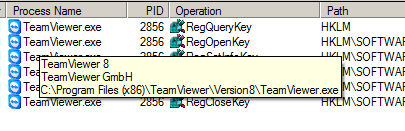
Process Monitor will tell you where Liveupd.exe is located on your hard drive.

Place the mouse over the process name and a tool tip should give you that info:

path.png
 

My Computer My Computer

Computer type
Laptop
Computer Manufacturer/Model Number
Employer provided Dell Latitude
OS
W7 Pro SP1 64bit
CPU
i7
Memory
8GB
Graphics Card(s)
Intel HD Graphics
Hard Drives
crappy SSD
Antivirus
Employer mandated Symantec Endpoint Protection
Browser
Pale Moon 64bit, IE11 64bit & Chrome 64bit
That should be created by Aopen and reside in Aopen\mulimedia folder. But there's a good chance it's malware and quite a common one at that. Run malwarebytes to find it.
 

My Computer My Computer

Computer Manufacturer/Model Number
DIY
OS
Windows 7 home premium x64
CPU
AMD FX-4100 AM3+ 3.6GHz 12MB Black Edition
Motherboard
Asus M5A97 Pro
Memory
Crsair vengeance 12Gb DDR3 1600MHz CL9
Graphics Card(s)
Asus GTX 560 1GB
Sound Card
Realtek onboard
Monitor(s) Displays
Hanns G 1680x1050 native
Hard Drives
OCZ 128Gb Petrol ssd
2x500 Gb Samsung
PSU
OCZ StealthXstream II 500W
Internet Speed
8Mb or better
Looks like the problem is fixed. The explorer was not spiking at all when the Liveupd.exe showed. I ran the Malwarebytes and that problem did not show, but a couple others did that I was able to get rid of.

I was able to finally click on the liveupd.exe process on one of its 60 second intervals, and then open the folder. The folder was C/programfiles/Tigo/Update/Dog. I should mention I am in Colombia working and Tigo is a phone carrier here and I use their USB modem for connecting to the internet at work. I deleted the "dog" folder and the issues seems to have gone away.

Huawei provides the usb modems for Tigo - the Huawei logo in on the modem. In the program and features in the control panel, the name of the file is Tigo and the Publisher is listed as Huawei Technologies. So Huawei may be in the mix somewhere as far as the problem I was having.

Still dont know why the problem started in the first place but if it manages to come back I should be ready for it.

Thanks again for the support.
 

My Computer My Computer

Computer Manufacturer/Model Number
Dell Inspiron N5010
OS
windows 7 home premium 32 bit
CPU
Intel core i5
Memory
4 gb
....I deleted the "dog" folder and the issues seems to have gone away. ....
I'm glad that it worked out for you... but for others that find this thread, deleting a folder like that is not the cleanest way to prevent an app from running.
 

My Computer My Computer

Computer type
Laptop
Computer Manufacturer/Model Number
Employer provided Dell Latitude
OS
W7 Pro SP1 64bit
CPU
i7
Memory
8GB
Graphics Card(s)
Intel HD Graphics
Hard Drives
crappy SSD
Antivirus
Employer mandated Symantec Endpoint Protection
Browser
Pale Moon 64bit, IE11 64bit & Chrome 64bit
Back
Top