
Greetings all,
It feels like like Deja vu as I've had a similar problem last year, which my harddrive was giving out beeps of death due to alot of vibration while the laptop was on... in the end I bought a new harddrive
This time, however, The problem began when I was just watching a movie and suddenly the screen went black and then I got a BSOD and my laptop restarted
Now I have a Lenovo Y580 laptop, the "LENOVO" screen shows up and it tries to boot Win7 but it can't so it starts the automatic startup repair process, and I've tried waiting for it, restoring to previous points with no success, I even tried this guide http://www.sevenforums.com/tutorials/139576-startup-repair-infinite-loop-recovery.html but with no avail
I also can't start the laptop in Safe mode as it takes me to the startup repair no matter what
Now luckily this time I backed up my most important stuff not long ago as I feel the heat on the Lenovo Y580 is high which might reduce the life time of it
So.. I was expecting the worst condition, a totally damaged harddrive.. but this time there was no beeping noises or anything and here's the interesting part:
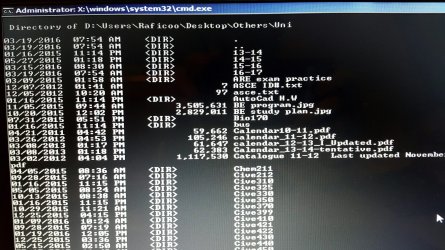
If I open the command prompt after closing the automatic repair process, I can access my HDD and I see all my contents(and their file sizes) on the drive.. so this makes me wonder if it's possible to recover some things from it or not
Here's a pic of my university folder(for example):
20160328_203849_resized.jpg
I also tried removing the harddrive and plugged it into a enclosure and plugged it into my old desktop, detects the hard drive but can't be accessed.. and I find it funny the only way to access it is via CMD on the laptop during startup repair...
I also tried Hiren's bootdisk but when I click the drive it asks me if I want to format the drive so no
also tried Knoppix and it gave me an error
So I wanna ask if there's anyway to check if the contents I'm seeing via CMD can be copied or moved to another HDD or external HDD
Best Regards,
Raficoo.
It feels like like Deja vu as I've had a similar problem last year, which my harddrive was giving out beeps of death due to alot of vibration while the laptop was on... in the end I bought a new harddrive
This time, however, The problem began when I was just watching a movie and suddenly the screen went black and then I got a BSOD and my laptop restarted
Now I have a Lenovo Y580 laptop, the "LENOVO" screen shows up and it tries to boot Win7 but it can't so it starts the automatic startup repair process, and I've tried waiting for it, restoring to previous points with no success, I even tried this guide http://www.sevenforums.com/tutorials/139576-startup-repair-infinite-loop-recovery.html but with no avail
I also can't start the laptop in Safe mode as it takes me to the startup repair no matter what
Now luckily this time I backed up my most important stuff not long ago as I feel the heat on the Lenovo Y580 is high which might reduce the life time of it
So.. I was expecting the worst condition, a totally damaged harddrive.. but this time there was no beeping noises or anything and here's the interesting part:
If I open the command prompt after closing the automatic repair process, I can access my HDD and I see all my contents(and their file sizes) on the drive.. so this makes me wonder if it's possible to recover some things from it or not
Here's a pic of my university folder(for example):
20160328_203849_resized.jpg
I also tried removing the harddrive and plugged it into a enclosure and plugged it into my old desktop, detects the hard drive but can't be accessed.. and I find it funny the only way to access it is via CMD on the laptop during startup repair...
I also tried Hiren's bootdisk but when I click the drive it asks me if I want to format the drive so no
also tried Knoppix and it gave me an error
So I wanna ask if there's anyway to check if the contents I'm seeing via CMD can be copied or moved to another HDD or external HDD
Best Regards,
Raficoo.
Attachments
My Computer
At a glance
Windows 7 Home Premium 64biti7-3610QM8GBGTX 660m
- Computer type
- Laptop
- Computer Manufacturer/Model Number
- Lenovo
- OS
- Windows 7 Home Premium 64bit
- CPU
- i7-3610QM
- Memory
- 8GB
- Graphics Card(s)
- GTX 660m
- Hard Drives
- 1 TB 5400rpm SATA
- Antivirus
- MSE
- Browser
- Firefox


