
Having a separate Data Partition?

RJ12

New member
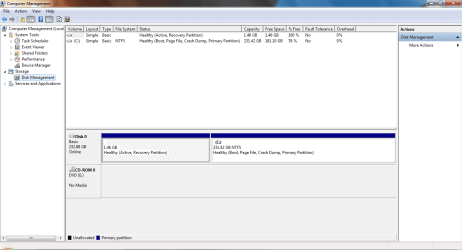
Well last week on Saturday I reinstalled Windows 7. I completley didn't even think about having a different data partition, but thinking about it today, it seems like a better idea, so that way I can keep both the System and my data separate. Is there a easy but safe way to do this?

Edit: I have included an image of Disk Management
 

Attachments
  • Disk Management.png
    Disk Management.png
    93.9 KB · Views: 94
Last edited:

My Computer

Computer Manufacturer/Model Number
Toshiba
OS
Windows 7 Home Premium x64
CPU
AMD
Memory
4 GB
Graphics Card(s)
ATI Radeon Intergrated Graphics
Sound Card
Realtek
Screen Resolution
1366 X 768
Hard Drives
223 GB HDD
Hello again.


To me the ideal way would be to first shrink the right of C: using Windows disk management then create an Extended partition from the unallocated space you create.

Then as many Logical drives as there are available drive letters can be created within the Extended partition to be used for storage; have a look at this tutorial at the link below.

Partition / Extended : Logical Drives
 

My Computer

Computer Manufacturer/Model Number
* BFK Customs *
OS
W 7 64-bit Ultimate
CPU
Intel Q9550 Yorkfield
Motherboard
ASUS P5Q Pro
Memory
8GB Dominator 8500C5D
Graphics Card(s)
ATI : XFX 5870
Sound Card
Realtek HD Audio 7-1
Monitor(s) Displays
1x 47" LCD HDMI & 3x 26" LCD HDMI
Screen Resolution
1920x1080P & 1920x1200
Hard Drives
1x 80GB Intel X25-M G2 SSD : 1x 500GB & 1x 640GB WD Caviar Black(s)
PSU
Corsair 620HX
Case
Cooler Master RC-690
Cooling
Tuniq Tower 120, 2x 140mm and 3x 120mm case fans
Keyboard
Microsoft 500
Mouse
Razer Diamondback 3G
Internet Speed
14 Mb/s
Other Info
1x Koutech 3Gb/s SATA HDD Hot Swap Rack
How much should I shrink the drive? Or a better question would be how much should I give the System Partition?
 

My Computer

Computer Manufacturer/Model Number
Toshiba
OS
Windows 7 Home Premium x64
CPU
AMD
Memory
4 GB
Graphics Card(s)
ATI Radeon Intergrated Graphics
Sound Card
Realtek
Screen Resolution
1366 X 768
Hard Drives
223 GB HDD
How much should I shrink the drive?

Half should do but only you know how much data storage you need.

Or a better question would be how much should I give the System Partition?

As small as you can get it using Windows 7 disk management.
 

My Computer

Computer Manufacturer/Model Number
* BFK Customs *
OS
W 7 64-bit Ultimate
CPU
Intel Q9550 Yorkfield
Motherboard
ASUS P5Q Pro
Memory
8GB Dominator 8500C5D
Graphics Card(s)
ATI : XFX 5870
Sound Card
Realtek HD Audio 7-1
Monitor(s) Displays
1x 47" LCD HDMI & 3x 26" LCD HDMI
Screen Resolution
1920x1080P & 1920x1200
Hard Drives
1x 80GB Intel X25-M G2 SSD : 1x 500GB & 1x 640GB WD Caviar Black(s)
PSU
Corsair 620HX
Case
Cooler Master RC-690
Cooling
Tuniq Tower 120, 2x 140mm and 3x 120mm case fans
Keyboard
Microsoft 500
Mouse
Razer Diamondback 3G
Internet Speed
14 Mb/s
Other Info
1x Koutech 3Gb/s SATA HDD Hot Swap Rack
I see you are using 50Gb at present. So it depends on if you have finished loading all your programs. If so I would go between 60 and 80 Gb to leave room for future installs. It can always be expanded in the future.

Jim :geek:
 

My Computer

Computer type
PC/Desktop
Computer Manufacturer/Model Number
Home Built
OS
Windows 8.1 Pro w/Media Center 64bit, Windows 7 HP 64bit
CPU
Phenom II X6 1100T
Motherboard
ASUS M5A99X EVO
Memory
Crucial Balistic 8gb DDR3-1866 CL9
Graphics Card(s)
MSI R6850 Cyclone IGD5 PE
Sound Card
On Board
Monitor(s) Displays
ASUS VE258Q 25" LED with DVI-HDMI-DisplayPort
Screen Resolution
1920 x 1080
Hard Drives
Two WD Cavier Black 2TB Sata III, WD My Book Essential 2TB USB 3.0
PSU
Seasonic X650 80 Plus GOLD Modular
Case
Corsair 400R
Cooling
Antec Kuhler H2O 620, Two 120mm and four 140mm
Keyboard
Logitech K120
Mouse
Logitech Marble Mouse USB, Logitech Precision Game Pad
Internet Speed
15MB
Antivirus
Norton IS 2013, Malwarebytes Pro Beta 2
Browser
IE-11, FF-27
Other Info
APC UPS ES 750, Netgear WNR3500L Gigabit & Wireless N Router with SamKnows Test Program, Motorola SB6120 Gigabit Cable Modem. Brother HL-2170W Laser Printer, Epson V300 Scanner
Depending on how much personal data you have in there now, I would make the OS partition 80GB.
 

My Computer

Computer type
PC/Desktop
Computer Manufacturer/Model Number
76~2.0
OS
Windows 7 Ult x64 - SP1/ Windows 8 Pro x64
CPU
Intel Core i5-3570K 4.6GHz
Motherboard
Gigabyte GA-Z77X UD3H, f18
Memory
8GB (2X4GB) DDR3 1600 Corsair Vengeance CL8 1.5v
Graphics Card(s)
Sapphire HD 7770 Vapor-X OC 1GB DDR5
Sound Card
Onboard VIA VT2021
Monitor(s) Displays
22" LCD Dell
Screen Resolution
1680x1050
Hard Drives
Samsung 840Pro 128GB SSD,
Seagate Barracuda 500GB SATA2 7200rpm 32MB cache, Seagate Barracuda 1TB SATA2 7200rpm 32MB cache,
PSU
Corsair HX650W
Case
Cooler Master Storm Scout
Cooling
Corsair H80 2x12cm Noctua NF P12 , 2x14cm case fans
Keyboard
Logitech Wave
Mouse
CM Sentinel
Internet Speed
Dismal
Antivirus
Avast
Browser
Opera Next
Other Info
Haswell laptop: HP Envy 17t-j, i7-4700MQ, GeForce 740M 2GB DDR3, 17.3" Full HD 1920x1080, 16GB RAM, Samsung 840 Pro 128GB, 1TB Hitachi 7200 HDD,
Desktop: eSATA ports,
External eSATA Seagate 500GB SATA2 7200rpm,
External WD USB 500GB
So once I shrink the partition, then what would I precede to do? Should I check out the tutorial about moving User Folders?
 

My Computer

Computer Manufacturer/Model Number
Toshiba
OS
Windows 7 Home Premium x64
CPU
AMD
Memory
4 GB
Graphics Card(s)
ATI Radeon Intergrated Graphics
Sound Card
Realtek
Screen Resolution
1366 X 768
Hard Drives
223 GB HDD
Well, it seems like Windows does not want me to shrink it at all, it gives me 0 mb of shrink space:( I am running the Disk Defragmenter right now to see if that gives me any space to shrink... my computer shouldn't be that defragmented as I keep up with defragmenting it.

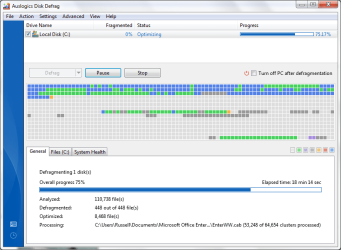
Edit: Disk Defragmenter says 0% Fragmented... Running it anyway... It kept freezing on Pass 3, defragmented with Auslogics Disk Defrag... Still 0 mb of Shrink Space :(
 
Last edited:

My Computer

Computer Manufacturer/Model Number
Toshiba
OS
Windows 7 Home Premium x64
CPU
AMD
Memory
4 GB
Graphics Card(s)
ATI Radeon Intergrated Graphics
Sound Card
Realtek
Screen Resolution
1366 X 768
Hard Drives
223 GB HDD
Try using free Partition Wizard bootable CD to do the shrink so System Files are not running at the time. Rightclick on C to Resize, slide the right grey border to the left as much as it will allow or as you want.

If this fails, I use Perfect Disk 10 trial version to defrag for compactness, followed by rightclicking on C to Offline defrag System files.

The benefit of having a separate data partition is that it keeps your OS/Programs partition backup image lean so that if it becomes irreparable you can quickly reimage it and your data is waiting and current in it's own separate partition "vault." http://www.sevenforums.com/tutorials/18629-user-folders-change-default-location.html
 
I thought you was only suppose to use Windows 7 utilities to mess with the Windows 7 partition? I only feel safe using it's native tools, is there another way that it will let me shrink the partition?

I have attached the Disk Defrag Report file... I believe it lists the files that are defragmented, unmovable (which causes Windows to not want to shrink I believe), and other useful stuff (I think):D

Edit: Is their a way to disable (temporarily) these files that won't let me shrink Windows?
 

Attachments

My Computer

Computer Manufacturer/Model Number
Toshiba
OS
Windows 7 Home Premium x64
CPU
AMD
Memory
4 GB
Graphics Card(s)
ATI Radeon Intergrated Graphics
Sound Card
Realtek
Screen Resolution
1366 X 768
Hard Drives
223 GB HDD
We help hundreds of users with partitioning problems that Disk Mgmt cannot handle using PW CD without a single failure. It is the one of the most vital Win7 tools.

We help with more of these type of issues here than all of the other tech sites on the web put together, MS included.

In frequent discussions of third party defraggers comparable or better than Win7's own, PerfectDisk is always rated tops along with Auslogics, Defraggler and Puran. PerfectDisk specializes is moving System files with it's Offline Defrag feature.
 
How do I know how much I can shrink with out hurting these files?
 

My Computer

Computer Manufacturer/Model Number
Toshiba
OS
Windows 7 Home Premium x64
CPU
AMD
Memory
4 GB
Graphics Card(s)
ATI Radeon Intergrated Graphics
Sound Card
Realtek
Screen Resolution
1366 X 768
Hard Drives
223 GB HDD
Disk Mgmt or PW won't let you shrink any more than it can handle.

Perfect Disk will not move System Files if it will affect Win7.

PW uses virtual disk to do the moves and test them first, then completes the process once assured it will succeed. Only a Power failure during the final phase can cause it or Disk Mgmt to fail - unlike most other 3rd party partioning softwares which can and do fail with data loss.

Back up your files and a Win7 backup image to be sure.
 
Last edited:
Neither Disk Mgmt nor PW won't let you shrink any more than it can handle.

But Disk Mgmt will not let me shrink it at all, doesn't that mean I can't shrink with PW
 

My Computer

Computer Manufacturer/Model Number
Toshiba
OS
Windows 7 Home Premium x64
CPU
AMD
Memory
4 GB
Graphics Card(s)
ATI Radeon Intergrated Graphics
Sound Card
Realtek
Screen Resolution
1366 X 768
Hard Drives
223 GB HDD
No, Disk Mgmt has System Files running as it queries for shrink.

PW CD has no System Files running so has more leeway.

Back up your files and a Win7 Backup image so you have nothing to lose if you're fearful. Or keep your data on C.

BTW a separate data partition works even better on a second HD.
 
Looking at the hard drive, I dont think I can shrink it. Disk Defrag says I have unmovable files right at the end of the parition. I wish I could put a second drive in this laptop though, that would make this a whole lot easier.
 

Attachments

  • disk defrag.PNG
    disk defrag.PNG
    80.6 KB · Views: 12
Last edited:

My Computer

Computer Manufacturer/Model Number
Toshiba
OS
Windows 7 Home Premium x64
CPU
AMD
Memory
4 GB
Graphics Card(s)
ATI Radeon Intergrated Graphics
Sound Card
Realtek
Screen Resolution
1366 X 768
Hard Drives
223 GB HDD
When you are running in Windows the system files are in use and can not be moved. That is what Defrag is showing. When you boot from PW CD those files are NOT in use and then can be moved.

Jim :geek:
 

My Computer

Computer type
PC/Desktop
Computer Manufacturer/Model Number
Home Built
OS
Windows 8.1 Pro w/Media Center 64bit, Windows 7 HP 64bit
CPU
Phenom II X6 1100T
Motherboard
ASUS M5A99X EVO
Memory
Crucial Balistic 8gb DDR3-1866 CL9
Graphics Card(s)
MSI R6850 Cyclone IGD5 PE
Sound Card
On Board
Monitor(s) Displays
ASUS VE258Q 25" LED with DVI-HDMI-DisplayPort
Screen Resolution
1920 x 1080
Hard Drives
Two WD Cavier Black 2TB Sata III, WD My Book Essential 2TB USB 3.0
PSU
Seasonic X650 80 Plus GOLD Modular
Case
Corsair 400R
Cooling
Antec Kuhler H2O 620, Two 120mm and four 140mm
Keyboard
Logitech K120
Mouse
Logitech Marble Mouse USB, Logitech Precision Game Pad
Internet Speed
15MB
Antivirus
Norton IS 2013, Malwarebytes Pro Beta 2
Browser
IE-11, FF-27
Other Info
APC UPS ES 750, Netgear WNR3500L Gigabit & Wireless N Router with SamKnows Test Program, Motorola SB6120 Gigabit Cable Modem. Brother HL-2170W Laser Printer, Epson V300 Scanner
What about the Master File Table, Disk Defrag shows that being at the end too? That sounds important.
 

My Computer

Computer Manufacturer/Model Number
Toshiba
OS
Windows 7 Home Premium x64
CPU
AMD
Memory
4 GB
Graphics Card(s)
ATI Radeon Intergrated Graphics
Sound Card
Realtek
Screen Resolution
1366 X 768
Hard Drives
223 GB HDD
I thought you was only suppose to use Windows 7 utilities to mess with the Windows 7 partition? I only feel safe using it's native tools

You have been given good advice.

The only thing I can add is that you should give up on your above notion.

Windows tools are in most cases perfectly fine and all you need. Other tools sometime have more flexibility or can do certain things not doable with Windows own tools.

The most glaring example is the imaging tool. Personally, I don't even attempt to use it. Not because it doesn't "work", but because it is non-intuitive, dumbed-down, and finicky.

Disk Management does a good job on those jobs it can handle and it's all I use, but I recognize that it is incapable of doing some forms of resizing.

You are rightly suspicious of certain non-Windows partition tools, Partition Magic being a classic example. Partition Wizard on the other hand is highly reliable.

Don't worry about the master file table. Run Partition Wizard and do your resizing.
 

My Computer

Computer type
PC/Desktop
Computer Manufacturer/Model Number
Ignatz Special; 4 speed manual gearbox; factory air conditioning; one of one
OS
Windows 7 Home Premium SP1, 64-bit
CPU
Intel Skylake i5-6600K, not overclocked
Motherboard
AsRock Z170M Extreme 4, micro ATX
Memory
8 GB HyperX DDR4-2666 (2 x 4 GB)
Graphics Card(s)
none; graphics are integrated on CPU
Sound Card
onboard: Realtek ALC1150; external: USB Behringer UF0-202
Monitor(s) Displays
Dell S2340M 23 inch IPS
Screen Resolution
1600 x 900
Hard Drives
System: Crucial MX100 series SSD, 128 GB;
Data: Samsung Spinpoint 103SJ, 1 TB;
Backup: WD Caviar Green WD30EZRX-00D8PB0, 3 TB
PSU
Rosewill SilentNight 500 watt fanless, semi-modular
Case
Antec Solo II
Cooling
Noctua NH-U12S; Noctua F12 intake, Noctua S12A exhaust
Keyboard
Microsoft 200 6JH-00001 USB
Mouse
Dell or Microsoft optical wired; USB
Antivirus
Microsoft Security Essentials and Malwarebytes Premium
Browser
Pale Moon
Other Info
All fans PWM; speeds at idle: CPU circa 500 rpm; intake circa 600 rpm; exhaust circa 600 rpm; CPU temps 27 idle and 47 C load in a warm room (27 C/81 F) when running Intel Extreme Tuning Utility stress test.
Ok so then I should be fine running the bootable CD of PW to resize my partition? I figure I will resize it so that Windows has about 80 GB and the rest of the space for the Data?
 

My Computer

Computer Manufacturer/Model Number
Toshiba
OS
Windows 7 Home Premium x64
CPU
AMD
Memory
4 GB
Graphics Card(s)
ATI Radeon Intergrated Graphics
Sound Card
Realtek
Screen Resolution
1366 X 768
Hard Drives
223 GB HDD
Back
Top