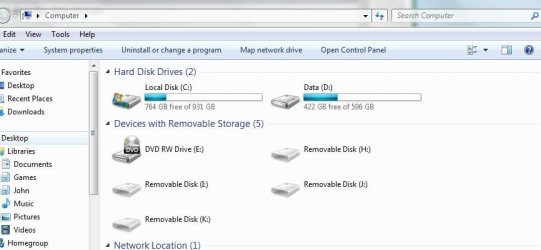
Having a separate Data Partition?

Greg, could the System flag be missing because the Ubuntu boot manager might not have been removed during the previous Ubuntu un-install/delete?
 

My Computer

Computer type
PC/Desktop
Computer Manufacturer/Model Number
76~2.0
OS
Windows 7 Ult x64 - SP1/ Windows 8 Pro x64
CPU
Intel Core i5-3570K 4.6GHz
Motherboard
Gigabyte GA-Z77X UD3H, f18
Memory
8GB (2X4GB) DDR3 1600 Corsair Vengeance CL8 1.5v
Graphics Card(s)
Sapphire HD 7770 Vapor-X OC 1GB DDR5
Sound Card
Onboard VIA VT2021
Monitor(s) Displays
22" LCD Dell
Screen Resolution
1680x1050
Hard Drives
Samsung 840Pro 128GB SSD,
Seagate Barracuda 500GB SATA2 7200rpm 32MB cache, Seagate Barracuda 1TB SATA2 7200rpm 32MB cache,
PSU
Corsair HX650W
Case
Cooler Master Storm Scout
Cooling
Corsair H80 2x12cm Noctua NF P12 , 2x14cm case fans
Keyboard
Logitech Wave
Mouse
CM Sentinel
Internet Speed
Dismal
Antivirus
Avast
Browser
Opera Next
Other Info
Haswell laptop: HP Envy 17t-j, i7-4700MQ, GeForce 740M 2GB DDR3, 17.3" Full HD 1920x1080, 16GB RAM, Samsung 840 Pro 128GB, 1TB Hitachi 7200 HDD,
Desktop: eSATA ports,
External eSATA Seagate 500GB SATA2 7200rpm,
External WD USB 500GB
Good catch, Dave. If GRUB was on the HD then all bets are off as it can also corrupt Win7 until wiped from the HD.

We need to know that and see a screenshot of the contents of the 1.46gb boot partition.

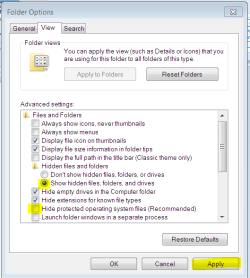
To view and capture screenshot with Snipping Tool, first unhide System and Hidden files in Control Panel>Folder Options>View:
Capture1.PNG

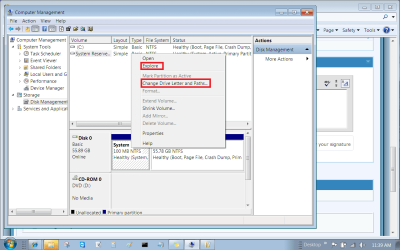
Next give the 1.46gb partition a letter in Disk Management, which will light up the Explore rightclick menu choice:
Untitled.png

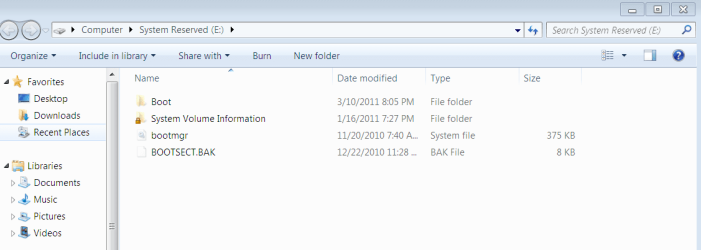
Then click Explore, use Snipping Tool in Start Menu to save contents of partition, attach using Paper Clip in Reply Box:
Capture.PNG
 
Greg, this is a very nice guidance. Would be worth a tutorial: "Explore content of hidden partitions".
 

My Computer

Computer Manufacturer/Model Number
HP, Dell, Gateway, Toshiba - 4 laptops and 2 desktops
OS
Vista, Windows7, Mint Mate, Zorin, Windows 8
CPU
from 1.6GHz Duo to i7
Monitor(s) Displays
2x HP w2207
Hard Drives
5x HDD, 7x SSD, 12x Externals
Keyboard
with trackball - no mices
Mouse
Trackball mice
Internet Speed
DSL 6000
Your simplest solution would be to run a "Clean all" on the disk and perform a clean install. It will fully clean (zero) the MBR (first 512 bytes) to get rid of any Ubuntu remnants. A simple clean or format is not good enough.

When clean installing choose 200MB not 100MB for the system reserved partition. Simply create your new partition and your job's done!
 

My Computer

Computer type
PC/Desktop
Computer Manufacturer/Model Number
Own build
OS
Windows 7x64 Home Premium SP1
CPU
Intel i7 2600k
Motherboard
ASUS P8Z68 Deluxe
Memory
G.Skill Ripjaws (DDR3-1600) 2x4GB
Graphics Card(s)
Nvidia GeForce GTS 450; Intel HD Graphics 3000(GT2+)
Monitor(s) Displays
Dell Ultrasharp IPS panel U2311H, Samsung SyncMaster P2350
Screen Resolution
1920x1080
Hard Drives
Samsung 850 Pro SSD 256GB, Samsung SSD 840 120GB, Seagates 1TB Barracuda ST31000528AS x2
PSU
Seasonic M12II 520W
Case
Lian Li Lancool PC-K60
Cooling
Case: 1x120mm, 3x140mm CPU: Hyper 212+
Keyboard
Logitech MK520 (wireless)
Mouse
Logitech MK520
Internet Speed
6-7 Mbps
Antivirus
Norton Security Premium, Malwarebytes on 2 (MSE on 3rd PC)
Browser
FireFox
Other Info
Audio: Logitech Z523 2.1
Good catch, Dave. If GRUB was on the HD then all bets are off as it can also corrupt Win7 until wiped from the HD.

We need to know that and see a screenshot of the contents of the 1.46gb boot partition.

To view and capture screenshot with Snipping Tool, first unhide System and Hidden files in Control Panel>Folder Options>View:
View attachment 143496

Next give the 1.46gb partition a letter in Disk Management, which will light up the Explore rightclick menu choice:
View attachment 143494

Then click Explore, use Snipping Tool in Start Menu to save contents of partition, attach using Paper Clip in Reply Box:
View attachment 143493


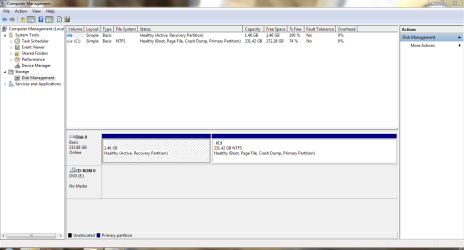
Uh oh, Disk Management only gives me the options to click Help when I right click the 1 GB partition. Here is a new screenshot of Disk Management

Edit: Ubuntu (and GRUB) was installed (and erased) before I reinstalled Windows 7, I think GRUB is completley gone as Windows 7 takes it off when it reinstalls.

Edit2: Booted PW and explored the files, those are definatley the boot files on that partition

Photo%20Mar%2014%2C%205%2042%2041%20PM.jpg
 

Attachments

  • Disk Mgmt2.PNG
    Disk Mgmt2.PNG
    32.7 KB · Views: 29

My Computer

Computer Manufacturer/Model Number
Toshiba
OS
Windows 7 Home Premium x64
CPU
AMD
Memory
4 GB
Graphics Card(s)
ATI Radeon Intergrated Graphics
Sound Card
Realtek
Screen Resolution
1366 X 768
Hard Drives
223 GB HDD
I guess you can go ahead and create your data partition (see post 27 for details). I think you can live with the "bloated" active boot partition. You have enough disk space. I would not bother to reduce the size because then you have anyhow problems adding the freespace to C (except with PW).
 

My Computer

Computer Manufacturer/Model Number
HP, Dell, Gateway, Toshiba - 4 laptops and 2 desktops
OS
Vista, Windows7, Mint Mate, Zorin, Windows 8
CPU
from 1.6GHz Duo to i7
Monitor(s) Displays
2x HP w2207
Hard Drives
5x HDD, 7x SSD, 12x Externals
Keyboard
with trackball - no mices
Mouse
Trackball mice
Internet Speed
DSL 6000
1.5GB looks suspiciously like the size Vista creates it's BCD partition at - did this system run Vista at some point in the past? Win7 would have created a 300MB partition, but Vista would have created a 1.5GB one...
 

My Computer

Computer type
PC/Desktop
Computer Manufacturer/Model Number
Custom
OS
Windows 10 Pro x64
CPU
Intel Core i7 4790K @ 4.5GHz
Motherboard
Asus Maximus Hero VII
Memory
32GB DDR3
Graphics Card(s)
Nvidia GeForce GTX970
Sound Card
Realtek HD Audio
Screen Resolution
1920x1200
Hard Drives
1x Samsung 250GB SSD
4x WD RE 2TB (RAIDZ)
PSU
Corsair AX760i
Case
Fractal Design Define R4
Cooling
Noctua NH-D15
I guess you can go ahead and create your data partition (see post 27 for details). I think you can live with the "bloated" active boot partition. You have enough disk space. I would not bother to reduce the size because then you have anyhow problems adding the freespace to C (except with PW).
Thanks, Ill go ahead and get started on that :)

1.5GB looks suspiciously like the size Vista creates it's BCD partition at - did this system run Vista at some point in the past? Win7 would have created a 300MB partition, but Vista would have created a 1.5GB one...
Nope, only Windows 7 (and a few versions of Linux)
 

My Computer

Computer Manufacturer/Model Number
Toshiba
OS
Windows 7 Home Premium x64
CPU
AMD
Memory
4 GB
Graphics Card(s)
ATI Radeon Intergrated Graphics
Sound Card
Realtek
Screen Resolution
1366 X 768
Hard Drives
223 GB HDD
My laptop powered off in the middle of the operation... Just booted and it is still working fine. Should I be scared? Do I need to format the partition and restore from the backup?
 

My Computer

Computer Manufacturer/Model Number
Toshiba
OS
Windows 7 Home Premium x64
CPU
AMD
Memory
4 GB
Graphics Card(s)
ATI Radeon Intergrated Graphics
Sound Card
Realtek
Screen Resolution
1366 X 768
Hard Drives
223 GB HDD
We need to see the contents of the Recovery folder on your 1.46 gb boot partition. Unfold all subpartitions and capture screenshots to post back.

Is that a Win7 Recovery partition? Have you deleted anything within it, made the REcovery disks off of it or ever tried to run it from boot? What happens now if you try to trigger it to run using the keys given on the Boot Screen or in your manual? Will it cue up to offer Recovery options?

If Recovery will not run then it has no value and can be deleted, then some of the space of that Boot partition recovered back into Win7 using free Partition Wizard bootable CD with the steps we provide. The entire partition could actually be recovered along with System boot files although you would lose the Repair console it places on F8 Advanced Boot Tools which I believe you've confirmed is functioning.

Be aware that if you had GRUB on the HD and haven't wiped it that Win7 could become corrupted by it and become irreparable, something we see regularly here. Having no System flag is already a concern.
 
My laptop powered off in the middle of the operation... Just booted and it is still working fine. Should I be scared? Do I need to format the partition and restore from the backup?

RJ12, Greg has fixed/repaired hundreds of MBR and is very good at this.

I definitely agree that it is very likely that the Grub is still on your system, this needs to be thoroughly checked and dealt with now.
This could be the reason for the recent shutdown.

You have to fully clean, wipe, the HDD to get rid of the Grub. Formatting will not remove it. Installing win7 over it will not remove it.
Win7 will use any boot files it finds when installing.
 

My Computer

Computer type
PC/Desktop
Computer Manufacturer/Model Number
76~2.0
OS
Windows 7 Ult x64 - SP1/ Windows 8 Pro x64
CPU
Intel Core i5-3570K 4.6GHz
Motherboard
Gigabyte GA-Z77X UD3H, f18
Memory
8GB (2X4GB) DDR3 1600 Corsair Vengeance CL8 1.5v
Graphics Card(s)
Sapphire HD 7770 Vapor-X OC 1GB DDR5
Sound Card
Onboard VIA VT2021
Monitor(s) Displays
22" LCD Dell
Screen Resolution
1680x1050
Hard Drives
Samsung 840Pro 128GB SSD,
Seagate Barracuda 500GB SATA2 7200rpm 32MB cache, Seagate Barracuda 1TB SATA2 7200rpm 32MB cache,
PSU
Corsair HX650W
Case
Cooler Master Storm Scout
Cooling
Corsair H80 2x12cm Noctua NF P12 , 2x14cm case fans
Keyboard
Logitech Wave
Mouse
CM Sentinel
Internet Speed
Dismal
Antivirus
Avast
Browser
Opera Next
Other Info
Haswell laptop: HP Envy 17t-j, i7-4700MQ, GeForce 740M 2GB DDR3, 17.3" Full HD 1920x1080, 16GB RAM, Samsung 840 Pro 128GB, 1TB Hitachi 7200 HDD,
Desktop: eSATA ports,
External eSATA Seagate 500GB SATA2 7200rpm,
External WD USB 500GB
Your simplest solution would be to run a "Clean all" on the disk and perform a clean install. It will fully clean (zero) the MBR (first 512 bytes) to get rid of any Ubuntu remnants. A simple clean or format is not good enough.

When clean installing choose 200MB not 100MB for the system reserved partition. Simply create your new partition and your job's done!
It is important to do a "Clean all" not just a "Clean" and it will take some time.
 

My Computer

Computer type
PC/Desktop
Computer Manufacturer/Model Number
Own build
OS
Windows 7x64 Home Premium SP1
CPU
Intel i7 2600k
Motherboard
ASUS P8Z68 Deluxe
Memory
G.Skill Ripjaws (DDR3-1600) 2x4GB
Graphics Card(s)
Nvidia GeForce GTS 450; Intel HD Graphics 3000(GT2+)
Monitor(s) Displays
Dell Ultrasharp IPS panel U2311H, Samsung SyncMaster P2350
Screen Resolution
1920x1080
Hard Drives
Samsung 850 Pro SSD 256GB, Samsung SSD 840 120GB, Seagates 1TB Barracuda ST31000528AS x2
PSU
Seasonic M12II 520W
Case
Lian Li Lancool PC-K60
Cooling
Case: 1x120mm, 3x140mm CPU: Hyper 212+
Keyboard
Logitech MK520 (wireless)
Mouse
Logitech MK520
Internet Speed
6-7 Mbps
Antivirus
Norton Security Premium, Malwarebytes on 2 (MSE on 3rd PC)
Browser
FireFox
Other Info
Audio: Logitech Z523 2.1
I've posted this to you before but here it is again.


After you have copied out or made back-ups of the data you need to save to external media, use Step One of this tutorial at the link below to do a wipe (secure erase) to the entire Hard Disk Drive / Solid State Drive.
  • Then if you do not want to create the new Windows 7 "System Reserved" partition use the outline in Step Two #2 to create, format and mark Active a single 100GB partition to do the installation to.
  • If you do want to create the "System Reserved" partition use the outline in Step Two #3 to create, format and mark Active the System Reserved partition and then create and format the 100GB partition to do the installation to.
Either way, running the "clean all" then creating and formatting the partition(s) using diskpart will get you the best possible space to do a clean install of Windows 7 to; you can always extend the Windows partition to include the remaining unallocated space on the HDD / SSD or create additional Primary partitions or an Extended partition after the installation completes if you choose.

SSD / HDD : Optimize for Windows Reinstallation

DISKPART : At PC Startup

Do a Clean Install with a Upgrade Windows 7 Version
 

My Computer

Computer Manufacturer/Model Number
* BFK Customs *
OS
W 7 64-bit Ultimate
CPU
Intel Q9550 Yorkfield
Motherboard
ASUS P5Q Pro
Memory
8GB Dominator 8500C5D
Graphics Card(s)
ATI : XFX 5870
Sound Card
Realtek HD Audio 7-1
Monitor(s) Displays
1x 47" LCD HDMI & 3x 26" LCD HDMI
Screen Resolution
1920x1080P & 1920x1200
Hard Drives
1x 80GB Intel X25-M G2 SSD : 1x 500GB & 1x 640GB WD Caviar Black(s)
PSU
Corsair 620HX
Case
Cooler Master RC-690
Cooling
Tuniq Tower 120, 2x 140mm and 3x 120mm case fans
Keyboard
Microsoft 500
Mouse
Razer Diamondback 3G
Internet Speed
14 Mb/s
Other Info
1x Koutech 3Gb/s SATA HDD Hot Swap Rack
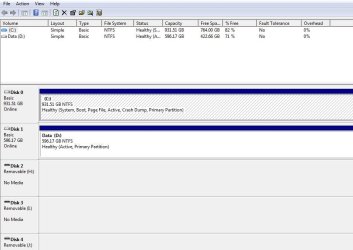
Another way is to buy a separate hard drive for data storage.
I like doing it this way as my Data is completely removed
from my system files. I also use an external drive for system image b/ups.
Capture.JPG
Capture2.JPG
 

My Computer

Computer type
PC/Desktop
Computer Manufacturer/Model Number
Acer M5641
OS
Windows 7 Home Premium 64bit
CPU
Q6600
Motherboard
Nvidia MCP73PV
Memory
4GB.
Graphics Card(s)
Sapphire Vapor-X 5750
Sound Card
XFI Extreem music
Monitor(s) Displays
Acer X223W
Screen Resolution
1680x1050
Hard Drives
WD10 02FAEX
WD64 00AAKS
PSU
stock 450w
Case
acer
Cooling
stock
Keyboard
Microsoft Digital Media Pro.
Mouse
Logitech MX620
Internet Speed
49.51Mbs down 4.98Mbs up 17.6ms ping
Antivirus
MSE
Browser
Waterfox
Other Info
Shaw Cable
Netgear R6200
Back
Top