Help!!! How can I view folder sizes in view details?

Saginaw

New member
Local time
1:23 PM
Messages
31
This is something that has puzzled me for ages. I open a directory which has some sub-directories and some stand-alone files. I do view details. The file sizes are displayed, but the folder sizes are not displayed. In order to find a folder that doesn't match size with the source, I have to go through the painfully tedious task of right clicking and selecting properties on each folder. With XP, there was a tool I installed which allowed me to display the folder size, but the tool doesn't work in Windows 7.

Is there a way one can easily view the folder sizes without having to right click and select properties for each individual folder?
 

My Computer My Computer

OS
Windows 7 64 bit

Attachments

  • GetFoldersize 2.5.jpg
    GetFoldersize 2.5.jpg
    96.4 KB · Views: 1
Last edited:

My Computer My Computer

Computer type
Laptop
Computer Manufacturer/Model Number
ASUS
OS
Microsoft Windows 7 Home Premium 64-bit 7601 Multiprocessor Free Service Pack 1
CPU
AMD C-60 APU with Radeon(tm) HD Graphics
Motherboard
ASUSTeK COMPUTER INC. X501U
Memory
4.00 GB
Graphics Card(s)
AMD Radeon HD 6290 Graphics
Sound Card
(1) AMD High Definition Audio Device (2) Realtek High Defi
Screen Resolution
1366 x 768 x 32 bits (4294967296 colors) @ 60 Hz
Hard Drives
Hitachi HTS545050A7E380 SATA Disk Device
Antivirus
Comodo CIS & FW, SecureAplus App Whitelisting, Threatfire
Browser
Cyberfox 64bit, Opera 64bit, Airfox
Other Info
Spy-The-Spy, HitmanPro.Alert, Norton Connect Safe, MJRegWatcher, BitDefender TrafficLight, Voodoo Shield, Zemana AntiMalware
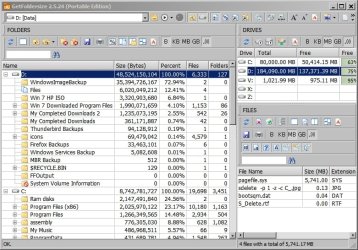
This appears to run as a separate application. That's just as tedious as right clicking and selecting properties. The Mindgems application Folder Size - when used with XP - allowed you to display folder size when in the view details mode. But it no longer does that in Windows 7.

Let's say you've got two directories on different drives. Each has 30 folders in them. But they don't match. Rather than right click and select properties to find the culprit folder, one would ideally select view details and skim through the folder sizes - just as they would if it were stand alone files.

Any other ideas?
 

My Computer My Computer

OS
Windows 7 64 bit
Q-Dir

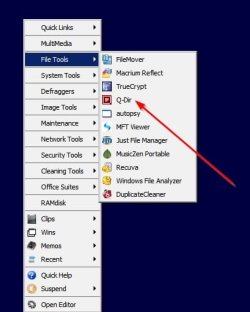
Just use Q-Dir then. It works pretty well. It's still a third party program that won't integrate with Explorer. I just run it from a submenu that opens when I press a hotkey combination.

http://www.majorgeeks.com/files/details/q_dir_portable.html

Q-Dir 3.jpg

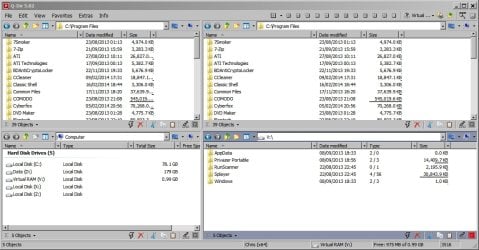
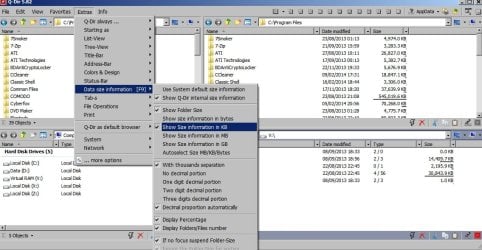
It can show up to four directories to be compared at the same time and display folder and file sizes in you configure the settings.

Q-Dir 1.jpg
Q-Dir 2.jpg

As far as I know what you ask for is not possible. I've spent some time in the past attempting to find a way to get folder sizes to display in Windows Explorer in 7. Everything I see says that it can't be done.
 
Last edited:

My Computer My Computer

Computer type
Laptop
Computer Manufacturer/Model Number
ASUS
OS
Microsoft Windows 7 Home Premium 64-bit 7601 Multiprocessor Free Service Pack 1
CPU
AMD C-60 APU with Radeon(tm) HD Graphics
Motherboard
ASUSTeK COMPUTER INC. X501U
Memory
4.00 GB
Graphics Card(s)
AMD Radeon HD 6290 Graphics
Sound Card
(1) AMD High Definition Audio Device (2) Realtek High Defi
Screen Resolution
1366 x 768 x 32 bits (4294967296 colors) @ 60 Hz
Hard Drives
Hitachi HTS545050A7E380 SATA Disk Device
Antivirus
Comodo CIS & FW, SecureAplus App Whitelisting, Threatfire
Browser
Cyberfox 64bit, Opera 64bit, Airfox
Other Info
Spy-The-Spy, HitmanPro.Alert, Norton Connect Safe, MJRegWatcher, BitDefender TrafficLight, Voodoo Shield, Zemana AntiMalware
Just use Q-Dir then. It works pretty well. It's still a third party program that won't integrate with Explorer. I just run it from a submenu that opens when I press a hotkey combination.

Download Q-Dir Portable - MajorGeeks

View attachment 306664

It can show up to four directories to be compared at the same time and display folder and file sizes in you configure the settings.

View attachment 306662
View attachment 306663

As far as I know what you ask for is not possible. I've spent some time in the past attempting to find a way to get folder sizes to display in Windows Explorer in 7. Everything I see says that it can't be done.

Thanks! I'll give that a try. It looks as if this is about as close as I'll get to the way it was displayed in XP using Folder Size.
 

My Computer My Computer

OS
Windows 7 64 bit
Let's say you've got two directories on different drives. Each has 30 folders in them. But they don't match. Rather than right click and select properties to find the culprit folder, one would ideally select view details and skim through the folder sizes - just as they would if it were stand alone files.

Any other ideas?
Two products you might try (both of which have 30-day free trials for the paid versions):

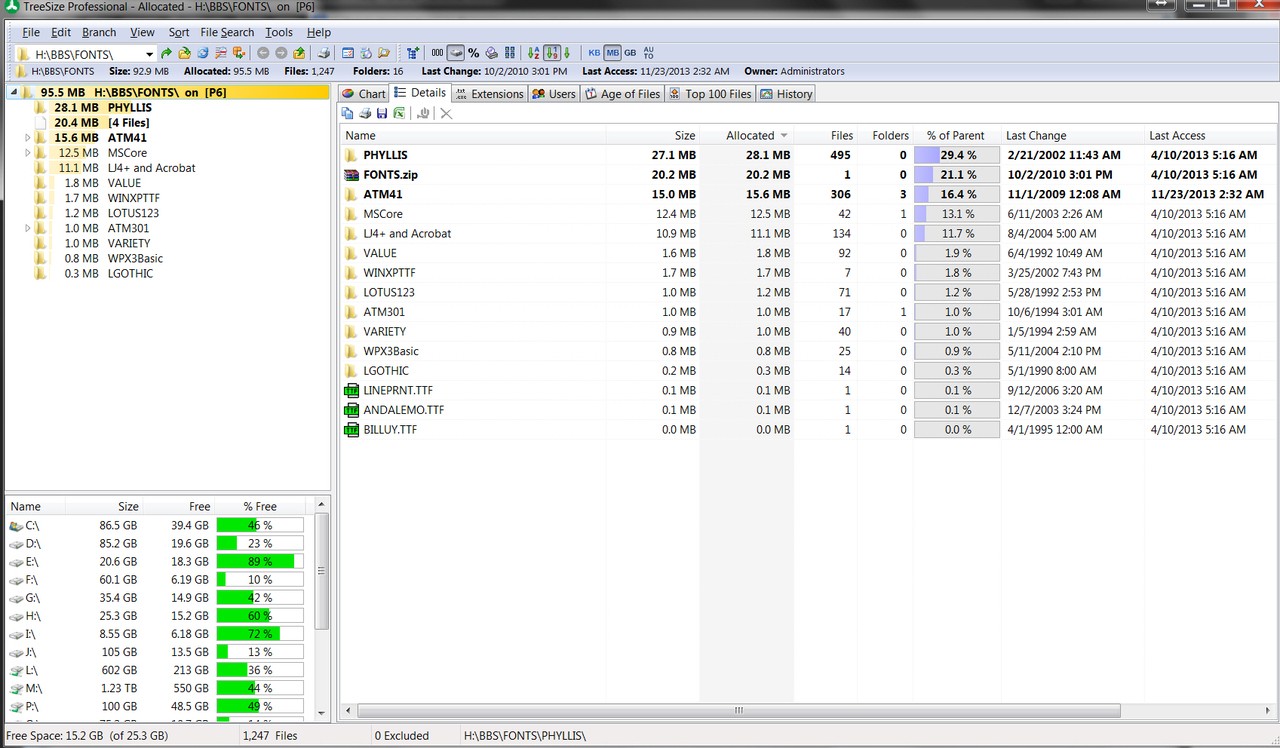
(1) Treesize (which is available for free, or you can opt for a paid version with additional functionality). This product is a straightforward perspective on drives, folders, files, etc., and provides everything you want to see.

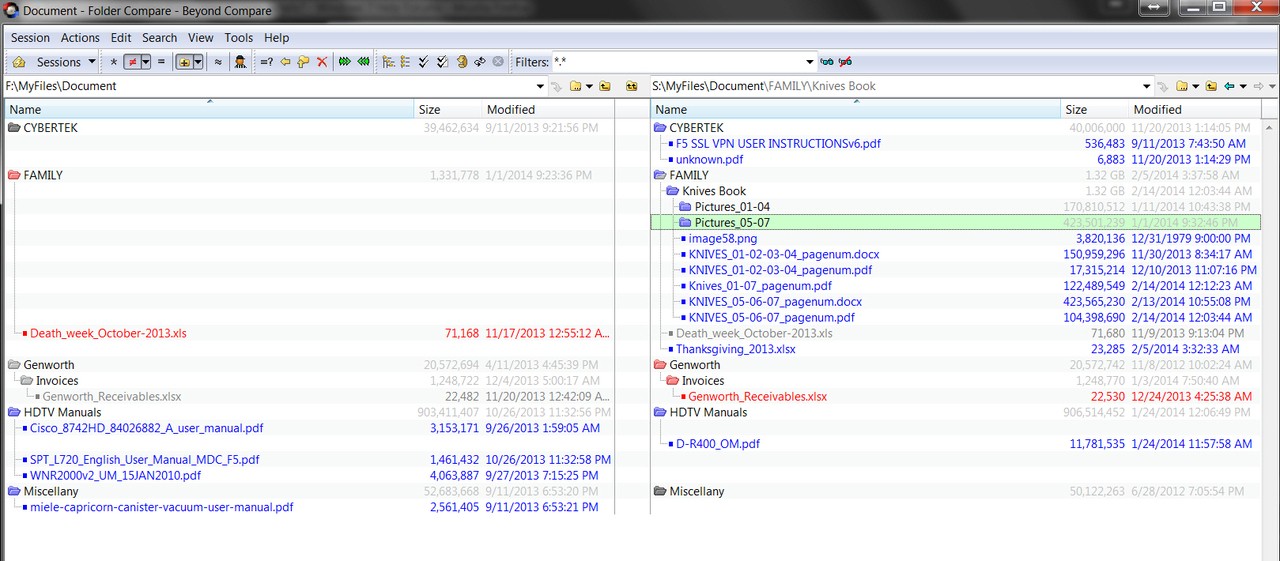
(2) Beyond Compare. This product will address your particular request, which is to "find those folders that don't match" when comparing two directories (and all sub-folders below) on different drives (or anywhere or course). Features include "equal" or "not equal" mode, so that you can show everything including differences, or just the differences. You can then easily "expand" the folder view to show everything in the tree-view or just the differences in the tree-view below the top-level folder. Color coding of the compare results make it very obvious exactly what the differences are. And you can then automatically "synchronize" either side to the other side in a variety of ways (copy, move, update, mirror). Compare of files is also supported, both text and binary (including JPG, etc.).


Both have options to add extensions to the Explorer right-click context menus, to invoke the functionality of the products.
 

My Computer My Computer

Computer type
PC/Desktop
Computer Manufacturer/Model Number
Home-built, two systems (1) and (2)
OS
Windows 7 Pro x64 (1), Win7 Pro X64 (2)
CPU
i5-3350p 3.1Ghz/6MB-cache (1); E8400 3.0Ghz/6MB-cache (2)
Motherboard
ASUS P8Z77-V Pro (1); ASUS P5Q3 (2)
Memory
8GB PC3-12800 DDR3 (1); 4GB PC3-10600 DDR3 (2)
Graphics Card(s)
ATI HD7750 (1), (see TV cards); ATI R7 250 (2)
Sound Card
Realtek ALC892 HD Audio (1); Realtek ALC1200 HD Audio (2)
Monitor(s) Displays
Eizo HD2441W LCD, Eizo S2433W (1); Eizo 24" S2433W (2)
Screen Resolution
1920x1200, 1920x1200 (1); 1920x1200 (2)
Hard Drives
(1) 1TB SATA-II (7200RPM), 2x2TB SATA-III (7200RPM), 250GB SATA-III (10000RPM) for OS; 2x2TB external USB 3.0

(2) 320GB SATA-II (7200RPM), 750GB SATA-II (7200RPM), 150GB SATA-II (10000RPM) for OS; 2TB external USB 3.0
PSU
Nesteq ECS-6001 600W (1); Nesteq ECS-5001 500W (2)
Case
Acousti-Case 360 (1) and (2)
Cooling
Noctua NH-U12P SE2 for CPU, 2x120mm case fans (1) and (2)
Keyboard
IBM PS/2 (1) and (2)
Mouse
Logitech MX Revolution wireless (1); Microsoft wired (2)
Internet Speed
100mbps down / 10mbps up
Antivirus
Microsoft Security Essentials; Malwarebyte Anti-Malware Pro
Browser
Firefox
Other Info
Ceton InfiniTV 4-tuner cablecard-enabled TV card as well as Hauppauge HVR-2250 OTA/ATSC 2-tuner TV card in (1), running under Win7 WMC
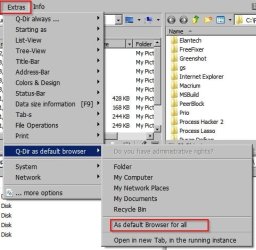
Integrate Q-Dir with Explorer

I feel daft now but I've just noticed that it's possible to integrate Q-Dir with a few display options as shown. Just uncheck the selections to go back to the default Explorer.
 

Attachments

  • Q-Dir 4.jpg
    Q-Dir 4.jpg
    35 KB · Views: 53

My Computer My Computer

Computer type
Laptop
Computer Manufacturer/Model Number
ASUS
OS
Microsoft Windows 7 Home Premium 64-bit 7601 Multiprocessor Free Service Pack 1
CPU
AMD C-60 APU with Radeon(tm) HD Graphics
Motherboard
ASUSTeK COMPUTER INC. X501U
Memory
4.00 GB
Graphics Card(s)
AMD Radeon HD 6290 Graphics
Sound Card
(1) AMD High Definition Audio Device (2) Realtek High Defi
Screen Resolution
1366 x 768 x 32 bits (4294967296 colors) @ 60 Hz
Hard Drives
Hitachi HTS545050A7E380 SATA Disk Device
Antivirus
Comodo CIS & FW, SecureAplus App Whitelisting, Threatfire
Browser
Cyberfox 64bit, Opera 64bit, Airfox
Other Info
Spy-The-Spy, HitmanPro.Alert, Norton Connect Safe, MJRegWatcher, BitDefender TrafficLight, Voodoo Shield, Zemana AntiMalware
Let's say you've got two directories on different drives. Each has 30 folders in them. But they don't match. Rather than right click and select properties to find the culprit folder, one would ideally select view details and skim through the folder sizes - just as they would if it were stand alone files.

Any other ideas?
Two products you might try (both of which have 30-day free trials for the paid versions):

(1) Treesize (which is available for free, or you can opt for a paid version with additional functionality). This product is a straightforward perspective on drives, folders, files, etc., and provides everything you want to see.

(2) Beyond Compare. This product will address your particular request, which is to "find those folders that don't match" when comparing two directories (and all sub-folders below) on different drives (or anywhere or course). Features include "equal" or "not equal" mode, so that you can show everything including differences, or just the differences. You can then easily "expand" the folder view to show everything in the tree-view or just the differences in the tree-view below the top-level folder. Color coding of the compare results make it very obvious exactly what the differences are. And you can then automatically "synchronize" either side to the other side in a variety of ways (copy, move, update, mirror). Compare of files is also supported, both text and binary (including JPG, etc.).


Both have options to add extensions to the Explorer right-click context menus, to invoke the functionality of the products.
Thanks! Will Treesize allow me to view folder sizes - just as I can view file sizes - when selecting view details in a Windows 7 directory?

Beyond Compare looks good. Will it resolve the copying issues which I've described at http://www.sevenforums.com/backup-r...zes-do-not-match-after-successful-backup.html
 

My Computer My Computer

OS
Windows 7 64 bit
Thanks! Will Treesize allow me to view folder sizes - just as I can view file sizes - when selecting view details in a Windows 7 directory?
Don't know exactly why you need to use Windows "details view", since it's really a bit clumsy.

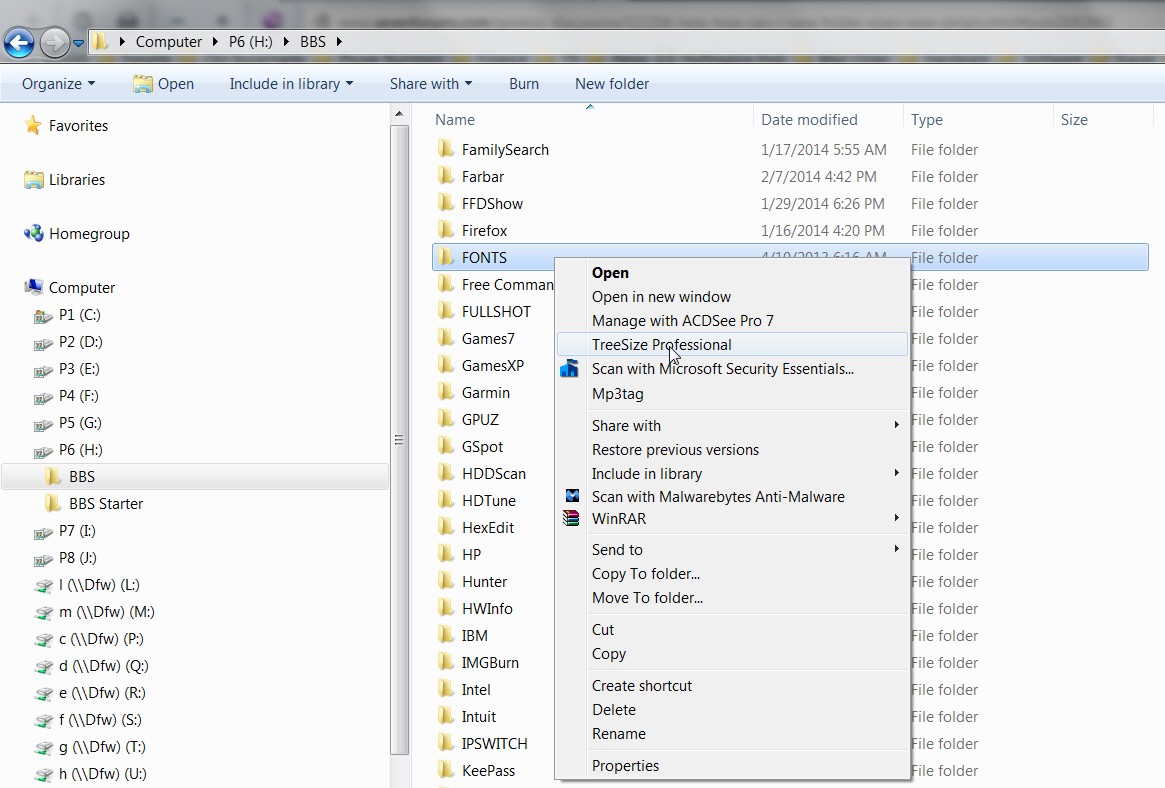
If you right-click on something in Explorer you have an item on the context menu which if you click on it will launch Treesize for this item.

For example, here's what the context menu looks like, with the Treesize item:

x5nd.jpg


And if I select that item here is what the launched Treesize window looks like (again, just one example of what Treesize can present):

8qen.jpg


Beyond Compare looks good. Will it resolve the copying issues which I've described at http://www.sevenforums.com/backup-r...zes-do-not-match-after-successful-backup.html
Again, you'll have to try it for yourself.

But here is a typical example of comparing two folders I have on two machines that are intended to hold the same type of information, but don't actually have identical contents. This is the "expanded" view showing JUST THE DIFFERENCES (i.e. with all folders/files that are identical suppressed). I could alternatively have shown EVERYTHING, with the differences highlighted via color coding to contrast them with the items that are identical. Also, there are comparison settings (for example) to take into account time-zone changes or DST/STD differences and treat them as "equal".

uptm.jpg
 

My Computer My Computer

Computer type
PC/Desktop
Computer Manufacturer/Model Number
Home-built, two systems (1) and (2)
OS
Windows 7 Pro x64 (1), Win7 Pro X64 (2)
CPU
i5-3350p 3.1Ghz/6MB-cache (1); E8400 3.0Ghz/6MB-cache (2)
Motherboard
ASUS P8Z77-V Pro (1); ASUS P5Q3 (2)
Memory
8GB PC3-12800 DDR3 (1); 4GB PC3-10600 DDR3 (2)
Graphics Card(s)
ATI HD7750 (1), (see TV cards); ATI R7 250 (2)
Sound Card
Realtek ALC892 HD Audio (1); Realtek ALC1200 HD Audio (2)
Monitor(s) Displays
Eizo HD2441W LCD, Eizo S2433W (1); Eizo 24" S2433W (2)
Screen Resolution
1920x1200, 1920x1200 (1); 1920x1200 (2)
Hard Drives
(1) 1TB SATA-II (7200RPM), 2x2TB SATA-III (7200RPM), 250GB SATA-III (10000RPM) for OS; 2x2TB external USB 3.0

(2) 320GB SATA-II (7200RPM), 750GB SATA-II (7200RPM), 150GB SATA-II (10000RPM) for OS; 2TB external USB 3.0
PSU
Nesteq ECS-6001 600W (1); Nesteq ECS-5001 500W (2)
Case
Acousti-Case 360 (1) and (2)
Cooling
Noctua NH-U12P SE2 for CPU, 2x120mm case fans (1) and (2)
Keyboard
IBM PS/2 (1) and (2)
Mouse
Logitech MX Revolution wireless (1); Microsoft wired (2)
Internet Speed
100mbps down / 10mbps up
Antivirus
Microsoft Security Essentials; Malwarebyte Anti-Malware Pro
Browser
Firefox
Other Info
Ceton InfiniTV 4-tuner cablecard-enabled TV card as well as Hauppauge HVR-2250 OTA/ATSC 2-tuner TV card in (1), running under Win7 WMC
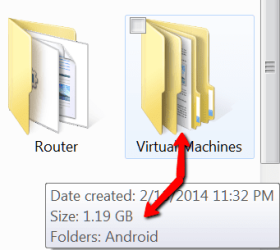
When you hover over a folder, it should show the size.
 

Attachments

  • 2014-02-16_1544.png
    2014-02-16_1544.png
    15.4 KB · Views: 47

My Computer My Computer

Computer Manufacturer/Model Number
HP, Dell, Gateway, Toshiba - 4 laptops and 2 desktops
OS
Vista, Windows7, Mint Mate, Zorin, Windows 8
CPU
from 1.6GHz Duo to i7
Monitor(s) Displays
2x HP w2207
Hard Drives
5x HDD, 7x SSD, 12x Externals
Keyboard
with trackball - no mices
Mouse
Trackball mice
Internet Speed
DSL 6000
Yet another solution

Your question rekindled an interest in comparing directories in Windows 7.

I looked around some more and previously I've used Treesize, DiskSorter. the Disk Analyzer that comes with SlimCleaner, WinDirStat and probably a few others as well.

WinMerge is new to me.

Screenshots

I've just tried copying a directory and deleting two files from inside two folders to see what would happen.

After some fiddling about with the options and view settings here are the results I get when I compare those two near identical directories.

WinMerge.jpg

It clearly shows that the files readme.txt in the ClockSync folder and NP--Logo3.gif in the Passive TCP PortScanner folder are missing from the second directory (My Completed Download 2 - Copy) but exist in the original directory (My Completed Downloads 2).

Okay so it's not displaying folder sizes but that doesn't matter as the contents have been compared for differences!

WinMerge is free to download and use.
 
Last edited:

My Computer My Computer

Computer type
Laptop
Computer Manufacturer/Model Number
ASUS
OS
Microsoft Windows 7 Home Premium 64-bit 7601 Multiprocessor Free Service Pack 1
CPU
AMD C-60 APU with Radeon(tm) HD Graphics
Motherboard
ASUSTeK COMPUTER INC. X501U
Memory
4.00 GB
Graphics Card(s)
AMD Radeon HD 6290 Graphics
Sound Card
(1) AMD High Definition Audio Device (2) Realtek High Defi
Screen Resolution
1366 x 768 x 32 bits (4294967296 colors) @ 60 Hz
Hard Drives
Hitachi HTS545050A7E380 SATA Disk Device
Antivirus
Comodo CIS & FW, SecureAplus App Whitelisting, Threatfire
Browser
Cyberfox 64bit, Opera 64bit, Airfox
Other Info
Spy-The-Spy, HitmanPro.Alert, Norton Connect Safe, MJRegWatcher, BitDefender TrafficLight, Voodoo Shield, Zemana AntiMalware

My Computer My Computer

Computer type
PC/Desktop
Computer Manufacturer/Model Number
Etc
OS
64bit
CPU
amd X4
Motherboard
GIGABYTE GA-880GM-UD2H
Memory
4gb
Graphics Card(s)
ATI 5450 1gb silent
Hard Drives
wd 1tb
Antivirus
quickheal
Browser
Google Chrome
Your question rekindled an interest in comparing directories in Windows 7.

I looked around some more and previously I've used Treesize, DiskSorter. the Disk Analyzer that comes with SlimCleaner, WinDirStat and probably a few others as well.

WinMerge is new to me.

Screenshots

I've just tried copying a directory and deleting two files from inside two folders to see what would happen.

After some fiddling about with the options and view settings here are the results I get when I compare those two near identical directories.

View attachment 306708

It clearly shows that the files readme.txt in the ClockSync folder and NP--Logo3.gif in the Passive TCP PortScanner folder are missing from the second directory (My Completed Download 2 - Copy) but exist in the original directory (My Completed Downloads 2).

Okay so it's not displaying folder sizes but that doesn't matter as the contents have been compared for differences!

WinMerge is free to download and use.
Thanks for sharing. I have noticed that WinMerge can take an awfully long time - far longer than the copying of the files take. Is that your experience as well?
 

My Computer My Computer

OS
Windows 7 64 bit
I have noticed that WinMerge can take an awfully long time - far longer than the copying of the files take. Is that your experience as well?

It depends upon the size of the directories that have been selected for comparison. When using any file compare utility it can take time to produce results. Remember that it is comparing content ans displaying differences as opposed to those utilities that simply find duplicates and ignore differences.

Also if you are using any type of process tamer it can slow things down.
 

My Computer My Computer

Computer type
Laptop
Computer Manufacturer/Model Number
ASUS
OS
Microsoft Windows 7 Home Premium 64-bit 7601 Multiprocessor Free Service Pack 1
CPU
AMD C-60 APU with Radeon(tm) HD Graphics
Motherboard
ASUSTeK COMPUTER INC. X501U
Memory
4.00 GB
Graphics Card(s)
AMD Radeon HD 6290 Graphics
Sound Card
(1) AMD High Definition Audio Device (2) Realtek High Defi
Screen Resolution
1366 x 768 x 32 bits (4294967296 colors) @ 60 Hz
Hard Drives
Hitachi HTS545050A7E380 SATA Disk Device
Antivirus
Comodo CIS & FW, SecureAplus App Whitelisting, Threatfire
Browser
Cyberfox 64bit, Opera 64bit, Airfox
Other Info
Spy-The-Spy, HitmanPro.Alert, Norton Connect Safe, MJRegWatcher, BitDefender TrafficLight, Voodoo Shield, Zemana AntiMalware
Back
Top