Help! I've screwed up my XP partition

Eviellan

New member
Local time
6:07 AM
Messages
24
Hey there!
I tried to set up a dualboot of 7 and XP, so I made a new partition from XP (named S: ) and installed 7 there.
It finished installing all right and booted to 7, but when I restarted no boot manager appeared and I could only run XP.
So I decided to follow the steps from Method 2 here
http://www.sevenforums.com/tutorials/8057-dual-boot-installation-windows-7-xp.html
but I must have screwed something up very badly 'cause I can only access 7 now.
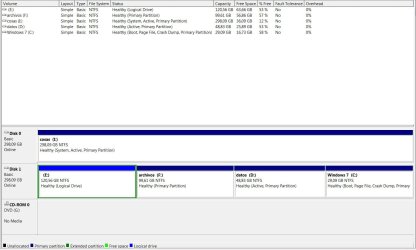
I went into the disk management tool and things have gone weird there: S: drive is now labeled C: (and I can't change it), and my XP drive (that was C: ) is now a logical drive (wtf?) labeled E:
Any suggestions on how to fix this?
Thanks in advance
 

My Computer My Computer

OS
XP (screwed up), 7
What happens when you try to boot into XP?

7 is going to see its system drive as C.
 

My Computer My Computer

OS
Windows Vista Business / Windows 7 Ultimate
How many partitions and HDD's are there and how are they configured?
Can you use the Win7 snipping tool to make a screen shot of your Disk Management?

If you have XP in the first partition and install Win7 second to the same or another HDD on a primary NTFS formatted partition, it should configure the boot properly.

It may be as simple as marking the XP drive Active rewriting the boot sector to the XP partition if it is first on the HDD. But we need more info.
 

My Computers My Computers

System One System Two

  • Computer type
    PC/Desktop
    OS
    7 X64
    CPU
    i5 8400
    Motherboard
    gigabyte b365m ds3h
    Memory
    2x8gb 3200mhz
    Hard Drives
    various
    PSU
    pure power 11 400w cm
    Case
    Coolermaster
    Cooling
    cryorig m9i
  • Computer type
    PC/Desktop
    OS
    7x64
    CPU
    g5400
    Motherboard
    ga b365m ds3h
    Memory
    8gb ddr4 2400
    PSU
    xfx pro 450w
My apologies for the delay

"What happens when you try to boot into XP?"
I can't boot into XP, I get no OS selection screen, so I can only boot to 7.
I noticed something funny, by the way - 7 will only boot if I have the DVD on the drive, otherwise it shows a message that it was unable to boot and requires the DVD for repairs.
I don't have to access the DVD, but it needs to be there. Go figure...

"How many partitions and HDD's are there and how are they configured?
Can you use the Win7 snipping tool to make a screen shot of your Disk Management?"
Definitely... See the attached file

Drive 1: 320 GB
E: (was C: in XP), 120 GB: system drive for XP
C: (was S: ), 30 GB: I installed 7 there
F: and D: (were G: and D: ), that's only data

Drive 2: 320 GB, got a single partition (I: ) with only data as well

"If you have XP in the first partition and install Win7 second to the same or another HDD on a primary NTFS formatted partition, it should configure the boot properly."
Yah, that's how it should be in theory, but something went very wrong

BTW I don't mind having to reinstall or format the partition with 7, I got nothing there, but I do want to save my XP install

Thanks for replying
 

Attachments

  • Disk management.JPG
    Disk management.JPG
    104 KB · Views: 67

My Computer My Computer

OS
XP (screwed up), 7
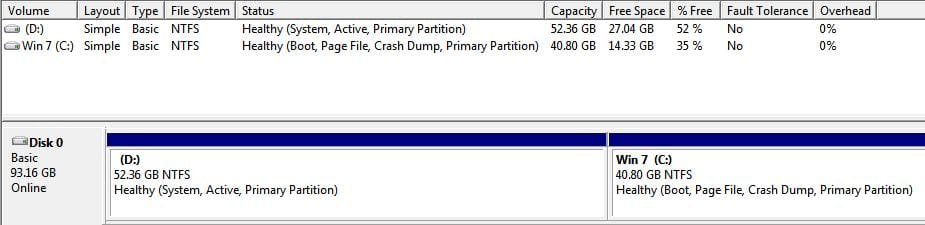
It looks like your Xp OS was installed on a logical drive. Your W7 was installed on a primary partition which you have correctly created. Had the Xp been installed also on a primary parition, you would get the boot manager showing both OS and whichever OS you selected, the C: drive will then be your boot parition

Here is mine.
 

Attachments

  • Noname.jpg
    Noname.jpg
    28.4 KB · Views: 16

My Computer My Computer

Computer Manufacturer/Model Number
Lenovo ThinkPad T60
OS
Windows 7 Ultimate 64Bit
CPU
GenuineIntel Intel(R) Core(TM) DuoCore T2400 @ 1.83GHz
Motherboard
Intel(R) 82801G (ICH7 Family)
Memory
2.00 GB
Graphics Card(s)
Mobile Intel(R) 945 Express Chipset
Sound Card
SoundMAX Integrated Digital HD Audio
Monitor(s) Displays
ThinkPad Display
Screen Resolution
1400x1050
Hard Drives
100Gb SATA
Keyboard
Standard Keyboard
Mouse
HID-compliant Mouse
Internet Speed
Cable Broadband - 54Mbps
Other Info
Intel(R) PRO/1000 PL Network Connection
11a/b/g Wireless LAN Mini PCI Express Adapter
You can probably fix this fairly easily using EasyBCD.

XP doesn't need to be on a primary partition as long as the boot manager is on the active partition. The Windows 7 boot manager will call NTLDR which can load XP from a logical partition.

In my case, I have boot, bootmgr, ntldr, ntdetect.com, and boot.ini all on the same active partition. I have XP32 on a primary partition and XP64 on a logical partition and am able to boot into either of them.
 

My Computer My Computer

Computer Manufacturer/Model Number
Too many to list.
OS
XP, Seven, 2008R2
CPU
AMD, Intel, VIA
Motherboard
Various
Memory
Corsair, Kingston, etc.
Graphics Card(s)
ATI, NVIDIA
Monitor(s) Displays
Samsung
Hard Drives
Maxtor, Western Digital
Keyboard
qwerty
Internet Speed
22 Mb/s @ home, 1 Gb/s @ server
Other Info
All of my systems still run fastest on XP 32-bit for the most part. Win7 is fun to play with, but I still prefer XP for raw speed, security, and functionality.
Well, I'm sure I had XP in a primary partition before... anyway, as long as I can boot it, I could hardly care less about that.
I have no idea how to use EasyBCD
 

My Computer My Computer

OS
XP (screwed up), 7
Download EasyBCD and see what OS Entries it lists when it opens.

Normally you would go to Add/Remove Entries tab and add the missing OS by name and letter, which will then rewrite the boot accordingly.

However, involving a logical parition does make it iffy, so you can try the normal procedure, and/or report back with screenshot of the EasyBCD OS entries to troubleshoot further.
 
Here:

There is one entry in the Vista Bootloader.
Bootloader Timeout: 5 seconds.
Default OS: Windows 7

Entry #1

Name: Windows 7
BCD ID: {current}
Drive: C:\
Bootloader Path: \Windows\system32\winload.exe
Windows Directory: \Windows

Windows Boot Manager
--------------------
identifier {9dea862c-5cdd-4e70-acc1-f32b344d4795}
device partition=I:
description Windows Boot Manager
locale en-US
inherit {7ea2e1ac-2e61-4728-aaa3-896d9d0a9f0e}
default {84c6ec83-bd43-11de-a0eb-b71342ba7037}
resumeobject {84c6ec82-bd43-11de-a0eb-b71342ba7037}
displayorder {84c6ec83-bd43-11de-a0eb-b71342ba7037}
toolsdisplayorder {b2721d73-1db4-4c62-bf78-c548a880142d}
timeout 5

Windows Boot Loader
-------------------
identifier {84c6ec83-bd43-11de-a0eb-b71342ba7037}
device partition=C:
path \Windows\system32\winload.exe
description Windows 7
locale en-US
inherit {6efb52bf-1766-41db-a6b3-0ee5eff72bd7}
recoverysequence {84c6ec84-bd43-11de-a0eb-b71342ba7037}
recoveryenabled Yes
osdevice partition=C:
systemroot \Windows
resumeobject {84c6ec82-bd43-11de-a0eb-b71342ba7037}
nx OptIn
 

My Computer My Computer

OS
XP (screwed up), 7
It seems simple: You need to Add/Remove Entries, adding XP by name and drive to the boot. This is how it normally works.

However, the fact that it is logical is a new one for me.
 
OK, I'll try that and report back
 

My Computer My Computer

OS
XP (screwed up), 7
Well, this is weird... I added XP on drive E, but it reports that it is in drive I:
Entry #2

Name: XP
BCD ID: {84c6ec8a-bd43-11de-a0eb-b71342ba7037}
Drive: I:\
Bootloader Path: \NTLDR

Retrying didn't solve anything
 

My Computer My Computer

OS
XP (screwed up), 7
It may be rejecting it because it is logical.

Study and try the EasyBCD Diagnostics Center. It's been awhile since I used it but I believe it is user friendly and fairly automated, although you should understand it before trying.

A little help here?
 
No joy... I went through both options in the diagnostics center, and it still won't work: with the CD in the drive I can get to 7, and without it the computer won't start (it says something like "BCD is missing content", code 0xc0000034)

I tried to use the recovery console in the XP disc, but it says it won't work because "the drive contains one or more errors". Must be related to the logical drive thing
 

My Computer My Computer

OS
XP (screwed up), 7
Do you think it'd work if I made a new primary partition and copied all the data from the XP drive there?
 

My Computer My Computer

OS
XP (screwed up), 7
Well you should be able to boot up WIn7 by runnning Startup repair several times.

Your idea of copying the XP drive over to a newly formatted Primary partition seems possible. I just used Paragon Partition Pro 9 bootable to copy an XP partition and it added to the boot menu no problem. However, it wouldnt' let me format the parition beforehand, but required it to be unallocated space. I didn't bother to check if I could change the partition type since it was/is NTFS. However your partitioning/copying tool might allow changes while copying to a Primary Partition.

It shouldn't hurt anything to try copying it a few different ways, since the worst case is an XP reinstall anyway. BTW do you really want XP going forward, since most of us have left it behind shortly after dual booting?

Someone should know if imaging could also accomplish this.
 
I don't think it's worth trying to repair the 7 startup, I'll just delete 7 when I get all this sorted out.

I have no partition program, I'd have to use disk management from within 7... should work all right anyway.
I'm going to try and copy XP to a new partition, but I'll want to back up everything before, and that's gonna take a while. I'll tell you how it went when it's done.

Thanks very much for the help

(phew... just realized I almost screwed up completely, 'cause I didn't have the option to show system files enabled... close call...)
 

My Computer My Computer

OS
XP (screwed up), 7
Hey there!
I tried to set up a dualboot of 7 and XP, so I made a new partition from XP (named S: ) and installed 7 there.
It finished installing all right and booted to 7, but when I restarted no boot manager appeared and I could only run XP.
So I decided to follow the steps from Method 2 here
http://www.sevenforums.com/tutorials/8057-dual-boot-installation-windows-7-xp.html
but I must have screwed something up very badly 'cause I can only access 7 now.
I went into the disk management tool and things have gone weird there: S: drive is now labeled C: (and I can't change it), and my XP drive (that was C: ) is now a logical drive (wtf?) labeled E:
Any suggestions on how to fix this?
Thanks in advance
Really simple Question. did you boot to the DVD and then install Win 7 on S: (recommended way.) or did you do it from XP.(not recommended.)
 
BTW do you really want XP going forward, since most of us have left it behind shortly after dual booting?

In fact I planned on reverting to XP and forgetting about 7. XP has always worked perfectly for me, and 7 is giving me plenty of trouble.

That said, if most of you consider 7 to be much better than XP, I'll take your word for it and give it another try, but I'll want to be able to access XP in case things go FUBAR again.
 

My Computer My Computer

OS
XP (screwed up), 7
Back
Top