
Hibernate - Enable or Disable

How to Enable or Disable Hibernate in Windows 7 and Windows 8


   Information
Hibernation is a power-saving state designed primarily for laptops. While sleep puts your work and settings in memory and draws a small amount of power, hibernation puts your open documents and programs on your hard disk, and then turns off your computer. Of all the power-saving states in Windows, hibernation uses the least amount of power. On a laptop, use hibernation when you know that you won't use your laptop for an extended period and won't have an opportunity to charge the battery during that time.

This tutorial will show you how to enable or disable hibernate and restore or delete the hiberfil.sys file in Windows 7 and Windows 8.

When hibernate is disabled, the Hibernate option is missing from the Start Menu (Windows 7 only), Shut Down Windows dialog, Power menu (Windows 8 only) and the Advanced Power Plan Options.

You must be logged in as an administrator to be able to do the steps in this tutorial.

   Note

  • By default, the size of the hidden protected OS hibernation file (C:\hiberfil.sys) is 75% of the total amount of installed RAM on your computer.
  • In Windows 7, you can set your computer to either use or not use the Hybrid or Hibernate sleep mode option from the Advanced Power Plan Options.
  • In Windows 7, you will only see Hibernate listed in the Start Menu power button arrow menu if you have Hybrid turned off in the Advanced Power Plan Options.
  • Windows 8/8.1 PCs with InstantGo don't have the hibernate option
  • If you disable hibernate in Windows 8 and 8.1, then it will also disable fast startup.

:note: For Windows 10 instructions please see the following link - Hibernate - Enable or Disable in Windows 10 - Windows 10 Tutorials

CONTENTS:
  • Option One: Enable or Disable Hibernate in Elevated Command Prompt
  • Option Two: Enable or Disable Hibernate using a REG File Download
  • Option Three: Enable or Disable Hibernate in Registry Editor
  • Option Four: To Turn On or Off Hibernate in Advanced Power Options


OPTION ONE

Enable or Disable Hibernate in Elevated Command Prompt


1. Open an elevated command prompt.

2. Do step 3 or step 4 below for what you would like to do.

3. To Enable Hibernate
NOTE: This step will restore the hiberfil.sys file, and the Allow hybrid sleep and Hibernate after Power Options under Sleep.
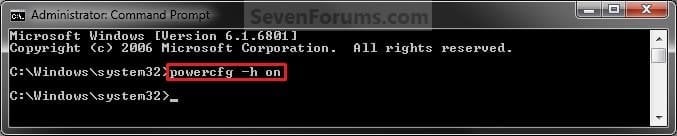
A) In the elevated command prompt, copy and paste the command below, and press Enter. (see screenshot below)
powercfg -h on

Enable.jpg
C) If you would also like to have hibernate turned on, then you will also need do to step 2 in OPTION FOUR below.

D) If you like, you may also wish to add or remove Hibernate from power menus.

E) Go to step 5 below.
4. To Disable Hibernate
NOTE: This step will disable hibernation, delete the hiberfil.sys file, and remove the Allow hybrid sleep and Hibernate after Power Options under Sleep. This will also disable fast startup in Windows 8.
A)In the elevated command prompt, copy and paste the command below, and press Enter. (see screenshot below)
powercfg -h off


Disable.jpg
B) Check your Power Options to make sure that the Critical battery action and Low battery action settings under Battery are not set to Hibernate, and go to step 5 below. (see screenshot below)
Battery_Power_Options.jpg
5. You can now close the elevated command prompt if you like.


OPTION TWO

Enable or Disable Hibernate using a REG File Download


1. To Enable Hibernate
NOTE: This step will restore the hiberfil.sys file, and the Allow hybrid sleep and Hibernate after Power Options under Sleep.
A) Click/tap on the Download button below to download the file below, and go to step 3 below.
Enable_Hibernate.reg


Download


2. To Disable Hibernate
NOTE: This step will disable hibernation, delete the hiberfil.sys file, and remove the Allow hybrid sleep and Hibernate after Power Options under Sleep. This will also disable fast startup in Windows 8.
A) Check your Power Options to make sure that the Critical battery action and Low battery action settings under Battery are not set to Hibernate. (see screenshot below)
Battery_Power_Options.jpg
B) Click/tap on the Download button below to download the file below, and go to step 3 below.
Disable_Hibernate.reg

Download


3. Save the .reg file to your desktop.

4. Double click/tap on the downloaded .reg file to merge it.

5. Click/tap on Run, Yes (UAC), Yes, and OK when prompted to approve the merge.

6. Restart the computer to apply the changes.

7. If you would also like to have hibernate turned on, then you will also need do to step 2 in OPTION FOUR below.

8. If you like, you may also wish to add or remove Hibernate from power menus.

9. When finished, you can delete the downloaded .reg file if you like.


OPTION THREE

Enable or Disable Hibernate in Registry Editor


1. Press the Windows + R keys to open the Run dialog, type regedit, and click/tap on OK.

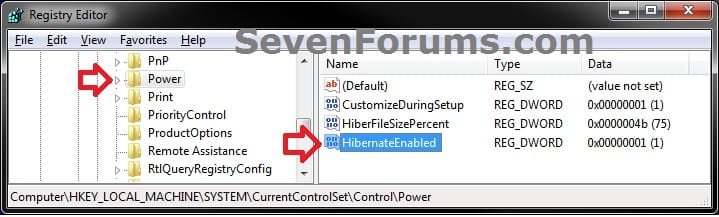
2. In regedit, navigate to the location below. (see screenshot below)
HKEY_LOCAL_MACHINE\SYSTEM\CurrentControlSet\Control\Power
REG-1.jpg
3. In the right pane of the Power key, double click/tap on HibernateEnabled, and do step 4 or 5 below for what you would like to do. (see screenshot above)

4. To Enable Hibernate
NOTE: This step will restore the hiberfil.sys file, and the Allow hybrid sleep and Hibernate after Power Options under Sleep.
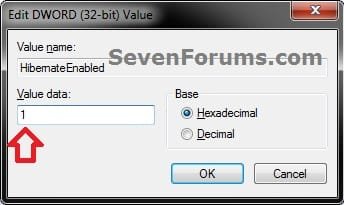
A) Type in 1, click/tap on OK, and go to step 6 below. (see screenshot below)
REG-2.jpg
5. To Disable Hibernate
NOTE: This step will disable hibernation, delete the hiberfil.sys file, and remove the Allow hybrid sleep and Hibernate after Power Options under Sleep. This will also disable fast startup in Windows 8.
A) Type in 0 (zero), and click/tap on OK. (see screenshot above)

B) Check your Power Options to make sure that the Critical battery action and Low battery action settings under Battery are not set to Hibernate, and go to step 6 below. (see screenshot below)
Battery_Power_Options.jpg
6. Close regedit, and restart the computer to apply the changes.

7. If you would also like to have hibernate turned on, then you will also need do to step 2 in OPTION FOUR below.

8. If you like, you may also wish to add or remove Hibernate from power menus.


OPTION FOUR

To Turn Hibernate On or Off in Advanced Power Options


NOTE: This option does not disable hibernate, but only turns it on or off for your power plan.
1. Do either step 2 or step 3 below for what you would like to do.

2. To Turn On Hibernate
NOTE: You could also use a hibernate shortcut to manually put the computer into hibernation instead or in addition to this option.
A) If you have not already, then you will need to enable hibernate using either OPTION ONE, OPTION TWO, or OPTION THREE above first.

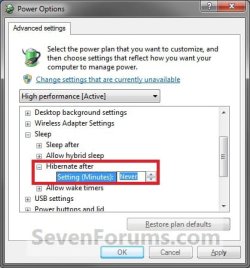
B) Open the Advanced Power Plan Settings for your power plan, then expand Sleep. (see screenshot below step 4)

C) Under Hibernate after, set the Setting (Minutes) to how many minutes you want your computer to sit idle for before it goes into hibernation. (see screenshot step 4)

D) Go to step 4.
3. To Turn Off Hibernate
NOTE: If you disabled hibernate using OPTION 1, 2, or 3 above, then there's no need to do this since Hibernate after and Allow hybrid sleep will no longer be listed in your power options.
A) Open the Advanced Power Plan Settings for your power plan, and expand Sleep. (see screenshot below step 4)
B) Under Hibernate after, set the Setting (Minutes) to Never. (see screenshot below step 4)

C) Under Allow hybrid sleep, set Setting to Off. (see screenshot below step 4)

D) Go to step 4.
4. When finished, click/tap on OK. (see screenshot below)
Power_Options.jpg
That's it,
Shawn


Attachments

Last edited:
Hibernation Does Not Work Win7HomePremium

Here you are Brink...as complete detail of steps I performed and the results

I searched Microsoft Support found KB on How to disable and re-enable hibernation on a computer that is running Windows

How to disable and re-enable hibernation on a computer that is running Windows

Under "Fix it for me" is the Fix it Wizards to Enable/Disable hibernation and I downloaded
Microsoft Fix it 50462 and ran it, nothing happens...as there is no indication of Successful nor an Error message once completed.

And I click Start of this PC (Acer) running Windows 7 Home Premium 64-bit (SP1), to see if Hibernation is now listed/Enabled, which still only shows the
options of

Switch Users
Log Off
Lock
Restart
Sleep
Shut Down

On two of my other PC's (a HP Desktop) running Windows 7 Pro 32-bit (SP1) the Start list options of

Switch Users
Log Off
Lock
Restart
Sleep
Hibernation
Shut Down

On the other PC (HP Laptop) running Vista Home Premium 32-bit (SP2), Start> Shut Down, brings up the Window with a drop down option menu of

Switch Users
Log Off
Lock
Restart
Sleep
Hibernation
Shut Down

So after running the MS Fix 50462, that did not give me the option of Hibernation when selecting Shut Down.

I ran CMD as Administrator and ran powercfg /hibernate on or powercfg.exe /hibernate on

(which I used this same command to enable Hibernation on the HP Laptop and it worked fine)

And with Windows 7 Home, 64-bit, I ran the CMD POWERCFG -H ON no success status nor is there an option available from Start Shut Down drop menu of Hibernation as with the other 2 PC's running Windows 7 Pro & Vista.

I ran the PowerCFG switch POWERCFG -H -Size 50 which CMD Help states This switch will also enable the hiberfile automatically and I ran this CMD and received

"The hiberfile size has been set to: 3172179968 bytes"

However, I still do not have the Hibernation Option. I checked my BIOS under Power and the only option I see is ACPI Suspend Mode S3 (STR) which it is set to and the only other option is S1 (POS)

I ran CMD Administrator powercfg -a and it stated "The Following sleep states are available on this system: Standby <S3> Hibernate Hybrid Sleep.

and the following sleep states are not available on this system:
Standby <S1> & <S2> firmware does not support this standby state.

At this point I am clueless, I have all current System, Software & Hardware updates.

BIOS - American Megatrends Inc. P01-A1 - ACRSYS - 1072009 BIOS Date: 03/23/11 20:03:02 Ver: 04.06.04

And my middle name is "Murphy's Law" so I am resolved to this is something that will not be for this PC.

As for Power Options (Control Panel) Power Plan is set to Balanced Recommended - Turn off the Display: Never and Put the Computer to Sleep: Never

And I just now noticed under Advanced Settings, Sleep > Hibernate after Setting: 15 minutes

And under Power Buttons and Lid, Power Button Action Setting: Hibernate

So it appears instead of my clicking Start, Shut Down options which does not list the Hibernate option as it does with Windows 7 & Vista.

And Properties of the Start Button (Taskbar and Start Menu Properties), Start Menu Tab under Power Button Action: Does not list Hibernation as an option, but does list the options of

Switch Users
Log Off
Lock
Restart
Sleep
Shut Down

So how confusing is this...I will just try pushing the Power Button and see if this Acer Windows 7 Home Premium 64-bit goes into Hibernation or not. I am still wondering why when I select Sleep from Start, that when I wake it, I am not reconnected to the Internet, nor can I run Troubleshooting that resolves that issue without rebooting. And I only offer this information as if related to the issue with Hibernation. The other PC's I can select Hibernation, as with XP Pro, Start Shut Down, Ctrl+ H

Thanks for your assistance, Doc
 

My Computer

Computer Manufacturer/Model Number
Acer Aspire AM3970-U5022
OS
Windows 7 Home Premium 64bit
CPU
Intel Core i3 2100 (3.10GHz)
Motherboard
Intel H67 Express DIMM 240 Pin
Memory
6GB DDR3
Graphics Card(s)
Intel HD Graphics 2000 Dynamic Video Memory Technology 5.0
Sound Card
I hear sound - High Definition Audio
Monitor(s) Displays
ViewSonic VX2000
Screen Resolution
1152x864
Hard Drives
1TB Serial ATA-300 - 5400 rpm
PSU
300-watt
Case
Full Tower
Cooling
Hopefully
Keyboard
Dell Quiet Key
Mouse
Logitech Track
Internet Speed
12Mbps - Cable
Other Info
Do not like Vista or Windows 7, too many glitches
Hey Brink....Hibernation works when I push the Power Button...and why it is not an option from Start, Shut Down and lists Hibernation as an option I will never know.

Nor are their Instructions on placing your PC into Hibernation from Control Panel, Power Options under Power Settings.

I would of never thought under "Choose what the power button does" that When I press the power button: there are options of Do Nothing, Sleep, Hibernate, Shut Down.

And Now after all of this....I do not know if the option of Hibernate was an option before running the Microsoft Fix it 50462 that that did it, or CMD POWERCFG /HIBERNATE or POWERCFG -H -Size 50 or a combination of all 3.

Nor why it still is not an option from Start...how in the world would I know to push the power button to shut down in hibernation mode.

I am conditioned to Years of always clicking Start Shut Down or Hibernate or Sleep.

Of course I have had with other computers to Push and Hold the Power Button when CTRL+ ALT + Delete would not Reboot or Give me the Option of Shut Down from Task Manager.

Thank you very much Brink for your patience and assistance....Doc

In answer to your question of "Also, what happens when you put your Windows 7 Home Premium into hibernate mode?"

Before a couple of minutes ago, there was never an option to put Win7 Home Premium into Hibernate mode. Its not listed with Start Shut Down, only Sleep, Restart, Log Off, Lock Switch User.

And it is still not after running the MS Fix It for Hibernation, nor CMD as Admin powercfg /hibernate on There is nothing to say your PC now can shut down in Hibernation Mode.

I only found out about the Power Options and the Power Button Settings from the Control Panel, which I was there many times trying to find a way to Enable Hibernation. As I use this option on all of my computers, because I do allot of research and I want to return to the same files and windows after needing to leave and come back hours later to resume where I left off.

I also work on PC's and sometimes even I am stumped having used DOS 3, 5, 6.22, Windows 3.0, 3.11, 95, 98, ME, XP, Vista & Win7...but then Microsoft keeps you guessing what's next....thanks again, Doc
 
Last edited by a moderator:

My Computer

Computer Manufacturer/Model Number
Acer Aspire AM3970-U5022
OS
Windows 7 Home Premium 64bit
CPU
Intel Core i3 2100 (3.10GHz)
Motherboard
Intel H67 Express DIMM 240 Pin
Memory
6GB DDR3
Graphics Card(s)
Intel HD Graphics 2000 Dynamic Video Memory Technology 5.0
Sound Card
I hear sound - High Definition Audio
Monitor(s) Displays
ViewSonic VX2000
Screen Resolution
1152x864
Hard Drives
1TB Serial ATA-300 - 5400 rpm
PSU
300-watt
Case
Full Tower
Cooling
Hopefully
Keyboard
Dell Quiet Key
Mouse
Logitech Track
Internet Speed
12Mbps - Cable
Other Info
Do not like Vista or Windows 7, too many glitches
Hello Doc,

Did you get your hibernate issue sorted?
 

My Computer

Computer type
PC/Desktop
Computer Manufacturer/Model Number
Self built custom
OS
64-bit Windows 11 Pro for Workstations
CPU
Intel i7-8700K OC'd to 5 GHz
Motherboard
ASUS ROG Maximus XI Formula Z390
Memory
64 GB (4x16GB) G.SKILL TridentZ RGB DDR4 3600 MHz
Graphics Card(s)
ASUS ROG-STRIX-GTX1080TI-O11G-GAMING
Sound Card
Integrated
Monitor(s) Displays
2 x Samsung Odyssey G7 27"
Screen Resolution
2560x1440
Hard Drives
1TB Samsung 990 PRO M.2,
4TB Samsung 990 PRO PRO M.2,
TerraMaster F8 SSD Plus NAS
PSU
Seasonic Prime Titanium 850W
Case
Thermaltake Core P3
Cooling
Corsair Hydro H115i
Keyboard
Logitech wireless K800
Mouse
Logitech MX Master 4
Internet Speed
2 Gb/s Download and 100 Mb/s Upload
Antivirus
Malwarebyte Anti-Malware Premium
Browser
Google Chrome
Other Info
Logitech Z625 speaker system,
Logitech BRIO 4K Pro webcam,
HP Color LaserJet Pro MFP M477fdn,
APC SMART-UPS RT 1000 XL - SURT1000XLI,
Galaxy S23 Plus phone
Hibernation is Working

Hey Brink....Hibernation works when I push the Power Button...and why it is not an option from Start, Shut Down and lists Hibernation as an option I will never know.

Nor are their Instructions on placing your PC into Hibernation from Control Panel, Power Options under Power Settings.

I would of never thought under "Choose what the power button does" that When I press the power button: there are options of Do Nothing, Sleep, Hibernate, Shut Down.

And Now after all of this....I do not know if the option of Hibernate was an option before running the Microsoft Fix it 50462 that that did it, or CMD POWERCFG /HIBERNATE or POWERCFG -H -Size 50 or a combination of all 3.

Nor why it still is not an option from Start...how in the world would I know to push the power button to shut down in hibernation mode.

I am conditioned to Years of always clicking Start Shut Down or Hibernate or Sleep.

Of course I have had with other computers to Push and Hold the Power Button when CTRL+ ALT + Delete would not Reboot or Give me the Option of Shut Down from Task Manager.

Thank you very much Brink for your patience and assistance....Doc

In answer to your question of "Also, what happens when you put your Windows 7 Home Premium into hibernate mode?"

Before a couple of minutes ago, there was never an option to put Windows 7 Home Premium into Hibernate mode. Its not listed with Start Shut Down, only Sleep, Restart, Log Off, Lock Switch User.

And it is still not after running the MS Fix It for Hibernation, nor CMD as Admin powercfg /hibernate on There is nothing to say your PC now can shut down in Hibernation Mode.

I only found out about the Power Options and the Power Button Settings from the Control Panel, which I was there many times trying to find a way to Enable Hibernation. As I use this option on all of my computers, because I do allot of research and I want to return to the same files and windows after needing to leave and come back hours later to resume where I left off.

I also work on PC's and sometimes even I am stumped having used DOS 3, 5, 6.22, Windows 3.0, 3.11, 95, 98, ME, XP, Vista & Windows 7...but then Microsoft keeps you guessing what's next....thanks again, Doc
 

My Computer

Computer Manufacturer/Model Number
Acer Aspire AM3970-U5022
OS
Windows 7 Home Premium 64bit
CPU
Intel Core i3 2100 (3.10GHz)
Motherboard
Intel H67 Express DIMM 240 Pin
Memory
6GB DDR3
Graphics Card(s)
Intel HD Graphics 2000 Dynamic Video Memory Technology 5.0
Sound Card
I hear sound - High Definition Audio
Monitor(s) Displays
ViewSonic VX2000
Screen Resolution
1152x864
Hard Drives
1TB Serial ATA-300 - 5400 rpm
PSU
300-watt
Case
Full Tower
Cooling
Hopefully
Keyboard
Dell Quiet Key
Mouse
Logitech Track
Internet Speed
12Mbps - Cable
Other Info
Do not like Vista or Windows 7, too many glitches
Doc,

Double check the second item in the yellow TIP box at the top of the tutorial on the first page here to see if that may be the cause of "Hibernate" not being listed in the Start Menu.
 

My Computer

Computer type
PC/Desktop
Computer Manufacturer/Model Number
Self built custom
OS
64-bit Windows 11 Pro for Workstations
CPU
Intel i7-8700K OC'd to 5 GHz
Motherboard
ASUS ROG Maximus XI Formula Z390
Memory
64 GB (4x16GB) G.SKILL TridentZ RGB DDR4 3600 MHz
Graphics Card(s)
ASUS ROG-STRIX-GTX1080TI-O11G-GAMING
Sound Card
Integrated
Monitor(s) Displays
2 x Samsung Odyssey G7 27"
Screen Resolution
2560x1440
Hard Drives
1TB Samsung 990 PRO M.2,
4TB Samsung 990 PRO PRO M.2,
TerraMaster F8 SSD Plus NAS
PSU
Seasonic Prime Titanium 850W
Case
Thermaltake Core P3
Cooling
Corsair Hydro H115i
Keyboard
Logitech wireless K800
Mouse
Logitech MX Master 4
Internet Speed
2 Gb/s Download and 100 Mb/s Upload
Antivirus
Malwarebyte Anti-Malware Premium
Browser
Google Chrome
Other Info
Logitech Z625 speaker system,
Logitech BRIO 4K Pro webcam,
HP Color LaserJet Pro MFP M477fdn,
APC SMART-UPS RT 1000 XL - SURT1000XLI,
Galaxy S23 Plus phone
Thanks Brink....that be the reason Hibernate did not show in the Start Menu

You will only see Hibernate listed in the Start Menu power button arrow menu unless you have Hybrid turned off in the Advanced Power Plan Options.

Somethings Microsoft should leave alone...and I presume if I knew that in the first place all the other steps that I tried to Enable Hibernate was a waste of time.

It would easier if a person clicked Start, Hibernate was an option possibly grayed out with a choice to Enable/Disabled. I realize Microsoft cannot possibly account for every make model system board, BIOS and capability.

Thank you for all your Help Brink's.....Doc
 

My Computer

Computer Manufacturer/Model Number
Acer Aspire AM3970-U5022
OS
Windows 7 Home Premium 64bit
CPU
Intel Core i3 2100 (3.10GHz)
Motherboard
Intel H67 Express DIMM 240 Pin
Memory
6GB DDR3
Graphics Card(s)
Intel HD Graphics 2000 Dynamic Video Memory Technology 5.0
Sound Card
I hear sound - High Definition Audio
Monitor(s) Displays
ViewSonic VX2000
Screen Resolution
1152x864
Hard Drives
1TB Serial ATA-300 - 5400 rpm
PSU
300-watt
Case
Full Tower
Cooling
Hopefully
Keyboard
Dell Quiet Key
Mouse
Logitech Track
Internet Speed
12Mbps - Cable
Other Info
Do not like Vista or Windows 7, too many glitches
You're most welcome Doc. :)
 

My Computer

Computer type
PC/Desktop
Computer Manufacturer/Model Number
Self built custom
OS
64-bit Windows 11 Pro for Workstations
CPU
Intel i7-8700K OC'd to 5 GHz
Motherboard
ASUS ROG Maximus XI Formula Z390
Memory
64 GB (4x16GB) G.SKILL TridentZ RGB DDR4 3600 MHz
Graphics Card(s)
ASUS ROG-STRIX-GTX1080TI-O11G-GAMING
Sound Card
Integrated
Monitor(s) Displays
2 x Samsung Odyssey G7 27"
Screen Resolution
2560x1440
Hard Drives
1TB Samsung 990 PRO M.2,
4TB Samsung 990 PRO PRO M.2,
TerraMaster F8 SSD Plus NAS
PSU
Seasonic Prime Titanium 850W
Case
Thermaltake Core P3
Cooling
Corsair Hydro H115i
Keyboard
Logitech wireless K800
Mouse
Logitech MX Master 4
Internet Speed
2 Gb/s Download and 100 Mb/s Upload
Antivirus
Malwarebyte Anti-Malware Premium
Browser
Google Chrome
Other Info
Logitech Z625 speaker system,
Logitech BRIO 4K Pro webcam,
HP Color LaserJet Pro MFP M477fdn,
APC SMART-UPS RT 1000 XL - SURT1000XLI,
Galaxy S23 Plus phone
Tutorial updated to add OPTION TWO and OPTION THREE for how to enable or disable hibernate with a REG file download or manually in Registry Editor. :)
 

My Computer

Computer type
PC/Desktop
Computer Manufacturer/Model Number
Self built custom
OS
64-bit Windows 11 Pro for Workstations
CPU
Intel i7-8700K OC'd to 5 GHz
Motherboard
ASUS ROG Maximus XI Formula Z390
Memory
64 GB (4x16GB) G.SKILL TridentZ RGB DDR4 3600 MHz
Graphics Card(s)
ASUS ROG-STRIX-GTX1080TI-O11G-GAMING
Sound Card
Integrated
Monitor(s) Displays
2 x Samsung Odyssey G7 27"
Screen Resolution
2560x1440
Hard Drives
1TB Samsung 990 PRO M.2,
4TB Samsung 990 PRO PRO M.2,
TerraMaster F8 SSD Plus NAS
PSU
Seasonic Prime Titanium 850W
Case
Thermaltake Core P3
Cooling
Corsair Hydro H115i
Keyboard
Logitech wireless K800
Mouse
Logitech MX Master 4
Internet Speed
2 Gb/s Download and 100 Mb/s Upload
Antivirus
Malwarebyte Anti-Malware Premium
Browser
Google Chrome
Other Info
Logitech Z625 speaker system,
Logitech BRIO 4K Pro webcam,
HP Color LaserJet Pro MFP M477fdn,
APC SMART-UPS RT 1000 XL - SURT1000XLI,
Galaxy S23 Plus phone
You're most welcome Lolajenn, and welcome to Seven Forums. :)
 

My Computer

Computer type
PC/Desktop
Computer Manufacturer/Model Number
Self built custom
OS
64-bit Windows 11 Pro for Workstations
CPU
Intel i7-8700K OC'd to 5 GHz
Motherboard
ASUS ROG Maximus XI Formula Z390
Memory
64 GB (4x16GB) G.SKILL TridentZ RGB DDR4 3600 MHz
Graphics Card(s)
ASUS ROG-STRIX-GTX1080TI-O11G-GAMING
Sound Card
Integrated
Monitor(s) Displays
2 x Samsung Odyssey G7 27"
Screen Resolution
2560x1440
Hard Drives
1TB Samsung 990 PRO M.2,
4TB Samsung 990 PRO PRO M.2,
TerraMaster F8 SSD Plus NAS
PSU
Seasonic Prime Titanium 850W
Case
Thermaltake Core P3
Cooling
Corsair Hydro H115i
Keyboard
Logitech wireless K800
Mouse
Logitech MX Master 4
Internet Speed
2 Gb/s Download and 100 Mb/s Upload
Antivirus
Malwarebyte Anti-Malware Premium
Browser
Google Chrome
Other Info
Logitech Z625 speaker system,
Logitech BRIO 4K Pro webcam,
HP Color LaserJet Pro MFP M477fdn,
APC SMART-UPS RT 1000 XL - SURT1000XLI,
Galaxy S23 Plus phone
Thank you!

Very helpful and easy to follow guide. Thanks for your help! I disabled hibernation in power options, but then used Option 1 with the command prompt to remove the hibernation file and free up a few GB on my new SSD.
 

My Computer

OS
Windows 7 Home Premium x64
You're most welcome t21wolves, and welcome to Seven Forums. :)
 

My Computer

Computer type
PC/Desktop
Computer Manufacturer/Model Number
Self built custom
OS
64-bit Windows 11 Pro for Workstations
CPU
Intel i7-8700K OC'd to 5 GHz
Motherboard
ASUS ROG Maximus XI Formula Z390
Memory
64 GB (4x16GB) G.SKILL TridentZ RGB DDR4 3600 MHz
Graphics Card(s)
ASUS ROG-STRIX-GTX1080TI-O11G-GAMING
Sound Card
Integrated
Monitor(s) Displays
2 x Samsung Odyssey G7 27"
Screen Resolution
2560x1440
Hard Drives
1TB Samsung 990 PRO M.2,
4TB Samsung 990 PRO PRO M.2,
TerraMaster F8 SSD Plus NAS
PSU
Seasonic Prime Titanium 850W
Case
Thermaltake Core P3
Cooling
Corsair Hydro H115i
Keyboard
Logitech wireless K800
Mouse
Logitech MX Master 4
Internet Speed
2 Gb/s Download and 100 Mb/s Upload
Antivirus
Malwarebyte Anti-Malware Premium
Browser
Google Chrome
Other Info
Logitech Z625 speaker system,
Logitech BRIO 4K Pro webcam,
HP Color LaserJet Pro MFP M477fdn,
APC SMART-UPS RT 1000 XL - SURT1000XLI,
Galaxy S23 Plus phone
You're most welcome Smisleno. :)
 

My Computer

Computer type
PC/Desktop
Computer Manufacturer/Model Number
Self built custom
OS
64-bit Windows 11 Pro for Workstations
CPU
Intel i7-8700K OC'd to 5 GHz
Motherboard
ASUS ROG Maximus XI Formula Z390
Memory
64 GB (4x16GB) G.SKILL TridentZ RGB DDR4 3600 MHz
Graphics Card(s)
ASUS ROG-STRIX-GTX1080TI-O11G-GAMING
Sound Card
Integrated
Monitor(s) Displays
2 x Samsung Odyssey G7 27"
Screen Resolution
2560x1440
Hard Drives
1TB Samsung 990 PRO M.2,
4TB Samsung 990 PRO PRO M.2,
TerraMaster F8 SSD Plus NAS
PSU
Seasonic Prime Titanium 850W
Case
Thermaltake Core P3
Cooling
Corsair Hydro H115i
Keyboard
Logitech wireless K800
Mouse
Logitech MX Master 4
Internet Speed
2 Gb/s Download and 100 Mb/s Upload
Antivirus
Malwarebyte Anti-Malware Premium
Browser
Google Chrome
Other Info
Logitech Z625 speaker system,
Logitech BRIO 4K Pro webcam,
HP Color LaserJet Pro MFP M477fdn,
APC SMART-UPS RT 1000 XL - SURT1000XLI,
Galaxy S23 Plus phone
Sorry to bump a really old thread but I have some questions about sleep mode. I've been trying to get my computer to use S3 sleep state, but have been unsuccessful.

Whenever I try to wake my desktop from S3 Sleep mode, it will boot up as if it was shut down completely. It then displays the boot option to Start Windows Normally or in Safe mode, etc.

My BIOS is enabled for S3 sleep, and I tried using the registry option two in this tutorial, but it hasn't worked. The command prompt option using the command "powercfg -h on" only displays the following error:

Code:
Hibernation failed with the following error: the request is not supported.

The following items are preventing hibernation on this system.
The system could not create the hibernation file. The specific error code is 0xc000007f

I also wanted to ask about the administrator option to "Change settings that are currently unavailable". My user name is the only account on this computer, but I have never seen that option to view different settings.

Code:
Specs:

Motherboard: EVGA X58 SLI3
CPU: Intel Core i7 970 3.20GHz
GPU: EVGA GeForce GTX 670 FTW 2GB
RAM: 12GB Corsair Vengeance (3 x 4GB)
HDD: OCZ Vertex 2 SSD 60GB
HDD2: Seagate Barracuda 1TB 7200RPM
HDD3: Seagate Barracuda 1TB 7200RPM
PSU: XFX Black Edition 750w
 

My Computer

OS
Windows 7 Ultimate x64
Hello Entik, and welcome to Seven Forums.

How much free space is there on your C: drive?

That error usually means that there is not enough free space to be able to create the hiberfil.sys file.
 

My Computer

Computer type
PC/Desktop
Computer Manufacturer/Model Number
Self built custom
OS
64-bit Windows 11 Pro for Workstations
CPU
Intel i7-8700K OC'd to 5 GHz
Motherboard
ASUS ROG Maximus XI Formula Z390
Memory
64 GB (4x16GB) G.SKILL TridentZ RGB DDR4 3600 MHz
Graphics Card(s)
ASUS ROG-STRIX-GTX1080TI-O11G-GAMING
Sound Card
Integrated
Monitor(s) Displays
2 x Samsung Odyssey G7 27"
Screen Resolution
2560x1440
Hard Drives
1TB Samsung 990 PRO M.2,
4TB Samsung 990 PRO PRO M.2,
TerraMaster F8 SSD Plus NAS
PSU
Seasonic Prime Titanium 850W
Case
Thermaltake Core P3
Cooling
Corsair Hydro H115i
Keyboard
Logitech wireless K800
Mouse
Logitech MX Master 4
Internet Speed
2 Gb/s Download and 100 Mb/s Upload
Antivirus
Malwarebyte Anti-Malware Premium
Browser
Google Chrome
Other Info
Logitech Z625 speaker system,
Logitech BRIO 4K Pro webcam,
HP Color LaserJet Pro MFP M477fdn,
APC SMART-UPS RT 1000 XL - SURT1000XLI,
Galaxy S23 Plus phone
There is 8.416 GB free on my Windows drive
 

My Computer

OS
Windows 7 Ultimate x64

My Computer

Computer type
PC/Desktop
Computer Manufacturer/Model Number
Self built custom
OS
64-bit Windows 11 Pro for Workstations
CPU
Intel i7-8700K OC'd to 5 GHz
Motherboard
ASUS ROG Maximus XI Formula Z390
Memory
64 GB (4x16GB) G.SKILL TridentZ RGB DDR4 3600 MHz
Graphics Card(s)
ASUS ROG-STRIX-GTX1080TI-O11G-GAMING
Sound Card
Integrated
Monitor(s) Displays
2 x Samsung Odyssey G7 27"
Screen Resolution
2560x1440
Hard Drives
1TB Samsung 990 PRO M.2,
4TB Samsung 990 PRO PRO M.2,
TerraMaster F8 SSD Plus NAS
PSU
Seasonic Prime Titanium 850W
Case
Thermaltake Core P3
Cooling
Corsair Hydro H115i
Keyboard
Logitech wireless K800
Mouse
Logitech MX Master 4
Internet Speed
2 Gb/s Download and 100 Mb/s Upload
Antivirus
Malwarebyte Anti-Malware Premium
Browser
Google Chrome
Other Info
Logitech Z625 speaker system,
Logitech BRIO 4K Pro webcam,
HP Color LaserJet Pro MFP M477fdn,
APC SMART-UPS RT 1000 XL - SURT1000XLI,
Galaxy S23 Plus phone
Well that sure sucks. Is it possible to allocate the file to another drive?

And is it necessary to have this hibernate file in order to use S3 Sleep mode properly?
 

My Computer

OS
Windows 7 Ultimate x64
Sorry, but it cannot be places on another drive.

Unfortunately, the hiberfil.sys file is required for Windows to be able to hibernate. It doesn't need it for sleep though.
 

My Computer

Computer type
PC/Desktop
Computer Manufacturer/Model Number
Self built custom
OS
64-bit Windows 11 Pro for Workstations
CPU
Intel i7-8700K OC'd to 5 GHz
Motherboard
ASUS ROG Maximus XI Formula Z390
Memory
64 GB (4x16GB) G.SKILL TridentZ RGB DDR4 3600 MHz
Graphics Card(s)
ASUS ROG-STRIX-GTX1080TI-O11G-GAMING
Sound Card
Integrated
Monitor(s) Displays
2 x Samsung Odyssey G7 27"
Screen Resolution
2560x1440
Hard Drives
1TB Samsung 990 PRO M.2,
4TB Samsung 990 PRO PRO M.2,
TerraMaster F8 SSD Plus NAS
PSU
Seasonic Prime Titanium 850W
Case
Thermaltake Core P3
Cooling
Corsair Hydro H115i
Keyboard
Logitech wireless K800
Mouse
Logitech MX Master 4
Internet Speed
2 Gb/s Download and 100 Mb/s Upload
Antivirus
Malwarebyte Anti-Malware Premium
Browser
Google Chrome
Other Info
Logitech Z625 speaker system,
Logitech BRIO 4K Pro webcam,
HP Color LaserJet Pro MFP M477fdn,
APC SMART-UPS RT 1000 XL - SURT1000XLI,
Galaxy S23 Plus phone
Back
Top