Highlight Active Program Button on Taskbar

zhunter71

New member
Local time
2:48 PM
Messages
10
I have about 10 programs Pinned to my Taskbar, but when i'm working at speed i keep clicking the wrong ones due to some of the Icons being quite alike :cry:

The programs that are active highlight these buttons by making it slightly white in one corner, is there any way to change the appearance of the buttons on the Taskbar when it is in use? So the ones that are 'active' have a bright red background or something so they stand out more ? it would be such a help!
 

My Computer

Computer type
PC/Desktop
Computer Manufacturer/Model Number
Asus
OS
Windows 7 64 BIT
Memory
8GB
Browser
Firefox

My Computer

Computer type
PC/Desktop
OS
Windows 10 Home x64
CPU
INTEL Core i5-750 Quad-Core 3.37GHz
Motherboard
ASUS P7P55D
Memory
HyperX Fury Black Series 8GB (2 x 4GB) 1866Mhz
Graphics Card(s)
EVGA GeForce GTX 750 Superclocked 1GB 128-Bit GDDR5
Monitor(s) Displays
LG 32MA68HY 32" IPS
Screen Resolution
1920 x 1080
Hard Drives
Samsung 840 Evo 120GB, SEAGATE 500GB Barracuda® 7200.12, SATA 3 Gb/s, 7200 RPM, 16MB cache
PSU
ANTEC TruePower New TP-550, 80 PLUS, 550W
Case
ANTEC Three Hundred Illusion
Cooling
COOLER MASTER Hyper 212 Plus, 4 x 120mm 1 x 140mm Noctua's
Internet Speed
85 + Mbps
Antivirus
Avast
Browser
Vivaldi
that does seem to be what i want, but i download the Zip file and the file in it is an .msstyles file? My computer doesnt know what to do with it or what to open it with? Do you know how to run/ activate that kind of file? :(
 

My Computer

Computer type
PC/Desktop
Computer Manufacturer/Model Number
Asus
OS
Windows 7 64 BIT
Memory
8GB
Browser
Firefox
Your themes should be in the

C:\windows\Resources\Themes

Folder. There will be a .msstyles, and a .theme file for each theme. I don't have any of the original windows themes, but there will be several aero themes, one of which you are using currently? I would copy the original msstyles somewhere so you could change it back if you want later. Then replace it with the .msstyle of your choice from that thread..

http://www.sevenforums.com/tutorials/280-theme-change-save.html

If you want one of the files in this post, he included both the .msstyle and the .theme, you could just add them to your aero theme folder, and not touch the original windows themes.

http://www.sevenforums.com/themes-s...e-windows-too-similar-aero-3.html#post2149099

A Guy
 

My Computer

Computer type
PC/Desktop
OS
Windows 10 Home x64
CPU
INTEL Core i5-750 Quad-Core 3.37GHz
Motherboard
ASUS P7P55D
Memory
HyperX Fury Black Series 8GB (2 x 4GB) 1866Mhz
Graphics Card(s)
EVGA GeForce GTX 750 Superclocked 1GB 128-Bit GDDR5
Monitor(s) Displays
LG 32MA68HY 32" IPS
Screen Resolution
1920 x 1080
Hard Drives
Samsung 840 Evo 120GB, SEAGATE 500GB Barracuda® 7200.12, SATA 3 Gb/s, 7200 RPM, 16MB cache
PSU
ANTEC TruePower New TP-550, 80 PLUS, 550W
Case
ANTEC Three Hundred Illusion
Cooling
COOLER MASTER Hyper 212 Plus, 4 x 120mm 1 x 140mm Noctua's
Internet Speed
85 + Mbps
Antivirus
Avast
Browser
Vivaldi
i copied the msstyles into the relevant folder and i now have 3 installed themes showing in my personalisation screen, which is correct, but they are all labelled as Windows 7, and whichever i click the screen seems to stay the same as the standard Windows 7 theme, it doesnt change any button appearances......do i need to do something with the 'theme' files too? sorry, i'm not very good at this :(
 

My Computer

Computer type
PC/Desktop
Computer Manufacturer/Model Number
Asus
OS
Windows 7 64 BIT
Memory
8GB
Browser
Firefox
Did you use both the msstyle and theme files from http://www.sevenforums.com/themes-s...e-windows-too-similar-aero-3.html#post2149099 ?

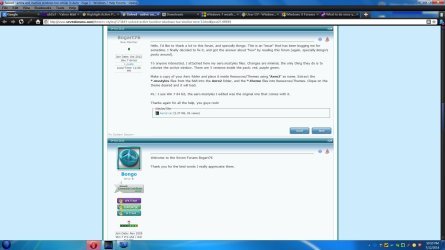
Just tried it and it works. Download the zip from Bogart76's post and extract the files

Extract.jpg

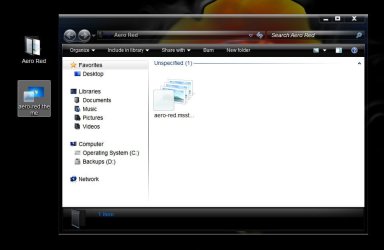
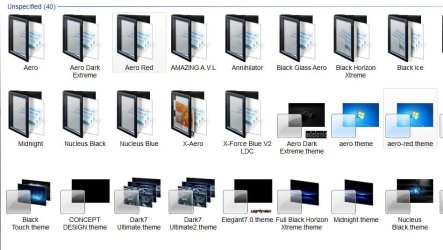
Choose which color you want, and you will have 2 files for that color (I chose red for this test). aero-red.msstyles, and aero-red.theme

Red.jpg

Create a New Folder and name it Areo Red. Put the aero-red.msstyles inside the new Aero Red folder You will now have the aero-red.msstyles in an Aero Red folder and a separate aero-red.theme file

Files.jpg

Put the Aero Red folder , and the separate aero-red.theme file both in the

C:\windows\Resources\Themes\ folder

Themes.jpg

Right click the desktop> Personalize> Under Installed themes you will find Windows 7 (it is the Windows Aero theme modified, that is why it is not named Aero Red)

Installed.jpg

Click on that theme should give you an applied theme with the Open windows icon highlighted in red on the taskbar

Red Applied.jpg

A Guy


Your active window should now be red on the taskbar
 

My Computer

Computer type
PC/Desktop
OS
Windows 10 Home x64
CPU
INTEL Core i5-750 Quad-Core 3.37GHz
Motherboard
ASUS P7P55D
Memory
HyperX Fury Black Series 8GB (2 x 4GB) 1866Mhz
Graphics Card(s)
EVGA GeForce GTX 750 Superclocked 1GB 128-Bit GDDR5
Monitor(s) Displays
LG 32MA68HY 32" IPS
Screen Resolution
1920 x 1080
Hard Drives
Samsung 840 Evo 120GB, SEAGATE 500GB Barracuda® 7200.12, SATA 3 Gb/s, 7200 RPM, 16MB cache
PSU
ANTEC TruePower New TP-550, 80 PLUS, 550W
Case
ANTEC Three Hundred Illusion
Cooling
COOLER MASTER Hyper 212 Plus, 4 x 120mm 1 x 140mm Noctua's
Internet Speed
85 + Mbps
Antivirus
Avast
Browser
Vivaldi
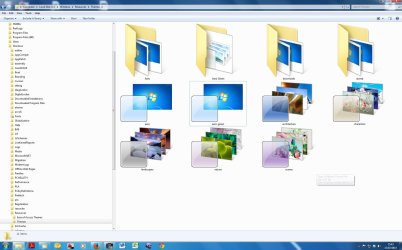
thanks so much for the precise description, i have done exactly as stated, and it has just chnaged it to the standard Windows 7 theme with no highlighted active buttons, i dont know what i'm doing wrong :( I've attached a screenshot of the Theme Folder , and i chose the green option.....i am so sorry to keep pestering you :(
 

Attachments

  • theme2.jpg
    theme2.jpg
    212.7 KB · Views: 6

My Computer

Computer type
PC/Desktop
Computer Manufacturer/Model Number
Asus
OS
Windows 7 64 BIT
Memory
8GB
Browser
Firefox

My Computer

Computer type
PC/Desktop
OS
Windows 10 Home x64
CPU
INTEL Core i5-750 Quad-Core 3.37GHz
Motherboard
ASUS P7P55D
Memory
HyperX Fury Black Series 8GB (2 x 4GB) 1866Mhz
Graphics Card(s)
EVGA GeForce GTX 750 Superclocked 1GB 128-Bit GDDR5
Monitor(s) Displays
LG 32MA68HY 32" IPS
Screen Resolution
1920 x 1080
Hard Drives
Samsung 840 Evo 120GB, SEAGATE 500GB Barracuda® 7200.12, SATA 3 Gb/s, 7200 RPM, 16MB cache
PSU
ANTEC TruePower New TP-550, 80 PLUS, 550W
Case
ANTEC Three Hundred Illusion
Cooling
COOLER MASTER Hyper 212 Plus, 4 x 120mm 1 x 140mm Noctua's
Internet Speed
85 + Mbps
Antivirus
Avast
Browser
Vivaldi
Hello I am trying to install Aero2 theme under Win7 64
I have placed the aero-red.msstyles and the aero-red.theme file in the C:\windows\Resources\Themes folder but the theme is not present in the Installed themes
I have run the System File Checker and did not find any integrity violations
Can some give me some tips?
 

My Computer

Computer type
PC/Desktop
OS
Win7 Pro 64bit
Welcome to Seven Forums migro. Do you find a Windows 7 theme to choose?

325348d1405230712t-highlight-active-program-button-taskbar-installed.jpg


On my system, it was not named Aero-red, but Windows 7. I am not sure if it is just because I don't have some Windows themes anymore, or?

A Guy
 

My Computer

Computer type
PC/Desktop
OS
Windows 10 Home x64
CPU
INTEL Core i5-750 Quad-Core 3.37GHz
Motherboard
ASUS P7P55D
Memory
HyperX Fury Black Series 8GB (2 x 4GB) 1866Mhz
Graphics Card(s)
EVGA GeForce GTX 750 Superclocked 1GB 128-Bit GDDR5
Monitor(s) Displays
LG 32MA68HY 32" IPS
Screen Resolution
1920 x 1080
Hard Drives
Samsung 840 Evo 120GB, SEAGATE 500GB Barracuda® 7200.12, SATA 3 Gb/s, 7200 RPM, 16MB cache
PSU
ANTEC TruePower New TP-550, 80 PLUS, 550W
Case
ANTEC Three Hundred Illusion
Cooling
COOLER MASTER Hyper 212 Plus, 4 x 120mm 1 x 140mm Noctua's
Internet Speed
85 + Mbps
Antivirus
Avast
Browser
Vivaldi
Yes Windows 7 theme is present, but it's not the installed theme Aero2
 

My Computer

Computer type
PC/Desktop
OS
Win7 Pro 64bit
Back
Top