Homegroup Problem: Network Discovery Issue

mmisterio

New member
Local time
3:22 AM
Messages
16
I have a desktop and a laptop. On the laptop when I select network discovery ON and I save changes. For some reason, the next time I look the setting is turned to OFF. It is preventing me from using homegroup. Anyone got a fix?
 

My Computer

OS
7
I am having the same problem on my Desktop. I've set my network "location" to both Home and Work, which enables and disables Homegroups, but attempting to set Network Discovery to "on" does nothing. Other options in the advanced window can be changed, but every time I attempt to save the change to Network Discovery it is off as soon as I go back to look at it.
 

My Computer

Computer Manufacturer/Model Number
Self-built
OS
Windows 7 Beta (x64)
CPU
Core 2 Quad 2.4Ghz (Q9450)
Motherboard
Gigabyte GA-P35-DS3L
Memory
8GB G.Skill DDR2 (PC2 6400)
Graphics Card(s)
EVGA GeForce 8800GT 512MB
Sound Card
Motherboard
Monitor(s) Displays
Acer 22" LCD (AL2216WBD)
Screen Resolution
1680x1050
Hard Drives
Western Digital Caviar 500GB SATA2
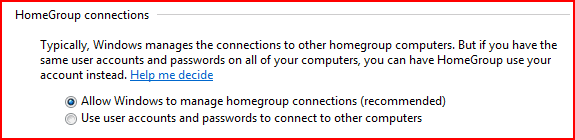
Have you by any chance changed the following option?
 

Attachments

  • Capture.PNG
    Capture.PNG
    3.7 KB · Views: 3,857

My Computer

Computer Manufacturer/Model Number
ENIAC
OS
Windows 7 RC 7100 32bit/64bit
CPU
Intel Core2Duo E4500 2.20 GHz
Motherboard
ASUS P5LD2-X/1333
Memory
2x1GB Kinsgston DDR2 800MHz
Graphics Card(s)
Nvidia 8500GT
Sound Card
Onboard High Definition Audio Device
Monitor(s) Displays
Sony Bravia 42"
Case
LINKW 2222
Cooling
Standard Intel
Keyboard
Some cheap one
Mouse
Microsoft Intellimouse something
Internet Speed
24MBps ADSL
I've tried it in both settings (it is currently set to the second option). I actually have got it working right now, here is what I did.

I went to Control Panel -> Administrative Tools -> Services. I found that SSDP Discovery service was set to "Disabled". I haven't had any reason to change services, so apparently it was set that way by default. After setting the service to "Automatic" and starting it, I was able to set Network Discovery to "on" successfully.
 

My Computer

Computer Manufacturer/Model Number
Self-built
OS
Windows 7 Beta (x64)
CPU
Core 2 Quad 2.4Ghz (Q9450)
Motherboard
Gigabyte GA-P35-DS3L
Memory
8GB G.Skill DDR2 (PC2 6400)
Graphics Card(s)
EVGA GeForce 8800GT 512MB
Sound Card
Motherboard
Monitor(s) Displays
Acer 22" LCD (AL2216WBD)
Screen Resolution
1680x1050
Hard Drives
Western Digital Caviar 500GB SATA2
Glad to know you've worked this out endu.

Thanks for posting the solution here for others too.
 

My Computer

Computer Manufacturer/Model Number
ENIAC
OS
Windows 7 RC 7100 32bit/64bit
CPU
Intel Core2Duo E4500 2.20 GHz
Motherboard
ASUS P5LD2-X/1333
Memory
2x1GB Kinsgston DDR2 800MHz
Graphics Card(s)
Nvidia 8500GT
Sound Card
Onboard High Definition Audio Device
Monitor(s) Displays
Sony Bravia 42"
Case
LINKW 2222
Cooling
Standard Intel
Keyboard
Some cheap one
Mouse
Microsoft Intellimouse something
Internet Speed
24MBps ADSL
I have the same issue here, for some reason it keeps going back to Network Discovery - OFF, it will not stay on at all.

I have checked all the services that need to be on, they are on, I have event stopped the firewall, but that made no difference either?


I am in a Homegroup but just this computer refuses to keep network discovery on ?

Internet etc, etc is all fine, and my other 2 computers are fine, all talking to each other etc.

I am running build 7057.


Any ideas anyone?
 

My Computer

Computer Manufacturer/Model Number
Self Built
OS
Windows 7 Build 7077
CPU
IntelCore 2 Duo E6420 (2.13Ghz) - OC @ 3.2Ghz
Motherboard
Gigabyte 965P-DS3 rev 3.3
Memory
OCZ DDR2 PC2-6400 Gold GX XTC Dual Channel - 4GB
Graphics Card(s)
Nvidia GeForce 8800 GTS
Sound Card
Sound Blaster X Fi Xtreme Gamer Sound Card
Monitor(s) Displays
Dell 1707FP(Digital) x 2
Screen Resolution
1280 x 1024
Hard Drives
x 2 SATA II Seagate Barracuda 250GB
PSU
Hyper R 580W Modular
Case
Jeantech Aqua
Cooling
Arctic Cooling - Freezer 7 Pro
Keyboard
Saitek Eclipse
Mouse
Logitech MX 500
Internet Speed
WAY too slow
I have the same issue here, for some reason it keeps going back to Network Discovery - OFF, it will not stay on at all.
I have checked all the services that need to be on, they are on, I have event stopped the firewall, but that made no difference either?
I am in a Homegroup but just this computer refuses to keep network discovery on ?
Internet etc, etc is all fine, and my other 2 computers are fine, all talking to each other etc.
I am running build 7057.
Any ideas anyone?

Same Problem: Settings will not save changes... Network Discovery will not stay on... changes services to automatic... still nothing... I can even look at my network map and both computers show up but cannot configure this homegroup.... any help would be much appreciated...
 

My Computer

OS
W7 (7057) x86
Turn on DNS Client, Function Discovery Resource Publication, SSDP Discovery, and UPnP Device Host services.
 

My Computer

OS
<o>
Also if you want Homegroups you need to have IPv6 enabled...
 

My Computer

Computer Manufacturer/Model Number
Tx2500z Tablet Pc/Homemade Server
OS
Windows 7 Ult x64(x2), HomePrem x32(x4), Server 08 (+VM), 08 R2 (VM) , SuSe 11.2 (VM), XP 32 (VM)
CPU
Turion X2 ultra (oh well came with laptop)/P4 @3.2 (yes P4)
Motherboard
IDK HP Motherboard / Intel DG965SS
Memory
OCZ Dual Channel 4GB kit/ 1gb Dual Channel
Graphics Card(s)
HD 3200 graphics /GMA x3100 (yay for intergrated!!)
Sound Card
Realtek HD Audio(mic working, well sort of)/Siig IC-70012
Monitor(s) Displays
built-in Hp 12" laptop screen/ Acer 19"
Screen Resolution
1280x800 /1440x900
Cooling
All Air Cooled
Mouse
Logi MX Rev. /MS Wheel Optical 1.1A /Logitech Optical Mouse
Internet Speed
College baby but its still routed through vpn to 1536k...
Other Info
love my wacom pen and pressure sensitivity...
wished it worked in 7, SUSE for that matter though
Turn on DNS Client, Function Discovery Resource Publication, SSDP Discovery, and UPnP Device Host services.

Thanks that actually worked for me on RC build #7100
 

My Computer

Computer Manufacturer/Model Number
Custom Built
OS
Windows 7 RC 7100 build
CPU
Intel Core2 Duo E8500,* 3.17 GHz, 6144 KB
Motherboard
ASUSTeK Computer INC. StrikerExtreme BIOS Revision 1901
Memory
Corsair XMS2 DHX CM2X2048-6400C5DHX4096MB DDR2-800 DDR2SDRAM
Graphics Card(s)
NVIDIA GeForce 8800 GT (512 MB)
Sound Card
SupremeFX 5.1 onboard sound
Monitor(s) Displays
Hannspree LM02 [19" LCD] (730NLM02A1937)
Hard Drives
HDS72251 6VLSA80 SCSI Disk Device (160 GB, 7200 RPM, SATA)
Maxtor 2F040J0 ATA Device (40 GB, 5400 RPM, Ultra-ATA/133)
Maxtor 6Y120L0 ATA Device (120 GB, 7200 RPM, Ultra-ATA/133)
SAMSUNG HD321KJ SCSI Disk Device (320 GB, 7200 RPM, SATA-II)
PSU
iCute Modular ATX Dual VGA Power Supply 700W ICUTE M PSU
Case
Thermaltake Armor VA8003BWS
Cooling
air cooled
This is unbeleivable, so now we have to go in and fool with services just to set up a home network? thanks Microsoft.
 

My Computer

Computer Manufacturer/Model Number
Dell xPS M1330
OS
Windows 7
CPU
intel Core2 Duo 2 Gig
Motherboard
Dell 0N6507
Memory
Samsung DDR2 PC-5300 4 gigs
Graphics Card(s)
Mobile intel 965 Express Chipset famiy
Sound Card
Sigma Tel High Definition Audio Codec
Monitor(s) Displays
samsung sycmaster 731n
we've had nothing but problems ever since we upgraded all our systems to windows 7. At least with Vista we were finally able to get it working. It just refuses to keep the network sdiscovery setting, and offers no hint as to why when runnubg diagnostics. None of the solutions on this forum have helped.
 

My Computer

Computer Manufacturer/Model Number
Dell xPS M1330
OS
Windows 7
CPU
intel Core2 Duo 2 Gig
Motherboard
Dell 0N6507
Memory
Samsung DDR2 PC-5300 4 gigs
Graphics Card(s)
Mobile intel 965 Express Chipset famiy
Sound Card
Sigma Tel High Definition Audio Codec
Monitor(s) Displays
samsung sycmaster 731n
This is unbeleivable, so now we have to go in and fool with services just to set up a home network? thanks Microsoft.

All of those services are turned on by default. If you upgraded from Vista and Vista had those services shut off for some reason, those setting may be transfered to Windows 7 and would need to be re-enabled.
 

My Computer

Computer type
PC/Desktop
Computer Manufacturer/Model Number
Home built
OS
Windows 7 Ult, Windows 8.1 Pro,
CPU
Q9650-4.275GHz, E8600 4.5GHz, E6750-3.8GHz
Motherboard
Evga 780i FTW
Memory
G.Skill PC2 9600 1200Mhz 5 5 5 15 2T
Graphics Card(s)
GTX480
Sound Card
Asus Xonar D2
Monitor(s) Displays
HannsG
Screen Resolution
1680X1050
Hard Drives
GSkill Phoenix Pro 120GB SSD
PSU
ThermalTake Toughpower 1000Watt modular
Case
ThermalTake XaserV
Cooling
Xigmatek S1283
Keyboard
Logitech G15
Mouse
Logitech G9
Internet Speed
T1
All of those services are turned on by default.
Not necessarily. I did a totally clean install of Win 7-64 on a fairly new machine and UPnP Device Host services was not on.

The reason I'm looking at this thread is that my Win 7-64 is in a wired network with other Win 7 machines, but it only sees them intermittently. Every time I refresh the network page, it's a crapshoot what other computers will show up.

If anyone has any ideas, I'd love to hear them.
 

My Computer

OS
Win 7
Intermittently appearing Windows 7 machines would be confusing and frustrating I agree. If UPnP was disabled perhaps some of the other required networking services were also disabled for some reason.

Click Start and type Services.msc in the dialog box to open the services snap-in.
Then check if the following services are started:
--SSDP Discovery
--TCP/IP NetBIOS Helper
--Computer Browser
If not, set the startup type to automatic and click start to start the services.

It also seems that the naming convention is very critical to be accurate. If even one part of a name isn't correct you will get interrmittent appearance of networked computers. It may also help to use the same user name on all machines with out using any strange charactors or symbols, single names works best.

The machine names need to be different on every machine, but it can help to use the same user name and password. And they definately need to be part of the same Workgroup.
 
Last edited:

My Computer

Computer type
PC/Desktop
Computer Manufacturer/Model Number
Home built
OS
Windows 7 Ult, Windows 8.1 Pro,
CPU
Q9650-4.275GHz, E8600 4.5GHz, E6750-3.8GHz
Motherboard
Evga 780i FTW
Memory
G.Skill PC2 9600 1200Mhz 5 5 5 15 2T
Graphics Card(s)
GTX480
Sound Card
Asus Xonar D2
Monitor(s) Displays
HannsG
Screen Resolution
1680X1050
Hard Drives
GSkill Phoenix Pro 120GB SSD
PSU
ThermalTake Toughpower 1000Watt modular
Case
ThermalTake XaserV
Cooling
Xigmatek S1283
Keyboard
Logitech G15
Mouse
Logitech G9
Internet Speed
T1
Intermittently appearing Windows 7 machines would be confusing and frustrating I agree. If UPnP was disabled perhaps some of the other required networking services were also disabled for some reason.

Click Start and type Services.msc in the dialog box to open the services snap-in.
Then check if the following services are started:
--SSDP Discovery
--TCP/IP NetBIOS Helper
--Computer Browser
If not, set the startup type to automatic and click start to start the services.

Thanks for your help. Those are all started with no change to the result.

It also seems that the naming convention is very critical to be accurate. If even one part of a name isn't correct you will get interrmittent appearance of networked computers. It may also help to use the same user name on all machines with out using any strange charactors or symbols, single names works best.

The machine names need to be different on every machine, but it can help to use the same user name and password. And they definately need to be part of the same Workgroup.

I'm not sure what you mean by "If even one part of a name isn't correct"

All of my computers have only one user each. Their user names are "Firstname Lastname" Each computer name is concatenated to "FirstnameLastname" They are all part of the same Workgroup. I have tried setting to Home and to Work. I am not using Homegroups which also don't work.

I have two computers at my desk: "Good" and "Bad." Bad is the one with a problem. It is a fresh install. I have turned off firewall and defender and have not even installed an Antivirus. I have turned off password protected sharing on all computers.

Good and Bad are plugged into the same gigabit router and are both operating at gigabit speed. I have updated the BIOS on Bad and updated the firmware on the router. That Router has a DHCP reservation for both Good and Bad. I have tried both Lan ports on Bad and disabled the other in BIOS. I have downloaded the manufacturer's latest LAN drivers for Win 7.

Good and Bad produce the same network map, but on Bad, the icons shown for other computers are not clickable, and those computers do not show up in the network list except sporadically.

And you were right about the frustration.
 

My Computer

OS
Win 7
I can't say why workgroup isn't working but if both machines are using windows 7 you should try using the Homegroup.

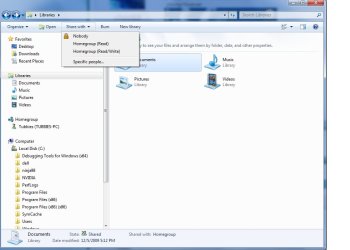
After setting up Homegroup on both machines try doing this from the Bad machine. With the Libraries folder open Click the "share with" button then choose Homegroup read/write and see if the files are viewable from the other machine.

If both machines are using different Op systems you need to use either public or workgroup. It's difficult to say why it works perfectly for some and not for others.

Disabling IPv6 seems to work for some people who can't use Homegroups.
 

Attachments

  • Libraries share with.jpg
    Libraries share with.jpg
    53.3 KB · Views: 94
  • IPv6 unchecking.PNG
    IPv6 unchecking.PNG
    13.4 KB · Views: 61

My Computer

Computer type
PC/Desktop
Computer Manufacturer/Model Number
Home built
OS
Windows 7 Ult, Windows 8.1 Pro,
CPU
Q9650-4.275GHz, E8600 4.5GHz, E6750-3.8GHz
Motherboard
Evga 780i FTW
Memory
G.Skill PC2 9600 1200Mhz 5 5 5 15 2T
Graphics Card(s)
GTX480
Sound Card
Asus Xonar D2
Monitor(s) Displays
HannsG
Screen Resolution
1680X1050
Hard Drives
GSkill Phoenix Pro 120GB SSD
PSU
ThermalTake Toughpower 1000Watt modular
Case
ThermalTake XaserV
Cooling
Xigmatek S1283
Keyboard
Logitech G15
Mouse
Logitech G9
Internet Speed
T1
Try doing this from the Bad machine. Click the share with button then choose Homegroup read/write.
I'm not using Homegroups. I would need to set location to Home rather than Work. Is that what you were wondering?

Also did you get this question?

"I'm not sure what you mean by "If even one part of a name isn't correct""

Thanks again.
 

My Computer

OS
Win 7
Microsoft warns against using dual names for a machine "single names are best" according to Msoft. Also any names using a symbol that isn't a letter can also cause problems. All machine names need to be different, but the user names can be the same apparently. And all machines need to be share the same workgroup name obviously enough.
 

My Computer

Computer type
PC/Desktop
Computer Manufacturer/Model Number
Home built
OS
Windows 7 Ult, Windows 8.1 Pro,
CPU
Q9650-4.275GHz, E8600 4.5GHz, E6750-3.8GHz
Motherboard
Evga 780i FTW
Memory
G.Skill PC2 9600 1200Mhz 5 5 5 15 2T
Graphics Card(s)
GTX480
Sound Card
Asus Xonar D2
Monitor(s) Displays
HannsG
Screen Resolution
1680X1050
Hard Drives
GSkill Phoenix Pro 120GB SSD
PSU
ThermalTake Toughpower 1000Watt modular
Case
ThermalTake XaserV
Cooling
Xigmatek S1283
Keyboard
Logitech G15
Mouse
Logitech G9
Internet Speed
T1
Back
Top