Solved Homegroup Setup Unreliable

meridius21

New member
Member
Local time
9:26 PM
Messages
69
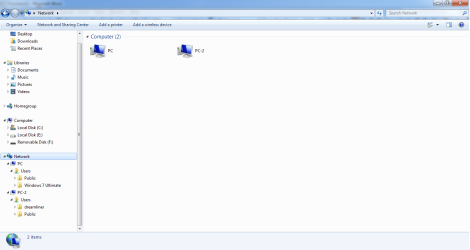
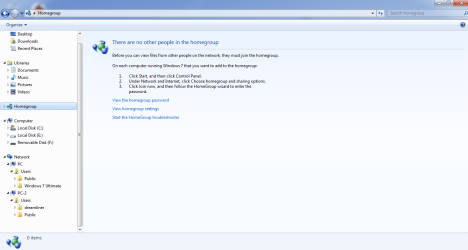
A few days ago I started my first attempt at networking. I bought a crossover ethernet cable and tried out Homegroup between two W7s (1 Ultimate / 1 Professional). A few days later this has been a very frustrating experience (see first screenshot).

I can get the network connections but Homegroup has failed. I looked on this webpage and found that other users were having problems: https://helpdeskgeek.com/windows-7/windows-7-cannot-connect-to-homegroup/

No matter what I try I seem to get back to square one. Recurring problems include:

- Trying to set the network to 'Home' and keeping it there
- Having to set up the whole process again when clean booting
- Going through the troubleshooter hoping that a wizard will magic wand this problem

This really isn't user friendly. Is there any way this can be set up properly?!

Also... Do I need Homegroup and if I can't set it up properly can you advise an alternative or better setup? As mentioned I am able to share files and folders so have gone some step of the way.
 

Attachments
  • Homegroup1.png
    Homegroup1.png
    36 KB · Views: 0
  • Homegroup2.png
    Homegroup2.png
    32.3 KB · Views: 0

My Computer

Computer type
PC/Desktop
OS
Windows 7 HP & Pro 64 bit
I would start by getting rid of the crossover cable. If you have a router, you can use it to network your computers, simply by connecting each computer to the router with a regular (non-crossover) Ethernet cable. (Any cable which is CAT 5 or CAT5e will do, and it will be cheaper than CAT6.) If you don't have a router, you can use a basic switch. Here's one available on Amazon for $16.99:

https://www.amazon.com/NETGEAR-5-Po...id=1509029186&sr=1-5&keywords=ethernet+switch

Once you have done the above, now you can set up file sharing. (I assume that the only thing you want to share between the computers is the files residing on those computers.)

First, tell each computer to share its files with the other computers
Go to each PC, and open up File Manager. Right click on the drive or folder that you want to share with the other computers, and tell it to share that drive or folder (i.e. to make it available). It will now be available to the other computers. But we haven't actually accessed it from any other computers. That will be in the next step.

Second, access the things you shared from the other computers
Go to each PC, and open up File Manager.
Now try to open up something on another computer. For example, if you are on "PC", try to open up something on "PC1". (All of this will be found in the "Network" section, in the left pane of File Manager.) It should ask you for the username and password. There may be an option to remember the username and password, which means that you will be able to simply double click on it in the future.

Once you have successfully opened another computers drive or folder, you can map a drive to that drive or folder, to make it easier to access in the future. At the top of the File Explorer window should be an option to "Map a Drive" (in other words, to give it a drive letter -- x:, y:, q:, etc.).
 

My Computer

Computer type
PC/Desktop
Computer Manufacturer/Model Number
Dell
OS
Linux Mint 18.2 xfce 64-bit (VMWare host) / Windows 8.1 Pro 32-bit (VMWare guest)
CPU
Haswell
Memory
4 GB
Monitor(s) Displays
Acer 23"
Screen Resolution
1920 x 1080
Hard Drives
Two hard drives, 1TB each: One for Linux, one for my data.
Keyboard
IBM Model M
Antivirus
Sophos (Linux), Trend Micro (Windows)
Browser
Firefox, Opera
Other Info
I use Samba to share my data drive with the other computers at my house and with my guest session in VMWare Workstation Player.
OK thanks a lot. I will get out and buy these items. For this particular test I guess I will just need the switch as mentioned and two regular ethernet cables. I will then run the test again using your instructions.

I was looking into Credential Manager to save user names and passwords (if that's what it's for) but I wasn't sure how to exactly use it as CCleaner sometimes removes these saved details.
 

My Computer

Computer type
PC/Desktop
OS
Windows 7 HP & Pro 64 bit
If you want to set up user accounts on your computers, you can use Credential Manager. But that's not necessary for doing simple file sharing among the computers. But I'm sure it would be useful to do that if you want to learn about setting up user accounts.

CCleaner shouldn't be removing any of the Credential Manager information. If it is, then something is not right - perhaps you inadvertently told it to do that.
 

My Computer

Computer type
PC/Desktop
Computer Manufacturer/Model Number
Dell
OS
Linux Mint 18.2 xfce 64-bit (VMWare host) / Windows 8.1 Pro 32-bit (VMWare guest)
CPU
Haswell
Memory
4 GB
Monitor(s) Displays
Acer 23"
Screen Resolution
1920 x 1080
Hard Drives
Two hard drives, 1TB each: One for Linux, one for my data.
Keyboard
IBM Model M
Antivirus
Sophos (Linux), Trend Micro (Windows)
Browser
Firefox, Opera
Other Info
I use Samba to share my data drive with the other computers at my house and with my guest session in VMWare Workstation Player.
Sorry I didn't make it clear. I set CCleaner to remove 'Network Passwords' so I think it removed the ones to log into the respective drives and not Credential Manager.

I will try to find a good and clear link for using Credential Manager unless you can recommend one.
 

My Computer

Computer type
PC/Desktop
OS
Windows 7 HP & Pro 64 bit
Just to be clear on what I posted earlier: you already have at least one user account on each of your PCs, so it is not necessary to use Credential Manager for the file sharing, unless you want to.

Click the Start button, then Run, then type in Credential Manager and hit Enter. You should find a link to it that way.
 

My Computer

Computer type
PC/Desktop
Computer Manufacturer/Model Number
Dell
OS
Linux Mint 18.2 xfce 64-bit (VMWare host) / Windows 8.1 Pro 32-bit (VMWare guest)
CPU
Haswell
Memory
4 GB
Monitor(s) Displays
Acer 23"
Screen Resolution
1920 x 1080
Hard Drives
Two hard drives, 1TB each: One for Linux, one for my data.
Keyboard
IBM Model M
Antivirus
Sophos (Linux), Trend Micro (Windows)
Browser
Firefox, Opera
Other Info
I use Samba to share my data drive with the other computers at my house and with my guest session in VMWare Workstation Player.
You don't need home group just use work group home group needs ipv6. It makes life simpler if you have same username and password on both PC's as it's passed by default
 

My Computer

Computer type
PC/Desktop
OS
win 8 32 bit
I went back to your first recommendation and mapped network drives on both computers. I kept the drive letters the same on each computer (in other words I did exactly the same thing twice on each computer) so I now have:

Users (\\PC) (Z)
Users (\\PC-2) (Y)

on each computer with full access. I don't know if this is exactly the correct procedure.

In each computer Credential Manager automatically filled in the credentials of the other computer. I am guessing that this particular set up is ok.

I also followed the instructions here: Unidentified Networks - Set as Private or Public (Option One no's 2-4) and changed both network types to 'Private'. This now shows up as 'Unidentified network/Work network' in both computers in the Network and Sharing Center.

I am still able to share/edit files and folders.
 

My Computer

Computer type
PC/Desktop
OS
Windows 7 HP & Pro 64 bit
Ok; so you mapped the "Users" folder on each PC. That's fine, if that's the folder you wanted to map.

You might also consider the following mappings (you pick the letters):

X:=\\PC\Users\John\Documents
W:=\\PC-2\Users\Jane\Documents

In this way, you are right at the documents folder, so you won't have to wade through a few folders to get there.

But what you did is fine, if that's what you wanted to map.

Glad to hear that you can share and edit your files and folders. Sounds like this was a success for you.
 

My Computer

Computer type
PC/Desktop
Computer Manufacturer/Model Number
Dell
OS
Linux Mint 18.2 xfce 64-bit (VMWare host) / Windows 8.1 Pro 32-bit (VMWare guest)
CPU
Haswell
Memory
4 GB
Monitor(s) Displays
Acer 23"
Screen Resolution
1920 x 1080
Hard Drives
Two hard drives, 1TB each: One for Linux, one for my data.
Keyboard
IBM Model M
Antivirus
Sophos (Linux), Trend Micro (Windows)
Browser
Firefox, Opera
Other Info
I use Samba to share my data drive with the other computers at my house and with my guest session in VMWare Workstation Player.
I tried a different setup, showing on both computers, but I don't know what is conventional or correct:

First Computer (PC)

X:=\\PC\Users\FirstComputerName (then you can access all personal folders of your own or within the other computer)
Y:=\\PC\Users\Public (then you can share documents outside of your own personal folders if you wish to do this instead)

Second Computer (PC-2)

W:=\\PC-2\Users\SecondComputerName (then you can access all personal folders of your own or within the other computer)
Z:=\\PC-2\Users\Public (then you can share documents outside of your own personal folders if you wish to do this instead)

Does this make sense?
 

My Computer

Computer type
PC/Desktop
OS
Windows 7 HP & Pro 64 bit
Makes perfect sense.

With drive mappings, it is whatever works for you.

I suspect that if you revisit the drive mappings after about six months of using them, you might want to reorganize things in a better way. But you won't know what that better way is, or even if there is a better way, till you have rolled up your sleeves and used the system a bit.

The only thing that really matters is that you are able to share files between the computers; and it sounds like you were successful in that.
 

My Computer

Computer type
PC/Desktop
Computer Manufacturer/Model Number
Dell
OS
Linux Mint 18.2 xfce 64-bit (VMWare host) / Windows 8.1 Pro 32-bit (VMWare guest)
CPU
Haswell
Memory
4 GB
Monitor(s) Displays
Acer 23"
Screen Resolution
1920 x 1080
Hard Drives
Two hard drives, 1TB each: One for Linux, one for my data.
Keyboard
IBM Model M
Antivirus
Sophos (Linux), Trend Micro (Windows)
Browser
Firefox, Opera
Other Info
I use Samba to share my data drive with the other computers at my house and with my guest session in VMWare Workstation Player.
Thank you so much for all your helpful advice and guidance. Today I went out and bought a TP-Link 5-Port 10/100Mbps Switch as well as three CAT6 Ethernet cables. I tried it out tonight and data was transferred at the speed of light as well as a great improvement in general processing - much faster than the Ethernet crossover cable on its own.

I am at an advantage as I am using two test pc's so can afford to experiment far more than on my main pc and this should allow me to learn more about networking.
 

My Computer

Computer type
PC/Desktop
OS
Windows 7 HP & Pro 64 bit
Glad to hear that all is working well!

It always feels good when you set up something like this, and it then works well. I think that's what keeps me going so strong in this type of work.

At some point, you may want to get a 1000 Mbps switch, to get a faster transfer speed. But I wouldn't worry about that right now. Enjoy your success, and worry about that later.
 

My Computer

Computer type
PC/Desktop
Computer Manufacturer/Model Number
Dell
OS
Linux Mint 18.2 xfce 64-bit (VMWare host) / Windows 8.1 Pro 32-bit (VMWare guest)
CPU
Haswell
Memory
4 GB
Monitor(s) Displays
Acer 23"
Screen Resolution
1920 x 1080
Hard Drives
Two hard drives, 1TB each: One for Linux, one for my data.
Keyboard
IBM Model M
Antivirus
Sophos (Linux), Trend Micro (Windows)
Browser
Firefox, Opera
Other Info
I use Samba to share my data drive with the other computers at my house and with my guest session in VMWare Workstation Player.
This has been a marathon with many more hours spent in front of the computer than I expected... I managed to join an extra laptop to the network (a 2001 Toshiba Pentium 3 (originally with Windows 98!) with Windows 7 Professional which is still alive). I'm documenting the steps I took to get there but it basically included:

- Making sure the relevant Homegroup and Peer services are set to Automatic and running in services.msc
- In Local Group Policy Editor setting Unidentified and Identified Networks to 'Private' (is this right?)
- Changing the Share in Computer Management > Shared Folders > Shares from C:\Users to C:\Users\Public (this is what I want)
- Mapping the network drives

I also managed to start a Homegroup through another os - i.e. Win 10 Enterprise linked to Win 7 Ultimate and Win 7 Pro. However, I much prefer the other system that was set up as Homegroup seems to reset itself in the case where I was using three Win 7s and this does not give me much confidence in this particular setup.

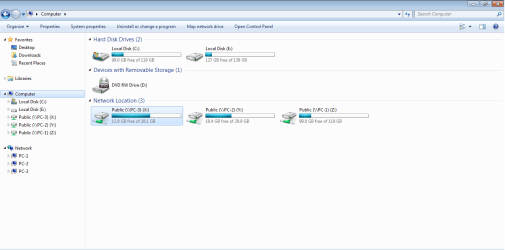
I just wanted to know if when the drives are mapped should the 'Network' icon in Windows Explorer (below) be removed? Apparently this can be done through regedit but I have no experience of this and am not sure of the consequences.

I may see about a better switch at some point in the future but as this is only a test network it isn't a must for now.
 

Attachments

  • 3Net.png
    3Net.png
    24.8 KB · Views: 1

My Computer

Computer type
PC/Desktop
OS
Windows 7 HP & Pro 64 bit
Do not remove the Network icon! And do not do any "hacking" through regedit, unless you are absolutely sure of what you are doing. Even then, you need to think twice before doing it. The consequences of making a mistake in regedit could be that you won't be able to access Windows anymore.

Everything looks good; you can now access any computer's hard drive from any other computer, either by using the drive mappings (under "Network Location" or under "Computer"), or by using the computer names (under "Network").
 

My Computer

Computer type
PC/Desktop
Computer Manufacturer/Model Number
Dell
OS
Linux Mint 18.2 xfce 64-bit (VMWare host) / Windows 8.1 Pro 32-bit (VMWare guest)
CPU
Haswell
Memory
4 GB
Monitor(s) Displays
Acer 23"
Screen Resolution
1920 x 1080
Hard Drives
Two hard drives, 1TB each: One for Linux, one for my data.
Keyboard
IBM Model M
Antivirus
Sophos (Linux), Trend Micro (Windows)
Browser
Firefox, Opera
Other Info
I use Samba to share my data drive with the other computers at my house and with my guest session in VMWare Workstation Player.
Many thanks for all your advice. I don't normally pick things up the hard way like this but now I can take one step back and do some reading about networking in general as well as some further testing.
 

My Computer

Computer type
PC/Desktop
OS
Windows 7 HP & Pro 64 bit
So far, you have done "unsecured" file sharing. That is all most home users need. However, when you move into the business world, file access needs to be restricted to those who are authorized to have the access. The way that is generally accomplished is that they get some networking software (for example, Windows Server), and then set up a user account for each person who is authorized to log onto the network in some way. They then create access groups, each group having access to particular files, folders, etc., on the network; and they then make the various users "members" of the various access groups, so that they will have access to what they need. Access is further divided up by the type of access that people need, for example, "read only" (can only look at files, can't make changes to them) vs "write" (the ability to make changes to files).

Generally, when you do a search on "networking", you will find information on the wiring and communications aspect of networking. But that is only a part of it; the other part is what I have described above.

Here is a website which has an excellent overview of computer networking:

https://www.computernetworkingnotes.com/networking-basic/what-is-networking.html
 

My Computer

Computer type
PC/Desktop
Computer Manufacturer/Model Number
Dell
OS
Linux Mint 18.2 xfce 64-bit (VMWare host) / Windows 8.1 Pro 32-bit (VMWare guest)
CPU
Haswell
Memory
4 GB
Monitor(s) Displays
Acer 23"
Screen Resolution
1920 x 1080
Hard Drives
Two hard drives, 1TB each: One for Linux, one for my data.
Keyboard
IBM Model M
Antivirus
Sophos (Linux), Trend Micro (Windows)
Browser
Firefox, Opera
Other Info
I use Samba to share my data drive with the other computers at my house and with my guest session in VMWare Workstation Player.
Thanks a lot for your summary of networking. It really makes sense. I always wondered what IT networking got up to when I last worked in a big office and it certainly looks like a lot of work.

I briefly skimmed one page in the link you sent me which I found online last week (Differences between Workgroup and Homegroup) but I will now go through all the pages in the link you have given me.
 

My Computer

Computer type
PC/Desktop
OS
Windows 7 HP & Pro 64 bit
The key things that IT people have to do are: (1) Be very careful that you get everything exactly right, so you don't goof up the network in some way, and (2) DO NOT forget the admin passwords!

If an IT pro messes up on either of these points, he won't have a job for long!
 

My Computer

Computer type
PC/Desktop
Computer Manufacturer/Model Number
Dell
OS
Linux Mint 18.2 xfce 64-bit (VMWare host) / Windows 8.1 Pro 32-bit (VMWare guest)
CPU
Haswell
Memory
4 GB
Monitor(s) Displays
Acer 23"
Screen Resolution
1920 x 1080
Hard Drives
Two hard drives, 1TB each: One for Linux, one for my data.
Keyboard
IBM Model M
Antivirus
Sophos (Linux), Trend Micro (Windows)
Browser
Firefox, Opera
Other Info
I use Samba to share my data drive with the other computers at my house and with my guest session in VMWare Workstation Player.
Looks like you've seen it all! I have never worked in networking and even though opportunities came my way I nevertheless stayed with data and databases focusing on Access which is not highly considered and almost defunct. I personally struggled to make the move up to SQL Server and NET and competently design a relational database I would feel happy leaving with a potential client with minimum maintenance. I have now left the database world and just enjoy learning about operating systems and general IT which is more of a hobby than anything else.

I saw a few people start as beginners in IT admin and with one person the IT Manager was constantly bullying him so it sort of put me off but I guess it's never too late to learn and it can be made more interesting if you learn about security as well as there must be security implications from networking computers.

In one large organisation I worked at they had to reinstall all the operating systems as a virus from a USB stick infected the network. I guess something like that should be preventable but I don't know how.

My test system is my first setup that is close to a network and it has got me thinking about many things especially how small businesses with limited funding can operate such a system. If for example they get Homegroup working by going through the user interfaces (i.e. get lucky!) what happens when something goes wrong? I feel as though Microsoft have tried to simplify something complicated by using Homegroups but in my experience and as you can see I did not get the result through this method so therefore had to set up my own system with your help. I wonder if Microsoft have made Homegroups work better in Windows 10.

I guess the other alternative for an aspiring small business is to get into cloud computing with OneDrive, Office365 and Azure and then while they may be limited they will not have to go through local networking issues or necessarily pay big bucks for a networking professional, in the case of Office365 and OneDrive. I am not sure if Azure is designed for novice users.
 

My Computer

Computer type
PC/Desktop
OS
Windows 7 HP & Pro 64 bit
Back
Top