How can I Share PST file with XP-Mode

Geekster2

New member
Local time
8:45 AM
Messages
10
Location
Southern Calif, USA
OK. so maybe I'm an idiot or something, but Since Outlook 2007 doesn't support ani-Gifs, I'd rather run Outlook 2003 inside my xp-mode VM. However I want all my messages stored in the same place, so when I'm in Windows 7 Ultimate, I can run Outlook 2007 if I ever want to.
The problem is after running Outlook 2003 for a few minutes inside the XP-Mode VM, I get this error: see attached file.

It keeps losing rights to the PST file. I would like to give XPMuser admin rights to the Windows 7 machine, but can't seem to be able to.

How can I give xpmuser admin rights to Windows 7?

Thanks for your help.

Geekster2
 

Attachments

  • XP-Mode-Loses Drive Rights After ScrnSaver.JPG
    XP-Mode-Loses Drive Rights After ScrnSaver.JPG
    13 KB · Views: 40
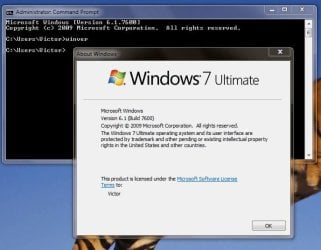
  • WinVer output.JPG
    WinVer output.JPG
    47.6 KB · Views: 31
Last edited:

My Computer My Computer

At a glance

Windows 7 Ultimate 64 and Ubuntu 9.10Core2 Quad core4 GBGeForce 9500GT
Computer Manufacturer/Model Number
Self built
OS
Windows 7 Ultimate 64 and Ubuntu 9.10
CPU
Core2 Quad core
Motherboard
Asus P5N-EM HDMI board
Memory
4 GB
Graphics Card(s)
GeForce 9500GT
Sound Card
onboard
Monitor(s) Displays
Envision 21
Hard Drives
Western Digital 1 TB.
PSU
350 watt
Case
dont know.
Cooling
2 case fans
OK, so I figured out a WORK AROUND, (which is NOT a solution). It would still be nice to see a REAL solution.

You see, the path to documents that did NOT work was:
"C:\Libraries\documents\documents\email\Outlook.PST"

When I moved the PST file to:
"C:\Libraries\documents\PUBLIC documents\email\Outlook.pst" the disconnects from inside XP-Mode went away.

NOW, (all you Win7 gurus out there) WHY IS THAT?
Why can't I put the PST file in the private documents directory?
I can map the "My Documents" settings in XP-Mode to the private directory just fine.
WHY NOT THE PST file? What makes Outlook any different?
And further, WHY does Outlook have the rights when first opened, and then looses them a little while later?
What's up with the inconsistency?
.
.
.
 

My Computer My Computer

At a glance

Windows 7 Ultimate 64 and Ubuntu 9.10Core2 Quad core4 GBGeForce 9500GT
Computer Manufacturer/Model Number
Self built
OS
Windows 7 Ultimate 64 and Ubuntu 9.10
CPU
Core2 Quad core
Motherboard
Asus P5N-EM HDMI board
Memory
4 GB
Graphics Card(s)
GeForce 9500GT
Sound Card
onboard
Monitor(s) Displays
Envision 21
Hard Drives
Western Digital 1 TB.
PSU
350 watt
Case
dont know.
Cooling
2 case fans
Once a PST is locked it cannot be accessed until you close Outlook and the outlook.exe process ends. A PST file cannot be accessed by more than one Outlook client at a time.

Regarding permissions, I assume that your XPM user account is not Victor with the same password as your host account? That's sort of standard for a workstation environment. Accounts cannot access files in other user profile folders. These are also basically separate computers. Stick the PST in another folder, C:\Mail for example. Give "Everyone" full control. See if that works.
 

My Computer My Computer

At a glance

Windows 7 Home Premium x64Intel Core 2 Quad Q9450 @ 3.2GHz4GB DDR2-800MSI Radeon HD 5850
OS
Windows 7 Home Premium x64
CPU
Intel Core 2 Quad Q9450 @ 3.2GHz
Motherboard
Asus P5Q PRO Turbo
Memory
4GB DDR2-800
Graphics Card(s)
MSI Radeon HD 5850
Sound Card
Creative Labs Audigy2 ZS
Monitor(s) Displays
Samsung 225BW
Hard Drives
(2) 1TB Samsung F1, (2) 1.5TB Samsung F2, 1TB Samsung F2, 2TB Samsung F3
PSU
Corsair HX650
Case
Antec Nine Hundred
JonM33:
Thanks for the reply. Well the PST is not locked open because Outlook is not running in the Windows 7 session. Even if it were, I doubt that Outlook 2003 (running in the VM) would be able to open it for even the few minutes that I've explained it works for.
You have basically described to me what my post previous to yours said. That moving it to another directory will make it work (IE Public documents). Yes it does, but I'd still like to know how to assign rights to the PST file to everyone no matter where it is on the drive. I can do it with XP, I can do it with Linux. Why not Windows 7? :mad: Or better yet, How can I assign rights to a user that resides inside the Virtual Machine? I haven't been able to call up a user list of the XP-mode virtual machine when viewed from the Windows 7 session. And yes, I have the VM running and minimized. You'd think somehow I could grant rights to user accounts that reside inside the XP-Mode session to files in the Windows 7 session just as you can for any remote session. But you can't! That really gripes me. How could Microsoft not anticipate that need?
 

My Computer My Computer

At a glance

Windows 7 Ultimate 64 and Ubuntu 9.10Core2 Quad core4 GBGeForce 9500GT
Computer Manufacturer/Model Number
Self built
OS
Windows 7 Ultimate 64 and Ubuntu 9.10
CPU
Core2 Quad core
Motherboard
Asus P5N-EM HDMI board
Memory
4 GB
Graphics Card(s)
GeForce 9500GT
Sound Card
onboard
Monitor(s) Displays
Envision 21
Hard Drives
Western Digital 1 TB.
PSU
350 watt
Case
dont know.
Cooling
2 case fans
How I share my PST files between XP and Windows 7 Home Premium

I have multiple computers, one of which runs Windows XP (sp 3) and the other two are laptops that run Windows 7. I found that it was easier to copy the .pst files from the containing folder on the desktop...

For XP to Windows 7
1. In Shared Documents (usually accessed from XP by clicking on Computer) create a folder (such as E-mail files).
2. Go to C:\Documents and Settings\[your user name]\Application Data\Microsoft\Outlook
3. Select all the files in the folder, then go to your folder (created in step 1) and paste all files there.
4. Open MS Outlook, click on Data Management, click Add, then browse to the folder you created in Step 1 and click on Outlook.pst.
5. Click Tools>E-mail Accounts
6. Select View or change existing e-mail accounts, click Next.
7. Select the e-mail accounts you want to transfer to the new folder and select the new folder under "Deliver new e-mail to the following location:"

8. On the other computer (again, I use a laptop running Windows 7) click on Computer, right click on the window that opens up, select "Add a network location".
9. Type in the network location of the pst file (usually formatted as \\[ComputerName]\SharedDocs\[foldername]" remember to remove the quotes...)
10. Open MS Outlook, click on Data Management, click Add, then browse to the Network Location listed under the Computer and click on Outlook.pst.
11. Do steps 5-7

ADVISOR: Only one instance of Outlook can access the .pst file at one time, if it is already in use, it will give you an error message when you try to open the second instance of Outlook.
 

My Computer My Computer

At a glance

Windows 7 and XP
OS
Windows 7 and XP
ADVISOR: Only one instance of Outlook can access the .pst file at one time, if it is already in use, it will give you an error message when you try to open the second instance of Outlook.
Welcome to the Seven Forums, Crine. Very good and informative post you have there, worth some rep. (Third time for me, to rep new members first post. Is this going to be a habit? ;))

The quoted statement is exactly why I have another approach to this issue. I have Outlook 2010 installed on 3 computers (netbook, laptop and desktop), starting automatically in each of them when booted. All set up with the same email accounts, all accounts leaving the messages on the server for 30 days, all rigs storing and using their individual locally stored PST-files.

This way, leaving the messages on server long enough for all rigs to be able to read them, all rigs get the new messages and store them locally, so whichever rig and Outlook I'm running, I'm always OK and receive my mails.

Kari
 

My Computer My Computer

At a glance

Windows 10 Pro x64 EN-GB1.6 GHz Intel Core i7-720QM Processor6 GBATI Mobility Radeon HD 5850 Graphics
Computer type
Laptop
Computer Manufacturer/Model Number
HP ENVY 17-1150eg
OS
Windows 10 Pro x64 EN-GB
CPU
1.6 GHz Intel Core i7-720QM Processor
Memory
6 GB
Graphics Card(s)
ATI Mobility Radeon HD 5850 Graphics
Sound Card
Beats sound system with integrated subwoofer
Monitor(s) Displays
17" laptop display, 22" LED and 32" Full HD TV through HDMI
Screen Resolution
1600*900 (1), 1920*1080 (2&3)
Hard Drives
Internal: 2 x 500 GB SATA Hard Disk Drive 7200 rpm
External: 2TB for backups, 3TB USB3 network drive for media
Cooling
As Envy runs a bit warm, I have it on a Cooler Master pad
Keyboard
Logitech diNovo Media Desktop Laser (bluetooth)
Mouse
Logitech Performance Mouse MX
Internet Speed
50/10 Mbps VDSL
Antivirus
Windows Defender 4.3.9431.0
Browser
Maxthon 3.5.2., IE11
Back
Top