How do I change to Basic Windows 7 theme through command prompt?

hannahbanana

New member
Local time
3:50 PM
Messages
4
I'm having problems with my computer...isn't everyone on this forum? (excluding all you experts of course) Anyway, I accidentally changed the theme to Windows Classic and it prompted a very undesirable feature. None of the programs run through Windows Explorer will load! Control Panel, My Computer, Documents, Devices and Printers: A window will pop up, but no amount of waiting will load the contents. There is simply a black screen...or else a screen full of the background or of other windows that leave residue whenever you move them around. That last sentence didn't make much sense, sorry.

I've tried everything including:
-running anti-malware and antivirus programs
-running sns /scannow,
-systems restore
-using safe mode
-rebooting into last good configuration mode

I've tried every means in my power, google searched everything a million times and tried every suggestion. Nothing has changed. My dad (who is a computer programmer) also tried for a long while, with no results. I can't troubleshoot because Control Panel won't load, can't change theme, because Personalize won't load. The administrator and other computer accounts work fine. Only this account will not load windows explorer. Everything else works.

So, is there any possible way to either change the theme of the desktop account back to Basic Theme through either command prompt or through the admin account? (To clarify, this is the theme not the background or wallpaper.)
 

My Computer

Computer type
PC/Desktop
OS
Idaho
Antivirus
Microsoft Security Essentials
Browser
Chrome
How do I change to Basic Windows 7 theme through command prompt?
To answer that question, simply invoke, start or call your desired .theme file.

E.g.
Code:
[COLOR="Silver"]C:\>[/COLOR]"C:\Windows\Resources\Ease of Access Themes\basic.theme"
[COLOR="gray"]OR[/COLOR]
[COLOR="Silver"]C:\>[/COLOR]start "" "C:\Windows\Resources\Ease of Access Themes\basic.theme"
[COLOR="Gray"]OR[/COLOR]
[COLOR="Silver"]C:\>[/COLOR]call "C:\Windows\Resources\Ease of Access Themes\basic.theme"

Note, you may have to close a "Personalization" window that appear after running a .theme file.
 

My Computer

Computer type
PC/Desktop
OS
Windows 10, Windows 8.1 Pro, Windows 7 Professional, OS X El Capitan
Tried all three, to no avail. The Personalization Window opened, but the theme is still as "Classic" and dysfunctional as ever
I unfortunately forgot to mention that closing Windows Explorer is also a trial as it can only be done through Task Manager which thankfully DOES work. It takes a while to "end now."
 

My Computer

Computer type
PC/Desktop
OS
Idaho
Antivirus
Microsoft Security Essentials
Browser
Chrome
The theme to be loaded/used by a given user is stored in that user's registry.

My testing shows that this registry entry can be changed by another user account. In other words, one of the working accounts on this computer should be able to change the theme to be used by another user account. Unfortunately, the forum is working too slowly for me to post the details on how to make these registry changes. Perhaps other forum members can flesh out the steps that you need to take with the registry - or maybe others have other/better ideas.
 

My Computer

Computer type
Laptop
Computer Manufacturer/Model Number
Employer provided Dell Latitude
OS
W7 Pro SP1 64bit
CPU
i7
Memory
8GB
Graphics Card(s)
Intel HD Graphics
Hard Drives
crappy SSD
Antivirus
Employer mandated Symantec Endpoint Protection
Browser
Pale Moon 64bit, IE11 64bit & Chrome 64bit
Well that would be awesome if someone could tell me how to change that registry entry...I'm not the dumbest computer person ever, but I, like many 17 year olds, probably need a detailed play-by-play. Thanks so much for those giving tips! If you can help me furthur, please do! I will be very indebted to you... So....do we have any registry entry people around here?
 

My Computer

Computer type
PC/Desktop
OS
Idaho
Antivirus
Microsoft Security Essentials
Browser
Chrome
If this does not work, then it might be best to create a new/fresh profile and move your files to that one.

There are more than a hundred places in the registry that get changed when themes change, We are only going to change one. That should cause Windows to save the info as a custom theme. I'm hoping that Windows will save the correct info instead of the bad info that is being used now.

If the account that is having the problem is an admin account, then try this:

[If need be, create a standard user account.]
Restart the computer and log onto a standard user account (a non-admin account).

Click on the Start button.
Type regedit in the field named Search for programs and files
When the shortcut for regedit appears...
...right click on it and select Run as administrator

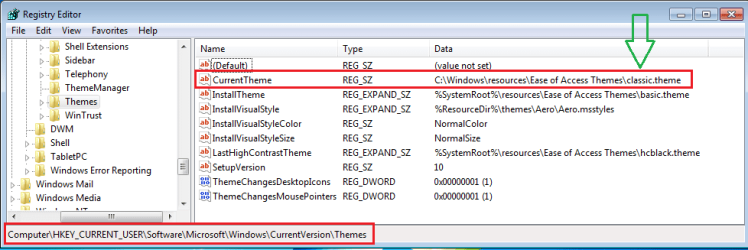
Doing that should present you with a list of administrator accounts to pick from. Select the user account that is having the problem. That should cause regedit to load the info for the problem account into the normal HKEY_CURRENT_USER tree. This is the key that you want to change:
theme1.png

Change that to basic.theme

The next time that you log onto the account with the problem, Windows should see the mismatch between the current theme being basic and the dozens of other theme related settings. That should put it into the custom theme mode. Hopefully, that mode will let you select the basic theme the normal way - via the Personalization window.
 

My Computer

Computer type
Laptop
Computer Manufacturer/Model Number
Employer provided Dell Latitude
OS
W7 Pro SP1 64bit
CPU
i7
Memory
8GB
Graphics Card(s)
Intel HD Graphics
Hard Drives
crappy SSD
Antivirus
Employer mandated Symantec Endpoint Protection
Browser
Pale Moon 64bit, IE11 64bit & Chrome 64bit
By the way, loading the theme via command prompt really should have worked. There might be something else wrong with the bad profile. Whatever is wrong just opted to show up after you changed themes. Changing the them back might not help.

When you said, "...other windows that leave residue whenever you move them around." I knew exactly what you meant. I've seen this happen many times - but only to one app. The client area of the window does not update. It is like a snapshot/photograph of the info that was behind the window when it locked up.


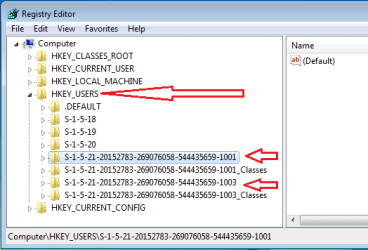
If you don't have (or don't want to create) a standard user account. Or, if the account that has the problem is a standard user, the you can use an admin account to make the change mentioned in my post above. To do that, log on to the account that has the problem, then use Switch user to log on to a good admin account. Once you open the registry, the area to change will be under one of the keys shown below. (The key of interest might have a slightly different name.)


theme2.png

http://www.sevenforums.com/attachme...ows-7-theme-through-command-prompt-theme2.png
 
Last edited:

My Computer

Computer type
Laptop
Computer Manufacturer/Model Number
Employer provided Dell Latitude
OS
W7 Pro SP1 64bit
CPU
i7
Memory
8GB
Graphics Card(s)
Intel HD Graphics
Hard Drives
crappy SSD
Antivirus
Employer mandated Symantec Endpoint Protection
Browser
Pale Moon 64bit, IE11 64bit & Chrome 64bit
Back
Top