Solved How do i copy folder path in windows 7 using shortcut-key(from KB)

kunwarsingh

New member
Local time
8:23 AM
Messages
5
Hi Friends,
I am facing one issue facing and need ur help on this.

Issue:
Many times i have opened many folders in windows 7 and want to save a text file from a editor(say editplus) to a specific folder from the above list.
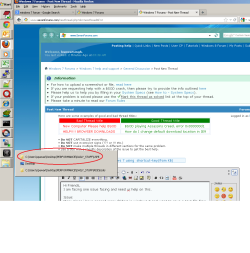
I do Alt+tab and open that folder session (see the attached file folder_to_save.png)
So here i need to have the path(path_sample.JPG) . I am tired of selecting the path using the mouse.
Can you please suggest a shortcut key using keyboard this? I googled a lot but couldnt find a solution :(


Regds,
Kunwar
 

Attachments

  • path_sample.JPG
    path_sample.JPG
    22.8 KB · Views: 12
  • folder_to_save.png
    folder_to_save.png
    51.9 KB · Views: 16

My Computer My Computer

OS
Windows 7 premium 32-bit
Guys someone could suggest here please ? :(
 

My Computer My Computer

OS
Windows 7 premium 32-bit
Sory I don't understand. If you are saving something then a dialog box pops up asking for a name and the folder you want to save in. Just browse to the folder. Not sure why you need to copy the path. If you aren't getting a dialog then select Save As. that will bring up the dialog box to browse to the folder you want to save in.
 

My Computer My Computer

OS
7 x64
@edwar,Thanks for replying.


I dont want to "Just browse to the folder" because many a times in the day the folder is a different one (normally 30-40 times a day).

What i do right now is:


  • from my mouse select the path given in for example path_sample.JPG and press ctrl+c to copy that path
  • and paste that in the "dialog box " which pops up.

What i would like to do is :

  • from my keyboard ,using a shortcut-key copy that path.
  • and paste that in the "dialog box " which pops up.

I hope you understand my question, if not please let me know. i will explain more in details.

Regds,
Kunwar
 

My Computer My Computer

OS
Windows 7 premium 32-bit
Ok but just how do you get to a path (folder on a drive someplace attached to your computer) to copy that path? You must be browsing to it somehow. In the Win Explorer window just click in the Address bar away from the breadcrumbs and the path you are currently BROWSING in will be selected. Right click on it or Ctrl+C to copy it. In the save or save as dialog highlight either the breadcrumbs area Paste then enter key or the File Name field and Ctrl+v or right click/Paste and then the name of the file.

How you are getting that path in the context right click menu I don't know. Maybe an add-on of some type?
 

My Computer My Computer

OS
7 x64
Actually ...

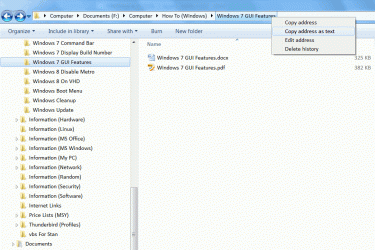
You can click on the "Breadcrumbs" and choose "Copy address as text".
Click on the picture for the animation.

198104d1329103287-powerdesk-retired-me-too-many-incompatiblilities-win7-tip-copy-address-text.gif
 

My Computer My Computer

Computer type
PC/Desktop
Computer Manufacturer/Model Number
n/a
OS
W7 Ultimate SP1, LM19.2 MATE, W10 Home 1703, W10 Pro 1703 VM, #All 64 bit
CPU
AMD Phenom II x6 1100T, 3.3 GHz
Motherboard
ASUS M4A88T-M/USB3 (AM3)
Memory
12GB DDR3 1333 G-Skill (4GB x 2), G-Skill (2GB x 2)
Graphics Card(s)
NVIDIA GeForce GTX 660
Sound Card
Realtek?
Monitor(s) Displays
Samsung S23B350
Screen Resolution
1920x1080
Hard Drives
WD Green 2TB (SATA), WD Green 3TB (SATA), WD Blue 4TB (SATA), WD Blue 6TB (SATA)
PSU
Cooler Master
Case
Antec GX300 Tower
Cooling
3x Antec TRICOOL 120mm Fans
Mouse
Wired Optical
Internet Speed
DSL
Antivirus
Avast
Browser
Pale Moon (64 bit)
Other Info
2018-12-27 Upgraded HDDs
2015-12-10 Upgraded case, graphics card, storage
2015-08-15 Upgraded motherboard & RAM
2015-07-15 Upgraded LM17.1 to LM17.2
@edwar i want to do the below with keyboard , how can i do it?

".In the Win Explorer window just click in the Address bar away from the breadcrumbs and the path you are currently BROWSING in will be selected"


@
lehnerus2000 http://www.sevenforums.com/member.php?u=197237 i want to do the below with keyboard , how can i do it?

You can click on the "Breadcrumbs" and choose "Copy address as text".

Hope you get what i want now? :o
 

My Computer My Computer

OS
Windows 7 premium 32-bit
Tab and Arrow keys is how you navigate around Windows along with the Ctrl + letter keys to take/make actions on what is highlighted by moving focus with Tab and Arrow keys. Which keys and or key combos you would use to do what you want is something I don't know off the top of my head. Trial and error until you find which.
 

My Computer My Computer

OS
7 x64
Use "Alt + D" to select the Address/Breadcrumb Bar

Brink has provided a list of Keyboard Shortcuts in the Tutorials section. :)
http://www.sevenforums.com/tutorials/4052-shortcut-keys-windows-7-a.html

Option 1


  • Use "Alt + D" to select the Address/Breadcrumb Bar.
  • Press "Ctrl + C".

Option 2


Use the Tab or F6 key to cycle through the window elements.
When the Address/Breadcrumb Bar is selected:

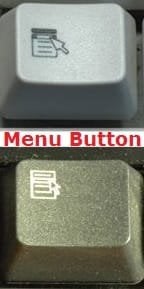
  • Press the "Context Menu" key on your keyboard
  • Use the arrow keys to highlight ""Copy address as text"
  • Press the "Enter" key
193876d1326949053-context-menu-right-click-vs-shift-right-click-menu-button.jpg
 
Last edited:

My Computer My Computer

Computer type
PC/Desktop
Computer Manufacturer/Model Number
n/a
OS
W7 Ultimate SP1, LM19.2 MATE, W10 Home 1703, W10 Pro 1703 VM, #All 64 bit
CPU
AMD Phenom II x6 1100T, 3.3 GHz
Motherboard
ASUS M4A88T-M/USB3 (AM3)
Memory
12GB DDR3 1333 G-Skill (4GB x 2), G-Skill (2GB x 2)
Graphics Card(s)
NVIDIA GeForce GTX 660
Sound Card
Realtek?
Monitor(s) Displays
Samsung S23B350
Screen Resolution
1920x1080
Hard Drives
WD Green 2TB (SATA), WD Green 3TB (SATA), WD Blue 4TB (SATA), WD Blue 6TB (SATA)
PSU
Cooler Master
Case
Antec GX300 Tower
Cooling
3x Antec TRICOOL 120mm Fans
Mouse
Wired Optical
Internet Speed
DSL
Antivirus
Avast
Browser
Pale Moon (64 bit)
Other Info
2018-12-27 Upgraded HDDs
2015-12-10 Upgraded case, graphics card, storage
2015-08-15 Upgraded motherboard & RAM
2015-07-15 Upgraded LM17.1 to LM17.2
You can cycle through your folder history using Alt & right and/or left arrow keys as well. It's too bad the recent pages down arrow in Windows Explorer doesn't have a keyboard shortcut attached to it ...

I use Alt & D alot in both Windows and Internet Explorer.
 

My Computer My Computer

Computer type
PC/Desktop
Computer Manufacturer/Model Number
Dell Precision M6500 / Dell Insprion 3847
OS
Windows 7 Pro 32bit / Windows 7 Professional
CPU
Intel Core i7-620M Duel Core 2.66GHz / Intel Core i5-4460
Memory
4.0 GB / 8.0 GB
Graphics Card(s)
1.0 GB NVIDIA Quadro FX 2800M / Intel HD Graphics
Screen Resolution
1440x900 / 1920x1080

My Computer My Computer

Computer type
PC/Desktop
Computer Manufacturer/Model Number
Home made Desktop
OS
Windows 10 Pro. 64/ version 1709 Windows 7 Pro/64
CPU
Intel i7-6800K @ 4.3
Motherboard
ASUS X-99 Deluxe II
Memory
Corsair Platinum 16 gig @2400
Graphics Card(s)
EVGA GTX 1070 OC
Monitor(s) Displays
Asus 27" LED LCD/VE278Q
Screen Resolution
1920-1080 or 1280-720 HDMI
Hard Drives
INTEL SSD 730-240 Gb Sata 3.0/
PSU
EVGA Platium 1200W
Case
Phanteks Luxe Tempered Glass 8 fans/ one radiator
Cooling
XSPC/ Water Cooled CPU
Keyboard
Das 4 Professional
Mouse
Logitech M705/MX Anywhere 2-S
Internet Speed
100 mbits
Antivirus
Microsoft Security Essentials/ Malwarebytes Premium 3.0/ SAS
Browser
I.E. 11 default/Firefox/ ISP Time Warner Cable/Spectrum
Other Info
LG BluRay Burner/
Sound system-KLipsch-THX/
Icy Dock ssd Hot Swap bays.
@lehnerus2000 Thanks a lot.. A one word explanation like this is worth enough; came straight to a point.

@kunwarsingh Thanks for asking..
 

My Computer My Computer

Computer type
PC/Desktop
OS
SINGAPORE
Notice that when pressing Shift + Right Click an extended menu is showed with more entries (normally hidden).

Hold the Shift key and press R. Click when the mouse pointing a Folder or File or Shortcut to show the "Copy as path" entry in the context menu.
The "Copy as path" will copy the File|Folder full address in the clipboard, and then you can Paste it anywhere as normally.
 

My Computers My Computers

System One System Two

  • Computer type
    PC/Desktop
    OS
    W7U x64
    CPU
    AMD A4-6300 APU with Radeon(tm) HD Graphics 3.70 GHz
    Motherboard
    ASRock FM2A78M-DG3+
    Memory
    2x8GB
    Graphics Card(s)
    NVidia GT710 2GB DDR3
    Sound Card
    Tascam US-122L
    Monitor(s) Displays
    3
    Screen Resolution
    1920x1080 + (1280x1024 x2)
    Hard Drives
    HDDs
  • Computer type
    PC/Desktop
Back
Top