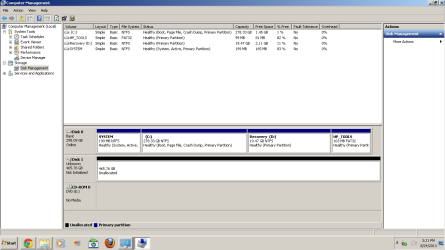
How do i fix unknown, not initialized and unallocated external hd?

gameover11

New member
Local time
6:35 AM
Messages
14
Please help me fix this problem. any information you need just ask me i will tell you all you need.

Thanks in advance
 

Attachments

  • Untitled.png
    Untitled.png
    23.3 KB · Views: 25

My Computer My Computer

Computer type
Laptop
OS
Windows 7 Home Premium 64bit
Right click on it and choose Create Parittion. Choose the type of partition. Then format it. I recommend doing the slow format. It may take an hour or so, but I think you're better off in the long run.
 

My Computer My Computer

Computer Manufacturer/Model Number
HP Media Center
OS
Windows 7 32 bit
CPU
AMD 5200+ dual core
Memory
2 GB
Graphics Card(s)
NVidia GeForce 6150SE 128 MB
Monitor(s) Displays
CRT
Screen Resolution
1280x1024
Hard Drives
500 GB Sata internal :

SIIG USB 3.0 docking stations w/WD Caviar Black 6 Gb/s drives
Keyboard
PS/2
Mouse
PS/2 Wheel Mouse
Other Info
SIIG USB 3.0 PCIexpress card.
thanks for the reply but when i right click on it i cant see an option that says create partition.
 

My Computer My Computer

Computer type
Laptop
OS
Windows 7 Home Premium 64bit
Hi,

To initialize, in Disk Management, right-click the disk you want to initialize, and then click "Initialize Disk."
Select the MBR partition style. The status of the disk should change from Not Initialized to Online
Right click on the Unallocated space, and format, selecting New Simple Volume
Then you should be able to assign a drive letter?
Right-click and "Change Drive Letter and Paths."

Cheers

Dave
 

My Computer My Computer

Computer type
PC/Desktop
OS
Windows 7 Professional 64bit
CPU
AMD Athlon (tm) X2 5200+ Dual Core 2712 Mhz
Motherboard
Asus
Memory
4GB
Graphics Card(s)
Nividia GeForce 8600 GTS- DIED 25/7/2013 R.I.P
Sound Card
None
Monitor(s) Displays
22" Yuraku LCD (Dont ask)
Screen Resolution
1280x960
Hard Drives
2TB WD Caviar green
PSU
Windy up type
Case
Scout cm Storm
Cooling
Hair dryer on full cool power ;-)
Keyboard
QWERTY
Mouse
Microsoft Special
Internet Speed
BT Infinity 9.38Mb/s Wheeeeeeeeeeeeeeee!!
Antivirus
MSE
Browser
Internet Explore 10 and Chrome
Other Info
Don't shout...I've got a Hangover!
thanks for the reply but when i right click on it i cant see an option that says create partition.

Sorry. I'm stuck with public library computers for the moment. They don't let you right click on anything. There's no Control Panel, nevermind Device Manager or Administrative Tools. So I can't right clcik to see the menu. But it looks like Northernsoul55 provided the particulars. :)

edit: I'm not sure Home Premium gives you the disk initialization bit. But in any case you can always get a complete bootable disk partitioning program like Partition Wizard to do the job if Premium doesn't have the function. Download the Partition Wizard ISO and burn it, then boot it, if you have to.
 

My Computer My Computer

Computer Manufacturer/Model Number
HP Media Center
OS
Windows 7 32 bit
CPU
AMD 5200+ dual core
Memory
2 GB
Graphics Card(s)
NVidia GeForce 6150SE 128 MB
Monitor(s) Displays
CRT
Screen Resolution
1280x1024
Hard Drives
500 GB Sata internal :

SIIG USB 3.0 docking stations w/WD Caviar Black 6 Gb/s drives
Keyboard
PS/2
Mouse
PS/2 Wheel Mouse
Other Info
SIIG USB 3.0 PCIexpress card.
Hi,

To initialize, in Disk Management, right-click the disk you want to initialize, and then click "Initialize Disk."
Select the MBR partition style. The status of the disk should change from Not Initialized to Online
Right click on the Unallocated space, and format, selecting New Simple Volume
Then you should be able to assign a drive letter?
Right-click and "Change Drive Letter and Paths."

Cheers

Dave

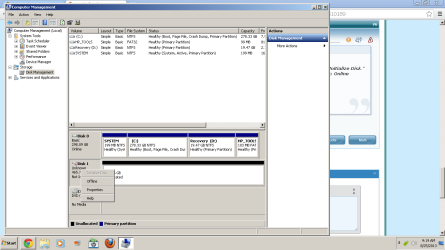
when i click on the disk i cant click the option that says initialize disk.
 

My Computer My Computer

Computer type
Laptop
OS
Windows 7 Home Premium 64bit
Hi,

To initialize, in Disk Management, right-click the disk you want to initialize, and then click "Initialize Disk."
Select the MBR partition style. The status of the disk should change from Not Initialized to Online
Right click on the Unallocated space, and format, selecting New Simple Volume
Then you should be able to assign a drive letter?
Right-click and "Change Drive Letter and Paths."

Cheers

Dave

here look
 

Attachments

  • Untitled.png
    Untitled.png
    28.2 KB · Views: 18

My Computer My Computer

Computer type
Laptop
OS
Windows 7 Home Premium 64bit
thanks for the reply but when i right click on it i cant see an option that says create partition.

Sorry. I'm stuck with public library computers for the moment. They don't let you right click on anything. There's no Control Panel, nevermind Device Manager or Administrative Tools. So I can't right clcik to see the menu. But it looks like Northernsoul55 provided the particulars. :)

edit: I'm not sure Home Premium gives you the disk initialization bit. But in any case you can always get a complete bootable disk partitioning program like Partition Wizard to do the job if Premium doesn't have the function. Download the Partition Wizard ISO and burn it, then boot it, if you have to.

will try. thanks for the reply
 

My Computer My Computer

Computer type
Laptop
OS
Windows 7 Home Premium 64bit
Is it an internal HDD or external HDD? Make, model?

What is the history of the HDD?

I would think that as a first step you should run the HDD manufacturer's diagnostic/repair utility and check what it says.

Since your system is working, there is no need to burn the Partition Wizard ISO. You may as well install PW on your system and check the other drive. If you do that please post a screenshot.

If the problem HDD is shown as Bad Disk in Partition Wizard, the prognosis is not good but it is too early to jump to conclusions. Just a warning sound to prepare you for the worst. :)
 

My Computer My Computer

OS
Windows 7 Home Premium 32 bit
Is it an internal HDD or external HDD? Make, model?

What is the history of the HDD?

I would think that as a first step you should run the HDD manufacturer's diagnostic/repair utility and check what it says.

Since your system is working, there is no need to burn the Partition Wizard ISO. You may as well install PW on your system and check the other drive. If you do that please post a screenshot.

If the problem HDD is shown as Bad Disk in Partition Wizard, the prognosis is not good but it is too early to jump to conclusions. Just a warning sound to prepare you for the worst. :)

well its says that its a bad disk. any suggestions or solutions you can give me? thanks for the reply :)
 

My Computer My Computer

Computer type
Laptop
OS
Windows 7 Home Premium 64bit
You haven't answered my query

Is it an internal HDD or external HDD? Make, model?

What is the history of the HDD?


If it is an external HDD, plug it into another working computer and see what is the result.

Apart from that I have to repeat " Run the HDD manufacturer's diagnostic/repair utility and check the status of your HDD" :). It may also repair your HDD if possible.
 

My Computer My Computer

OS
Windows 7 Home Premium 32 bit
DO THIS:
1.click start and search cmd in the search bar.
2.right click cmd and select run as Administrator
3. type diskpart
4. type list disk
5. type select disk 1 (this varies, look at the size of the drive and verify that's the size of the one you want to format, if it's not, then use the correct number)
6.type clean
7.type create partition primary
8.type format fs=ntfs quick
9.type active
10.type assign

Your done! This will create a usable partition on the drive, and also make the drive bootable, making it very helpful if you need to repair your computer (if you want more examples, just ask)
 

My Computer My Computer

Computer type
PC/Desktop
OS
.
Hi Jumanji,
I have this problem too.
It's an external disk WD, 2Tb. It was used connected to a Sony tv. Suddenly it didn't turn on anymore.
So I put drive out the dock (Western Digital) and I bought a new one and put the drive into this new dock.
It's alive. I connected to Windows 7, it was recognised, appears attached as USB on tray bar, but on Disk Managment it appears, online and unallocated.

I followed your instructions with minitools partition lost wizard, I chose full disk and quick scan. I didn't get nothing at the end of the scan.
I'm thinking right now to do the Full scan, but I don't know.

So I decided to write to know what could I do to repair this drive without lose my data.
The drive is working fine, I mean phisically. My data is there because It has been used just for reading. I mean I've written nothing on it.

Please let me know what you think and thanks in advance.
 

My Computer My Computer

Computer type
Laptop
Computer Manufacturer/Model Number
Acer
OS
Windows 7 Ultimate x64
CPU
i3-370M
Memory
8Gb
Graphics Card(s)
547ATI Mobility Radeon HD 5470
Back
Top