How do I manually arrange file orders?

Asliuf

New member
Local time
10:07 PM
Messages
8
I'm looking to manually arrange the order files and/or folders appear in My Computer. I don't wan't alphabetical, or by date, or any of the options available. The ideal solution would be if I could just drag them to the correct order. Another (annoying) solution would be if I could input an order value in the file's information to tell it where to sit. I know I could just preface each item with a number and put it on alphabetical but that would be a pain and would look unclean. Thanks!
 

My Computer

Computer type
Laptop
Computer Manufacturer/Model Number
samsung
OS
Windows 7 home premium 64 bit

My Computer

Computer type
PC/Desktop
Computer Manufacturer/Model Number
Self built custom
OS
64-bit Windows 11 Pro for Workstations
CPU
Intel i7-8700K OC'd to 5 GHz
Motherboard
ASUS ROG Maximus XI Formula Z390
Memory
64 GB (4x16GB) G.SKILL TridentZ RGB DDR4 3600 MHz
Graphics Card(s)
ASUS ROG-STRIX-GTX1080TI-O11G-GAMING
Sound Card
Integrated
Monitor(s) Displays
2 x Samsung Odyssey G7 27"
Screen Resolution
2560x1440
Hard Drives
1TB Samsung 990 PRO M.2,
4TB Samsung 990 PRO PRO M.2,
TerraMaster F8 SSD Plus NAS
PSU
Seasonic Prime Titanium 850W
Case
Thermaltake Core P3
Cooling
Corsair Hydro H115i
Keyboard
Logitech wireless K800
Mouse
Logitech MX Master 4
Internet Speed
2 Gb/s Download and 100 Mb/s Upload
Antivirus
Malwarebyte Anti-Malware Premium
Browser
Google Chrome
Other Info
Logitech Z625 speaker system,
Logitech BRIO 4K Pro webcam,
HP Color LaserJet Pro MFP M477fdn,
APC SMART-UPS RT 1000 XL - SURT1000XLI,
Galaxy S23 Plus phone
Thanks for your quick response Shawn. It looks like this will disable auto-arrange across windows explorer. Is there a way to do so just for one folder? Thanks,
Asliuf
 

My Computer

Computer type
Laptop
Computer Manufacturer/Model Number
samsung
OS
Windows 7 home premium 64 bit
Not by default when you disable auto arrange using the tutorial, but you can manually turning on auto-arrange per folder.

You will have the option to turn auto arrange back on for any folder when your are using an icons view and right click on the main window of the folder and click on View -> Auto Arrange (to check).

A quick way to auto arrange a folder on the fly while leaving auto arrange disabled for all would be to change the folder's view from say an icons view to "Details" and back.
 

My Computer

Computer type
PC/Desktop
Computer Manufacturer/Model Number
Self built custom
OS
64-bit Windows 11 Pro for Workstations
CPU
Intel i7-8700K OC'd to 5 GHz
Motherboard
ASUS ROG Maximus XI Formula Z390
Memory
64 GB (4x16GB) G.SKILL TridentZ RGB DDR4 3600 MHz
Graphics Card(s)
ASUS ROG-STRIX-GTX1080TI-O11G-GAMING
Sound Card
Integrated
Monitor(s) Displays
2 x Samsung Odyssey G7 27"
Screen Resolution
2560x1440
Hard Drives
1TB Samsung 990 PRO M.2,
4TB Samsung 990 PRO PRO M.2,
TerraMaster F8 SSD Plus NAS
PSU
Seasonic Prime Titanium 850W
Case
Thermaltake Core P3
Cooling
Corsair Hydro H115i
Keyboard
Logitech wireless K800
Mouse
Logitech MX Master 4
Internet Speed
2 Gb/s Download and 100 Mb/s Upload
Antivirus
Malwarebyte Anti-Malware Premium
Browser
Google Chrome
Other Info
Logitech Z625 speaker system,
Logitech BRIO 4K Pro webcam,
HP Color LaserJet Pro MFP M477fdn,
APC SMART-UPS RT 1000 XL - SURT1000XLI,
Galaxy S23 Plus phone
I followed the instructions but not not get the intended results... all that happened was my desktop icons were rearranged, and I had to mess with some settings to be able to place them as I liked again. Auto Arrange is still in effect in windows explorer, and there doesn't seem to be a way to toggle it off. This is the sort of thing that should be a really easy fix but isn't in windows.
 

My Computer

Computer type
Laptop
Computer Manufacturer/Model Number
samsung
OS
Windows 7 home premium 64 bit
Did you close all explorer windows before running the .bat file to disable auto arrange?

This will not disable auto arrange in a library if that's what you have open.

While in Windows Explorer, switch to an icon view. Are you able to arrange icons in any order and position you like in the example screenshots in the tutorial?

If not, the please post some screenshot showing what you see instead to see if it may help ID the issue. :)

http://www.sevenforums.com/tutorials/9733-screenshots-files-upload-post-seven-forums.html
 

My Computer

Computer type
PC/Desktop
Computer Manufacturer/Model Number
Self built custom
OS
64-bit Windows 11 Pro for Workstations
CPU
Intel i7-8700K OC'd to 5 GHz
Motherboard
ASUS ROG Maximus XI Formula Z390
Memory
64 GB (4x16GB) G.SKILL TridentZ RGB DDR4 3600 MHz
Graphics Card(s)
ASUS ROG-STRIX-GTX1080TI-O11G-GAMING
Sound Card
Integrated
Monitor(s) Displays
2 x Samsung Odyssey G7 27"
Screen Resolution
2560x1440
Hard Drives
1TB Samsung 990 PRO M.2,
4TB Samsung 990 PRO PRO M.2,
TerraMaster F8 SSD Plus NAS
PSU
Seasonic Prime Titanium 850W
Case
Thermaltake Core P3
Cooling
Corsair Hydro H115i
Keyboard
Logitech wireless K800
Mouse
Logitech MX Master 4
Internet Speed
2 Gb/s Download and 100 Mb/s Upload
Antivirus
Malwarebyte Anti-Malware Premium
Browser
Google Chrome
Other Info
Logitech Z625 speaker system,
Logitech BRIO 4K Pro webcam,
HP Color LaserJet Pro MFP M477fdn,
APC SMART-UPS RT 1000 XL - SURT1000XLI,
Galaxy S23 Plus phone
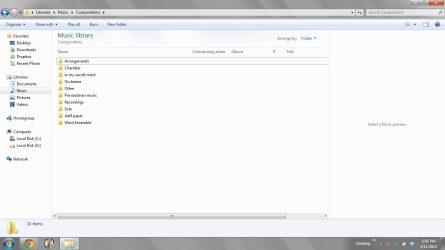
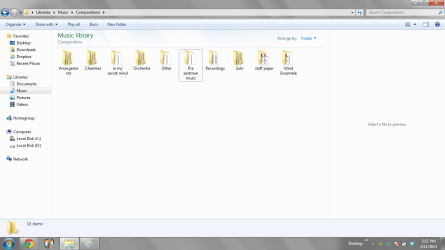
I did have all windows closed. I am unable to arrange items in either list view or icon view. I'd prefer it to be in list view. Here are screenshots of both.
 

Attachments

  • list view.png
    list view.png
    43.9 KB · Views: 2
  • icon view.png
    icon view.png
    46.9 KB · Views: 1

My Computer

Computer type
Laptop
Computer Manufacturer/Model Number
samsung
OS
Windows 7 home premium 64 bit
The issue is that you are in a library (ex: Music library). Auto arrange cannot be disabled in libraries.

Instead you must be in the actual folder location. For example:

C:\Users\(user-name)\My Music\Compositions
 

My Computer

Computer type
PC/Desktop
Computer Manufacturer/Model Number
Self built custom
OS
64-bit Windows 11 Pro for Workstations
CPU
Intel i7-8700K OC'd to 5 GHz
Motherboard
ASUS ROG Maximus XI Formula Z390
Memory
64 GB (4x16GB) G.SKILL TridentZ RGB DDR4 3600 MHz
Graphics Card(s)
ASUS ROG-STRIX-GTX1080TI-O11G-GAMING
Sound Card
Integrated
Monitor(s) Displays
2 x Samsung Odyssey G7 27"
Screen Resolution
2560x1440
Hard Drives
1TB Samsung 990 PRO M.2,
4TB Samsung 990 PRO PRO M.2,
TerraMaster F8 SSD Plus NAS
PSU
Seasonic Prime Titanium 850W
Case
Thermaltake Core P3
Cooling
Corsair Hydro H115i
Keyboard
Logitech wireless K800
Mouse
Logitech MX Master 4
Internet Speed
2 Gb/s Download and 100 Mb/s Upload
Antivirus
Malwarebyte Anti-Malware Premium
Browser
Google Chrome
Other Info
Logitech Z625 speaker system,
Logitech BRIO 4K Pro webcam,
HP Color LaserJet Pro MFP M477fdn,
APC SMART-UPS RT 1000 XL - SURT1000XLI,
Galaxy S23 Plus phone
I fail to see why that should make a difference, but very well. So there's no way to do this? These things can be so infuriating.
 

My Computer

Computer type
Laptop
Computer Manufacturer/Model Number
samsung
OS
Windows 7 home premium 64 bit
under "sort by" i see an option "#". Can I alter this in each folder's info somehow?
 

My Computer

Computer type
Laptop
Computer Manufacturer/Model Number
samsung
OS
Windows 7 home premium 64 bit

My Computer

Computer type
PC/Desktop
Computer Manufacturer/Model Number
Self built custom
OS
64-bit Windows 11 Pro for Workstations
CPU
Intel i7-8700K OC'd to 5 GHz
Motherboard
ASUS ROG Maximus XI Formula Z390
Memory
64 GB (4x16GB) G.SKILL TridentZ RGB DDR4 3600 MHz
Graphics Card(s)
ASUS ROG-STRIX-GTX1080TI-O11G-GAMING
Sound Card
Integrated
Monitor(s) Displays
2 x Samsung Odyssey G7 27"
Screen Resolution
2560x1440
Hard Drives
1TB Samsung 990 PRO M.2,
4TB Samsung 990 PRO PRO M.2,
TerraMaster F8 SSD Plus NAS
PSU
Seasonic Prime Titanium 850W
Case
Thermaltake Core P3
Cooling
Corsair Hydro H115i
Keyboard
Logitech wireless K800
Mouse
Logitech MX Master 4
Internet Speed
2 Gb/s Download and 100 Mb/s Upload
Antivirus
Malwarebyte Anti-Malware Premium
Browser
Google Chrome
Other Info
Logitech Z625 speaker system,
Logitech BRIO 4K Pro webcam,
HP Color LaserJet Pro MFP M477fdn,
APC SMART-UPS RT 1000 XL - SURT1000XLI,
Galaxy S23 Plus phone
Back
Top