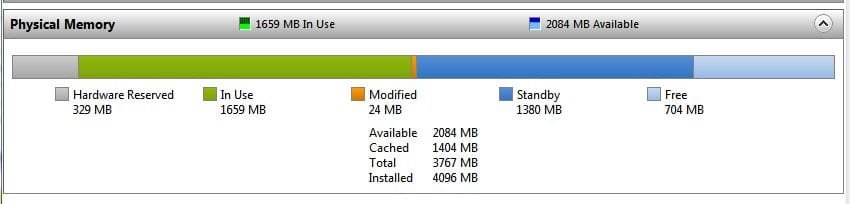
My system is Windows 7 64 bit professional How can I tell how much memory I have installed on my computer, I know I can click on the start orb then right click on computer then click on property it then shows me the memory installed. My problem is I was wanting to install extra memory so I run a scan from crucial and that says a different amount to what my computer says. So is there a way I can tell for certain Regards to you all
Press the Windows logo key rb:and the Pause Break key at the same time, system properties will show you your installed and usable memory. Your computer will be the correct one but it may have some RAM hardware reserved.
My Computer
Computer type
PC/Desktop
Computer Manufacturer/Model Number
Home Built Desktop By DataTech
OS
Windows 7 Ultimate X64 SP1
CPU
Intel i5-2550K, Differing ~4.4-4.8GHz No built in GPU
Motherboard
ASUS P8Z68-V PRO/GEN3
Memory
16GB G.Skill Sniper 1866MHz @ 2133MHz 2x8GB
Graphics Card(s)
ASUS GTX650TIB-DC2OC-2GD5, (650TI Boost)
Sound Card
Onboard Realtek 5-1
Monitor(s) Displays
Samsung P2570HD
Screen Resolution
1920x1080
Hard Drives
Samsung 840 Pro 256GB SSD for OS, 500GB Seagate Constellation (Enterprise drive) for Data
PSU
Corsair HX650W
Case
Inwin Dragon Rider
Cooling
Hyper 212 EVO w/two Noctua fans, push-pull, @1300 RPM
Keyboard
E-Z Eyes, bright yellow keys with large characters
Mouse
steelseries SENSEI Laser Pro Gaming
Internet Speed
48-51Mbs Mbs down, 11 Mbs up Xfinity Cable
Antivirus
Norton Internet Security 2013
Browser
IE 10, Opera, Pale Moon if needed
Other Info
4 case fans, LG BluRay-RE, ASUS DVD-RW, Mr. Fusion power supply, 1.21 gigawatts.
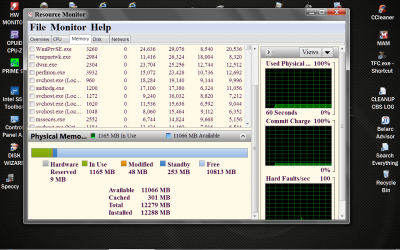
You have 12GB with over 9GB available.
Unless your programs can benefit from that much RAM, save your money.
I recently bought 4GB to give me a total of 12GB. It did nothing to increase my performance. I returned the RAM, a few days later. I'm now satisfied with the 8GB, I have.
My Computer
Computer type
PC/Desktop
Computer Manufacturer/Model Number
Custom Build
OS
Windows 7 Home Premium 64 bit
CPU
Intel Core i7-4790
Motherboard
GA-Z87X-D3H
Memory
G.SKILL 8GB (2 x 4GB) DDR3 F3-10666CL9D-8GBNT
Graphics Card(s)
AMD Radeon R7 250
Sound Card
Realtek ALC892
Monitor(s) Displays
Samsung UN32EH5000, Dell 1703FPT
Screen Resolution
1920 x 1080, 1280 x 1024
Hard Drives
WD5003AZEX
WD10EZEX
Samsung HD103SJ
Samsung 128 GB 840 PRO
Hi guys thanks for all the advice I feel I should explain a little, I originally had 6GB of memory in my computer but a couple of programs used all the memory in my system whilst running one of them was Acronis True Image 2012 and another was a video editing program The reason I say all the memory was used is because I have the CPU and Memory gadget on my desktop. I ran Memtest 86 and that said the memory was all good but I still used all of it, so I decided to put another 2 GB in so I ran the online scanner from Crucial and it correctly identified my memory IE: 6 GB in 3 slots with 3 slots empty on a Asus P6T SE motherboard. As Crucial gave me a selection of memory chips that would work with my Motherboard I rang them and said I wanted the new memory to be compatible with the memory already in my system and then said I might be better as my motherboard supported triple gate (I think that’s what he said) I would be better fitting a matched set of another 3 sticks of 2Gb each. So when this memory came and I fitted it and ran the crucial scanner again it said I had only got 8Gb in two slots and my computer said I had 10GB in 6 Slots. I removed all the memory and started again and now my computer says there is 12GB so I was a little concerned that the new memory was not working to good with my old memory. So my choice is say with the 12GB or go back to my original 6GB, by the way Acronis True Image does not now use all the memory just about 33% I think it was
It's true the old and new RAM may not "like" each other. A matched set is always best although it can work unmatched but not optimally. Put all of your RAM in and run memtest again for 7 passes to se it it is error free. with 12GB it can take 6-8 hours.
Acronis should not use all of your memory.
My Computer
Computer type
PC/Desktop
Computer Manufacturer/Model Number
Home Built Desktop By DataTech
OS
Windows 7 Ultimate X64 SP1
CPU
Intel i5-2550K, Differing ~4.4-4.8GHz No built in GPU
Motherboard
ASUS P8Z68-V PRO/GEN3
Memory
16GB G.Skill Sniper 1866MHz @ 2133MHz 2x8GB
Graphics Card(s)
ASUS GTX650TIB-DC2OC-2GD5, (650TI Boost)
Sound Card
Onboard Realtek 5-1
Monitor(s) Displays
Samsung P2570HD
Screen Resolution
1920x1080
Hard Drives
Samsung 840 Pro 256GB SSD for OS, 500GB Seagate Constellation (Enterprise drive) for Data
PSU
Corsair HX650W
Case
Inwin Dragon Rider
Cooling
Hyper 212 EVO w/two Noctua fans, push-pull, @1300 RPM
Keyboard
E-Z Eyes, bright yellow keys with large characters
Mouse
steelseries SENSEI Laser Pro Gaming
Internet Speed
48-51Mbs Mbs down, 11 Mbs up Xfinity Cable
Antivirus
Norton Internet Security 2013
Browser
IE 10, Opera, Pale Moon if needed
Other Info
4 case fans, LG BluRay-RE, ASUS DVD-RW, Mr. Fusion power supply, 1.21 gigawatts.
Rules of the road.
1. Matched ram is always recommended.
2. Install ram as per the motherboard manual.
3. Not enough ram slows things down.
4. Extra ram doesn't hurt anything except your bank account.
5. You bank account will get over it.
6. Take a look at Resource Monitor every now and then to make sure things are still good.
My Computer
Computer type
PC/Desktop
Computer Manufacturer/Model Number
Home made Desktop
OS
Windows 10 Pro. 64/ version 1709 Windows 7 Pro/64
CPU
Intel i7-6800K @ 4.3
Motherboard
ASUS X-99 Deluxe II
Memory
Corsair Platinum 16 gig @2400
Graphics Card(s)
EVGA GTX 1070 OC
Monitor(s) Displays
Asus 27" LED LCD/VE278Q
Screen Resolution
1920-1080 or 1280-720 HDMI
Hard Drives
INTEL SSD 730-240 Gb Sata 3.0/
PSU
EVGA Platium 1200W
Case
Phanteks Luxe Tempered Glass 8 fans/ one radiator
Cooling
XSPC/ Water Cooled CPU
Keyboard
Das 4 Professional
Mouse
Logitech M705/MX Anywhere 2-S
Internet Speed
100 mbits
Antivirus
Microsoft Security Essentials/ Malwarebytes Premium 3.0/ SAS
Browser
I.E. 11 default/Firefox/ ISP Time Warner Cable/Spectrum
Other Info
LG BluRay Burner/
Sound system-KLipsch-THX/
Icy Dock ssd Hot Swap bays.
Rules of the road.
1. Matched ram is always recommended.
2. Install ram as per the motherboard manual.
3. Not enough ram slows things down.
4. Extra ram doesn't hurt anything except your bank account.
5. You bank account will get over it.
6. Take a look at Resource Monitor every now and then to make sure things are still good.