Solved How to expand folders tree on left side of Explorer

Caslon

New member
Member
Local time
4:47 AM
Messages
61
I have the usual 2 panes when opening Explorer. On the right side of course are all the folders under C: expanded so as to view them. However, on the left side pane, my C: drive folders aren't expanded, it just show C:drive and I have to click on that C:drive to expand the folders each time. How can I open Explorer and have that left side pane with my C:drive already expanded in tree form and not having to click C: to expand it each time?
 

My Computer My Computer

At a glance

Windows 7 Premium
OS
Windows 7 Premium
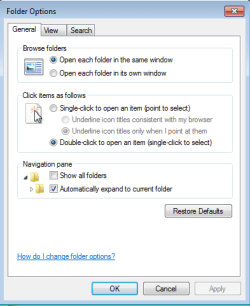
Alt (to show the menu bar) --> Tools --> Folder options. In the "Navigation Pane" section, check "Show all folders" and/or "Automatically expand to current folder." Regards
 

My Computer My Computer

At a glance

Windows Professional x64
Computer type
Laptop
Computer Manufacturer/Model Number
Dell Latitude 6410
OS
Windows Professional x64
Well...whereas before explorers right side pane had my C:Folder tree expanded, now after doing what you suggested it just shows Library and a few icons on that right side, and the C:drive on the left side still isn't expanded showing all the sub folders in C:

Wait a sec, it does that because I'm clicking on the tray icon of Explorer. I have a separate desktop shortcut for the C: drive. I'll delete that tray icon of Explorer and drag my desktop icon of C: down to my tray and see if that works.

OK. I'm back to how it was before but now my dragged down to the tray desktop shortcut of C: shows Libraries on the right side, not an expanded C: drive of folders like when I click on my desktop shortcut of C:.

That desktop shortcut when clicked shows both panes showing folders, only the left side still didn't expand and when I try and drag the C: shortcut icon to the tray, and click on it, it shows the right pane as Libraries, not expanded folders like before. I'm not sure why that is.
 

My Computer My Computer

At a glance

Windows 7 Premium
OS
Windows 7 Premium
The only thing I can think of is this.

Open Windows Explore go to
Organize and select Layout and check what option you want.
I know of nothing else that can be done.
 

My Computer My Computer

At a glance

Windows 10 Pro. 64/ version 1709 Windows 7 Pr...Intel i7-6800K @ 4.3Corsair Platinum 16 gig @2400EVGA GTX 1070 OC
Computer type
PC/Desktop
Computer Manufacturer/Model Number
Home made Desktop
OS
Windows 10 Pro. 64/ version 1709 Windows 7 Pro/64
CPU
Intel i7-6800K @ 4.3
Motherboard
ASUS X-99 Deluxe II
Memory
Corsair Platinum 16 gig @2400
Graphics Card(s)
EVGA GTX 1070 OC
Monitor(s) Displays
Asus 27" LED LCD/VE278Q
Screen Resolution
1920-1080 or 1280-720 HDMI
Hard Drives
INTEL SSD 730-240 Gb Sata 3.0/
PSU
EVGA Platium 1200W
Case
Phanteks Luxe Tempered Glass 8 fans/ one radiator
Cooling
XSPC/ Water Cooled CPU
Keyboard
Das 4 Professional
Mouse
Logitech M705/MX Anywhere 2-S
Internet Speed
100 mbits
Antivirus
Microsoft Security Essentials/ Malwarebytes Premium 3.0/ SAS
Browser
I.E. 11 default/Firefox/ ISP Time Warner Cable/Spectrum
Other Info
LG BluRay Burner/
Sound system-KLipsch-THX/
Icy Dock ssd Hot Swap bays.
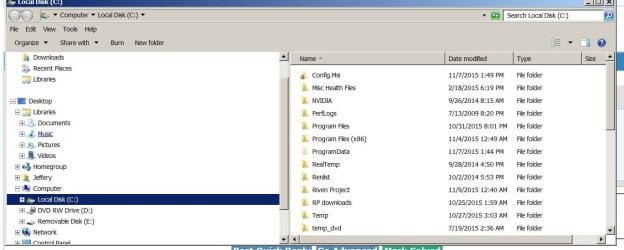
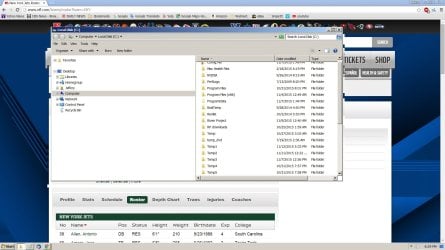
Attachment 1: What it looks like when I click on my desktop made shortcut of C:drive

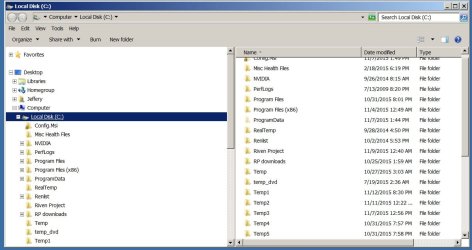
Attachment 2: What it looks like when I drag my desktop icon of C:drive to the tray and click on it.
 

Attachments

  • 2222.jpg
    2222.jpg
    54.9 KB · Views: 0
  • 1111.jpg
    1111.jpg
    78.2 KB · Views: 1

My Computer My Computer

At a glance

Windows 7 Premium
OS
Windows 7 Premium
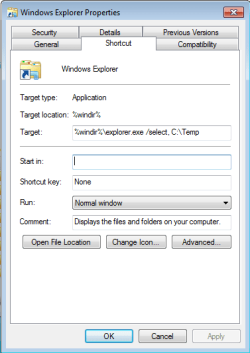
Change the target of the shortcut on the task bar to this:
Code:
%windir%\explorer.exe /select, C:\Temp
To change the target of that pinned shortcut...
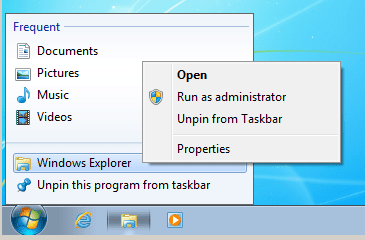
...right click on the shortcut:

E1.PNG


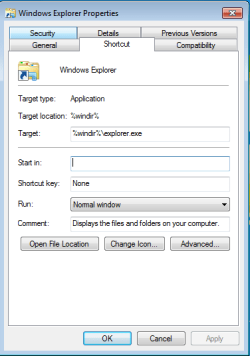
Then right click on Window Explorer and select Properties from the context menu:
(What you see might be different since you put a different shortcut there.)
E2.PNG


Change the target:

E3.PNG


If you Folder Options are set like this:

E4.PNG


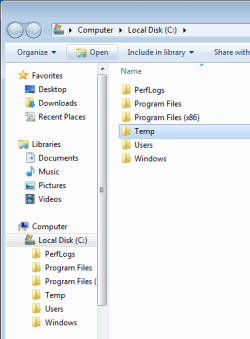
Then using that newly changed pinned shortcut should show you this:

E5.PNG
 

My Computer My Computer

At a glance

W7 Pro SP1 64biti78GBIntel HD Graphics
Computer type
Laptop
Computer Manufacturer/Model Number
Employer provided Dell Latitude
OS
W7 Pro SP1 64bit
CPU
i7
Memory
8GB
Graphics Card(s)
Intel HD Graphics
Hard Drives
crappy SSD
Antivirus
Employer mandated Symantec Endpoint Protection
Browser
Pale Moon 64bit, IE11 64bit & Chrome 64bit
This is getting confusing. I started out wanting the left side pane expanded showing folders. So I follow the first suggestion reply.
Now when I try and make a tray icon of C:, the right side just shows Libraries! WTF! Now I can't even get it back the way it was before trying to tweak the left side pane to show folders expanded. At this point I just want to get it the hell the way it was before I clicked on "show all folders". From there on, no matter how I set the tray to open C: the right side pane opens up as Libraries! Why the hell is it doing that? Now I can't even get the tray icon of C: to show expanded folders on the right side of the explorer window (from the tray icon) like it was before!
It freaking now insists on showing Libraries on the right side pane. VEry frustrating. I wish I'd never attempted tweaking the left side pane to show expanded C: folders in the first place. I now just want to freaking get the right side pane not to open up with Libraries! Thats useless to me...that is, the tray icon of C:drive opening up with freaking Libraries instead of freaking C: folders in that right side explorer pane!!! (like it was before I starting trying to tweak things a little).

Before all this hassle, I simply dragged my C: folder desktop shortcut icon down to the taskbar tray and it opened showing the right side pane with my C: folders, not freaking Libraries icons only,as its doing now. I can't see why I now have to edit my target and all that crap.
 

My Computer My Computer

At a glance

Windows 7 Premium
OS
Windows 7 Premium
Sorry that this is frustrating.

The default target of the Explorer shortcut that is pinned to the task bar looks like this:

E6.PNG

You can use the steps mentioned in my previous post to change the target.
 

My Computer My Computer

At a glance

W7 Pro SP1 64biti78GBIntel HD Graphics
Computer type
Laptop
Computer Manufacturer/Model Number
Employer provided Dell Latitude
OS
W7 Pro SP1 64bit
CPU
i7
Memory
8GB
Graphics Card(s)
Intel HD Graphics
Hard Drives
crappy SSD
Antivirus
Employer mandated Symantec Endpoint Protection
Browser
Pale Moon 64bit, IE11 64bit & Chrome 64bit
I'm still trying and thanks. LOL, by the way, clicking "show all folders" did the trick for explorer showing the left side expanded. In other words...mission accomplished in that regard, which was my opening question.

I'm now trying to just get the tray icon to open up with the right side of the Explorer window showing as it did before, with not just Libraries showing there, but rather my C: folders ! I'll keep working on it. Still unsure why it insists on that right pane showing just Library icons, when before all this, I simply dragged my desktop icon of C:drive to the tray and Explorer window opened fine showing my C: folder on the right side pane. By the way, my desktop icon target just shows C: as the target, I'll change the target to what you suggested and see if that does the trick, but it was working fine before when I dragged my desktop icon to the tray. I can't understand why Windows is making it so hard all of a sudden.


Thanks to all. I'm still working on it...will report back here if and when I figure it all out.

 

My Computer My Computer

At a glance

Windows 7 Premium
OS
Windows 7 Premium
I'll try to explain what is happening.

If you just open Explorer in W7, it selects Libraries in the left (Navigation) pane.

When you made a shortcut (with a target of C:\) on your desktop, you were telling Explorer show you the C drive. You cannot pin a shortcut like that to the task bar. When you removed the default pinned shortcut and drug your desktop shortcut to the task bar, Windows changed the target to be an EXE.

There are a few drawbacks to selecting "show all folders"... for one, it can clutter up the Nav pane. Please consider setting the Folder Options as I showed them.

Try changing the target of your pinned shortcut to:
Code:
%windir%\explorer.exe C:\
See if that is what you want.
 

My Computer My Computer

At a glance

W7 Pro SP1 64biti78GBIntel HD Graphics
Computer type
Laptop
Computer Manufacturer/Model Number
Employer provided Dell Latitude
OS
W7 Pro SP1 64bit
CPU
i7
Memory
8GB
Graphics Card(s)
Intel HD Graphics
Hard Drives
crappy SSD
Antivirus
Employer mandated Symantec Endpoint Protection
Browser
Pale Moon 64bit, IE11 64bit & Chrome 64bit
That did the trick as far as my tray icon of explorer opening with my C: drive folders on the right side pane, thanks.

I may have spoke too hastily about my initial question be answered. Can you direct me how to have the left side pane of an opened Explorer window show my C: drive expanded showing folders under C:? Right now I have to click on Computer, then click C:drive on the left side pane, then it expands. I have to do that every new time I open explorer. It's not a huge deal, but I figured I should be able to make that happen without messing things up. Perhaps it's not possible.

It seems there must be a way to make Windows remember how it was last opened showing the expanded folders of C: on the left side pane. Maybe not possible. Every new time I open explorer, the left pane shows all the folders compacted. Any way to have the C: folder expanded to show folders in C: without having to first click Computer there in that pane, then click the C: folder to expand the folders under C:? Isn't Windows supposed to remember how it looked when I clicked on Computer, then C: drive, and memorize that view for when I freshly open Explorer again?
 

My Computer My Computer

At a glance

Windows 7 Premium
OS
Windows 7 Premium
OK, that worked. Thanks.

Attachment 1. is how it looks now, with the right pane back to looking like I want when clicking on the C: in my tray. My desktop shortcut had no problem showing C: folders on the right side. After meddling with things today, the tray icon of C: would only open up showing Libraries icons on the right side, nothing else.

Attachment 2. Everything is back to normal. HOWEVER, I'd like the left side pane to look as depicted with my C: folder expanded. It never did with the desktop icon OR the tray icon (which got fouled up more today before fixing it with help here). I had to manually click Computer, then click on C: to get it to look like it does in pic 2. Is there any way to have the left side C: folder expanded each time I open Explorer (Attachment 2)? That was my original question. That would be cool. I'm sorry I got sidetracked trying to get back to square one, lol. So I'm still trying to achieve success with both my desktop shortcut and the tray icon showing Explorer the way I want. Having both work too, not just one.

I've set the target of my desktop C: icon as directed which corrected the tray not working right. Anything else I might want to add to that target string to make it do what I want? Or is it just a setting I'm not choosing correctly?
 

Attachments

  • aaaa.jpg
    aaaa.jpg
    175.1 KB · Views: 1
  • bbbbb.jpg
    bbbbb.jpg
    88.7 KB · Views: 0
Last edited:

My Computer My Computer

At a glance

Windows 7 Premium
OS
Windows 7 Premium
These settings:

375789d1447377721-how-expand-folders-tree-left-side-explorer-e4.png


And this target:

Code:
%windir%\explorer.exe C:\


Expand both the left and the right pane for me.

It should look just like your second attachment.
 

My Computer My Computer

At a glance

W7 Pro SP1 64biti78GBIntel HD Graphics
Computer type
Laptop
Computer Manufacturer/Model Number
Employer provided Dell Latitude
OS
W7 Pro SP1 64bit
CPU
i7
Memory
8GB
Graphics Card(s)
Intel HD Graphics
Hard Drives
crappy SSD
Antivirus
Employer mandated Symantec Endpoint Protection
Browser
Pale Moon 64bit, IE11 64bit & Chrome 64bit
That did the trick finally. Correcting the shortcut string to the one now seems to have affected a lot. If I had had the right shortcut string to begin with, just ticking the Expand to Current Folder box would have done it. It just didn't work right in the tray when The target box read...C:...as my target string. Correcting that allowed that checkbox to work somehow. It's how I want it now and I'm pleased.

So..thanks to all and I'll remember to check the syntax string on shortcut target boxes as a possible problem from now on.

This case can be considered solved from my point of view.
 

My Computer My Computer

At a glance

Windows 7 Premium
OS
Windows 7 Premium
Back
Top