

jenderalcilik
New member
- Local time
- 9:14 AM
- Messages
- 13
Recently I had this continuous "Start Navigation" clicking sound issue. It's is occured when your computer start making clicking sound even when you're doing nothing. The sound came from your speaker, not a physical sound from any of your hardware. The 'Clicking sound' sounds exactly like when you're pushing the Back Button or Open a Folder on your Windows Explorer.
I tried to Google everywhere, but nothing came up. People just keep saying that I should just turn the Start Navigation sound off from the System Sound settings, or just delete the Windows Navigation Start.wav file, but that is not the solution I want.
So I tried to figure something out. The clicking sound must have come from an application or program which is automatically access the "Windows Navigation Start.wav" file.
I remember years ago there's this application called "FileMon" it's a handy application to monitor what program using what files. But apparently the application is now shutted down and replaced by "Process Monitor".
SO, here's how to fix that annoying "Continuous Start Navigation Clicking Sound".
Have a nice day!
I tried to Google everywhere, but nothing came up. People just keep saying that I should just turn the Start Navigation sound off from the System Sound settings, or just delete the Windows Navigation Start.wav file, but that is not the solution I want.
So I tried to figure something out. The clicking sound must have come from an application or program which is automatically access the "Windows Navigation Start.wav" file.
I remember years ago there's this application called "FileMon" it's a handy application to monitor what program using what files. But apparently the application is now shutted down and replaced by "Process Monitor".
SO, here's how to fix that annoying "Continuous Start Navigation Clicking Sound".
- Download the Process Monitor.
- Run the program and go to the "FILTER"
- Here's the idea, you are now trying to monitor all activity which uses the .wav file from your "C:\Windows\Media\" folder. So create a new entry with this parameter:
"Path" >> "begins with" >> C:\Windows\Media\ >> Include
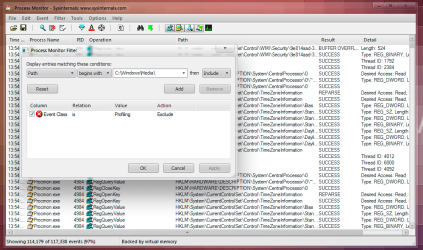
and then hit "ADD" and "OK" - Clear your previous logs to easily monitor new activity. Do nothing and wait for the next "Click" sound, and VOILA! there's the culprit!
- Now you can disable, un-install, or delete the suspect program.
Have a nice day!
My Computer
- OS
- Genuine Windows 7 Home Premium 32bit
- CPU
- Intel® Core™ i5-660 Processor
- Motherboard
- Intel® Desktop Board DH55TC
- Memory
- Dual Patriot PSD32G1333KH 2GB Memory
- Graphics Card(s)
- XFX Radeon™ HD 5770 1024 MB DDR5
- Monitor(s) Displays
- LG Flatron W1953SE 18.5” Widescreen LCD Monitor
- Screen Resolution
- 1360x768 @65Hz
- PSU
- SilverStone® SST-ST50F 500W PSU
- Case
- SilverStone® PS01 Precision Series Tower Chassis
- Cooling
- 4x Cooler Master Fans

