
Solved How to fix Folder Icons on Desktop?

darkrai10

New member
Local time
6:52 PM
Messages
11
How to correct Desktop Icons?

Good day!

I'm wondering if you could help with my problem.

I have been experiencing this situation these past few days. I have read threads regarding the same trouble but still with no luck on the solution offered in the other threads. I'm running on Windows 7 Home Premium 64 bit (laptop), Windows 7 Enterprise 32 bit (PC).

The problem relies on the Desktop, I have this folder, "sample", containing 6 files, but the Folder Icon displays an "Empty Folder".

attachment.php

So far, the troubleshootings I have performed are as follows:
-Disk Clean-up on the Thumbnails + rebuilding IconCache.db
-Right click>Properties>Customize>Change Icon...>Restore to default
I do this when the folder is on another directory, then the Folder will show its Icon properly, indicating that it has contents, but then when I place that folder on the Desktop and try to remove a file from its content, the Icon reverts back to "Empty Folder" icon.​
-sfc /scannow, all systems normal
-System Restore to until 2 weeks ago.

Hoping for your immediate response.

Thank you and have a great day!
 

Attachments
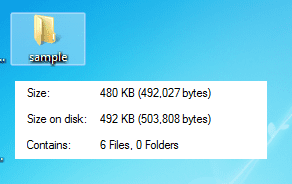
  • sam.png
    sam.png
    11.4 KB · Views: 136
Last edited:

My Computer My Computer

Computer type
Laptop
Computer Manufacturer/Model Number
HP
OS
Windows 7 Home Premium x64
Sirs/Ma'ams,

Any help on this topic?
 

My Computer My Computer

Computer type
Laptop
Computer Manufacturer/Model Number
HP
OS
Windows 7 Home Premium x64

My Computer My Computer

Computer type
Laptop
Computer Manufacturer/Model Number
Acer Aspire 5750G
OS
Windows 7 Home Premium x64, Windows 8 Pro
CPU
i5-2430M
Motherboard
Acer JE50_HR
Memory
8 Gb
Graphics Card(s)
nVidia GeForce 610M
Sound Card
Realtek High Definition Audio
Antivirus
Avast
Browser
Chrome
If mach04's link doesn't resolve the problem, I have an idea. It is a little unconventional, but it may resolve the problem.

Your description indicates that you have a complete copy of the sample folder and its contents saved in another directory. That folder displays the thumbnail preview properly. Also, it sounds like you have a problem with the sample folder on the desktop only. Other folders are not affected. If this is correct, try the steps below. If not, please give additional information.

First copy the sample folder in the other directory to the same directory. This will prevent the loss of your files. A new folder named sample copy will be created. It should have the same thumbnail preview as the original folder. Then delete files in sample copy one at a time, and observe whether or not the thumbnail preview remains intact on the copy as long as there is at least one file remaining in the folder copy. If this is successful, go to the next step. If not, see notes at the end of this post.

OK ... The tests in the copy of your sample folder worked. ... Create a new (empty) folder on your desktop, and name it test. Copy the files from your other directory one at a time to the test folder. After the first file is copied, you should see the thumbnail preview on the test folder. Then delete a file from the test folder. Is the thumbnail preview still visible? If yes, copy the deleted file to the test folder again. Then delete the sample folder from your desktop, and rename the test folder to sample. Navigate to the directory where you created the copy of the sample folder, and delete the copy. If no, see notes.

NOTES: (if the steps above did not resolve the problem)
If the deletion of only one or just certain files causes the thumbnail preview to disappear, the problem may be related to characteristics of the file(s) which caused the preview to disappear. Exactly what the conflict is, I have no idea.

I have heard about a similar problem when downloading files form the Internet, but have never heard of a solution.

There may be a registry problem, but I am not comfortable with giving instructions. Errors made when editing the registry can have disastrous results.

Please give feedback: observations, success, failure, etc.

drpepper
 

My Computer My Computer

Computer type
PC/Desktop
Computer Manufacturer/Model Number
Lenovo 1068AHU B570 (laptop)
OS
Windows 7 Home Premium SP1 64bit
CPU
Intel Core i3
Motherboard
Lenovo Emerald Lake
Memory
8GB DDR3
Graphics Card(s)
Intel HD graphics family
Sound Card
Realtek HD audio
Monitor(s) Displays
ThinkPad Display 1366x768 (15.6")
Hard Drives
WD 320GB WDC WD3200BPVT
Internet Speed
80Kbs maximum -->speed is a misnomer
Other Info
Logitech MK550 wireless mouse/keyboard combo used when at home.
Good day!

@mach04

as I have stated above, this solution didn't work.


@drepper
If mach04's link doesn't resolve the problem, I have an idea. It is a little unconventional, but it may resolve the problem.

Your description indicates that you have a complete copy of the sample folder and its contents saved in another directory. That folder displays the thumbnail preview properly. Also, it sounds like you have a problem with the sample folder on the desktop only. Other folders are not affected. If this is correct, try the steps below. If not, please give additional information.

First copy the sample folder in the other directory to the same directory. This will prevent the loss of your files. A new folder named sample copy will be created. It should have the same thumbnail preview as the original folder. Then delete files in sample copy one at a time, and observe whether or not the thumbnail preview remains intact on the copy as long as there is at least one file remaining in the folder copy. If this is successful, go to the next step. If not, see notes at the end of this post.

OK ... The tests in the copy of your sample folder worked. ... Create a new (empty) folder on your desktop, and name it test. Copy the files from your other directory one at a time to the test folder. After the first file is copied, you should see the thumbnail preview on the test folder. Then delete a file from the test folder. Is the thumbnail preview still visible? If yes, copy the deleted file to the test folder again. Then delete the sample folder from your desktop, and rename the test folder to sample. Navigate to the directory where you created the copy of the sample folder, and delete the copy. If no, see notes.

NOTES: (if the steps above did not resolve the problem)
If the deletion of only one or just certain files causes the thumbnail preview to disappear, the problem may be related to characteristics of the file(s) which caused the preview to disappear. Exactly what the conflict is, I have no idea.

I have heard about a similar problem when downloading files form the Internet, but have never heard of a solution.

There may be a registry problem, but I am not comfortable with giving instructions. Errors made when editing the registry can have disastrous results.

Please give feedback: observations, success, failure, etc.

drpepper

I have already resolved this problem. It seems that when the desktop contains 13 icons vertically (View is set to "Small Icons") there is a problem generating the thumbnails, when the View is set to "Medium Icons" the thumbnails works fine.

For a 1680x1050 resolution, View=Small Icons, with 11 icons vertically on the desktop, the thumbnails works fine.

When I try to further decrease the size of the icons (by holding the CTRL button + Mouse Wheel) until the desktop could contain 12 icons vertically, the problem on generating thumbnails occurs.

It's a trial and error method but it did the job.

Anyway, thank you for the feedback, appreciated. :)
 

My Computer My Computer

Computer type
Laptop
Computer Manufacturer/Model Number
HP
OS
Windows 7 Home Premium x64
Back
Top