Solved how to remove USB wifi adaptor?

Dramx

New member
Member
Local time
2:26 AM
Messages
64
A few years ago I installed a USB wifi adapter on my machine, which I though might allow me to move the machine around freely. That turned out not to be an issue. But it worked well, and I kept using it. Now, I am suspecting that the USB wifi adaptor is flaking out, and I would like to return the machine to hardwired internet. How do I do that?


Is it just as simple as hooking up the ethernet cable, and the machine will default to that, or do I have to specifically disable the USB wifi adapter and tell the machine to use the ethernet cable instead of the adapter?
 

My Computer My Computer

OS
Windows 7
Unplug the USB adaptor and plug in the cable, your computer will find the new connection
 

My Computer My Computer

Computer type
PC/Desktop
Computer Manufacturer/Model Number
Custom Build
OS
windows 7 ultimate x64
CPU
AMD FX 6 CORE PROCESSOR
Memory
16 GB
Graphics Card(s)
on MB
Sound Card
on MB
Monitor(s) Displays
Acer
Screen Resolution
1920x1080
Hard Drives
Seagate ( C:\)
Case
mini tower
Keyboard
Logitech wireless
Mouse
Logitech wireless
Antivirus
MSE
Browser
IE11
What was stated above is all you have to do, but I'm wondering about this:


I am suspecting that the USB wifi adaptor is flaking out...

Define "flacking out." What exactly was going on? It may need the driver reinstalled or a program, driver or service is interfering or even an anti-virus software especially with a new update to the anti-virus software.

Use Revouninstaller to remove the WIFI adapter driver, reboot and reinstall the latest driver.

Edit-


Actually, before you do that try safe mode with networking first.

To get into safe mode with networking, reboot the PC and as the computer bots immediately start hitting the F8 key once a second. Now you'll have the option for different safe modes. Chose the one with networking. Does the WIFI adapter work in this mode? If it does you have a program, driver or service interfering with the WIFI adapter in regular boot mode.

Safe mode is actually invoked right after BIOS loads and just before the OS loads (sometimes very fast). So hitting the key then is all you need. But to make sure you get it you can just press F8 once a second.
 

My Computer My Computer

Computer type
PC/Desktop
OS
Windows 7 Ultimate x64
Thank you. I was hoping it was as simple as just removing the USB wifi and plugging in the ethernet.

As to "flaking out", what I meant was that the internet connection drops every once in a while. I need to reboot the machine to get it back. I'm reluctant to remove the WIFI adapter driver, reboot and reinstall the latest driver because I'm largely using the machine remotely. If everything works fine with a hard connection, I'll assume the problem is with the wifi module, and can eventually reinstall the latest driver.
 

My Computer My Computer

OS
Windows 7
No need to even remove the existing Wifi option from the system, Just plug a suitable cable into the Ethernet port of the system and to the router and reboot, (not really needed but often is a better option for first link), you can leave the WIFI running and should either "Flake Out" the other will take over seamlessly, (The both systems actually work all the time, but as the Ethernet is a more reliable connection this is usually the primary).

I have ran duel systems like this for many years and rarely have seen any issues, In fact if I ever have a problem with network or internet access I start with the Router / External modem and the ISP.
 

My Computers My Computers

System One System Two

  • Computer type
    PC/Desktop
    Computer Manufacturer/Model Number
    ChillBlast - Custom to my design
    OS
    Windows 11 Pro x64 [Latest Release and Release Preview]
    CPU
    Ryzen 9 5950X, 3.8 - 5.2 MHz
    Motherboard
    Asus Prime X570-Pro
    Memory
    64GB [2 x 32GB] DDR4 3200MHz
    Graphics Card(s)
    4GB NVIDIA GEFORCE GTX 1650 Ti
    Sound Card
    On-board SPDIF to 5.1 System + HDMI [5.1 system]
    Monitor(s) Displays
    32" UHD 32 Bit HDR Monitor + 43" UHD 4K 32Bit HDR TV
    Screen Resolution
    2 x 3840 x 2160 @60Hz
    Hard Drives
    1TB M2 SSD OS, 500GB Fast Access SSD, 2 x 8TB Data + Various Externals from 1TB to 4TB, 10TB NAS
    PSU
    NZXT C750 80 PLUS Gold 750W Modular PSU
    Case
    Workstation Case [Matt Black]
    Cooling
    NZXT Kraken X63 280mm CPU Cooler +2x Quiet Case fans
    Keyboard
    Logitech Wireless MX Keys & K400 + others
    Mouse
    Logitech Wireless MX Master 3S
    Internet Speed
    920 MB Down 50 MB Up
    Antivirus
    BitDefender Total Security Pro
    Browser
    Chrome (always run latest Non-Beta)
    Other Info
    Also run ...
    Laptop - Quad 8GB - Windows 10 Pro x64
    Nexus 7 Android tablet x2
    Samsung 10.2" tablet
    Blackview TAB 8 4G Android Tablet c/w Keyboard
    Wacom Intuos Pro Medium Pen Pad
    Wacom Intuos Pro Small Pen Pad
    Wacom Expresskeys Remote
    Loopdeck+ Graphics Controller
    Shuttle Pro v2 Control
  • Computer type
    Laptop
    System Manufacturer/Model Number
    Dell XPS 17 10750H
    OS
    Windows 11 Pro x64 Latest RP
    CPU
    Intel I7 10750H 5.0GHz
    Motherboard
    Dell XPS
    Memory
    32GB [2x16GB] DDR4 2933 MHz
    Graphics Card(s)
    nVidia GTX1650Ti 4 GB GDDR6
    Sound Card
    Stock [Realtek] 4 Speaker
    Monitor(s) Displays
    17" IPS UHD+ Infinity Edge Touchscreen
    Screen Resolution
    3840 x 2400
    Hard Drives
    2TB M2 NVMe, 4TB External + various 500GB & 1TB External NVMe (also have access to spinner HDD from
    PSU
    Stock
    Case
    Stock XPS Aluminium & Carbon Fibre
    Cooling
    Stock - Active Fan Control
    Keyboard
    Backlit + Various Logitech
    Mouse
    Stock Track Pad + Logitech MX Trackball
    Internet Speed
    72 MB Down 18MB Up
    Browser
    Chrome
    Other Info
    Also run ...
    Laptop - Quad 8GB - Windows 10 Pro x64
    Nexus 7 Android tablet x2
    10.2" tablet
    Sony Z3 Android Smartphone
    Wacom Intuos Pro Medium Pen Pad
    Wacom Intuos Pro Small Pen Pad
    Wacom Expresskeys Remote
    Loopdeck+ Graphics Controller
    Shuttle Pro v2 Control Pad
    10TB NAS
Very interesting. Thank you. So it seems that these wifi modules and Ethernet cables get along very well together. More to the point, if the USB wifi module flakes out, the quick fix is just to hook up the Ethernet cable.
 

My Computer My Computer

OS
Windows 7
Yes they will simply choose the best system available, I always carry a USB wifi dongle in my Laptop bag, when travelling, just incase, on critical mobile systems I have added a wifi dongle to "backstop" the built in systems.
 

My Computers My Computers

System One System Two

  • Computer type
    PC/Desktop
    Computer Manufacturer/Model Number
    ChillBlast - Custom to my design
    OS
    Windows 11 Pro x64 [Latest Release and Release Preview]
    CPU
    Ryzen 9 5950X, 3.8 - 5.2 MHz
    Motherboard
    Asus Prime X570-Pro
    Memory
    64GB [2 x 32GB] DDR4 3200MHz
    Graphics Card(s)
    4GB NVIDIA GEFORCE GTX 1650 Ti
    Sound Card
    On-board SPDIF to 5.1 System + HDMI [5.1 system]
    Monitor(s) Displays
    32" UHD 32 Bit HDR Monitor + 43" UHD 4K 32Bit HDR TV
    Screen Resolution
    2 x 3840 x 2160 @60Hz
    Hard Drives
    1TB M2 SSD OS, 500GB Fast Access SSD, 2 x 8TB Data + Various Externals from 1TB to 4TB, 10TB NAS
    PSU
    NZXT C750 80 PLUS Gold 750W Modular PSU
    Case
    Workstation Case [Matt Black]
    Cooling
    NZXT Kraken X63 280mm CPU Cooler +2x Quiet Case fans
    Keyboard
    Logitech Wireless MX Keys & K400 + others
    Mouse
    Logitech Wireless MX Master 3S
    Internet Speed
    920 MB Down 50 MB Up
    Antivirus
    BitDefender Total Security Pro
    Browser
    Chrome (always run latest Non-Beta)
    Other Info
    Also run ...
    Laptop - Quad 8GB - Windows 10 Pro x64
    Nexus 7 Android tablet x2
    Samsung 10.2" tablet
    Blackview TAB 8 4G Android Tablet c/w Keyboard
    Wacom Intuos Pro Medium Pen Pad
    Wacom Intuos Pro Small Pen Pad
    Wacom Expresskeys Remote
    Loopdeck+ Graphics Controller
    Shuttle Pro v2 Control
  • Computer type
    Laptop
    System Manufacturer/Model Number
    Dell XPS 17 10750H
    OS
    Windows 11 Pro x64 Latest RP
    CPU
    Intel I7 10750H 5.0GHz
    Motherboard
    Dell XPS
    Memory
    32GB [2x16GB] DDR4 2933 MHz
    Graphics Card(s)
    nVidia GTX1650Ti 4 GB GDDR6
    Sound Card
    Stock [Realtek] 4 Speaker
    Monitor(s) Displays
    17" IPS UHD+ Infinity Edge Touchscreen
    Screen Resolution
    3840 x 2400
    Hard Drives
    2TB M2 NVMe, 4TB External + various 500GB & 1TB External NVMe (also have access to spinner HDD from
    PSU
    Stock
    Case
    Stock XPS Aluminium & Carbon Fibre
    Cooling
    Stock - Active Fan Control
    Keyboard
    Backlit + Various Logitech
    Mouse
    Stock Track Pad + Logitech MX Trackball
    Internet Speed
    72 MB Down 18MB Up
    Browser
    Chrome
    Other Info
    Also run ...
    Laptop - Quad 8GB - Windows 10 Pro x64
    Nexus 7 Android tablet x2
    10.2" tablet
    Sony Z3 Android Smartphone
    Wacom Intuos Pro Medium Pen Pad
    Wacom Intuos Pro Small Pen Pad
    Wacom Expresskeys Remote
    Loopdeck+ Graphics Controller
    Shuttle Pro v2 Control Pad
    10TB NAS
Followup question. I see it posted that these dongles have a lifetime of less than a decade (for some strange reason). If I want to ASSURE a wifi connection, can I just plug two of them in? In the sense that if one craps out, the other will take over? I might assume that if I did that, both would need the same driver?

If so, how do I know which one is actually being used? In my current setup, I don't actually see that USB dongle identified explicitly, though you can see, in "Manage Wireless Networks" and "Wireless Network Connection Properties", which driver is being used to control it.
 

My Computer My Computer

OS
Windows 7
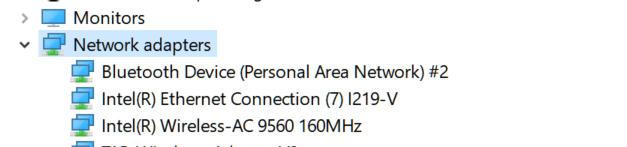
The device manager will give you a little more information (I think you can access it by right clicking the Start orb, or it's in control Panel)

Annotation 2021-03-09 191534.png

The above shows a shot of mine [Win10] - if you need to differentiate two wireless dongles you can remove one and check which is still showing, reverse the one plugged in to ID the second device. Depending on the reporting setup of the device it should be possible to ID the working service by a right click on the device entry.
 

My Computers My Computers

System One System Two

  • Computer type
    PC/Desktop
    Computer Manufacturer/Model Number
    ChillBlast - Custom to my design
    OS
    Windows 11 Pro x64 [Latest Release and Release Preview]
    CPU
    Ryzen 9 5950X, 3.8 - 5.2 MHz
    Motherboard
    Asus Prime X570-Pro
    Memory
    64GB [2 x 32GB] DDR4 3200MHz
    Graphics Card(s)
    4GB NVIDIA GEFORCE GTX 1650 Ti
    Sound Card
    On-board SPDIF to 5.1 System + HDMI [5.1 system]
    Monitor(s) Displays
    32" UHD 32 Bit HDR Monitor + 43" UHD 4K 32Bit HDR TV
    Screen Resolution
    2 x 3840 x 2160 @60Hz
    Hard Drives
    1TB M2 SSD OS, 500GB Fast Access SSD, 2 x 8TB Data + Various Externals from 1TB to 4TB, 10TB NAS
    PSU
    NZXT C750 80 PLUS Gold 750W Modular PSU
    Case
    Workstation Case [Matt Black]
    Cooling
    NZXT Kraken X63 280mm CPU Cooler +2x Quiet Case fans
    Keyboard
    Logitech Wireless MX Keys & K400 + others
    Mouse
    Logitech Wireless MX Master 3S
    Internet Speed
    920 MB Down 50 MB Up
    Antivirus
    BitDefender Total Security Pro
    Browser
    Chrome (always run latest Non-Beta)
    Other Info
    Also run ...
    Laptop - Quad 8GB - Windows 10 Pro x64
    Nexus 7 Android tablet x2
    Samsung 10.2" tablet
    Blackview TAB 8 4G Android Tablet c/w Keyboard
    Wacom Intuos Pro Medium Pen Pad
    Wacom Intuos Pro Small Pen Pad
    Wacom Expresskeys Remote
    Loopdeck+ Graphics Controller
    Shuttle Pro v2 Control
  • Computer type
    Laptop
    System Manufacturer/Model Number
    Dell XPS 17 10750H
    OS
    Windows 11 Pro x64 Latest RP
    CPU
    Intel I7 10750H 5.0GHz
    Motherboard
    Dell XPS
    Memory
    32GB [2x16GB] DDR4 2933 MHz
    Graphics Card(s)
    nVidia GTX1650Ti 4 GB GDDR6
    Sound Card
    Stock [Realtek] 4 Speaker
    Monitor(s) Displays
    17" IPS UHD+ Infinity Edge Touchscreen
    Screen Resolution
    3840 x 2400
    Hard Drives
    2TB M2 NVMe, 4TB External + various 500GB & 1TB External NVMe (also have access to spinner HDD from
    PSU
    Stock
    Case
    Stock XPS Aluminium & Carbon Fibre
    Cooling
    Stock - Active Fan Control
    Keyboard
    Backlit + Various Logitech
    Mouse
    Stock Track Pad + Logitech MX Trackball
    Internet Speed
    72 MB Down 18MB Up
    Browser
    Chrome
    Other Info
    Also run ...
    Laptop - Quad 8GB - Windows 10 Pro x64
    Nexus 7 Android tablet x2
    10.2" tablet
    Sony Z3 Android Smartphone
    Wacom Intuos Pro Medium Pen Pad
    Wacom Intuos Pro Small Pen Pad
    Wacom Expresskeys Remote
    Loopdeck+ Graphics Controller
    Shuttle Pro v2 Control Pad
    10TB NAS
Well, my Device Manager shows, for "Network Adapters" my USB wireless adapter, and the NVIDIA Ethernet adapter. When I right click on those, they simply say that "The device is working properly." It doesn't say that I'm actually using the former, and not using the latter. If I had my Ethernet cable plugged in, in would be nice to know which one is working, and even decide which one I want to be working. It's a little strange that my NVIDIA Ethernet adapter is reported as working properly when, in fact, it isn't even hooked up!

This question is a simple one. There are two pieces of hardware that can provide internet connection. Which one is actually doing it? Now, this would be especially relevant if I have my ethernet cable connected, such that it could really be either one. If I did have that cable connected, how could I choose which one to use?
 
Last edited:

My Computer My Computer

OS
Windows 7
The system Info tool shows all the possible network devices. unfortunately this includes all the system generates "phantom" connections - but the active network is the one that shows the DHCP information.

On my Windows 10 pro there is a system page Network Status under Network & Internet which states the current active network route - Not sure if this is available but it may be in Windows 7 - try Network / Internet properties
 

My Computers My Computers

System One System Two

  • Computer type
    PC/Desktop
    Computer Manufacturer/Model Number
    ChillBlast - Custom to my design
    OS
    Windows 11 Pro x64 [Latest Release and Release Preview]
    CPU
    Ryzen 9 5950X, 3.8 - 5.2 MHz
    Motherboard
    Asus Prime X570-Pro
    Memory
    64GB [2 x 32GB] DDR4 3200MHz
    Graphics Card(s)
    4GB NVIDIA GEFORCE GTX 1650 Ti
    Sound Card
    On-board SPDIF to 5.1 System + HDMI [5.1 system]
    Monitor(s) Displays
    32" UHD 32 Bit HDR Monitor + 43" UHD 4K 32Bit HDR TV
    Screen Resolution
    2 x 3840 x 2160 @60Hz
    Hard Drives
    1TB M2 SSD OS, 500GB Fast Access SSD, 2 x 8TB Data + Various Externals from 1TB to 4TB, 10TB NAS
    PSU
    NZXT C750 80 PLUS Gold 750W Modular PSU
    Case
    Workstation Case [Matt Black]
    Cooling
    NZXT Kraken X63 280mm CPU Cooler +2x Quiet Case fans
    Keyboard
    Logitech Wireless MX Keys & K400 + others
    Mouse
    Logitech Wireless MX Master 3S
    Internet Speed
    920 MB Down 50 MB Up
    Antivirus
    BitDefender Total Security Pro
    Browser
    Chrome (always run latest Non-Beta)
    Other Info
    Also run ...
    Laptop - Quad 8GB - Windows 10 Pro x64
    Nexus 7 Android tablet x2
    Samsung 10.2" tablet
    Blackview TAB 8 4G Android Tablet c/w Keyboard
    Wacom Intuos Pro Medium Pen Pad
    Wacom Intuos Pro Small Pen Pad
    Wacom Expresskeys Remote
    Loopdeck+ Graphics Controller
    Shuttle Pro v2 Control
  • Computer type
    Laptop
    System Manufacturer/Model Number
    Dell XPS 17 10750H
    OS
    Windows 11 Pro x64 Latest RP
    CPU
    Intel I7 10750H 5.0GHz
    Motherboard
    Dell XPS
    Memory
    32GB [2x16GB] DDR4 2933 MHz
    Graphics Card(s)
    nVidia GTX1650Ti 4 GB GDDR6
    Sound Card
    Stock [Realtek] 4 Speaker
    Monitor(s) Displays
    17" IPS UHD+ Infinity Edge Touchscreen
    Screen Resolution
    3840 x 2400
    Hard Drives
    2TB M2 NVMe, 4TB External + various 500GB & 1TB External NVMe (also have access to spinner HDD from
    PSU
    Stock
    Case
    Stock XPS Aluminium & Carbon Fibre
    Cooling
    Stock - Active Fan Control
    Keyboard
    Backlit + Various Logitech
    Mouse
    Stock Track Pad + Logitech MX Trackball
    Internet Speed
    72 MB Down 18MB Up
    Browser
    Chrome
    Other Info
    Also run ...
    Laptop - Quad 8GB - Windows 10 Pro x64
    Nexus 7 Android tablet x2
    10.2" tablet
    Sony Z3 Android Smartphone
    Wacom Intuos Pro Medium Pen Pad
    Wacom Intuos Pro Small Pen Pad
    Wacom Expresskeys Remote
    Loopdeck+ Graphics Controller
    Shuttle Pro v2 Control Pad
    10TB NAS
My Win7 System Info shows a "Summary" page, which expands to show "Components" and therein "Network" and "Adapter". That "Adapter" page lists lots of stuff, including my NVIDIA Ethernet, which is listed as "DHCP enabled", and also my USB wifi dongle, which is similarly listed. Not obvious that I'm being told which one is actually currently connected.
 

My Computer My Computer

OS
Windows 7

My Computers My Computers

System One System Two

  • Computer type
    PC/Desktop
    Computer Manufacturer/Model Number
    ChillBlast - Custom to my design
    OS
    Windows 11 Pro x64 [Latest Release and Release Preview]
    CPU
    Ryzen 9 5950X, 3.8 - 5.2 MHz
    Motherboard
    Asus Prime X570-Pro
    Memory
    64GB [2 x 32GB] DDR4 3200MHz
    Graphics Card(s)
    4GB NVIDIA GEFORCE GTX 1650 Ti
    Sound Card
    On-board SPDIF to 5.1 System + HDMI [5.1 system]
    Monitor(s) Displays
    32" UHD 32 Bit HDR Monitor + 43" UHD 4K 32Bit HDR TV
    Screen Resolution
    2 x 3840 x 2160 @60Hz
    Hard Drives
    1TB M2 SSD OS, 500GB Fast Access SSD, 2 x 8TB Data + Various Externals from 1TB to 4TB, 10TB NAS
    PSU
    NZXT C750 80 PLUS Gold 750W Modular PSU
    Case
    Workstation Case [Matt Black]
    Cooling
    NZXT Kraken X63 280mm CPU Cooler +2x Quiet Case fans
    Keyboard
    Logitech Wireless MX Keys & K400 + others
    Mouse
    Logitech Wireless MX Master 3S
    Internet Speed
    920 MB Down 50 MB Up
    Antivirus
    BitDefender Total Security Pro
    Browser
    Chrome (always run latest Non-Beta)
    Other Info
    Also run ...
    Laptop - Quad 8GB - Windows 10 Pro x64
    Nexus 7 Android tablet x2
    Samsung 10.2" tablet
    Blackview TAB 8 4G Android Tablet c/w Keyboard
    Wacom Intuos Pro Medium Pen Pad
    Wacom Intuos Pro Small Pen Pad
    Wacom Expresskeys Remote
    Loopdeck+ Graphics Controller
    Shuttle Pro v2 Control
  • Computer type
    Laptop
    System Manufacturer/Model Number
    Dell XPS 17 10750H
    OS
    Windows 11 Pro x64 Latest RP
    CPU
    Intel I7 10750H 5.0GHz
    Motherboard
    Dell XPS
    Memory
    32GB [2x16GB] DDR4 2933 MHz
    Graphics Card(s)
    nVidia GTX1650Ti 4 GB GDDR6
    Sound Card
    Stock [Realtek] 4 Speaker
    Monitor(s) Displays
    17" IPS UHD+ Infinity Edge Touchscreen
    Screen Resolution
    3840 x 2400
    Hard Drives
    2TB M2 NVMe, 4TB External + various 500GB & 1TB External NVMe (also have access to spinner HDD from
    PSU
    Stock
    Case
    Stock XPS Aluminium & Carbon Fibre
    Cooling
    Stock - Active Fan Control
    Keyboard
    Backlit + Various Logitech
    Mouse
    Stock Track Pad + Logitech MX Trackball
    Internet Speed
    72 MB Down 18MB Up
    Browser
    Chrome
    Other Info
    Also run ...
    Laptop - Quad 8GB - Windows 10 Pro x64
    Nexus 7 Android tablet x2
    10.2" tablet
    Sony Z3 Android Smartphone
    Wacom Intuos Pro Medium Pen Pad
    Wacom Intuos Pro Small Pen Pad
    Wacom Expresskeys Remote
    Loopdeck+ Graphics Controller
    Shuttle Pro v2 Control Pad
    10TB NAS
Nope. That doesn't help. That just tells me that the network devices (internal NVIDIA ethernet, and USB wifi in my case) are both functional. As in "Device Status - This device is working normally." It doesn't tell me which one is actually being used for my internet connection which in my case is the USB wifi.
 

My Computer My Computer

OS
Windows 7
First of all, the choice between which network source your computer uses, whether WIFI or Ethernet is more of a metric thing. This setting can be changed in the network adapters. No, you don't have to mess with it and advise you to never mess with it unless you know what you're doing.

To know what network source you're currently using should just be a matter of looking in the task bar, lower right. If you see the WIFI icon you of course are using WIFI as the source of network and Internet traffic. If you just see the Ethernet adapter then of course that's your current source of network access and Internet access.

Do you not see one of these small icons in your task bar? Even Windows 10 shows this. You should only see one at a time.
 

My Computer My Computer

Computer type
PC/Desktop
OS
Windows 7 Ultimate x64
In the taskbar I do see a "Network" icon, which is vertical bars. That lists the various wireless network channels, and it indicates that one is "connected". So I guess that's telling me I'm using wireless. Thanks. It does not, however, say which piece of wireless hardware is being used. Say, if I happened to have two.
 

My Computer My Computer

OS
Windows 7
The detailed breakdown on the network in the Control Panel, [ Control Panel\Network and Internet\Network Connections ] does show one device as connected, on my Windows 10, and there was the earlier finding that the active connection in the Device Manager is the only one that shows a DHCP entry which should be enough to separate Ethernet and Wireless, or even two wireless connections.

The reason this works is that the DHCP data is not provided by the local PC but by the remote device (normally a router )
 

My Computers My Computers

System One System Two

  • Computer type
    PC/Desktop
    Computer Manufacturer/Model Number
    ChillBlast - Custom to my design
    OS
    Windows 11 Pro x64 [Latest Release and Release Preview]
    CPU
    Ryzen 9 5950X, 3.8 - 5.2 MHz
    Motherboard
    Asus Prime X570-Pro
    Memory
    64GB [2 x 32GB] DDR4 3200MHz
    Graphics Card(s)
    4GB NVIDIA GEFORCE GTX 1650 Ti
    Sound Card
    On-board SPDIF to 5.1 System + HDMI [5.1 system]
    Monitor(s) Displays
    32" UHD 32 Bit HDR Monitor + 43" UHD 4K 32Bit HDR TV
    Screen Resolution
    2 x 3840 x 2160 @60Hz
    Hard Drives
    1TB M2 SSD OS, 500GB Fast Access SSD, 2 x 8TB Data + Various Externals from 1TB to 4TB, 10TB NAS
    PSU
    NZXT C750 80 PLUS Gold 750W Modular PSU
    Case
    Workstation Case [Matt Black]
    Cooling
    NZXT Kraken X63 280mm CPU Cooler +2x Quiet Case fans
    Keyboard
    Logitech Wireless MX Keys & K400 + others
    Mouse
    Logitech Wireless MX Master 3S
    Internet Speed
    920 MB Down 50 MB Up
    Antivirus
    BitDefender Total Security Pro
    Browser
    Chrome (always run latest Non-Beta)
    Other Info
    Also run ...
    Laptop - Quad 8GB - Windows 10 Pro x64
    Nexus 7 Android tablet x2
    Samsung 10.2" tablet
    Blackview TAB 8 4G Android Tablet c/w Keyboard
    Wacom Intuos Pro Medium Pen Pad
    Wacom Intuos Pro Small Pen Pad
    Wacom Expresskeys Remote
    Loopdeck+ Graphics Controller
    Shuttle Pro v2 Control
  • Computer type
    Laptop
    System Manufacturer/Model Number
    Dell XPS 17 10750H
    OS
    Windows 11 Pro x64 Latest RP
    CPU
    Intel I7 10750H 5.0GHz
    Motherboard
    Dell XPS
    Memory
    32GB [2x16GB] DDR4 2933 MHz
    Graphics Card(s)
    nVidia GTX1650Ti 4 GB GDDR6
    Sound Card
    Stock [Realtek] 4 Speaker
    Monitor(s) Displays
    17" IPS UHD+ Infinity Edge Touchscreen
    Screen Resolution
    3840 x 2400
    Hard Drives
    2TB M2 NVMe, 4TB External + various 500GB & 1TB External NVMe (also have access to spinner HDD from
    PSU
    Stock
    Case
    Stock XPS Aluminium & Carbon Fibre
    Cooling
    Stock - Active Fan Control
    Keyboard
    Backlit + Various Logitech
    Mouse
    Stock Track Pad + Logitech MX Trackball
    Internet Speed
    72 MB Down 18MB Up
    Browser
    Chrome
    Other Info
    Also run ...
    Laptop - Quad 8GB - Windows 10 Pro x64
    Nexus 7 Android tablet x2
    10.2" tablet
    Sony Z3 Android Smartphone
    Wacom Intuos Pro Medium Pen Pad
    Wacom Intuos Pro Small Pen Pad
    Wacom Expresskeys Remote
    Loopdeck+ Graphics Controller
    Shuttle Pro v2 Control Pad
    10TB NAS
This is helpful, but I'm trying to associate a connection with a piece of hardware. We've moved beyond separating wireless and ethernet. In principle, I could have TWO wifi dongles on my box. How do I select which one I want to use, and how do I know which one is being used?
 

My Computer My Computer

OS
Windows 7
Go into Control Panel\Network and Internet\Network Connections

Now right click in a blank white space and in the context menu shown organize by Connectivity. Now you know and knowing is half the battle...


family guy GI joe - YouTube
 

My Computer My Computer

Computer type
PC/Desktop
OS
Windows 7 Ultimate x64
I don't see that. Are we talking Win7?

I see "Control Panel/Network" and "Internet".
I can go there and open "Manage Wireless Networks" which shows the networks available, and then to "Adapter Properties"

wherein I see my wifi dongle listed in "Connect using". I have to suppose that that one is the one actually connected. if I had two dongles, maybe I'd be offered a choice here?

Now, that being said, I see no way to choose whether I'm using on-board ethernet or wifi. Maybe since my ethernet cable isn't plugged in, I'm not being offered that choice?

I guess the other half of the battle is the problem.
 

My Computer My Computer

OS
Windows 7
Back
Top