How to set Windows 7 on SSD drive as default boot drive

prazanna

New member
Local time
4:23 PM
Messages
2
Here is my scenario,

I have Old HDD Drive with windows 7 Home Premium (now installed on optibay). Then I installed fresh OS on my new Intel 520 SDD in the main HardDrive Bay. When computer restarts it starts Win7 from old drive. Everytime I need to do is press F9 and select "Notebook Harddrive". I want to start with Win7 on my new SDD. I tried to change the boot priority to Notebook Harddrive but it doesn't help.

I guess it'll be solved once I format old drive. But ATM I dont want to do it.
I am using HP dv6t-1300 CTO laptop.
 

My Computer My Computer

At a glance

Windows 7 Home Premium x64
OS
Windows 7 Home Premium x64
What are the choices in BIOS setup under Boot order?

When you change the BIOS boot order to boot the SSD, are you saving the change before exiting?

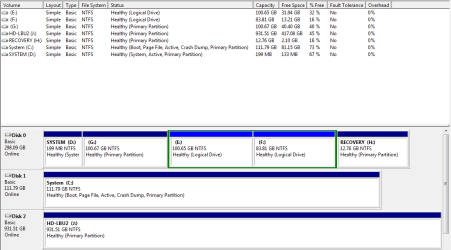
Please post up a screenshot of your maximized Disk Mgmt drive map and listings, using the SNipping Tool in Start Menu. Attach file using paper clip in reply box.
 
Boot order doesn't show SSD or HDD separately

It has options :

HP Notebook drive
CD/DVD Drive
USB CD/DVD Drive

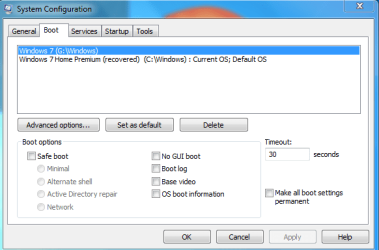
But I managed to use Win7 recovery. It said it recovered a boot partition. Now I get the choices before OS starts

1) Win7
2) Win7 Home Premium (Recovered)

I've set boot config to make OS#2 as Default OS

Is this the correct way. What should I do If I don't need OS#1 in future? As you can see I have drives Recovery(H), System(D), Old OS (G) that wont be useful.
 

Attachments

  • DM.PNG
    DM.PNG
    16.6 KB · Views: 102
  • Sysconfig.PNG
    Sysconfig.PNG
    13.4 KB · Views: 119

My Computer My Computer

At a glance

Windows 7 Home Premium x64
OS
Windows 7 Home Premium x64
In that case you might have to set a Primary HD under the HD or Storage listings in the BIOS, separate from Boot order. Then it will give you that choice to set first in Boot Order.

However it's likely the BIOS isn't even detecting your SSD as a bootable device since you apparently installed Win7 to it with the other HD plugged in and it's boot files were derailed to the HD. We know this because there is no System flag on the SSD partition signifying it has its own System boot files.

The solution is to unplug all other HD's, plug HD cable into the SSD so it remains set to boot first in BIOS setup and is in the first DISK0 slot.

Now boot into Win7 installer or System Repair Disk to run Startup Repair - Run 3 Separate Times until the SSD boots on its own and holds the System Active flags.

Now you can plug back in the HD, boot it when needed using one-time BIOS boot menu key. You can remove the Windows Boot Menu if it interferes using the Edit OS Menu tab on EasyBCD (free Download at bottom of page - no name or email required)

If you don't like booting via BIOS, install EasyBCD to the primary HD OS to add the other OS on Add OS Entry tab.
 
Back
Top