Solved HP All-In-One passes HP Diagnostics but wiil not start

More nightmare info... I reopened the case and the CD drive faceplate was inside, and it's position was keeping the drawer from opening. Bizarre. But it gets weirder. I put a 64 bit Windows 7 DVD in the tray, booted, got the msg about pressing any key, but pressing any key brought me to the screen that wants me to choose an operating system to start. I don't ever recall that before. But the only option is Windows Setup [EMS Enabled]. I hit <Enter>, got the Loading Files (but it took much longer to complete - about 4 minutes), but now am back ay the Starting Windows screen and it's frozen. Again. But is that Windows Setup OS normal? Shouldn't it have read Windows 7 Home Premium?
 

My Computer My Computer

At a glance

Windows 7 home premium 64 bitAMD K103.00GB Dual-Channel DDR3 @ 532MHzATI AMD M880G with ATI Mobility Radeon HD 425...
Computer type
Laptop
OS
Windows 7 home premium 64 bit
CPU
AMD K10
Motherboard
Hewlett-Packard 1444 (Socket S1G4)
Memory
3.00GB Dual-Channel DDR3 @ 532MHz
Graphics Card(s)
ATI AMD M880G with ATI Mobility Radeon HD 4250 (HP)
Sound Card
Realtek
Screen Resolution
1366 x 768
Hard Drives
465GB Western Digital
Antivirus
MSE
Yes that's the choice to boot the disk in some cases

The freeze you describe is common when the UEFI settings are not correct in BIOS. You want to be sure that Legacy BIOS or CSM is enabled. It should be in one of those collapsible settings you didn't expand as I asked.

You can also try booting the DVD as UEFI device since that might be how its installed now.

Another way to tell this is to boot Partition Wizard Boot CD to look at the drive map,

or run Diskpart from Command Line to see if there is an EFI Boot partition. Commands are:

DISKPART
LIST DISK
SEL DISK 0 (Win7 disk)
LIST PART

Post back a camera snap or write out the partition details.
 
Yes that's the choice to boot the disk in some cases

The freeze you describe is common when the UEFI settings are not correct in BIOS. You want to be sure that Legacy BIOS or CSM is enabled. It should be in one of those collapsible settings you didn't expand as I asked.
Now, when I put a W7 64 disk in the tray, boot. and hit <esc> for the Startup Menu, the Boot Menu (F9) now has an item underneath the heading 'UEFI Boot Sources'. It is UEFI: hp DVD A DS8A8SH, and since it has the arrow next to it, I assume that's the first boot device.

In the BIOS
File
System Information
Contains Product Name - 120-1123w, SKU Number, Processor Type, Speed, Stepping, Cache Size, Memory Size, System BIOS - ARM_703.rom v7.03, Chassis Serial No
About - Only contains address and phone info fro HP and American Megatrends
Set Time and Date - Self Explanatory
And then the Apply Defaults and Exit, Ignore Changes and Exit, Save Changes and Exit
Storage
Device Configuration - numbers for Hard Disk and CD-ROM
Storage Options - SATA Emulation - AHCI (this item is the default) or IDE
DPS Self Test
Boot Order - We've been over that
Security
Setup Password
Power-On Password
Device Security - System Audio, Network Controller, Onboard Card Reader, SATA0, SATA1 - All have 'Device Available' next to them
USB Security - Lots of USB Ports listed - all enabled
Slot Security - Mini Card Slot - Enabled
Network Boot - Enabled
System IDs - Product Name, Serial #, SKU, UUID, Family Name, Feature Byte, Build ID - Lots of numbers
System Security - Data Execution Prevention-Enabled, Virtualization Technology-Disabled
Power
Hardware Power Management - SATA Power Management-Enabled
- S5 Maximum Power Savings-Disabled
- S5 Wake On LAN-Disabled
Thermal - Displays CPU Fan Speed (hovering about 2400 RPM)
Advanced
Power-On Options - Post Messages-Disabled, After Power Loss-Off, Post Delay(in seconds)-None
BIOS Power-On - Lists all the days of the week - all say Disabled, Lists a Time of 00:00
BUS Options - PCI SERR#-Enabled, PCI VGA Palette Snooping-Disabled
Device Options - Num Lock State at Power-On is set to On
- NIC PXE Option ROM Download - Enabled

And that's it. I'm sure the infomatio you need is in there somewhere. If you need any of the numbers, let me know.
You can also try booting the DVD as UEFI device since that might be how its installed now.
Yes, it's automatically using whatever disk I put in the tray as a UEFI device
Another way to tell this is to boot Partition Wizard Boot CD to look at the drive map,

or run Diskpart from Command Line to see if there is an EFI Boot partition. Commands are:

DISKPART
LIST DISK
SEL DISK 0 (Win7 disk)
LIST PART

Post back a camera snap or write out the partition details.
Downloaded the bootable version of Partition Wizard. Got the iso, but when I tried to burn it to a CD (or DVD - I tried both) using ImgBurn, I got a Verify Failed. Layouts do not match. I just used ImgBurn last week to create the BitDefender disk. When it rains it pours.

And I seem to have no way of getting to a command prompt. Tapping F8 never gives me the Repair your Computer option - just the usual Safe Mode, SM w/N, SM w/CP, Last Good, etc...

 

My Computer My Computer

At a glance

Windows 7 home premium 64 bitAMD K103.00GB Dual-Channel DDR3 @ 532MHzATI AMD M880G with ATI Mobility Radeon HD 425...
Computer type
Laptop
OS
Windows 7 home premium 64 bit
CPU
AMD K10
Motherboard
Hewlett-Packard 1444 (Socket S1G4)
Memory
3.00GB Dual-Channel DDR3 @ 532MHz
Graphics Card(s)
ATI AMD M880G with ATI Mobility Radeon HD 4250 (HP)
Sound Card
Realtek
Screen Resolution
1366 x 768
Hard Drives
465GB Western Digital
Antivirus
MSE
Can you boot into Safe Mode?

IF it is booting the DVD as a UEFI device now, then try booting it as a Legacy device.

I see no settings which you typed out for Legacy BIOS, CSM or to otherwise toggle UEFI in any way except boot options. Sometimes we can spot something missed in a picture though.

So try Legacy DVD choice there.

Burn PW CD with WIndows Image Burner from rightclick menu on ISO.
 
Can you boot into Safe Mode?
I can access the screen with the F8 options. None of the 3 Safe Mode options work -the screen fills with a lot of file paths, and eventually freezes.
IF it is booting the DVD as a UEFI device now, then try booting it as a Legacy device.
I stand corrected, somewhat. A 32 bit DVD of W7 always boots as a Legacy device. The 64 bit always wants to boot as a UEFI device. I no longer seem to have the ability to change the boot priority off the Startup Menu. I can highlight the device, but pressing enter does not boot that device. I have to hit esc which will use the default boot order set in the BIOS.
I see no settings which you typed out for Legacy BIOS, CSM or to otherwise toggle UEFI in any way except boot options. Sometimes we can spot something missed in a picture though.
I supplied you with every BIOS option that was available
So try Legacy DVD choice there.
As I said above, I can only alter the boot priority through the BIOS. The BIOS has 2 sets of devices - one for UEFI and one for Legacy. I have prioritized both sets so that it will boot from a DVD first, but what particular set the PC uses seems to be beyond my control.
Burn PW CD with WIndows Image Burner from rightclick menu on ISO.
What I'm using to reply to you is an old Dell XP laptop. It has no burning software. The PC that gave me the 'Verify Failed' is another XP tower that I usually use for burning CDs and DVDs. I have a W7 tower upstairs that I'll try to use to create the PW CD.
 

My Computer My Computer

At a glance

Windows 7 home premium 64 bitAMD K103.00GB Dual-Channel DDR3 @ 532MHzATI AMD M880G with ATI Mobility Radeon HD 425...
Computer type
Laptop
OS
Windows 7 home premium 64 bit
CPU
AMD K10
Motherboard
Hewlett-Packard 1444 (Socket S1G4)
Memory
3.00GB Dual-Channel DDR3 @ 532MHz
Graphics Card(s)
ATI AMD M880G with ATI Mobility Radeon HD 4250 (HP)
Sound Card
Realtek
Screen Resolution
1366 x 768
Hard Drives
465GB Western Digital
Antivirus
MSE
So I created the PW boot disk. When I boot from it I get a menu with 3 choices - Boot from Partition Wizard Boot Disk, Boot From Partition Wizard Boot Disk (Safe Mode), and Boot from Hard Drive. Both of the first 2 options give me a black screen with file name paths and a lot of periods (much like the BitDefender boot disk). Then it scrolls through more black screens with white lettering before stopping at a screen that has as its last entry: pci 0000:0015.0: PCI bridge to [bus 02-02]. It just stays there. Other phrases on the page are PCI: Probing PCI hardware, PCI: Using configuration type 1 for extended access, and a whole lot of raid6: stuff.

Where is that sledgehammer?
 

My Computer My Computer

At a glance

Windows 7 home premium 64 bitAMD K103.00GB Dual-Channel DDR3 @ 532MHzATI AMD M880G with ATI Mobility Radeon HD 425...
Computer type
Laptop
OS
Windows 7 home premium 64 bit
CPU
AMD K10
Motherboard
Hewlett-Packard 1444 (Socket S1G4)
Memory
3.00GB Dual-Channel DDR3 @ 532MHz
Graphics Card(s)
ATI AMD M880G with ATI Mobility Radeon HD 4250 (HP)
Sound Card
Realtek
Screen Resolution
1366 x 768
Hard Drives
465GB Western Digital
Antivirus
MSE
The issue is likely a Linux disk not booting for UEFI, so boot the disk as a Legacy CD and not UEFI CD.

More on BIOS choices for HP Omni's: HP Omni Desktop PCs - BIOS Settings for the Leon Motherboard

The Boot Order section says the UEFI always has priority so you may need to find a way to force disk to boot as Legacy. It says to drag the device selected to the top after selecting it with Enter key.

If not then the flash stick method will need to be altered using Option One in UEFI Bootable USB Flash Drive - Create in Windows to boot as a UEFI installer. This is also worth a try since you want an alternative to disk that will boot as either UEFI or Legacy.
 
Last edited:
The issue is likely a Linux disk not booting for UEFI, so boot the disk as a Legacy CD and not UEFI CD.

More on BIOS choices for HP Omni's: HP Omni Desktop PCs - BIOS Settings for the Leon Motherboard

The Boot Order section says the UEFI always has priority so you may need to find a way to force disk to boot as Legacy. It says to drag the device selected to the top after selecting it with Enter key.
Yeah, there's 2 sets of boot devices, each with their own priority, so in the BIOS I disabled the CD from UEFI and booted the Partition Wizard. No difference. Same non result.
If not then the flash stick method will need to be altered using Option One in UEFI Bootable USB Flash Drive - Create in Windows to boot as a UEFI installer. This is also worth a try since you want an alternative to disk that will boot as either UEFI or Legacy.
I probably won't get to this until tomorrow. I am filled with a complete lack of confidence that it will do anything to erase the total disappointment with which every step has bludgeoned me. No offense to you gr. You've been great.
 

My Computer My Computer

At a glance

Windows 7 home premium 64 bitAMD K103.00GB Dual-Channel DDR3 @ 532MHzATI AMD M880G with ATI Mobility Radeon HD 425...
Computer type
Laptop
OS
Windows 7 home premium 64 bit
CPU
AMD K10
Motherboard
Hewlett-Packard 1444 (Socket S1G4)
Memory
3.00GB Dual-Channel DDR3 @ 532MHz
Graphics Card(s)
ATI AMD M880G with ATI Mobility Radeon HD 4250 (HP)
Sound Card
Realtek
Screen Resolution
1366 x 768
Hard Drives
465GB Western Digital
Antivirus
MSE
Can you arrow down to select the Legacy DVD and then HD, select enter, then drag each to the very top as the tutorial implies you can do? This may be why HD is not booting because it's attempting UEFI HD boot since that is higher in the priority list.

I would also disable Floppy if not remove it from the PC as this alone can cause a PC not to boot or function correctly.

At this point I think there's still the chance you are missing a setting elsewhere in BIOS that enables/disables Legacy. But it could be as simple as a bad installer not able to boot either as UEFI or Legacy when trying both.

I have asked for more help on this. There may be others who know these older All-In-Ones and the type of hybrid early UEFI they had.
 
Can you arrow down to select the Legacy DVD and then HD, select enter, then drag each to the very top as the tutorial implies you can do? This may be why HD is not booting because it's attempting UEFI HD boot since that is higher in the priority list.
I've done a bad job of explaining this.... In the BIOS under boot order there are two separate sets. One is UEFI Boot Sources. The other is Legacy Boot Sources. The 'select and drag' feature is only for items within each set. I can set any of the 3 boot items (CD, Floppy or HDD) to first, second or third, but only from within that source. Apparently the computer itself determines the nature of the boot media. A 64 bit W7 disk boots as a UEFI CD/DVD. A 32 bit W7 disk boots as a Legacy CD/DVD. I can tell this by entering the BIOS while the disk is in the optical drive. There'll be an arrow in the boot order item it's currently using.
I would also disable Floppy if not remove it from the PC as this alone can cause a PC not to boot or function correctly.
I have disabled each item labeled USB Floppy/CD. I gather from you that these entries are only referring to floppies? But I am baffled by the phrase USB Floppy/CD. Why would it have the terms USB and CD if it's only a floppy? And didn't they stop putting floppy drives in computers more than 10 years ago? This All-in-one is only about 3, maybe 4 years old. I assumed that USB Floppy/CD had something to do with booting from a USB flash drive, an option that was much more in use when this computer was assembled than booting from floppies. But I dunno....
At this point I think there's still the chance you are missing a setting elsewhere in BIOS that enables/disables Legacy. But it could be as simple as a bad installer not able to boot either as UEFI or Legacy when trying both.

I have asked for more help on this. There may be others who know these older All-In-Ones and the type of hybrid early UEFI they had.
 

My Computer My Computer

At a glance

Windows 7 home premium 64 bitAMD K103.00GB Dual-Channel DDR3 @ 532MHzATI AMD M880G with ATI Mobility Radeon HD 425...
Computer type
Laptop
OS
Windows 7 home premium 64 bit
CPU
AMD K10
Motherboard
Hewlett-Packard 1444 (Socket S1G4)
Memory
3.00GB Dual-Channel DDR3 @ 532MHz
Graphics Card(s)
ATI AMD M880G with ATI Mobility Radeon HD 4250 (HP)
Sound Card
Realtek
Screen Resolution
1366 x 768
Hard Drives
465GB Western Digital
Antivirus
MSE
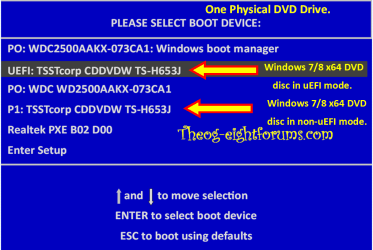
If Windows 7 x64 is installed in UEFI mode, "Windows Boot Manager " should be first boot device.

Windows 8 Downgrade-006 SB for posting.PNG
 

My Computer My Computer

At a glance

ME/XP/Vista/Win7
OS
ME/XP/Vista/Win7
Thanks for the reply, but what exactly do I do with this vis-à-vis the information I've provided about the Startup Menu, the BIOS, etc.? To paraphrase Dylan, 'My existence led by confusion boots...'
 

My Computer My Computer

At a glance

Windows 7 home premium 64 bitAMD K103.00GB Dual-Channel DDR3 @ 532MHzATI AMD M880G with ATI Mobility Radeon HD 425...
Computer type
Laptop
OS
Windows 7 home premium 64 bit
CPU
AMD K10
Motherboard
Hewlett-Packard 1444 (Socket S1G4)
Memory
3.00GB Dual-Channel DDR3 @ 532MHz
Graphics Card(s)
ATI AMD M880G with ATI Mobility Radeon HD 4250 (HP)
Sound Card
Realtek
Screen Resolution
1366 x 768
Hard Drives
465GB Western Digital
Antivirus
MSE
I'm just going to create the bootable flash drive and give it a try. Of course I have no clue about the boot settings for this process...
 

My Computer My Computer

At a glance

Windows 7 home premium 64 bitAMD K103.00GB Dual-Channel DDR3 @ 532MHzATI AMD M880G with ATI Mobility Radeon HD 425...
Computer type
Laptop
OS
Windows 7 home premium 64 bit
CPU
AMD K10
Motherboard
Hewlett-Packard 1444 (Socket S1G4)
Memory
3.00GB Dual-Channel DDR3 @ 532MHz
Graphics Card(s)
ATI AMD M880G with ATI Mobility Radeon HD 4250 (HP)
Sound Card
Realtek
Screen Resolution
1366 x 768
Hard Drives
465GB Western Digital
Antivirus
MSE
Once again I can't seem to connect the dots....
As you know from these posts I already have Windows 7 Home Premium disks. I downloaded & installed the Windows 7 USB DVD Download Tool and popped the 64 bit Windows 7 SP1 disk into the tray. Of course it wanted to run the disk, so I canceled that, and clicked the tool on my desktop. I got the step 1 of 4 where it wants me to browse to my iso file. I hit the browse button and navigated to my DVD RW Drive (D:), assuming that all I'd have to do would be select the drive. Instead it opens folders on the D: drive - boot, efi, sources, support and upgrade. All of those folders have folders.

What am I doing wrong, now? I thought I saw several references to being able to create this bootable flash stick by having a Windows 7 SP1 disk.
 

My Computer My Computer

At a glance

Windows 7 home premium 64 bitAMD K103.00GB Dual-Channel DDR3 @ 532MHzATI AMD M880G with ATI Mobility Radeon HD 425...
Computer type
Laptop
OS
Windows 7 home premium 64 bit
CPU
AMD K10
Motherboard
Hewlett-Packard 1444 (Socket S1G4)
Memory
3.00GB Dual-Channel DDR3 @ 532MHz
Graphics Card(s)
ATI AMD M880G with ATI Mobility Radeon HD 4250 (HP)
Sound Card
Realtek
Screen Resolution
1366 x 768
Hard Drives
465GB Western Digital
Antivirus
MSE
Once again I can't seem to connect the dots....
As you know from these posts I already have Windows 7 Home Premium disks. I downloaded & installed the Windows 7 USB DVD Download Tool and popped the 64 bit Windows 7 SP1 disk into the tray. Of course it wanted to run the disk, so I canceled that, and clicked the tool on my desktop. I got the step 1 of 4 where it wants me to browse to my iso file. I hit the browse button and navigated to my DVD RW Drive (D:), assuming that all I'd have to do would be select the drive. Instead it opens folders on the D: drive - boot, efi, sources, support and upgrade. All of those folders have folders.

What am I doing wrong, now? I thought I saw several references to being able to create this bootable flash stick by having a Windows 7 SP1 disk.

You can either download an ISO from here,

Windows 7 Direct Download Links, Official Disk Images from Digital River

To continue with the windows 7 usb tool.

Or, you can try option two of this tutorial which shows how to use what's on your disc,

http://www.sevenforums.com/tutorials/2432-usb-windows-7-installation-key-drive-create.html
 

My Computer My Computer

At a glance

Win 10 Pro x64Intel I5-2500K @3.3GHz16GB G.Skill Ripjaws X (4x4GB)EVGA GeForce 750 Ti SC 2GB
Computer type
PC/Desktop
Computer Manufacturer/Model Number
Self Built
OS
Win 10 Pro x64
CPU
Intel I5-2500K @3.3GHz
Motherboard
Asrock P67 Extreme4
Memory
16GB G.Skill Ripjaws X (4x4GB)
Graphics Card(s)
EVGA GeForce 750 Ti SC 2GB
Sound Card
ASUS Xonar DG 5.1 Channels 24-bit 96KHz PCI Interface Sound
Monitor(s) Displays
auria eq2367
Screen Resolution
1920 x 1080
Hard Drives
250GB Samsung 850 EVO SSD
1TB WD Blue
1TB Hitachi
PSU
SeaSonic X 650W 80 Plus Gold
Case
Corsair Obsidian 750D
Cooling
Corsair H60, Three 140mm case fans
Keyboard
Logitech Wireless Keyboard K520
Mouse
Logitech Wireless Mouse M310
Internet Speed
Wave Broadband ~ 100 dn 5 up
Antivirus
Windows Defender, Malwarebytes Premium
Browser
Edge, IE11, Chrome
Other Info
Laptop specs: HP g7-1365dx /
CPU: AMD A6-3420M APU with Radeon(tm) HD Graphics /
RAM: Crucial 8Gb (2x4Gb) /
SSD: Crucial M4-CT128M4SSD2 ATA Device/ FW 000F /
GFX: AMD Radeon HD 6520G /
OS: Windows 10 Pro x64
I genuinely thought that an existing OS DVD was an iso file. You don't extract it, you just burn it and I assumed that the burning process did not alter the file - that it was still an iso file, just burnt to a disk. Oh well...

So I'm about halfway through the download of the 64 bit version of W7HP. Will post back after the bootable USB stick is created.
 

My Computer My Computer

At a glance

Windows 7 home premium 64 bitAMD K103.00GB Dual-Channel DDR3 @ 532MHzATI AMD M880G with ATI Mobility Radeon HD 425...
Computer type
Laptop
OS
Windows 7 home premium 64 bit
CPU
AMD K10
Motherboard
Hewlett-Packard 1444 (Socket S1G4)
Memory
3.00GB Dual-Channel DDR3 @ 532MHz
Graphics Card(s)
ATI AMD M880G with ATI Mobility Radeon HD 4250 (HP)
Sound Card
Realtek
Screen Resolution
1366 x 768
Hard Drives
465GB Western Digital
Antivirus
MSE
Repeatedly in this thread I have suggested you try another installer, either DVD or flash stick, from Clean Reinstall - Factory OEM Windows 7.

The very first step provides the latest official ISO file for your licensed version. The next step provides the tool to burn it to DVD or write to flash stick. I also repeatedly referred to burning or Writing it with that tool.

If you had any questions you only needed to ask. But it specfies all of this quite clearly in the tutorial.
 
I created a DVD from the iso file I downloaded, booted the machine. hit escape, went into the BIOS, re-enabled UEFI CD/DVD device, saved the settings and exited. Same ol', same ol'. Hits the starting windows screen and freezes.

The one thing I don't believe I've mentioned is the keyboard. The USB keyboard I'm using has an F-Lock key in the upper left corner. If I want to use any of the function keys before the system completes booting I have to press that key, which also turns on a little idiot light on the keyboard. The point is, that no matter what disk I'm booting from, a Kaspersky Rescue Disk, Bit Defender, Spotmau BootSuite to any of the W7 disks I have (including the one I just created), after it freezes the idiot light on the keyboard goes out.

I also booted from the bootable flash drive I created. Same thing. I also noticed that while it's displaying Windows is loading files, the flash stick is lit up and sometimes blinking. It remains lit until about 4 seconds after the Starting Windows screen appears. Then the flash stick goes dark. Same behavior as the lighting on the keyboard.
 

My Computer My Computer

At a glance

Windows 7 home premium 64 bitAMD K103.00GB Dual-Channel DDR3 @ 532MHzATI AMD M880G with ATI Mobility Radeon HD 425...
Computer type
Laptop
OS
Windows 7 home premium 64 bit
CPU
AMD K10
Motherboard
Hewlett-Packard 1444 (Socket S1G4)
Memory
3.00GB Dual-Channel DDR3 @ 532MHz
Graphics Card(s)
ATI AMD M880G with ATI Mobility Radeon HD 4250 (HP)
Sound Card
Realtek
Screen Resolution
1366 x 768
Hard Drives
465GB Western Digital
Antivirus
MSE
Back
Top