- Local time
- 5:25 PM
- Messages
- 16,796
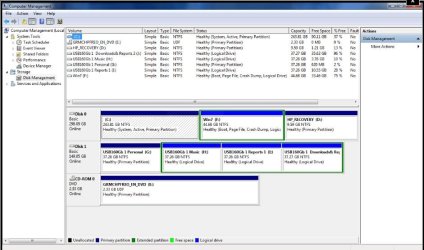
1. If you just need to save an image of the 7 partition -from within 7 , go to Disk Management then rt click 7 partition and mark it Active.
2. Open an elevated command and type:
bcdboot c:\windows /s c:
then press enter.
Close cmd prompt.
3. a) You should find Windows Sys image GUI will allow you to image only C: partition.
Don't forget to mark the original active partition (which I assume is F ) active again once you have made the image.
OR , instead of a) open an elevated command and type:
WBADMIN START BACKUP -BACKUPTARGET:G: -INCLUDE:C: -QUIET
(replace G with the letter of the drive you want to store the backup image on)
Then press enter.
2. Open an elevated command and type:
bcdboot c:\windows /s c:
then press enter.
Close cmd prompt.
3. a) You should find Windows Sys image GUI will allow you to image only C: partition.
Don't forget to mark the original active partition (which I assume is F ) active again once you have made the image.
OR , instead of a) open an elevated command and type:
WBADMIN START BACKUP -BACKUPTARGET:G: -INCLUDE:C: -QUIET
(replace G with the letter of the drive you want to store the backup image on)
Then press enter.
Last edited:
My Computers
-
At a glance
7 X64i5 84002x8gb 3200mhz- Computer type
- PC/Desktop
- OS
- 7 X64
- CPU
- i5 8400
- Motherboard
- gigabyte b365m ds3h
- Memory
- 2x8gb 3200mhz
- Hard Drives
- various
- PSU
- pure power 11 400w cm
- Case
- Coolermaster
- Cooling
- cryorig m9i
-
At a glance
7x64g54008gb ddr4 2400- Computer type
- PC/Desktop
- OS
- 7x64
- CPU
- g5400
- Motherboard
- ga b365m ds3h
- Memory
- 8gb ddr4 2400
- PSU
- xfx pro 450w