HP LaserJet P2015 driver for Win 7

chorp

New member
Local time
5:32 AM
Messages
1
Added new Win 7 PC to home network with HP LaserJet P2015 connect to XP PC via USB. Using Win 7 Add Printer wizard, Win 7 PC sees the printer but gives missing driver error. 'Windoes cannot find a driver on the network"
On HP site I cannot find a win 7 driver. Say N/A <as of Sept 2009>
Any advice would be appreciated.
 

My Computer My Computer

Computer Manufacturer/Model Number
ZT 2082NA
OS
wun 7
CPU
AMD Athlon II x2 240

My Computer My Computer

Computer Manufacturer/Model Number
Self Built
OS
Windows 7 ultimate 64 bit / XP Home sp3
CPU
intel Core 2 Duo E8400 3.0ghz
Motherboard
Asus P5ND bios 1401
Memory
8 gigs 1066 OCZ Fata1ty
Graphics Card(s)
EVGA GTX 580 Call of Duty Black Ops Edition
Sound Card
Creative Soundblaster Audigy 2zs
Monitor(s) Displays
Asus 24in LCD's 2MS X2
Screen Resolution
1920x1080p @60Hz
Hard Drives
WD Caviar 500 Black/ WD Caviar 200 Blue
PSU
OCZ 700W GameXtreme
Case
NZXT Apollo
Cooling
Corsair H50 CPU/120mm x3 /60mm x2 /Corsair Dominator Ram
Keyboard
Logitech Bluetooth Wireless MX5000
Mouse
Logitech Bluetooth Wireless MX1000
Internet Speed
Download 19.83 Upload 0.97
Other Info
Logitech Z2300 Speakers/ Bose Noise Cancelling Headphones/Avermedia PCI-e Hybrid TV Bravo/Epson NX415 all in one/ 4 Port Powered USB Hub/ LG 10x Bluray Burner /TSST Corp DVDRW External
Added new Win 7 PC to home network with HP LaserJet P2015 connect to XP PC via USB. Using Win 7 Add Printer wizard, Win 7 PC sees the printer but gives missing driver error. 'Windoes cannot find a driver on the network"
On HP site I cannot find a win 7 driver. Say N/A <as of Sept 2009>
Any advice would be appreciated.

The HP printer driver website (I know it says CP 6015 but the P2015 is on the list, too):

HP Color LaserJet CP6015 Printer series- HP LaserJet, Color LaserJet and LaserJet MFP Products - Product Support for Microsoft Windows 7 - c01856597 - HP Business Support Center

lists the P2015 as a Category I printer. The relevant portion reads:
Windows 7 driver
LaserJet model specific printer drivers are currently available within the Windows 7 operating system. Installation of these drivers can be performed via Devices and Printers , formerly known as the Add Printer Wizard .
NOTE: If the model specific driver that you are looking for does not appear in the available list of available printers, clicking the Windows Update button underneath the list of available printers may provide additional drivers to choose from. Requires opt-in to Microsoft Windows Update and internet connection.
The reference to the "Windows Update" feature may have what you need.
 

My Computer My Computer

Computer Manufacturer/Model Number
Self-built
OS
Ubuntu Lunix and Windows 7
CPU
Intel Core2Quad QX9700
Motherboard
Gigabyte GA-EP45-UD3P
Memory
8 GB Corsair Twin-X
Graphics Card(s)
Sapphire/ATI Radeon HD5850
Sound Card
Embedded or Bose Companion System V
Monitor(s) Displays
Apple 23 Inch Cinema Display
Screen Resolution
1920 X 1200
Hard Drives
1 X 120GB Intel Series 320 SSD
2 X 1TB Western Digital WD1002 FAEX internal hard drives
1 X 1Tb Seagate 7200.11 SATA (external, for backup)
PSU
Corsair 750TX
Case
Lian-Li V2120B
Cooling
Zalman CNPS ZX10C
Keyboard
CVT Avant Prime
Mouse
Logitech wireless trackman
Internet Speed
Comcast 8M/sec
Other Info
Also use MacBookPro (1st gen Intel w/ OS X 10.6) and a second desktop built upon an Intel D975XBX with Intel E6600 multi-booting Ubuntu, SuSE and Fedora Linux and 32-bit Windows 7 Home Premium..
hi dears

I have a P2015 with PN cb366a that now works in win7 can u give me a direct link please
 

My Computer My Computer

Computer Manufacturer/Model Number
Del Inc./Opteplex 360
OS
Windows 7 Home Premium 32bit.
CPU
Dell Inc.
Motherboard
E5200
Memory
Del Inc.
Graphics Card(s)
Interl G33/G31
Sound Card
HDAUDIO/FUNC_01&VEN_11D4&DEV_194A&SUBS
Monitor(s) Displays
Generic PnP Monitor
Hard Drives
Del Inc
PSU
Del Inc.
Case
Del Inc.
Cooling
Del Inc.

My Computer My Computer

Computer type
PC/Desktop
Computer Manufacturer/Model Number
Home-built, two systems (1) and (2)
OS
Windows 7 Pro x64 (1), Win7 Pro X64 (2)
CPU
i5-3350p 3.1Ghz/6MB-cache (1); E8400 3.0Ghz/6MB-cache (2)
Motherboard
ASUS P8Z77-V Pro (1); ASUS P5Q3 (2)
Memory
8GB PC3-12800 DDR3 (1); 4GB PC3-10600 DDR3 (2)
Graphics Card(s)
ATI HD7750 (1), (see TV cards); ATI R7 250 (2)
Sound Card
Realtek ALC892 HD Audio (1); Realtek ALC1200 HD Audio (2)
Monitor(s) Displays
Eizo HD2441W LCD, Eizo S2433W (1); Eizo 24" S2433W (2)
Screen Resolution
1920x1200, 1920x1200 (1); 1920x1200 (2)
Hard Drives
(1) 1TB SATA-II (7200RPM), 2x2TB SATA-III (7200RPM), 250GB SATA-III (10000RPM) for OS; 2x2TB external USB 3.0

(2) 320GB SATA-II (7200RPM), 750GB SATA-II (7200RPM), 150GB SATA-II (10000RPM) for OS; 2TB external USB 3.0
PSU
Nesteq ECS-6001 600W (1); Nesteq ECS-5001 500W (2)
Case
Acousti-Case 360 (1) and (2)
Cooling
Noctua NH-U12P SE2 for CPU, 2x120mm case fans (1) and (2)
Keyboard
IBM PS/2 (1) and (2)
Mouse
Logitech MX Revolution wireless (1); Microsoft wired (2)
Internet Speed
100mbps down / 10mbps up
Antivirus
Microsoft Security Essentials; Malwarebyte Anti-Malware Pro
Browser
Firefox
Other Info
Ceton InfiniTV 4-tuner cablecard-enabled TV card as well as Hauppauge HVR-2250 OTA/ATSC 2-tuner TV card in (1), running under Win7 WMC
Thank you very much dsperber, but I am using printer directly through USB
 

My Computer My Computer

Computer Manufacturer/Model Number
Del Inc./Opteplex 360
OS
Windows 7 Home Premium 32bit.
CPU
Dell Inc.
Motherboard
E5200
Memory
Del Inc.
Graphics Card(s)
Interl G33/G31
Sound Card
HDAUDIO/FUNC_01&VEN_11D4&DEV_194A&SUBS
Monitor(s) Displays
Generic PnP Monitor
Hard Drives
Del Inc
PSU
Del Inc.
Case
Del Inc.
Cooling
Del Inc.
Thank you very much dsperber, but I am using printer directly through USB

Hi GHKarimi, You have to make certain you are using the virtual usb port, Go to " printer properties" advanced and set the port to "usb001 virtual printer port " in the drop down "ports " list ;) By default Windows always loads the LPT1 port
 
Last edited:

My Computer My Computer

Computer type
PC/Desktop
Computer Manufacturer/Model Number
self build
OS
win 7 ultimate32bit, Win8.1pro wmc 32bit
CPU
amd phenom x4 9600
Motherboard
asus m2n32-sli deluxe
Memory
corsair twinxs 2x2gb
Graphics Card(s)
2x nvidia 1gb 8500gt
Sound Card
onboard
Monitor(s) Displays
23" PB Viseo 233d
Screen Resolution
1920x1080
Hard Drives
maxtor sata 500gb
maxtor sata 320gb
fujitsu sata200gb
PSU
oryxx tornado 750w
Case
thermaltake xaser lll
Cooling
artic freezer64 pro + 7 case fans
The issue stems from having your printer hosted on a USB port by a 32-bit x86 version of WinXP and trying to get to it from a 64-bit x64 version of Win7. It could also be reversed, with your printer hosted on a USB port on a machine running a 64-bit version of Win7 and wanting to share the printer with a 32-bit machine (either another Win7 machine or a WinXP machine).

This solution is to properly install the other version of the print driver as a "second driver", and this is typically done on the host machine... if possible. Otherwise, you can install the printer on the non-host machine pointing to the shared printer on the network, by installing the driver on the non-host machine. The printer object itself on the non-host machine will be designated as a "local printer, USB001 virtual USB port" during the installation process on the non-host machine, but will actually be that shared printer locally USB-attached on the host machine.

Again... there are two ways to install that second driver, depending on what's possible. Either two drivers on the 64-bit host system (one 64-bit and the other 32-bit), or you can install the necessary drivers on the non-host machine but point to the shared printer on the host machine as "local printer, USB001 virtual USB".

For example, on my own 64-bit Win7 machine which has an HP 2605dn laserjet printer attached via USB, I SHARE that printer with a second Win7/XP machine on my network (it can be booted to either 64-bit Win7 or 32-bit WinXP). The way to make that happen is by (a) "sharing" it on the host Win7 system, thus making it available to other machines on the network, and (b) having BOTH 32-bit and 64-bit drivers installed for it on the host machine. This is possible both on Win7 and WinXP... you can install a SECOND printer driver for a printer, as I've done myself (right-click on the printer, select printer properties, select the "sharing" tab, push the "Additional drivers" button. Then follow the dialog process for the addition of the second driver to the single printer object (which will be much like the original driver install). When you're finished you'll have TWO drivers installed (one for 64-bit clients and a second for 32-bit clients), as the following shows:

printerdrivers.jpg


In your own case (where the host for the USB-attached printer is not your 64-bit Win7 system, but rather your 32-bit WinXP system):

1. Install the downloaded universal print driver for the P2015 on your Win7 system (presumably 64-bit, which is why you have a problem sharing the printer with a host 32-bit WinXP system) from the 64-bit driver link I provided above. When you run it it will self-expand and then start, and it will kick off the dialog for installing a new P2015 printer for the 64-bit machine on which this universal print driver installer is running.

Or, you can right-click on the downloaded self-extracting EXE installer file and use WinZIP/WinRAR to expand it into a folder. You can then navigate into that folder and run the INSTALL.EXE program.

2. Begin the printer installation. Choose "traditional mode", not "dynamic mode". Push the Install button.

3. Select "Add Local printer", not "add network printer".

4. In the "choose a printer port" dialog, specify "use an existing port". Click on the drop-down listbox arrow and select the "USB001 virtual printer port for USB" item. Click next button.

5. In the new window which appears select the network route of the printer. In my case it's something like \\MDR\HP Laserjet 2605dn PCL6. In your case it will be the location of that P2015 printer on your XP machine.

6. If the route was correct, then it will ask you for the drivers. Click on "use disk" and browse to the folder in which the Universal PCL6 driver has unzipped itself. Don't forget to check the box that indicates "search sub-folders". Otherwise, you can navigate yourself down a few folder levels to where the INF files are located and then use that folder, but the installer can do that automatically if you let it "search sub-folders" in the "use disk" process.

7. Continue and click Finish.

8. Wait for a while while the 64-bit printer driver is installed on your Win7 machine, pointing to the shared printer on your XP machine. You'll now have a new P2015 printer object on the 64-bit Win7 system, with 64-bit driver installed on the Win7 system using the USB001 virtual USB port, pointing to a "shared" P2015 printer USB-attached and hosted by the 32-bit WinXP system.


Should work.

(again, on a 64-bit Win7 system you can install both 64-bit and 32-bit printer drivers, which will be used to share the printer with any non-host client machine on the network that wants to use the shared printer. So you don't need to actually install a printer driver on the non-host machines. But in your case, with a 32-bit host which thus has a 32-bit primary driver installed to support the locally USB-attached P2015, you can just install the second required 64-bit version of the P2015 driver on the non-host 64-bit Win7 system itself, and just point to the USB001 location of the shared printer on the XP machine, as a "local printer", during the driver install process on that 64-bit Win7 system.)
 
Last edited:

My Computer My Computer

Computer type
PC/Desktop
Computer Manufacturer/Model Number
Home-built, two systems (1) and (2)
OS
Windows 7 Pro x64 (1), Win7 Pro X64 (2)
CPU
i5-3350p 3.1Ghz/6MB-cache (1); E8400 3.0Ghz/6MB-cache (2)
Motherboard
ASUS P8Z77-V Pro (1); ASUS P5Q3 (2)
Memory
8GB PC3-12800 DDR3 (1); 4GB PC3-10600 DDR3 (2)
Graphics Card(s)
ATI HD7750 (1), (see TV cards); ATI R7 250 (2)
Sound Card
Realtek ALC892 HD Audio (1); Realtek ALC1200 HD Audio (2)
Monitor(s) Displays
Eizo HD2441W LCD, Eizo S2433W (1); Eizo 24" S2433W (2)
Screen Resolution
1920x1200, 1920x1200 (1); 1920x1200 (2)
Hard Drives
(1) 1TB SATA-II (7200RPM), 2x2TB SATA-III (7200RPM), 250GB SATA-III (10000RPM) for OS; 2x2TB external USB 3.0

(2) 320GB SATA-II (7200RPM), 750GB SATA-II (7200RPM), 150GB SATA-II (10000RPM) for OS; 2TB external USB 3.0
PSU
Nesteq ECS-6001 600W (1); Nesteq ECS-5001 500W (2)
Case
Acousti-Case 360 (1) and (2)
Cooling
Noctua NH-U12P SE2 for CPU, 2x120mm case fans (1) and (2)
Keyboard
IBM PS/2 (1) and (2)
Mouse
Logitech MX Revolution wireless (1); Microsoft wired (2)
Internet Speed
100mbps down / 10mbps up
Antivirus
Microsoft Security Essentials; Malwarebyte Anti-Malware Pro
Browser
Firefox
Other Info
Ceton InfiniTV 4-tuner cablecard-enabled TV card as well as Hauppauge HVR-2250 OTA/ATSC 2-tuner TV card in (1), running under Win7 WMC
  • Like
Reactions: scr
Added new Win 7 PC to home network with HP LaserJet P2015 connect to XP PC via USB. Using Win 7 Add Printer wizard, Win 7 PC sees the printer but gives missing driver error. 'Windoes cannot find a driver on the network"
On HP site I cannot find a win 7 driver. Say N/A <as of Sept 2009>
Any advice would be appreciated.

Thank you very much dsperber, but I am using printer directly through USB

So... have either of you tried my "recipe" above, as the solution to both of your problems? Results? Windows has superb support for USB-attached printers hosted by one "host" machine on the network as a "shared" printer, and pointed to by other "client" machines on the network through the "USB001 virtual USB port".

Did it work or not? If not, what went wrong along the way or what problem remains?

Just trying to help out...
 

My Computer My Computer

Computer type
PC/Desktop
Computer Manufacturer/Model Number
Home-built, two systems (1) and (2)
OS
Windows 7 Pro x64 (1), Win7 Pro X64 (2)
CPU
i5-3350p 3.1Ghz/6MB-cache (1); E8400 3.0Ghz/6MB-cache (2)
Motherboard
ASUS P8Z77-V Pro (1); ASUS P5Q3 (2)
Memory
8GB PC3-12800 DDR3 (1); 4GB PC3-10600 DDR3 (2)
Graphics Card(s)
ATI HD7750 (1), (see TV cards); ATI R7 250 (2)
Sound Card
Realtek ALC892 HD Audio (1); Realtek ALC1200 HD Audio (2)
Monitor(s) Displays
Eizo HD2441W LCD, Eizo S2433W (1); Eizo 24" S2433W (2)
Screen Resolution
1920x1200, 1920x1200 (1); 1920x1200 (2)
Hard Drives
(1) 1TB SATA-II (7200RPM), 2x2TB SATA-III (7200RPM), 250GB SATA-III (10000RPM) for OS; 2x2TB external USB 3.0

(2) 320GB SATA-II (7200RPM), 750GB SATA-II (7200RPM), 150GB SATA-II (10000RPM) for OS; 2TB external USB 3.0
PSU
Nesteq ECS-6001 600W (1); Nesteq ECS-5001 500W (2)
Case
Acousti-Case 360 (1) and (2)
Cooling
Noctua NH-U12P SE2 for CPU, 2x120mm case fans (1) and (2)
Keyboard
IBM PS/2 (1) and (2)
Mouse
Logitech MX Revolution wireless (1); Microsoft wired (2)
Internet Speed
100mbps down / 10mbps up
Antivirus
Microsoft Security Essentials; Malwarebyte Anti-Malware Pro
Browser
Firefox
Other Info
Ceton InfiniTV 4-tuner cablecard-enabled TV card as well as Hauppauge HVR-2250 OTA/ATSC 2-tuner TV card in (1), running under Win7 WMC
Still not able to connect

I have tried dsperber's method, but there is not a "USB001 virtual printer port for USB". What am I missing?
 

My Computer My Computer

OS
Windows 7 Professional 64 bit
I have tried dsperber's method, but there is not a "USB001 virtual printer port for USB". What am I missing?
Ok... I'm probably unintentionally confusing things because of the way Windows works relative to hosting shared printers that are USB-connected locally to the host machine, with "client" machines on the network.

In other words it's just a bit complicated, since the host and client machines can either both be 32-bit, or 64-bit, or one (host or client) can be 32-bit and the other (client or host) can be 64. Complicating things even further is whether host and client machines are both WinXP, or both Win7, or mixed WinXP and Win7. Depending on the arrangement, implementing just where the proper driver for host and client live will vary... and as you can suspect there's quite a bit of variation here, depending on the structure of your host/client setup.

What's important is that both WinXP and Win7 support locally USB-connected printers that in addition to being usable "locally" for printing directly from the host machine, can also be set up to be "shared" and thus available to other "client" machines on the network.

And print requests from any client machine are sent to the host machine (through the "virtual USB001 port) where the printing obviously occurs, using print drivers that reside on the client machine.

Second, the technique for getting the proper print driver for and installed on the client machine depends on whether both client and host are 32-bit or 64-bit, or if they're mixed, and whether both machines are WinXP or Win7 or a mix.

Third, both 64-bit WinXP and 64-bit Win7 support the ability to have TWO printer drivers installed on the host machine: one is for local printing from the host machine as well as for 64-bit client machines, and the second is for 32-bit client machines (of the same Windows type). That second 32-bit driver is physically installed on the host machine but simply gets "shipped" over to a connecting 32-bit client machine (of the same Windows type) when the shared printer "connection" (from client, in the ADD PRINTER dialog on the client machine, pointing to the network shared printer on the host machine) is first set up established.

Now, in the absence of a compatible host/client Windows configuration where the 64-bit host machine's 32-bit driver is "shippable (i.e. usable)" to a 32-bit client machine of the same Windows type, or where there is a 32-bit [WinXP] host machine trying to share a USB-connected printer with a 64-bit [Win7] client machine, an alternative arrangement can be used to install the proper printer driver right on the client machine itself... DURING THE "CONNECTION" DIALOG which identifies the shared printer on the network host machine.

Alternatively it can be installed on the client machine "standalone", as if the USB-connected printer was "local" to the client machine, and then pointed to as the driver to use when setting up the "connection" to the network shared printer on the true host machine where the USB-connected printer actually lives.

I'm honestly not trying to over-complicate this beyond what is the truth. It's simply how to get the "shared" printer implemented successfully involving both host and client machines that can exist in a very hybrid and mixed environment.


So, here's my suggested recipe one more time... and this time I'm VERY certain it should work for you. By the way, the fact that you don't currently have a "USB001 virtual USB port" probably is because you've never actually had a true USB printer installed on that machine, so there's been no USB001 port created previously. But I think you can probably "ADD NEW PORT" instead of "USE EXISTING PORT", and you should then be able to add a USB001 virtual USB printer port.

Nevertheless, this slightly modified approach should probably work for you as it did for me, in my experiment using my own slightly reversed setup from yours, where I have a Canon Pro9000 printer locally USB-attached on a 64-bit Win7 host machine on the network. I want to "share" that printer and make it usable on my 32-bit WinXP machine but there is no 32-bit WinXP compatible driver installed on my 64-bit Win7 machine. So, I have to go through "gyrations" to install the 32-bit WinXP driver on the 32-bit WinXP client machine, but point to the "shared" Canon Pro9000 printer on the 64-bit Win7 host machine... during the "ADD NEW PRINTER" dialog on the 32-bit WinXP machine.

Ok. Here goes. Now my example is "backwards" from your situation, just because of how I'm running this demonstration. In other words the "shared" printer I'm trying to add is USB-connected on my 64-bit Win7 host machine, and I'm trying to "ADD PRINTER" for that "shared" printer on my 32-bit WinXP client machine... thus requiring me to manually install the driver on the 32-bit WinXP client machine, although I will be using it to print on the "shared" printer of the 64-it Win7 host machine.

Your story is the reverse, but you can just do everything I describe below... IN REVERSE (hope that doesn't hopelessly confuse things for you). Believe me, although the screenshots that follow are from WinXP, believe me they are essentially an exact duplicate in Win7. So you should be able to start the "ADD PRINTER" dialog in 64-bit Win7 and then point to the "shared" printer on your 32-bit WinXP host machine to which the printer is USB-connected, and then navigate to the right-click WinRAR-expanded "DRIVER" folder (or its equivalent for your HP printer) from the downloaded 64-bit Win7 printer driver EXE file.

I am assuming you've already gone to the HP support site using the link I previously posted for you, where the correct printer driver self-expanding/self-running EXE file is available for download (just as my Canon file was). And you can right-click on it and manually expand it (say with WinRAR), just as my Canon file was expanded. And you'll then see a DRIVER file inside of the expanded folder structure... just as there was with my Canon story.

Just start... it will all become intuitive and obvious.

(1) I went to the Canon web site and downloaded driver package for 32-bit WinXP. This file is actually a self-expanding EXE that when you RUN it will expand, and then run the SETUP.EXE inside of it to install the driver locally (as a new printer object) on the 32-bit WinXP system.

However, you can also right-click on the downloaded EXE, and use WinRAR (or WinZIP, etc.) to expand the file manually into a target folder (or folder structure).

In the case of this particular Canon driver installer file for the Pro9000, the expanded folder structure includes a sub-folder named "DRIVER" which is where they've placed the necessary INF and related driver files, if you wanted to MANUALLY INSTALL THE DRIVER YOURSELF (or utilize for special purposes, as we have in your current situation)... instead of using the SETUP.EXE to do the whole local printer object install automatically.

In other words in my current example I have a unique situation, where the "shared" printer is on the 64-bit Win7 host machine elsewhere on the network, and I just want to be able to install the 32-bit WinXP driver on the 32-bit WinXP client machine when asked for it during the "ADD PRINTER" dialog.

Ok... that "DRIVER folder in that WinRAR-expanded folder structure of the Canon-provided downloaded driver installer file is where the INF driver file lives that I will be pointing to when asked for it. Again, I right-clicked on the downloaded self-expanding/self-running EXE driver installer file from Canon for 32-bit WinXP for the Pro9000 printer, and used WinRAR to expand it.

addprinter19.jpg


(2) I then started the "ADD PRINTER" dialog on my 32-bit WinXP. What now is slightly modified from my original recipe is that I want you to add a "network printer", and not a "local printer". This will allow you to see that "shared" printer currently USB-hosted on your 32-bit WinXP host machine. When you push NEXT, that would normally be the moment at which the host machine wants to "ship" the proper driver to the client machine, assuming the host actually has the proper client driver available for shipping. In my case (and your case when you get there) the host didn't have the proper driver available (either wrong Windows, or 32-bit vs. 64-bit dilemma), so it asks you to point to where that driver can be found... for installation locally on the client machine!!!

That's the goal, to install the proper driver on the client machine while pointing to the network "shared" printer on the host machine.

So... here is the sequence of things as I saw them on WinXP. You will see the same (or very very similar) sequence of things on Win7 when you do it for yourself, in your setup and with your HP printer and expanded driver folder.

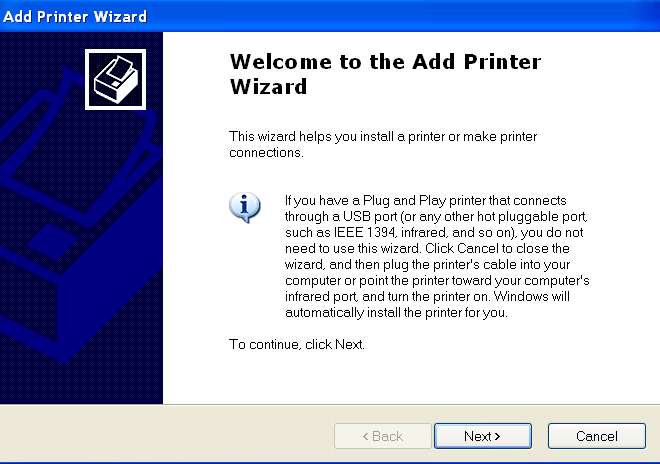
(a) Start the "ADD PRINTER" dialog on 32-bit WinXP client machine. I'm wanting to add a new printer object for my Canon Pro9000 printer which is USB-connected and "shared" on my 64-bit Win7 host machine.

addxpprinter1.jpg


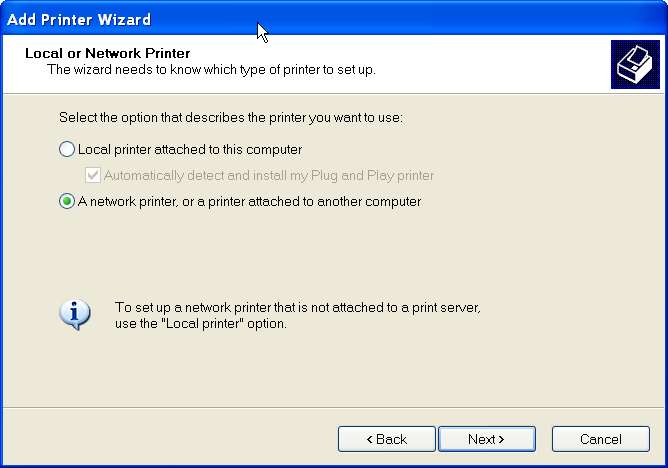
(b) Instead of my previous direction to "add a local" printer, I now want you to push the "add a network printer".

addxpprinter2.jpg


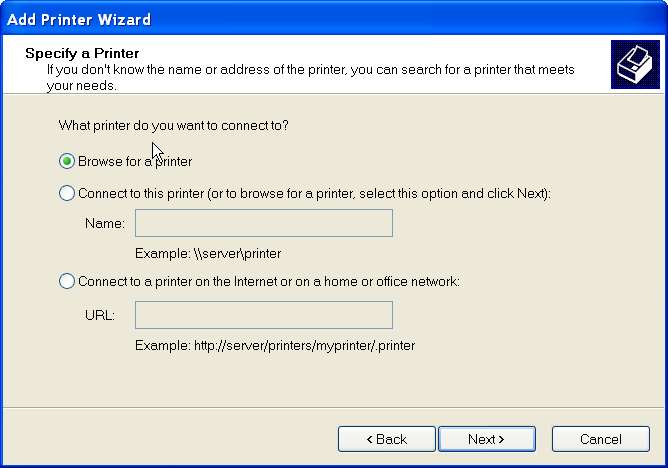
(c) check the "browse for printer", which will examine all network "shared" printers and present them (along with their host machine names... in my case \\DFW is that 64-bit Win7 host machine):

addxpprinter3.jpg


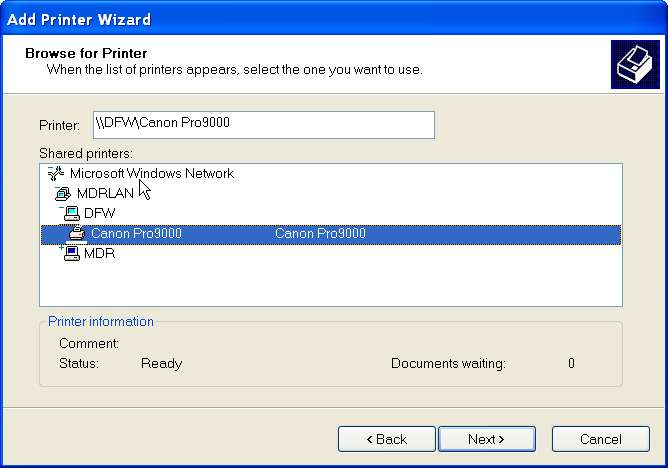
(D) All the network "shared" printers should appear, but in the case of WinXP I actually had to expand the line showing the \\DFW network host machine to see its "shared" printers. I think think this is changed with Win7 and the expansion is automatic, so that you already see all available network "shared" printers properly without further action on your part:

addxpprinter4.jpg


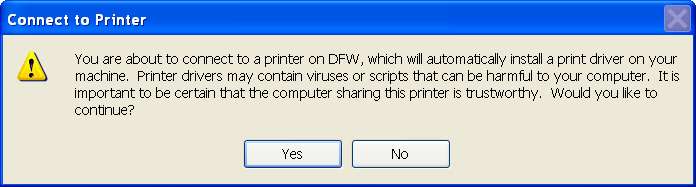
(e) The "add printer" dialog on WinXP (client) is now going to request from Win7 (host) that the proper print driver be "shipped over"... if available.

addxpprinter5.jpg


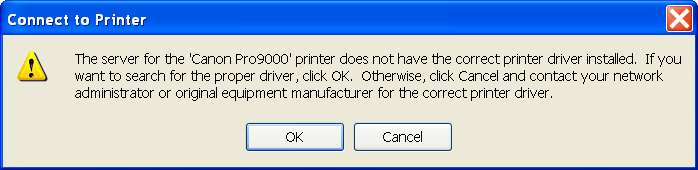
(f) Unfortunately, the proper 32-bit WinXP driver is NOT available for shipment from the 64-bit Win7 host over to the 32-bit WinXP client. I'm going to push the OK button to continue, allowing me to manually navigate the dialog to where the 32-bit WinXP INF file for the printer lives (from my downloaded and expanded EXE installer file from Canon as described earlier)

addxpprinter6.jpg


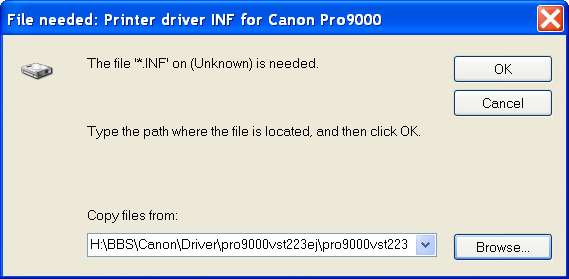
(g) Since I have already downloaded the proper 32-bit WinXP driver from the Canon site, and manually expanded that self-expanding EXE into folders including that "DRIVER" folder where the required INF driver file lives for the Pro9000 printer, I push the OK button and navigate to that DRIVER folder:

addxpprinter7.jpg


(h) I then push the OPEN button with the proper folder selected. It's not necessary to select a particular INF file (if more than one is present). All that is needed is to point to the folder, and all of the INF files will be examined and the total set of printer names which correspond to all of these INF files will be presented. You can then choose the particular printer name/file you want to install.

addxpprinter8.jpg


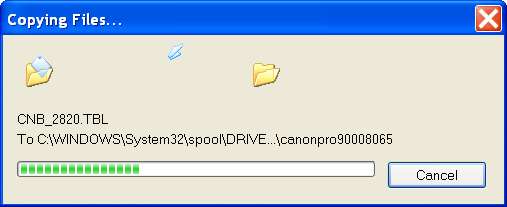
(i) The driver INF file will control the rest of the driver install process, and lots of files will be copied from the DRIVER folder to your system.

addxpprinter9.jpg


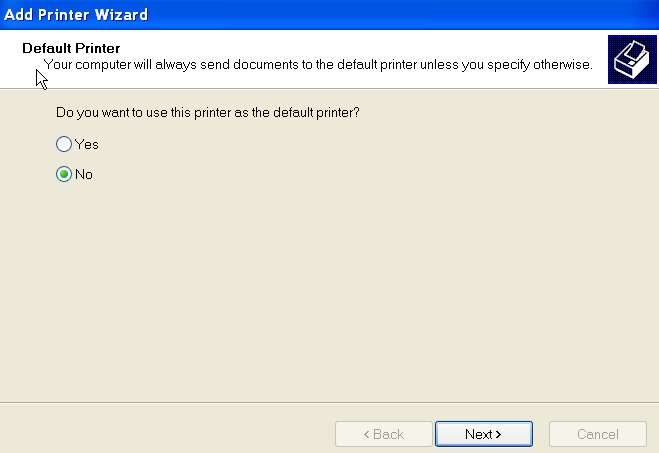
(j) At the end of the printer driver install process (onto the client machine), you will be asked if you want to set this to the "default printer" on that client machine. You reply as you want.

addxpprinter10.jpg


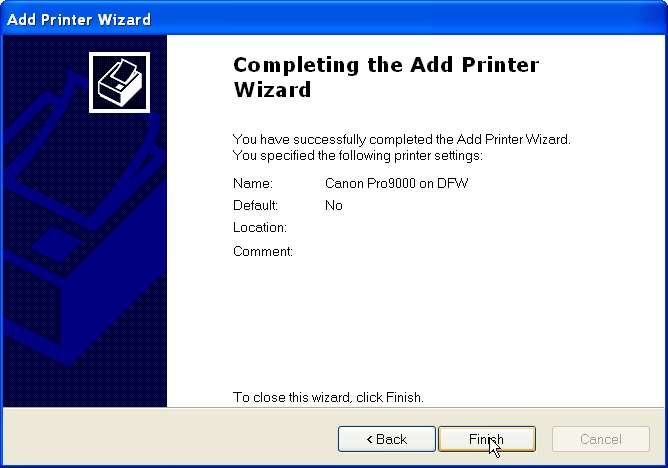
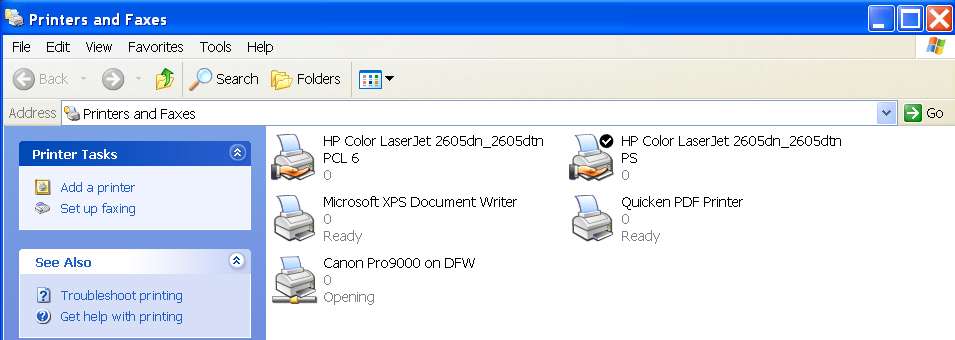
(k) Now the process is complete, and the 32-bit WinXP printer driver has been installed on the 32-bit WinXP client machine, but printing on the "shared" USB-connected printer that lives on the 64-bit Win7 host machine on the network.

addxpprinter11.jpg


addxpprinter12.jpg


I assure you... you can do exactly the same thing IN REVERSE on your own setup, but initiating the ADD PRINTER dialog on your 64-bit Win7 client machine, adding a "network printer" which will show the "shared" printer hosted by your 32-bit WinXP host machine, you will select that printer and receive a "driver not available for shipping" message to which you will respond OK so that you can manually navigate to the equivalent of my DRIVER folder (from the manually expanded folder structure produced by WinRAR on the downloaded 64-bit WinXP driver installer EXE file from HP for your printer driver) where the needed INF file(s) live.

The rest is obvious.


Let me know if this finally works for you.

 

My Computer My Computer

Computer type
PC/Desktop
Computer Manufacturer/Model Number
Home-built, two systems (1) and (2)
OS
Windows 7 Pro x64 (1), Win7 Pro X64 (2)
CPU
i5-3350p 3.1Ghz/6MB-cache (1); E8400 3.0Ghz/6MB-cache (2)
Motherboard
ASUS P8Z77-V Pro (1); ASUS P5Q3 (2)
Memory
8GB PC3-12800 DDR3 (1); 4GB PC3-10600 DDR3 (2)
Graphics Card(s)
ATI HD7750 (1), (see TV cards); ATI R7 250 (2)
Sound Card
Realtek ALC892 HD Audio (1); Realtek ALC1200 HD Audio (2)
Monitor(s) Displays
Eizo HD2441W LCD, Eizo S2433W (1); Eizo 24" S2433W (2)
Screen Resolution
1920x1200, 1920x1200 (1); 1920x1200 (2)
Hard Drives
(1) 1TB SATA-II (7200RPM), 2x2TB SATA-III (7200RPM), 250GB SATA-III (10000RPM) for OS; 2x2TB external USB 3.0

(2) 320GB SATA-II (7200RPM), 750GB SATA-II (7200RPM), 150GB SATA-II (10000RPM) for OS; 2TB external USB 3.0
PSU
Nesteq ECS-6001 600W (1); Nesteq ECS-5001 500W (2)
Case
Acousti-Case 360 (1) and (2)
Cooling
Noctua NH-U12P SE2 for CPU, 2x120mm case fans (1) and (2)
Keyboard
IBM PS/2 (1) and (2)
Mouse
Logitech MX Revolution wireless (1); Microsoft wired (2)
Internet Speed
100mbps down / 10mbps up
Antivirus
Microsoft Security Essentials; Malwarebyte Anti-Malware Pro
Browser
Firefox
Other Info
Ceton InfiniTV 4-tuner cablecard-enabled TV card as well as Hauppauge HVR-2250 OTA/ATSC 2-tuner TV card in (1), running under Win7 WMC
Back
Top