hp notebook: primary partition

Sir, while re-sizing i missed to put my laptop on charging, due to which it automatically went down, and the progress at the time of shut down was 89%... :o
After re-booting, i'm getting an error message while trying to re-size C: ...
View attachment 175133
Please help...
Right click on the C: partition (or highlight C: and select check file system in the left pane) and select Check file system. Use the check ony option first.
 

My Computer My Computer

At a glance

Windows 7 x64 pro/ Windows 7 x86 Pro/ XP SP3 x86
Computer Manufacturer/Model Number
Too many to describe...
OS
Windows 7 x64 pro/ Windows 7 x86 Pro/ XP SP3 x86
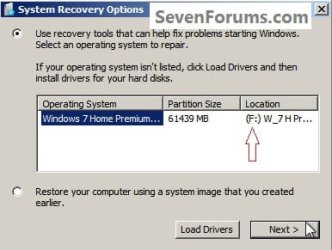
You´ll need to use the DVD Repair console or Repair CD to run Startup REpair so it doesn´t depend on WinRE files which may have been hashed by the failed resizing due to power loss.

If it fails try to copy out your files if needed: Copy & Paste - in Windows Recovery Console However if your files are intact, SFC should be able to restore System files to boot the OS, so try it manually from DVD/Repair CD command prompt: SFC -SCANNOW Run in Command Prompt at Boot

Can you post back a camera snap of PW CD drive map with listings showing all columns? If partitions appear intact make sure Win7 partition is marked Active then highlight HD by clicking on it, from Disk tab choose Rebuild MBR. If Win7 doesnt start, boot into DVD Repair or Repair CD to run Startup REpair up to 3 separate times to write the System boot files to Win7 partiition once marked Active.

If these fail, convert Recovery partition to Primary and attempt to run Factory Recovery via tapping the F11 key repeatedly at boot. If this fails, boot back into PW CD to confirm Recov is Primary and this time mark it Active, reboot to tap F11 key vigorously and repeatedly.

If this fails, use a Win7 installation DVD to clean reinstall following the steps in the Perfect Reinstall link in my signature box below.
 
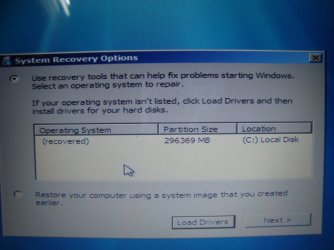
Sir, following the tutorial: SFC -SCANNOW Run in Command Prompt at Boot in step 5 instead of getting the following window:
Letter.jpg

what i'm getting is this:
DSC04908.JPG


Step 5 says: At this System Recovery Options dialog box, make sure there is a dot at "Use Recovery Tools" and be sure to make note of the Location drive letter as it "probably will not be C:" and the correct drive letter must be entered in the following steps; then click Next.
But, in my case, the drive letter is C: only.... Is it fine???
Shall i continue?

Sir, please respond asap....

Thank you...
 
Last edited:

My Computer My Computer

At a glance

Windows 7 Home Premium 64bit.
OS
Windows 7 Home Premium 64bit.
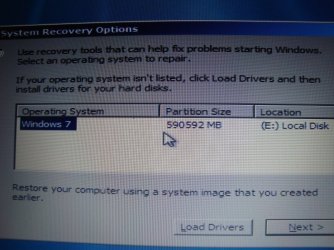
Sir, after rebooting from the repair cd, what i'm getting is this:
DSC04926.JPG

After opening the cmd prompt, when i'm typing the following command:
sfc /scannow /offbootdir=e:\ /offwindir=e:\windows
it is giving the following error message:
"WINDOWS RESOURCE PROTECTION could not start the repair service"

Please help sir...
:cry:
Thank You...
 

My Computer My Computer

At a glance

Windows 7 Home Premium 64bit.
OS
Windows 7 Home Premium 64bit.
Try running Startup Repair first several times, then System Restore both from the Recovery Tools list.

Then work through the other steps given and report back results of each. Do not skip any steps
 
Back
Top