Solved I have 2 W7s on 1 drive. I want the logical drive to stay........

Sorted !
Remembered to get DualBootPro to reinstall W7 boot loaders on both drives.

All I needed to be reminded of was marking a partition as "active" and assigning a drive letter in Disk Management.
Thanks for that. I know we get a lot of great unpaid for advice here, and I'm grateful.

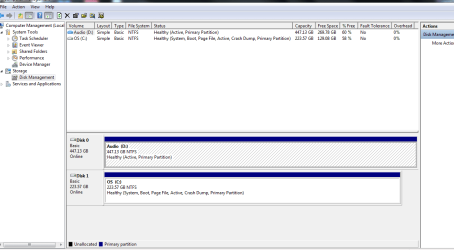
The final disk management attachment is here too
 

Attachments
  • diskmanager 02.PNG
    diskmanager 02.PNG
    22.3 KB · Views: 3

My Computer My Computer

At a glance

Windows 7 64 Home PremiumIntel Core I7 377016gb DDR3 1200Intel HD400
Computer type
PC/Desktop
Computer Manufacturer/Model Number
SCAN V20 I7
OS
Windows 7 64 Home Premium
CPU
Intel Core I7 3770
Motherboard
Intel
Memory
16gb DDR3 1200
Graphics Card(s)
Intel HD400
Sound Card
EMU 0404|USB2, Realtek HD
Monitor(s) Displays
27" iiyama Pro Lite LCD
Screen Resolution
1920 x1080
Hard Drives
2 x 224gb SanDisk Extreme SSDs,Seagate 2tb SATA3, Seagate 500gb SATA3
PSU
Corsair 500
Internet Speed
21N up to 20mbps
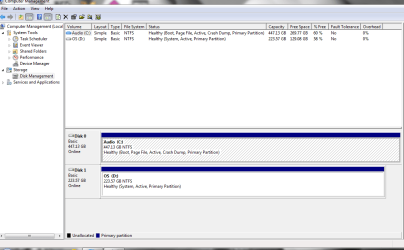
Audio is not booted or it would be labeled Boot. You are booted into OS C: as signified by the Boot label, with the System label telling us C partition is booting itself. There is still no evidence Audio is even bootable. Can you boot it? If so then we're still waiting for the DIsk Mgmt screenshot.

You must have told True Image to change the image to a Primary partition since we see no Logical now. That's fine. But did you also tell it to use Auto drive letter so that it boots as C like it should since no one wants an OS to boot as another letter? If not then I would do it over.

In addition did you tell it to copy Track0 and MBR to the other drive so it starts up bootable?

There is no reason to use a Boot manager if you're intending to get rid of the old drive. You want the new one bootable on its own. If you want to boot the old one, use the one-time BIOS Boot manager key after setting the preferred hard drive to boot first in BIOS setup. If you don't like booting via the BIOS then install EasyBCD to the primary OS to add the other one, not some obscure boot manager we never hear about here.

Let's see if we can make Audio bootable. Power down to unplug the old C drive.

Boot into the Win7 disk or System Repair Disk
to run Startup Repair - Run 3 Separate Times no matter what it reports to see if the Audio WIn7 will start.

If not reimage or clone it from C to the SSD after deleting the partition first. This time direct it to be a Primary partition, Auto drive letter selected, and include MBR and Track 0. This should cause the image to start up when you trigger its hard drive or unplug the source drive.
 
Last edited:
Audio Disk Management as requested.
Both drives now offering me a choice when installed, and booting on their own if I remove one of them/
 

Attachments

  • diskmanager Audio Drive.PNG
    diskmanager Audio Drive.PNG
    25.9 KB · Views: 2

My Computer My Computer

At a glance

Windows 7 64 Home PremiumIntel Core I7 377016gb DDR3 1200Intel HD400
Computer type
PC/Desktop
Computer Manufacturer/Model Number
SCAN V20 I7
OS
Windows 7 64 Home Premium
CPU
Intel Core I7 3770
Motherboard
Intel
Memory
16gb DDR3 1200
Graphics Card(s)
Intel HD400
Sound Card
EMU 0404|USB2, Realtek HD
Monitor(s) Displays
27" iiyama Pro Lite LCD
Screen Resolution
1920 x1080
Hard Drives
2 x 224gb SanDisk Extreme SSDs,Seagate 2tb SATA3, Seagate 500gb SATA3
PSU
Corsair 500
Internet Speed
21N up to 20mbps
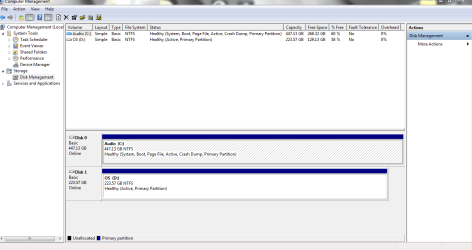
We know that AUdio drive is booted because of the label Boot. However if it was using its own boot files there would also be a System label which signifies that a drive is booting the OS presently booted. In this case the System flag is on the old C drive upon which it is dependent at least when C is plugged in.

This might be because C drive was set first to boot in BIOS so that the boot manager on C was used to choose Audio drive. Try booting the Audio hard drive by setting it first in BIOS setup or as first hard drive, or by using the BIOS Boot Menu key if it offers choice of hard drives. Does Audio get labeled System when you know you've triggered it's hard drive to boot?

If not to resolve this, power down to unplug C, boot into Win7 disk to run Startup Repair - Run 3 Separate Times until Audio boots on its own and holds the System flag. To be correct it needs to be labeled at least System Active Boot.

I would uninstall the boot manager crapware which is possibly causing problems. Set the new Win7 SSD to boot first in BIOS, trigger the other one to boot using BIOS one-time Boot Menu key. If you don't like this then install EasyBCD to Audio to easily add the old drive to a Boot Menu. Easy has made this easy in tens of thousands of cases here so why use another?
 
Last edited:
Audio Drive Manager up again. Booting on it's own. Uninstalled DualBoot Pro (made no difference to C. Still offering me the choice of both), ran repair three times.
 

Attachments

  • diskmanager Audio Drive Final.PNG
    diskmanager Audio Drive Final.PNG
    26.5 KB · Views: 2

My Computer My Computer

At a glance

Windows 7 64 Home PremiumIntel Core I7 377016gb DDR3 1200Intel HD400
Computer type
PC/Desktop
Computer Manufacturer/Model Number
SCAN V20 I7
OS
Windows 7 64 Home Premium
CPU
Intel Core I7 3770
Motherboard
Intel
Memory
16gb DDR3 1200
Graphics Card(s)
Intel HD400
Sound Card
EMU 0404|USB2, Realtek HD
Monitor(s) Displays
27" iiyama Pro Lite LCD
Screen Resolution
1920 x1080
Hard Drives
2 x 224gb SanDisk Extreme SSDs,Seagate 2tb SATA3, Seagate 500gb SATA3
PSU
Corsair 500
Internet Speed
21N up to 20mbps
Looks good.

As long as you unplugged C during repairs then it should also still be bootable on its own and labeled System Active when Booted.
 
That's great. Thanks
 

My Computer My Computer

At a glance

Windows 7 64 Home PremiumIntel Core I7 377016gb DDR3 1200Intel HD400
Computer type
PC/Desktop
Computer Manufacturer/Model Number
SCAN V20 I7
OS
Windows 7 64 Home Premium
CPU
Intel Core I7 3770
Motherboard
Intel
Memory
16gb DDR3 1200
Graphics Card(s)
Intel HD400
Sound Card
EMU 0404|USB2, Realtek HD
Monitor(s) Displays
27" iiyama Pro Lite LCD
Screen Resolution
1920 x1080
Hard Drives
2 x 224gb SanDisk Extreme SSDs,Seagate 2tb SATA3, Seagate 500gb SATA3
PSU
Corsair 500
Internet Speed
21N up to 20mbps
Back
Top