Solved I need to convert a primary Windows partition into logical

brato92

New member
Member
Local time
4:19 AM
Messages
76
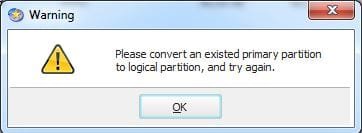
Hello, i have a question regarding partitions: my HDD has both Windows 8.1, 7 and XP installed, each on a different partition (7 and 8.1 both primary partitions and XP logical). It also contains a 'system reserved' primary partition and 'other' partition wich is logical. The problem is, i have about 50gb unallocated disk space and i want to create a new partition to use. When i'm trying to create a new partition (using EaseUS Partition Master), a message pops up saying that i have to convert an existing primary partition to logical, then should try again. So here's the question: wich primary partition i need to convert into logical ? The one with Windows 8.1 or Windows 7 or System Reserved ? I don't want to lose any of my operating systems. I mention that when i start the laptop i choose wich os i want to use from Windows 8.1's bootloader using a menu with 3 options (start W8.1 or 7 or XP). Any advice would help me.

Capture.JPG

Capture2.JPG
 

My Computer My Computer

At a glance

Windows 7 Home Premium x64Intel i54GB
Computer type
Laptop
Computer Manufacturer/Model Number
SONY VAIO
OS
Windows 7 Home Premium x64
CPU
Intel i5
Memory
4GB
Hard Drives
TOSHIBA 500GB
Antivirus
MSE
Browser
Mozilla Firefox
On an MBR disk there can only be four total Primary partitions, or three Primary and unlimited contiguous Logical partitions.

You can add the 50 gb to C using Disk Mgmt Partition or Volume - Extend which only extends to the right, or add all or part of it to any other partition using How to extend partition easily with Partition Wizard - video help. This is a very cool tool which can borrow or add space to/from any other partition whether or not its adjacent, Primary or Logical. But I would use the Partition Wizard boot disk which is safest.

In order to add another partition due to the limitation on Primaries it would need to be Logical, but it is separated from the Logical partitions by System Reserved which is booting all OS's and C which are both Primary, and Logical partitions must be contiguous or adjacent to each other.

What exactly is the unlettered Logical partition after XP partition showing 1.03 gb used? What you could do is format it and issue a letter, then use Partition Wizard extend to add all of the 50gb space to it thereby having a new 50gb+ partition in the Logical block.
 
Last edited:
gregrocker, i should hit the 'Convert to logical' button from EaseUS Partition Master. Right now i'm running Windows 7 from C. Should i do this from Windows 8.1, or it's safe to convert it running the os stored on it ?
 

My Computer My Computer

At a glance

Windows 7 Home Premium x64Intel i54GB
Computer type
Laptop
Computer Manufacturer/Model Number
SONY VAIO
OS
Windows 7 Home Premium x64
CPU
Intel i5
Memory
4GB
Hard Drives
TOSHIBA 500GB
Antivirus
MSE
Browser
Mozilla Firefox
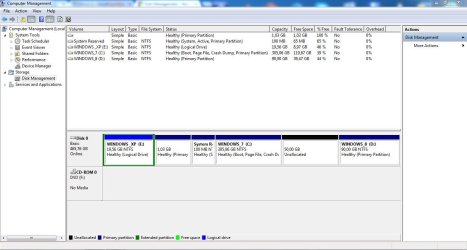
Can you post a shot from Disk management, not EaseUS :)

Fully expanded.
 

My Computer My Computer

At a glance

Windows 10 Pro x64Intel Core i7 6700KGSkill TridentZ RGB 16GB 3600 16-16-16-36EVGA GTX 980 Ti SC x2
Computer type
PC/Desktop
Computer Manufacturer/Model Number
Skylake Special #666
OS
Windows 10 Pro x64
CPU
Intel Core i7 6700K
Motherboard
Asus Sabertooth Z170 Mark 1
Memory
GSkill TridentZ RGB 16GB 3600 16-16-16-36
Graphics Card(s)
EVGA GTX 980 Ti SC x2
Sound Card
Realtek High Definition
Monitor(s) Displays
AOC G2460PG
Screen Resolution
1920 x 1080 144Hz
Hard Drives
Samsung 860 Pro 256GB, Seagate Barracuda 4TB x2
PSU
EVGA 1000 P2, EVGA White Custom Braided Cables
Case
Corsair Vengeance C70 Gunmetal Black
Cooling
Corsair H100i v2, Corsair ML120 x2, Thermal Grizzly Kryonaut
Keyboard
Logitech G910 Orion Spectrum
Mouse
Logitech G700s
Internet Speed
Verizon Fios Quantum Gateway 75/75
Antivirus
Windows Defender, Malwarebytes Free 3.8.3
Browser
Chrome
Other Info
Corsair SP120 x4, LG Blu-ray Drive, Durabrand HT-395 100 Watt Dolby Digital Amp, Corsair H2100 Wireless 7.1 Headset
Brian's idea is probably best to see a second screenshot of Disk Management - How to Post a Screenshot of .

You can't create another Primary partition from the 50gb since there are already three plus the Logical extended partition, the maximum limit. But you also can't create a Logical there because they must be contiguous and you have Primary partitions System Reserved (which is booting all the OS's) and C in the way. So I would redistribute the 50gb to the other partitions where needed, or if you want to create a new Logical partition in the Logical block you can annex the 50gb into it using PW Extend function.

To do that right click on the 1.03gb Logical partition in Easeus to Explore what's in it. You may need to issue a drive letter first. It says its full but that might be misreported so confirm its contents with Disk Mgmt. You can issue a letter, move any data off of it if needed, format it, and annex the 50gb into it using How to extend partition easily with Partition Wizard - video help.
 
Last edited:
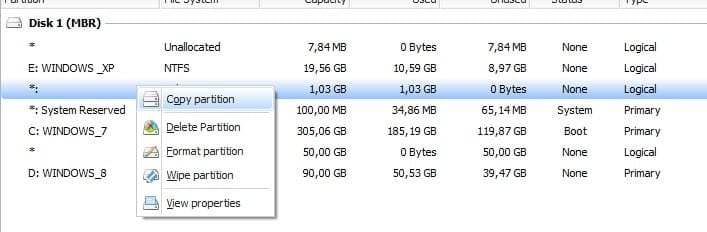
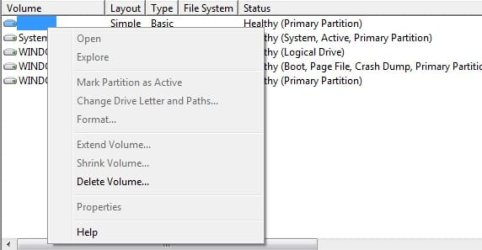
Regarding the 1.03gb partition, i cannot see what's inside it because i don't have that option on EaseUS. Also i cannot assign a drive letter. Here are the screenshots:

Capture3.jpg

Capture.JPG

Capture2.jpg
 

My Computer My Computer

At a glance

Windows 7 Home Premium x64Intel i54GB
Computer type
Laptop
Computer Manufacturer/Model Number
SONY VAIO
OS
Windows 7 Home Premium x64
CPU
Intel i5
Memory
4GB
Hard Drives
TOSHIBA 500GB
Antivirus
MSE
Browser
Mozilla Firefox
That partition shows empty in Disk Mgmt. It is not a protected OEM partition or Disk Mgmt wouldn't have Delete highlighted, and it's too small to be a part of the missing Recovery partition or any other functional OEM utility partition. There is a conflict with Easeus saying its Logical while Disk Mgmt says its Primary.

What I would do, since the partition is not needed and could possibly cause problems if it is a fourth Primary, is download Partition Wizard, burn to CD with Windows Image Burner, boot the disk, right click the 1.03 gb partition to Delete it, then use Partition Wizard to Create Partition - Video Help a Logical partition there, assigning it a letter, Apply those steps. Next rightclick on the new partition to extend partition with Partition Wizard - video help., annex the 50gb Unallocated Space into the partition, again Apply steps.

Since this will require moving C files be sure to use the PW Disk which has never failed here before, while all others can and will fail except Disk Mgmt which cannot do these advanced operations.

You still have the option to redistribute the 50gb and the deleted 1.03gb space to any of the other partitions too. With PW Extend you can move any empty space to anywhere you want it.
 
Last edited:
So i need to download the 'MiniTool Partition Wizard Bootable CD' to allow me to boot it from CD. The problem is i don't have a blank CD right now, i'll have to wait till tomorrow to buy one, since now it's Sunday and all shops are closed. Is it a change to write it to a memory usb stick, because i have one right now ? Regarding moving the C files as you said, what does this means ? I have to delete my Windows 7 ?

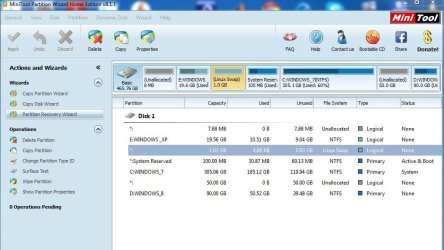
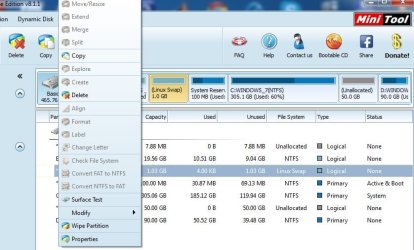
EDIT: I've installed MiniTool Partition. It says that that 1gb it's a Linux Swap Partiton (i had Linux installed in the past).

Capture.JPG

Capture2.jpg
 

My Computer My Computer

At a glance

Windows 7 Home Premium x64Intel i54GB
Computer type
Laptop
Computer Manufacturer/Model Number
SONY VAIO
OS
Windows 7 Home Premium x64
CPU
Intel i5
Memory
4GB
Hard Drives
TOSHIBA 500GB
Antivirus
MSE
Browser
Mozilla Firefox
So basically i need to boot from Partition Wizard from usb, then delete the 1.03gb partition, boot back on Windows 7, use the MiniTool Partition Wizard to make a new 0.3gb logical partition and assign it a letter, and finally extend it with the unallocated 50gb. Am i right ? The only thing i don't understand is wich files from wich partitions i have to move ? If it means that i'll lose some of my OS's, i won't do that. Please be more explicit.
 

My Computer My Computer

At a glance

Windows 7 Home Premium x64Intel i54GB
Computer type
Laptop
Computer Manufacturer/Model Number
SONY VAIO
OS
Windows 7 Home Premium x64
CPU
Intel i5
Memory
4GB
Hard Drives
TOSHIBA 500GB
Antivirus
MSE
Browser
Mozilla Firefox

My Computer My Computer

At a glance

Windows 10 Pro x64Intel Core i7 6700KGSkill TridentZ RGB 16GB 3600 16-16-16-36EVGA GTX 980 Ti SC x2
Computer type
PC/Desktop
Computer Manufacturer/Model Number
Skylake Special #666
OS
Windows 10 Pro x64
CPU
Intel Core i7 6700K
Motherboard
Asus Sabertooth Z170 Mark 1
Memory
GSkill TridentZ RGB 16GB 3600 16-16-16-36
Graphics Card(s)
EVGA GTX 980 Ti SC x2
Sound Card
Realtek High Definition
Monitor(s) Displays
AOC G2460PG
Screen Resolution
1920 x 1080 144Hz
Hard Drives
Samsung 860 Pro 256GB, Seagate Barracuda 4TB x2
PSU
EVGA 1000 P2, EVGA White Custom Braided Cables
Case
Corsair Vengeance C70 Gunmetal Black
Cooling
Corsair H100i v2, Corsair ML120 x2, Thermal Grizzly Kryonaut
Keyboard
Logitech G910 Orion Spectrum
Mouse
Logitech G700s
Internet Speed
Verizon Fios Quantum Gateway 75/75
Antivirus
Windows Defender, Malwarebytes Free 3.8.3
Browser
Chrome
Other Info
Corsair SP120 x4, LG Blu-ray Drive, Durabrand HT-395 100 Watt Dolby Digital Amp, Corsair H2100 Wireless 7.1 Headset
Where in the steps does it say after deleting the 1.03gb partition with the boot disk to go back into WIn7 to use the Windows version to create a partition and extend it?

I also explained that System Reserved and C would necessarily be moved over during the Extend process if you add that 50gb now on its right over to the 1.03gb on its left side. Yet you ask again how you are expected to move these over yourself.

I'm afraid this is the rare case where I do not recommend you proceed. There is either a language or comprehension barrier which makes the risk too great for failure. Only if the steps were followed precisely can you expect success and it doesn't appear you can do that.
 
Last edited:
gregrocker, i didn't want to offend you by any means. You're right, i don't understand very well those steps, especially that involving moving C. Regarding 'booting back to W7 to create and extend that partiton' i was looking at those 2 video tutorials you provide in earlier post (MiniTool PW - Create partition and MiniTool PW - Extend Partiton) in wich it seems that the program is running in Windows, it looks like an Windows 7 window, so i think that. Now, i see that all those steps you recommend me to apply must be running from Partiton Wizard boot CD. So i won't do anything unless i fully understand the whole process.
 

My Computer My Computer

At a glance

Windows 7 Home Premium x64Intel i54GB
Computer type
Laptop
Computer Manufacturer/Model Number
SONY VAIO
OS
Windows 7 Home Premium x64
CPU
Intel i5
Memory
4GB
Hard Drives
TOSHIBA 500GB
Antivirus
MSE
Browser
Mozilla Firefox
I have found it best to do each procedure step by step and exactly as posted . However , if any step is not able to be done, to post any error seen so you can move forward..
Please try again as Greg suggested.. or as he said..stop.. alot of times this can be over whelming. and may need a paid person to do it for you.. we provide free assistance and would not want you to harm your computer .
 

My Computer My Computer

At a glance

Win 7 Home Premium SP1 32 bitAMD Athlon 64 X2 5000B4.00 GB Dual-Channel DDR2 @ 370MHz (6-6-6-18)Acer E181H (1366x768@60Hz) 64MB GeForce 6150 ...
Computer type
PC/Desktop
Computer Manufacturer/Model Number
Dell optiplex 740
OS
Win 7 Home Premium SP1 32 bit
CPU
AMD Athlon 64 X2 5000B
Motherboard
Dell Inc. 0YP696 (Socket M2 )
Memory
4.00 GB Dual-Channel DDR2 @ 370MHz (6-6-6-18)
Graphics Card(s)
Acer E181H (1366x768@60Hz) 64MB GeForce 6150 LE (Dell)
Sound Card
SigmaTel High Definition Audio CODEC
Monitor(s) Displays
Acer E181H (1366x768@60Hz) 64MB GeForce 6150 LE (Dell)
Hard Drives
699GB Seagate ST375064 0NS SCSI Disk Device (ATA)
Case
Mini tower
Internet Speed
Ping 36 ms, Download 57.71 mbps , Upload 11.79mbps
Antivirus
Free Avast. Pro paid Mbam , Free Sas
Browser
Palemoon .
Brato I am not offended in the least, just trying to keep our record at 100% success on these complicated partitioning operations which aren't attempted anywhere else on the web, but which we've been able to do here for all six years thousands of time without a single failure when the steps are followed precisely.

If you feel confident you can follow the steps exactly then proceed at your own risk. I've given you what should work if you follow the steps. But feel free to ask any more questions if you have them so you're sure of what you're doing.

I bet EaseUS Partition can do, why download and install another tool. :rolleyes:

You are willing to bet his install which could be scrambled if Easeus Home version can't hold everything in memory during the reboot and fails as it has for me and others over the year?

I'll repeat: Partition Wizard boot disk is the only tool that has been used here for thousands of these complicated partitioning operations without a single failure, while all other tools (including boot disks) can and will fail except for Disk Management. There is only one "fail safe" for these advanced operations and this is it.
 
Last edited:
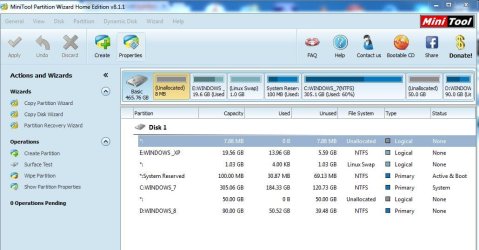
MiniTool PW shows me the following partitions in the exact order:
- unnamed 7.88Mb Logical Unallocated,
- E:Windows_XP 19.56Gb Logical,
- unnamed 1.03Gb Linux Swap Logical,
- System Reserved 100mb Primary Active & Boot,
- C:Windows_7 305Gb Primary System,
- unnamed 50Gb Logical Unallocated and
- D:Windows_8 90Gb Primary.

Let's rewind what i have to do:
1. boot into PW Disk
2. delete the unnamed 1.03Gb Linux Swap partition
3. create a new partition using the unallocated 1.03Gb wich i deleted previously
4. assign a letter to the new 1.03Gb partiton
5. extend the 1.03Gb partition using the unallocated 50Gb Logical partition
6. I don't know what's next, gregrocker i don't know how to move the C files as you said. To move them means to empty the C:Windows_7 Drive and lose my W7 os, or to convert that partition into a logical one ? Or something else ? Please tell me exactly so i could proceed. Thanks !

Capture.JPG
 

My Computer My Computer

At a glance

Windows 7 Home Premium x64Intel i54GB
Computer type
Laptop
Computer Manufacturer/Model Number
SONY VAIO
OS
Windows 7 Home Premium x64
CPU
Intel i5
Memory
4GB
Hard Drives
TOSHIBA 500GB
Antivirus
MSE
Browser
Mozilla Firefox
Again, you do not need to yourself move the files on C. I was referring to what PW will do when you Apply the step to add the 50gb to the new 1.03 gb Logical partition you create.

It must move System Reserved and C over to fit the 50gb into the new Logical partition, that's all.

Always have you files backed up though.

Once you get the hang of using PW Extend you can easily move space around from/to any other partitions.
 
So the System Reserved and C will be moved or formated to another new partitions. I need to know what are the consequences cause i have 3 OSs and if System Reserved will be gone i now longer will be able to boot in them. Also W7 is my main OS, there i keep all my programs; if i'll lose it it will take 2-3 days to install all the software back, also i have to repair the Boot Manager.

Maybe if i extend the others partitons with the unallocated 50Gb partition and 1.03Gb partition ? I want to add the 50Gb to Windows_XP and 1.03Gb to Windows_7. Won't be any consequences losing my OSs or boot section if i'll just extend the others ?
 
Last edited:

My Computer My Computer

At a glance

Windows 7 Home Premium x64Intel i54GB
Computer type
Laptop
Computer Manufacturer/Model Number
SONY VAIO
OS
Windows 7 Home Premium x64
CPU
Intel i5
Memory
4GB
Hard Drives
TOSHIBA 500GB
Antivirus
MSE
Browser
Mozilla Firefox
No it will not format any partition to Extend. I have explained repeatedly that if you Extend the 1.03gb Logical Partition to include the 50gb unallocated space, then it will move the System Reserved and C partitions over to make room for the 50gb in front of them. Partition Wizard does all of this for you as shown in the video tutorial.

I also repeatedly tried to get you to consider extending one of the existing OS partitions to take up the 50gb and any other unused space you want to transfer to XP or Win7. You ignored this advice until now so I am glad you finally acknowledge it.

What I would do is in Disk Mgmt delete the 1.03 gb partition and then Extend XP into that space. This completes the operations which Disk Mgmt can do (safest).

Then boot the PW disk to Extend the OS partitions into the 50gb space by the amount you want for each. You can get them all the right size before you Apply the steps, or Undo them to try again.

I gave you a video to watch of How to extend partition easily with Partition Wizard - video help. This video shows how the process works. There shouldn't be any problems at all if you use the boot disk. But if you move anything on the boot sector it sometimes requires the Win7 disk to run a Startup Repair afterward, so have your Win7 disk ready. Back up your files first as your files should always be backed up.
 
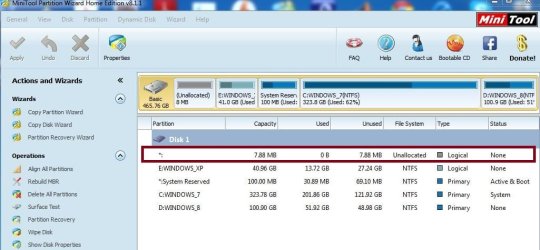
gregrocker, i've done the extend operation successfully following your advice, using PW boot CD: first i extended Windows_XP with 20gb from the 50gb unallocated space, then Windows_8 with 10 gb from the left unallocated space, and the rest of the unallocated space i used to extend Windows_7. Now i can say i have the exact space i want from every partiton. Also, the unallocated space is no longer there, except from one small 7mb. Regarding the unallocated 7mb space, is it possible to create a new partiton from it, and extend it with 50Gb (only) from Windows_7 partiton ? I'm asking this because i want a new 50gb partition to install Ubuntu. I repeat, i want to take the needed space only from W7.

Capture.JPG
 

My Computer My Computer

At a glance

Windows 7 Home Premium x64Intel i54GB
Computer type
Laptop
Computer Manufacturer/Model Number
SONY VAIO
OS
Windows 7 Home Premium x64
CPU
Intel i5
Memory
4GB
Hard Drives
TOSHIBA 500GB
Antivirus
MSE
Browser
Mozilla Firefox
Back
Top