
How to Rebuild the Icon Cache in Windows
Information
If one or more of your icons are not displaying correctly, or that your icon cache is corrupted, then you might consider rebuilding the icon cache to reset and reload the icon images into the icon cache in Vista, Windows 7, and Windows 8.
Note
This will not help with any of the following icon issues:
- A shortcut's icon that is not displayed properly due to the source of the shortcut being moved or deleted. You may need to recreate a new shortcut directly from the source (ex: program's exe) file to replace it instead.
- All icons for a specific file extension display the wrong icon. This may be due to setting the wrong association for what program to open the file extension instead. You can restore the default file extension's associations to fix this icon instead.
OPTION ONE
Automatically Rebuild the Icon Cache
1. Click/tap on the download button below to download the file below.
Rebuild_Icon_Cache.bat
Download
2. Save the file to your desktop, and run it.
3. Click/tap on Run when prompted.
4. Follow the instructions in the command prompt to rebuild the Icon Cache. (see screenshot below)
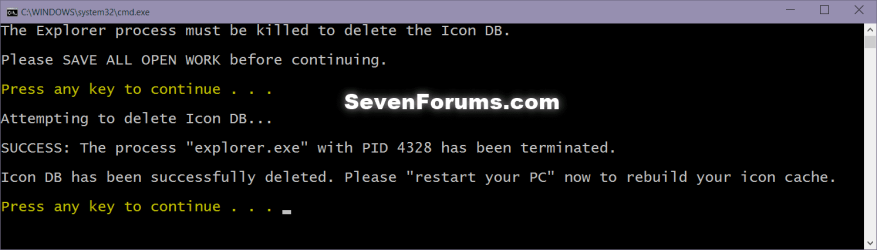
5. Restart your computer to generate a new IconCache.db file.
6. If the icons are still not displaying properly, then download and merge the ICO option in this tutorial for Windows 7 or Windows 8 to restore the default associations of .ico (icon) files.
OPTION TWO
To Manually Rebuild the Icon Cache using the Command Prompt
1. Close and save anything that you are working on. This command will kill explorer and restart the computer when completed.
2. Open a command prompt in Windows 7 or Windows 8.
3. In the command prompt, Copy and paste each command line below exactly as is one at a time and press enter after each command.
:warn:WARNING: The last command will restart the computer, so be sure to close and save anything that you are working on first.
- ie4uinit.exe -ClearIconCache
- taskkill /IM explorer.exe /F
- DEL "%localappdata%\IconCache.db" /A
- DEL "%localappdata%\Microsoft\Windows\Explorer\iconcache*" /A
- shutdown /r /f /t 00
5. If the icons are still not displaying properly, then download and merge the ICO option in this tutorial for Windows 7 or Windows 8 to restore the default associations of .ico (icon) files.
That's it,
Shawn
Related Tutorials
- How to Change the Icon Cache Size in Vista, Windows 7, and Windows 8
- How to Clear and Reset the Thumbnail Cache in Windows 7
- Restore Default Windows 7 File Extension Type Associations
- How to Change or Restore Default Windows 7 Desktop Icons
- How to Restore Windows 7 Default User Folder Icons
- How to Change the Default Icon of a File Extension in Windows 7
- How to Reset the Favorites Favicons in Vista and Windows 7
Attachments
Last edited:


