Solved Icon size not remembered

hypercube

New member
Local time
8:47 AM
Messages
9
Icon size not remembered [Solved]

Hi

After getting the virus "Live Security Platinum" (that I've cleared) I have an unpleasant and quirk lingering effect.

The icon size is no more remembered and I have to manually change it (from medium to small) after every boot.

I know how to change the icon size, but I'd like to have my setting remembered and not having to re-adjust it every time.

I've tried messing with the registry, i.e. setting to 16 the value of this key

Code:
HKEY_CURRENT_USER\Control Panel\Desktop\WindowMetrics\Shell Icon Size
and the corresponding key associated with my account...
.. but with no effect.

I wouldn't want to make a Windows 7 repair, when probably the problem could be solved with some registry tweak. But where?

Any help?

Thanks
 
Last edited:

My Computer

OS
Windows 7 Home Premium 64bit
Motherboard
p5k wifi deluxe
Still unsolved after some more searching.

I'm a little surprised that this problem (originally caused by some modification made by the nasty virus "Live Security Platinum") is not much recognized and there are only a few others posts in the net that expose it (with no simple solution to be applied).

I really would like to understand why the icon size setting (large, medium, small) is not saved. Where is this setting saved? In the registry (where)?

I've found out that I could create a new user profile and than transfer all my olduser files to the new one (see Fix a corrupted user profile). But I'm afraid that it could cause some other troubles...
 

My Computer

OS
Windows 7 Home Premium 64bit
Motherboard
p5k wifi deluxe
I wouldn't want to make a Windows 7 repair, when probably the problem could be solved with some registry tweak. But where?
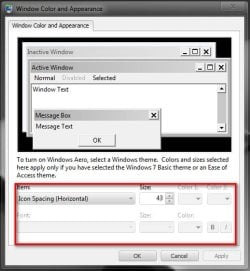
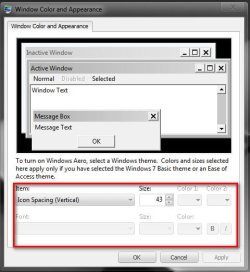
Is it the location you are searching for ?

Right click on the desktop > Personalize> Window Color > Advanced appearence settings > and then these three adjustments ...
1.jpg2.jpg3.jpg
 

My Computer

Computer type
PC/Desktop
Computer Manufacturer/Model Number
Self Assembled
OS
Microsoft Windows 10 Pro Insider Preview 64-bit
CPU
Intel(R) Core(TM) i3-4130 CPU @ 3.40GHz
Motherboard
Gigabyte Technology Co., Ltd. B85M-D3H
Memory
Corsair Vengence 4GB x2 (8.00GB Dual-Channel DDR3 @ 798MHz)
Graphics Card(s)
2047MB GeForce GTS 450 (ZOTAC International)
Sound Card
Onboard (Realtek High Definition Audio)
Monitor(s) Displays
LG Flatron E2040T
Screen Resolution
1600x900
Hard Drives
Western Digital 1 TB
Seagate 500 GB
PSU
Corsair VS550
Case
Cooler Master K380
Cooling
Cooler Master Seidon 120V Plus
Keyboard
Logitech MK260r
Mouse
Logitech MK260r
Internet Speed
PMPL Broadband
Antivirus
Windows Defender + MBAM
Browser
Firefox
Other Info
Dell Studio 15" Laptop
Thanks Arc

These are exactly my settings. I also would like to set the Icon Size as "small" in the desktop context menu (right click on an empty area of the desktop, then "view" and select "small icons" - or, alternatively, CTRL+Mouse wheel).

The problem is that when I boot again the icon size is always reverted to "medium size" and so I have to change it back to "small icons" after every restart.
 

My Computer

OS
Windows 7 Home Premium 64bit
Motherboard
p5k wifi deluxe
In this case, you can create a new user account and see if that saves the icons settings or not. Most probably your current user account is damaged .
 

My Computer

Computer type
PC/Desktop
Computer Manufacturer/Model Number
Self Assembled
OS
Microsoft Windows 10 Pro Insider Preview 64-bit
CPU
Intel(R) Core(TM) i3-4130 CPU @ 3.40GHz
Motherboard
Gigabyte Technology Co., Ltd. B85M-D3H
Memory
Corsair Vengence 4GB x2 (8.00GB Dual-Channel DDR3 @ 798MHz)
Graphics Card(s)
2047MB GeForce GTS 450 (ZOTAC International)
Sound Card
Onboard (Realtek High Definition Audio)
Monitor(s) Displays
LG Flatron E2040T
Screen Resolution
1600x900
Hard Drives
Western Digital 1 TB
Seagate 500 GB
PSU
Corsair VS550
Case
Cooler Master K380
Cooling
Cooler Master Seidon 120V Plus
Keyboard
Logitech MK260r
Mouse
Logitech MK260r
Internet Speed
PMPL Broadband
Antivirus
Windows Defender + MBAM
Browser
Firefox
Other Info
Dell Studio 15" Laptop
In this case, you can create a new user account and see if that saves the icons settings or not. Most probably your current user account is damaged .

Just done that, following the instructions of the link above.
Just after being created the newaccount is ok: if I change the icon size the setting is remembered.
But, after I transfer all my oldaccount files to the newaccount (as stated in the instructions), the "icon size not remembered" problem re-appears also in the newaccount.
So, there must be some Microsoft Windows 7 file in my C:\Users\[oldaccount] that is corrupted and that cause the problem when copied to the newaccount directory.
Now I must find out what's that culprit file....
 

My Computer

OS
Windows 7 Home Premium 64bit
Motherboard
p5k wifi deluxe

My Computer

Computer type
PC/Desktop
Computer Manufacturer/Model Number
Self Assembled
OS
Microsoft Windows 10 Pro Insider Preview 64-bit
CPU
Intel(R) Core(TM) i3-4130 CPU @ 3.40GHz
Motherboard
Gigabyte Technology Co., Ltd. B85M-D3H
Memory
Corsair Vengence 4GB x2 (8.00GB Dual-Channel DDR3 @ 798MHz)
Graphics Card(s)
2047MB GeForce GTS 450 (ZOTAC International)
Sound Card
Onboard (Realtek High Definition Audio)
Monitor(s) Displays
LG Flatron E2040T
Screen Resolution
1600x900
Hard Drives
Western Digital 1 TB
Seagate 500 GB
PSU
Corsair VS550
Case
Cooler Master K380
Cooling
Cooler Master Seidon 120V Plus
Keyboard
Logitech MK260r
Mouse
Logitech MK260r
Internet Speed
PMPL Broadband
Antivirus
Windows Defender + MBAM
Browser
Firefox
Other Info
Dell Studio 15" Laptop
Solution found

I'VE FOUND THE CULPRIT!!! :)

It's

c:\Users\[myaccountname]\AppData\Local\Microsoft\Windows\UsrClass.dat

I've found it by selectively copying some "suspect" directories and their files from my corrupted user account directory (oldaccount) to the corresponding directory created for a new fresh account (newaccount). The latter was working ok just after being created from scrap.
At first I tried copying
c:\Users\[oldaccount]\AppData\Roaming\Microsoft\
to
c:\Users\[newaccount]\AppData\Roaming\Microsoft\

after that the icon size setting (and placement) were still ok in the newaccount... so the problem was not there.

Second trial was copying
c:\Users\[oldaccount]\AppData\Local\Microsoft\Windows
to
c:\Users\[newaccount]\AppData\Local\Microsoft\Windows

After that, the newaccount presented too the "Icon size not remembered" problem! That meant I was very close to find out the rogue!

At last I found that the problem was with the single file

c:\Users\[accountname]\AppData\Local\Microsoft\Windows\UsrClass.dat

In conclusion the problem can be solved by following this simple procedure:

1) In the oldaccount create a fresh newaccount
2) log out from the oldaccount and log in to the newaccount.
3) navigate to c:\Users\[newaccount]\AppData\Local\Microsoft\Windows\UsrClass.dat (the good file)
4) Copy that file to c:\Users\[oldaccount]\AppData\Local\Microsoft\Windows\UsrClass.dat (before doing so it's advisable to rename and backup the file that will be overwritten)
5) log out from newaccount and log in to oldaccount. If the problem is solved you don't need to re-boot. Just set the preferred icons size and positions. To check again if your setting are remembered just log out and log in again to oldaccount and see if your setting are actually saved.
6) If everything's ok you can then delete the newaccount.

With these steps the problem with the "icon size setting not remembered" should be solved... at least it worked for me.
BTW, this procedure also solves the problem that the positions of the desktop icon were not remembered too.
Probably the virus "Live Security Platinum" made some nasty modification to the UsrClass.dat...

I hope this can be useful for other users ;)
 
Last edited:

My Computer

OS
Windows 7 Home Premium 64bit
Motherboard
p5k wifi deluxe
  • Like
Reactions: Arc
Congrats !!! :party:

Yes, this will be very useful to a lot of users in future !
 

My Computer

Computer type
PC/Desktop
Computer Manufacturer/Model Number
Self Assembled
OS
Microsoft Windows 10 Pro Insider Preview 64-bit
CPU
Intel(R) Core(TM) i3-4130 CPU @ 3.40GHz
Motherboard
Gigabyte Technology Co., Ltd. B85M-D3H
Memory
Corsair Vengence 4GB x2 (8.00GB Dual-Channel DDR3 @ 798MHz)
Graphics Card(s)
2047MB GeForce GTS 450 (ZOTAC International)
Sound Card
Onboard (Realtek High Definition Audio)
Monitor(s) Displays
LG Flatron E2040T
Screen Resolution
1600x900
Hard Drives
Western Digital 1 TB
Seagate 500 GB
PSU
Corsair VS550
Case
Cooler Master K380
Cooling
Cooler Master Seidon 120V Plus
Keyboard
Logitech MK260r
Mouse
Logitech MK260r
Internet Speed
PMPL Broadband
Antivirus
Windows Defender + MBAM
Browser
Firefox
Other Info
Dell Studio 15" Laptop
Thanks Hypercube!

Thanks!

I had the same problem with similar origins.

While visiting an innocuous Forum my AV suite went nuts telling me I had a ZeroAccess Trojan infection. "Reboot for removal!" (yea, right. Not so easy)

In any case after the offending infection was removed (various rootkit cleaners, malware cleaners etc.) - this computer was clean but every time I booted up the Icons were 'medium' sized instead of 'small'.

I tried A LOT of other fixes with no success and then I found this thread. But still it didn't work.

I had created 2 more Users trying other fixes and those Users Icon size were OK at Bootup/Log On.
But copying one of their UsrClass.dat files to the offending User didn't fix it. Hmmm

So today I went to look at it again (I am stubborn) so off to the Users Folder I went.

I currently have 3 Users that show up on the Login Screen:
1: "Alice" & "Robert" ("Alice" is my wife and "Robert" is me) and THIS IS THE PROFILE I am trying to fix.

2: NEWUSER

3: Bob MrFixIt

I had tried Logging ON as "Bob MrFixIt" to Copy the UsrClass.dat file of "NEWUSER" over to the offending "Alice & Robert`` User folder. But it didn`t work.
Today I noticed in the Users Folder another User "Bob" (with no little padlock on the folder Icon).

AHA! "Bob" as a User was the original User on this computer. When an older computer would not run Alice's software this computer was moved upstairs from the basement and the User Account name was changed to "Alice and Robert". But it appears all the information relating to the User " Alice and Robert" still resides in the User Account "Bob". (even though there is an User account named ``Alice & Robert``)

So I changed the name of UsrClass.dat file in the "Bob" account to "OLDUsrClass.dat" and copied over the UsrClass.dat file from one of the new accounts.
I logged off "Bob MrFixIt" and logged on to the offending account "Alice & Robert" and TAADAA - success! The Desktop Icons were small!

Thanks again Hypercube!

By the way `Bob' got a new computer for his basement lair. :D
 

My Computer

OS
Windows 7 64 bit Home Premium
I'm glad I could help. :)

Pls keep in mind that some custom setting can get lost upon replacing the UsrClass.dat.

In my case I had to re-enter some software registration codes and re-arrange some of the links in ...Users\[username]\AppData\Roaming\Microsoft\Internet Explorer\Quick Launch\User Pinned\StartMenu (the links in the "Start menu" that are meant to stay "pinned").
Apart from those very minor adjustments all have been ok since the fix.
 

My Computer

OS
Windows 7 Home Premium 64bit
Motherboard
p5k wifi deluxe
So far no problems have cropped up but I'll keep it in mind. I figured there might be some repercussions when the old UsrClass.dat file is 10 times the size of its replacement.

Thanks again for taking the time to post your solution and your heads up on the possible side effects.
 

My Computer

OS
Windows 7 64 bit Home Premium
:party: Thank you so much for this solution. I have been trying to correct this icon problem since I got my laptop a year ago.
I didn't manage to follow all your instructions as it would not allow me to copy/paste the new UsrClass.dat file into my old user files, kept insisting the file was open.

As I had just changed the name of the UsrClass.dat file in my original user files and moved it into a backup folder, I gritted my teeth and restarted, and it did the trick. On restart a new bug-free UsrClass.dat file was created in my original user files. :dinesh: And its still working even after deleting the "new user".

So an even simpler solution, with no creation of new accounts and switching, would be to move the UsrClass.dat from c:\Users\[account]\AppData\Local\Microsoft\Windows to a backup folder (I used "My Documents") and let the system create a new file.
 

My Computer

Computer type
Laptop
Computer Manufacturer/Model Number
Toshiba Satellite E305
OS
Windows 7 Home Premium 64bit
Back
Top