Icon Size Registry Tweak

reghakr

New member
Local time
9:35 AM
Messages
1,614
Location
Pennsylvania
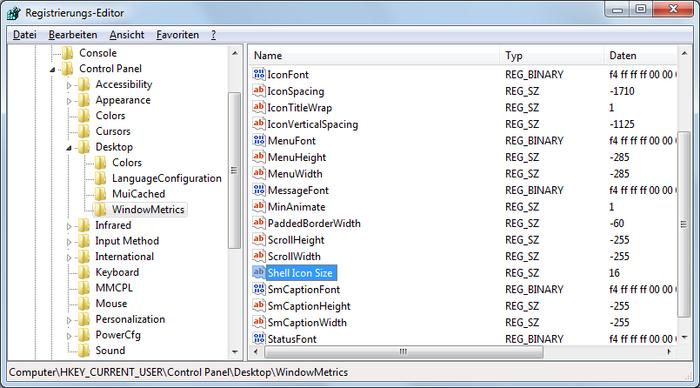
To change the size of the on icons on the desktop, you can use this tweak to make them larger, The default setting is 32

If you change this to 36, your icons will be slightly larger, the higher the number, the larger the icons will appear.

First you want to go to Start > Run, and type Regedit. navigate to HKEY_CURRENT_USER > Control panel > Desktop > WindowsMetrics. Click on the WindowsMetrics key and choose File > Export from Regedit's menu. Save the .reg file as windowMetricsoriiginal.reg. In case you don't like the changes, you can double-click on this file to restore the settings to their default value.


Windows Registry Editor Version 5.00

[HKEY_CURRENT_USER\Control Panel\Desktop\WindowMetrics]
"Shell Icon Size"="36"
 
Last edited:

My Computer

Computer Manufacturer/Model Number
Cheap $399.00 E-Machine
OS
Windows 7 Pro & Vista Home Premium
CPU
Athlon 64 3800+ (Orleans) 2.40GHz
Motherboard
Winfast
Memory
2GB DDR2 RAM DIMM
Graphics Card(s)
NVIDIA GeForce 8500 GT 512 MB memory HDMI out
Sound Card
creative X-Fi Exteme 7..1 channel
Monitor(s) Displays
Acer V223W 22" widescreen DVI
Screen Resolution
1680x1050
Hard Drives
WDC WD5 500GB
WDC WD25 250GB
PSU
OCZ 550 watt
Case
Gateway
Cooling
2 fans
Keyboard
Dell
Mouse
Sony Vaio
Internet Speed
18MB/s down - .72MB /s up
Hi :)

This works in Windows 7 RC1 build 7100 > Click an empty space on your desktop > Press Ctrl on your keyboard > roll your mouse wheel and all desktop icons change size (and stay at the size you desire)
 

My Computer

Computer Manufacturer/Model Number
Home Build
OS
Windows 7 Ultimate RC1 / XP Black 2009
CPU
Core2Duo E8400
Motherboard
MSI
Memory
3GB
Graphics Card(s)
ATI Radeon HD 3850
Hard Drives
W/D 250GB x2
Case
Thermaltake Tsunami Dream
Keyboard
Logitech G15
Mouse
Razer Death Adder
Internet Speed
6.5 - 7 MB
Excellent!

Can't try that one as my cheap $399.00 E-Machibne has no wheel:(
 

My Computer

Computer Manufacturer/Model Number
Cheap $399.00 E-Machine
OS
Windows 7 Pro & Vista Home Premium
CPU
Athlon 64 3800+ (Orleans) 2.40GHz
Motherboard
Winfast
Memory
2GB DDR2 RAM DIMM
Graphics Card(s)
NVIDIA GeForce 8500 GT 512 MB memory HDMI out
Sound Card
creative X-Fi Exteme 7..1 channel
Monitor(s) Displays
Acer V223W 22" widescreen DVI
Screen Resolution
1680x1050
Hard Drives
WDC WD5 500GB
WDC WD25 250GB
PSU
OCZ 550 watt
Case
Gateway
Cooling
2 fans
Keyboard
Dell
Mouse
Sony Vaio
Internet Speed
18MB/s down - .72MB /s up
Hi :)

This works in Windows 7 RC1 build 7100 > Click an empty space on your desktop > Press Ctrl on your keyboard > roll your mouse wheel and all desktop icons change size (and stay at the size you desire)
It has been like that since vista, i have no idea why anyone would want to alter the registry for this.

Excellent!

Can't try that one as my cheap $399.00 E-Machibne has no wheel:(
Then right click desktop > view
 

My Computer

OS
Win 7
[HKEY_CURRENT_USER\Control Panel\Desktop\WindowMetrics]
"Shell Icon Size"="36"

This doesn't work for me.

I'd like to have small instead of medium icon on the desktop.
 

My Computer

OS
Windows 7

My Computer

Computer Manufacturer/Model Number
Cheap $399.00 E-Machine
OS
Windows 7 Pro & Vista Home Premium
CPU
Athlon 64 3800+ (Orleans) 2.40GHz
Motherboard
Winfast
Memory
2GB DDR2 RAM DIMM
Graphics Card(s)
NVIDIA GeForce 8500 GT 512 MB memory HDMI out
Sound Card
creative X-Fi Exteme 7..1 channel
Monitor(s) Displays
Acer V223W 22" widescreen DVI
Screen Resolution
1680x1050
Hard Drives
WDC WD5 500GB
WDC WD25 250GB
PSU
OCZ 550 watt
Case
Gateway
Cooling
2 fans
Keyboard
Dell
Mouse
Sony Vaio
Internet Speed
18MB/s down - .72MB /s up
I set the icon size of the desktop icons to medium. Then i set the value to 16 and restarted the machine, but nothing changed. The icons are still in medium size.
 

My Computer

OS
Windows 7
Open regedit to this key:
HKEY_CURRENT_USER\Control Panel\Desktop\WindowMetrics

See what the value is for icon size.

If it's something other than 16, modify the Shell Icon Size value

NOTE: Make sure to export the key before making any changes.
 

My Computer

Computer Manufacturer/Model Number
Cheap $399.00 E-Machine
OS
Windows 7 Pro & Vista Home Premium
CPU
Athlon 64 3800+ (Orleans) 2.40GHz
Motherboard
Winfast
Memory
2GB DDR2 RAM DIMM
Graphics Card(s)
NVIDIA GeForce 8500 GT 512 MB memory HDMI out
Sound Card
creative X-Fi Exteme 7..1 channel
Monitor(s) Displays
Acer V223W 22" widescreen DVI
Screen Resolution
1680x1050
Hard Drives
WDC WD5 500GB
WDC WD25 250GB
PSU
OCZ 550 watt
Case
Gateway
Cooling
2 fans
Keyboard
Dell
Mouse
Sony Vaio
Internet Speed
18MB/s down - .72MB /s up
If tried this. This key isn't changed when I switch between big, middle oder small icons.
 

My Computer

OS
Windows 7
This key isn't changed when I switch between big, middle oder small icons

Where are you changing this information?
 

My Computer

Computer Manufacturer/Model Number
Cheap $399.00 E-Machine
OS
Windows 7 Pro & Vista Home Premium
CPU
Athlon 64 3800+ (Orleans) 2.40GHz
Motherboard
Winfast
Memory
2GB DDR2 RAM DIMM
Graphics Card(s)
NVIDIA GeForce 8500 GT 512 MB memory HDMI out
Sound Card
creative X-Fi Exteme 7..1 channel
Monitor(s) Displays
Acer V223W 22" widescreen DVI
Screen Resolution
1680x1050
Hard Drives
WDC WD5 500GB
WDC WD25 250GB
PSU
OCZ 550 watt
Case
Gateway
Cooling
2 fans
Keyboard
Dell
Mouse
Sony Vaio
Internet Speed
18MB/s down - .72MB /s up
I've opend the registry (regedit) changed from middle to small oder middle to big and pressed f5 for refresh, but as I've already mentioned the value of the key hasn't been changed. Normally you would directly see a change (I know this from other keys).
 

My Computer

OS
Windows 7
How an they not change when you change their value, by right-clicking on the entry and choose Modify..

Am I missing something here?

Maybe a screen shot would help
 

My Computer

Computer Manufacturer/Model Number
Cheap $399.00 E-Machine
OS
Windows 7 Pro & Vista Home Premium
CPU
Athlon 64 3800+ (Orleans) 2.40GHz
Motherboard
Winfast
Memory
2GB DDR2 RAM DIMM
Graphics Card(s)
NVIDIA GeForce 8500 GT 512 MB memory HDMI out
Sound Card
creative X-Fi Exteme 7..1 channel
Monitor(s) Displays
Acer V223W 22" widescreen DVI
Screen Resolution
1680x1050
Hard Drives
WDC WD5 500GB
WDC WD25 250GB
PSU
OCZ 550 watt
Case
Gateway
Cooling
2 fans
Keyboard
Dell
Mouse
Sony Vaio
Internet Speed
18MB/s down - .72MB /s up
Okay, here comes a screenshot:

3791632.jpg


right-clicking on the entry and choose Modify..
I know how to change it, but it hasn't an effect. I'm using Windows 7 Professional in our company (domain network).
 

My Computer

OS
Windows 7
The "grid" changes when you alter the icon size,

Take all your icons on the desktop and move them so they are not next to each other on the "grid."

Now change the value, refresh and restart your computer
 

My Computer

Computer Manufacturer/Model Number
Cheap $399.00 E-Machine
OS
Windows 7 Pro & Vista Home Premium
CPU
Athlon 64 3800+ (Orleans) 2.40GHz
Motherboard
Winfast
Memory
2GB DDR2 RAM DIMM
Graphics Card(s)
NVIDIA GeForce 8500 GT 512 MB memory HDMI out
Sound Card
creative X-Fi Exteme 7..1 channel
Monitor(s) Displays
Acer V223W 22" widescreen DVI
Screen Resolution
1680x1050
Hard Drives
WDC WD5 500GB
WDC WD25 250GB
PSU
OCZ 550 watt
Case
Gateway
Cooling
2 fans
Keyboard
Dell
Mouse
Sony Vaio
Internet Speed
18MB/s down - .72MB /s up
Maybe we are talking about different things. I'm confused?!

The "grid" changes when you alter the icon size

I don't want to set the spacing between the icons. I want to set the size of the icons to small instead of medium (default after installation).
 

My Computer

OS
Windows 7
You have no choice, when you change the size of the icons the grid changes automatically.
 

My Computer

Computer Manufacturer/Model Number
Cheap $399.00 E-Machine
OS
Windows 7 Pro & Vista Home Premium
CPU
Athlon 64 3800+ (Orleans) 2.40GHz
Motherboard
Winfast
Memory
2GB DDR2 RAM DIMM
Graphics Card(s)
NVIDIA GeForce 8500 GT 512 MB memory HDMI out
Sound Card
creative X-Fi Exteme 7..1 channel
Monitor(s) Displays
Acer V223W 22" widescreen DVI
Screen Resolution
1680x1050
Hard Drives
WDC WD5 500GB
WDC WD25 250GB
PSU
OCZ 550 watt
Case
Gateway
Cooling
2 fans
Keyboard
Dell
Mouse
Sony Vaio
Internet Speed
18MB/s down - .72MB /s up
Up to and including Windows XP the desktop icon size was controlled by an advanced control panel which is still supplied. You can access that icon size item in Windows 7 as follows:
  1. Select Control Panel->Appearance and Personalization->Personalization or right click on the desktop and select Personalize
  2. Select "Window Color" (not obvious when you want a size tweak.)
  3. Select "Advanced Appearance Settings..."
  4. Select "Icon" in the Items drop-down box.
Changing the value in there makes subtle changes to the layout of the icons (if you have "Align to grid" enabled), but it does not change the size of the icon images. The value entered in this box is stored in the ShellIconSize registry entry mentioned in the original post. (So that tweak will change the layout slightly, but not the size of the images.)

The icon image size is now controlled a different way and the advanced control panel has not been fixed to use it. The value is stored in a new registry key...

HKCU\Software\Microsoft\Windows\Shell\Bags\1\Desktop\IconSize

However, tweaking that will not work. It is not updated when you change the icon size. If you do change it, nothing will read it until you next log on. When you log off your changes will be overwritten with your current active value. Maybe this piece of code was written by Joseph Heller (though I can see justification for it in terms of system resilience.)


So, the only ways to change the icon image size are:
  • Right click on the desktop, select View and choose Small, Medium or Large (32, 48 and 96 pixels)
  • Click on the desktop. Then press Ctrl and use the mouse wheel.
  • Write a program to call the shell API
Eric
 
Last edited:

My Computer

OS
Windows 7 Ultimate 64 bit
Hello Eric,

Nice writeup, however I have performed the hack my self and got it to work.

I have instructions on another computer which I'll post tomorrow.

But like I said, the grid will change and the OP does not want this.
 

My Computer

Computer Manufacturer/Model Number
Cheap $399.00 E-Machine
OS
Windows 7 Pro & Vista Home Premium
CPU
Athlon 64 3800+ (Orleans) 2.40GHz
Motherboard
Winfast
Memory
2GB DDR2 RAM DIMM
Graphics Card(s)
NVIDIA GeForce 8500 GT 512 MB memory HDMI out
Sound Card
creative X-Fi Exteme 7..1 channel
Monitor(s) Displays
Acer V223W 22" widescreen DVI
Screen Resolution
1680x1050
Hard Drives
WDC WD5 500GB
WDC WD25 250GB
PSU
OCZ 550 watt
Case
Gateway
Cooling
2 fans
Keyboard
Dell
Mouse
Sony Vaio
Internet Speed
18MB/s down - .72MB /s up
Try right-clicking on the desktop and choose Personalize, select Windows Color, then Advanced Appearance Settings, select icon from the drop=down list and change it to any size you prefer.
 

My Computer

Computer Manufacturer/Model Number
Cheap $399.00 E-Machine
OS
Windows 7 Pro & Vista Home Premium
CPU
Athlon 64 3800+ (Orleans) 2.40GHz
Motherboard
Winfast
Memory
2GB DDR2 RAM DIMM
Graphics Card(s)
NVIDIA GeForce 8500 GT 512 MB memory HDMI out
Sound Card
creative X-Fi Exteme 7..1 channel
Monitor(s) Displays
Acer V223W 22" widescreen DVI
Screen Resolution
1680x1050
Hard Drives
WDC WD5 500GB
WDC WD25 250GB
PSU
OCZ 550 watt
Case
Gateway
Cooling
2 fans
Keyboard
Dell
Mouse
Sony Vaio
Internet Speed
18MB/s down - .72MB /s up
No, this only changes the grid layout for me. I've tried it on 32 bit Vista and 64 bit Windows 7. I hve even tried the 32-bit version of the control panel on Windows 7.

The image below shows the effect on my machine. I have a 3x3 matrix of icons top left of my screen at various settings.

combined.png


There are three rows on the image - the top is with Small icons selected in the desktop popup menu View. Medium for the centre row, and large for the bottom row.

The left column is with the Icon Size set to 16 in the control panel (which sets the registry setting you mentioned.) That is the lowset value the control panel allows. The second column is set to 32, the default value I found on installation. The third is set to 48, and the final fourth column id set to the maximumof 72.

There are a couple of icons in the shots that do not ever get larger than 48 pixels. That is because they are old applications that do not have the 256 pixel png version of the icon that Vista/Win7 needs.

I've tried all sorts of things (rebooting, different DPI settings both with and without XP scaling mode) and there is no way I can get that ShellIconSize entry to change an icon image size.

Incidentally, a quick way to that buried control panel is to run "control.exe desk.cpl,,6". If you change the value in it and hit apply, do your icons immediately change size?

What I see is obviously similar to the results mrquickly reports, but is different to your result. Very strange. I'm sure we are all doing the same thing!

Eric
 
Last edited:

My Computer

OS
Windows 7 Ultimate 64 bit
Back
Top