IE Only Opens In Small Window?

maranatha4u

New member
Member
VIP
Local time
8:12 AM
Messages
157
Location
Lakeland, Florida USA
I've been told that IE 9 is a very good browser and even more malware-resistant than Firefox which is what I've been using. The first thing I'm seeing though, when trying Internet Explorer is that every site it opens it does so in a small (minimized) window which is VERY annoying and which Firefox never did. Is there a way to configure IE so that it opens a site in "full page" status? Oh, I've tried to enlargen the minimized windows by dragging the placeholders; but when I do it again, still the small windows open when clicking a link. VERY FRUSTRATING! And, it make me want to stay with Firefox which at least doesn't have THAT problem. If anyone knows of a way out around this, I'd surely like to find out. Thank you. :confused:
 

My Computer

Computer Manufacturer/Model Number
Dell Optiplex 760
OS
Windows 7 Pro, 64-bit
Window positions are determined by a registry binary blob, and the usual way to fix it is to close all instances of the application, open a new application window, size it the way you want, close it, and then open the application again. Are you stating that you've done this, and the problem still occurs?
 

My Computer

Computer type
PC/Desktop
Computer Manufacturer/Model Number
Custom
OS
Windows 10 Pro x64
CPU
Intel Core i7 4790K @ 4.5GHz
Motherboard
Asus Maximus Hero VII
Memory
32GB DDR3
Graphics Card(s)
Nvidia GeForce GTX970
Sound Card
Realtek HD Audio
Screen Resolution
1920x1200
Hard Drives
1x Samsung 250GB SSD
4x WD RE 2TB (RAIDZ)
PSU
Corsair AX760i
Case
Fractal Design Define R4
Cooling
Noctua NH-D15
Yes, that's correct. I've done this and the prob still occurs. In fact, I've noticed that others have experienced the same problem, have done the resizing . . . only to experience it happening again. A real enigma, Cluberti.
 

My Computer

Computer Manufacturer/Model Number
Dell Optiplex 760
OS
Windows 7 Pro, 64-bit
Yes, that's correct. I've done this and the prob still occurs. In fact, I've noticed that others have experienced the same problem, have done the resizing . . . only to experience it happening again. A real enigma, Cluberti.

Try this ......

1. Close all windows.
2. Open IE9
3. Use the cursor and drag the window to full size. Do NOT use the maximize button.
4. File > Exit. Do NOT use the red X button to exit.
5. Re-open IE9.

Does it open in full screen ?
 

My Computer

Computer Manufacturer/Model Number
Acer Aspire 7741Z
OS
Windows 7 Home Premium 64-bit, SP1
CPU
Intel Pentium P6200, Cores 2, 2.13 GHz
Memory
4 GB
Graphics Card(s)
Intel HD
Sound Card
unknown
Monitor(s) Displays
17.3 inches
Screen Resolution
1600 x 900
Hard Drives
640 GB, 5400 PRM
Reply

I know this may sound stupid to you, but I cannot find a File > Exit on the IE browser.
 

My Computer

Computer Manufacturer/Model Number
Dell Optiplex 760
OS
Windows 7 Pro, 64-bit
Press the "ALT" key.
 

My Computer

Computer type
PC/Desktop
Computer Manufacturer/Model Number
Custom
OS
Windows 10 Pro x64
CPU
Intel Core i7 4790K @ 4.5GHz
Motherboard
Asus Maximus Hero VII
Memory
32GB DDR3
Graphics Card(s)
Nvidia GeForce GTX970
Sound Card
Realtek HD Audio
Screen Resolution
1920x1200
Hard Drives
1x Samsung 250GB SSD
4x WD RE 2TB (RAIDZ)
PSU
Corsair AX760i
Case
Fractal Design Define R4
Cooling
Noctua NH-D15
Yes, I tried this (once I found the File>Exit area from the Alt key), and it still does the small screen popup. I'm sorry I couldn't have given you better news on this one . . . I'll keep experimenting but thank you for your help once again . . you're very kind . . .

______________________________________________________________________

Yes, that's correct. I've done this and the prob still occurs. In fact, I've noticed that others have experienced the same problem, have done the resizing . . . only to experience it happening again. A real enigma, Cluberti.

Try this ......

1. Close all windows.
2. Open IE9
3. Use the cursor and drag the window to full size. Do NOT use the maximize button.
4. File > Exit. Do NOT use the red X button to exit.
5. Re-open IE9.

Does it open in full screen ?
 

My Computer

Computer Manufacturer/Model Number
Dell Optiplex 760
OS
Windows 7 Pro, 64-bit
Thank You

Thank you for the tip here. I did get the menu from the Alt key as you suggested, yet still (after File>Exit from the browser menu), when I click a desktop icon, the annoyingly small window for the site appears on the desktop.
 

My Computer

Computer Manufacturer/Model Number
Dell Optiplex 760
OS
Windows 7 Pro, 64-bit

My Computer

Computer Manufacturer/Model Number
Acer Aspire 7741Z
OS
Windows 7 Home Premium 64-bit, SP1
CPU
Intel Pentium P6200, Cores 2, 2.13 GHz
Memory
4 GB
Graphics Card(s)
Intel HD
Sound Card
unknown
Monitor(s) Displays
17.3 inches
Screen Resolution
1600 x 900
Hard Drives
640 GB, 5400 PRM
Thank you for the tip here. I did get the menu from the Alt key as you suggested, yet still (after File>Exit from the browser menu), when I click a desktop icon, the annoyingly small window for the site appears on the desktop.

See if you can follow this :
You will be working on Registry editing .....If you run into questions, STOP. Post the questions.


Always load Internet Explorer 9 in Full Screen Mode
Currently to view IE9 in Full-screen Mode, a user can hit the F11 key on the keyboard.

Image 23.png


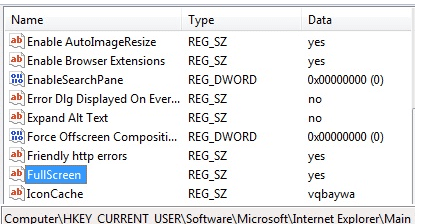
To always load Internet Explorer 9 in Full Screen Mode, Open Regedit
  • Navigate to the following location: HKEY_CURRENT_USER\Software\Microsoft\Internet Explorer\Main
  • To the right of main locate the value FullScreen
  • right click at FullScreen
  • click Modify
  • Value Data > change NO to YES
  • That will change the Fullscreen value to Yes
Now when you open Internet Explorer 9 it will be in full-screen Mode. To revert, set the value back to No. You can also toggle between Normal and Full-screen Mode by hitting F11 on your keyboard.
 
Last edited:

My Computer

Computer Manufacturer/Model Number
Acer Aspire 7741Z
OS
Windows 7 Home Premium 64-bit, SP1
CPU
Intel Pentium P6200, Cores 2, 2.13 GHz
Memory
4 GB
Graphics Card(s)
Intel HD
Sound Card
unknown
Monitor(s) Displays
17.3 inches
Screen Resolution
1600 x 900
Hard Drives
640 GB, 5400 PRM
adding to my above reply.....

In case you wonder what this means .....
HKEY_CURRENT_USER\Software\Microsoft\Internet Explorer\Main

It means .....
After you typed regedit in search box and pressed Enter, you will be in Registry Editor window.
Left column > There is an arrow head in front of HKEY_CURRENT_USER, click it ( it is termed ' expand ' ) So far understood ? OK, here goes ...

expand HKEY_CURRENT_USER
expand Software
expand Microsoft
expand Internet Explorer
click Main
Now, look at the main box at the right > RIGHT click at FullScreen
click Modify > change no to Yes > click OK when done.
 
Last edited:

My Computer

Computer Manufacturer/Model Number
Acer Aspire 7741Z
OS
Windows 7 Home Premium 64-bit, SP1
CPU
Intel Pentium P6200, Cores 2, 2.13 GHz
Memory
4 GB
Graphics Card(s)
Intel HD
Sound Card
unknown
Monitor(s) Displays
17.3 inches
Screen Resolution
1600 x 900
Hard Drives
640 GB, 5400 PRM
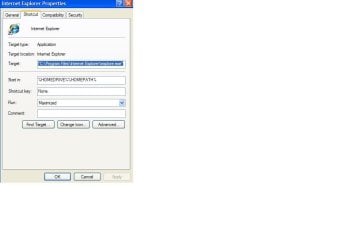
Just one more thing to check. Click the Start orb > All Programs > right click the IE icon > Properties. A dialog box will open. Then click Shortcut tab > make sure Run = Maximized


maximize.JPG
 

My Computer

Computer type
Laptop
Computer Manufacturer/Model Number
Sony Vaio VPCEB47GM Laptop
OS
Win 7 Pro 64-bit
CPU
Intel i5 2.4 Ghz
Memory
8GB DDR3
Graphics Card(s)
Intel HD 3000
Sound Card
IDT High Definition
Monitor(s) Displays
15.6 WGXA Anti-Glare LED
Screen Resolution
1280x800
Hard Drives
640Gb 7200rpm
Antivirus
MSE
Browser
Opera (primary) with IE9 backup
Permanently customizing one's IE page size is a common problem, with a multitude of different possible solutions. Here's a plethora of additional solutions. See if any of them work for you:

TO PERMANENTLY 'MAXIMIZE' IE PAGE SIZE

1. Right-click the Desktop IE icon or IE in the Start Menu, and click on Properties at bottom of the menu. In the Properties window select the Shortcut tab. Open the ‘Run’ drop-down menu and select: Maximized. Hit: Apply, OK

2. Maximize the IE page with the Maximize '1' icon, then hold Shift and close with the X. Next time it opens it should be maximized.

3. Maximize your IE window size by dragging each of the four edges of the window all the way out to the edges of the screen. Then hold down the Alt key and press the "X" close button. Next time you open that link it should open in the maximized size, the way it was when you closed it!

4. Maximize your IE window size by dragging each of the four edges of the window all the way out to the edges of the screen. Then, while holding the Ctrl + Shift keys, close it by clicking File, Close. You might have to do it a few times to make it learn. If this doesn't work, try again, but this time, still holding the Ctrl + Shift keys, close they maximized window using the X icon.

TO 'CUSTOMIZE' IE PAGE SIZE

1. When IE opens smaller than you wish, IE can be resized with the RE-SIZER icon to permanently enlarge the screen. (The Re-sizer icon is the ‘multiple dots’ icon at the lower right-hand corner of the screen.

2. Open IE and open an additional (2nd) IE window which will also be small. Put your cursor on the upper-left corner of the 2nd window, until the left-top corner is aligned with the top-left corner of your screen. In the right-bottom corner of the 2nd IE window, drag the RE-SIZER down diagonally until it rests at the top of the Status Bar and at the bottom-right-hand corner of your screen. Close the 1st window and then close the 2nd window. IE will now remember your position and size on the next opening. If that doesn't work, repeat the above, but when closing both windows, hold Ctrl and Shift keys while clicking the X.

3. Open Internet Explorer. Stretch the window with your cursor until you have it the size you want. (Do NOT use the Maximize button at the top-right ).
Press the Ctrl key and HOLD, and while still holding, click File then click Exit (Do NOT use the red Exit 'X' button at the top-right. ) Re-open Internet Explorer. It should open exactly the same size as it was last closed. Note : if that does not work for you, substitute Ctrl key with Shift key.

See also: How To Open A Program In Minimized, Maximized or Normal Window
 

My Computer

Computer Manufacturer/Model Number
HP Pavillion dv5t (generation 1)
OS
Vista 64 bit and 32 bit (SP2)
CPU
Intel(R) Core(TM)2 Duo Processor T9400 (2.53 GHz
Memory
4GB DDR2 System Memory (2 Dimm)
Graphics Card(s)
512 MB NVIDIA GeForce 9600M GT
Monitor(s) Displays
15.4" diagonal WSXGA+ High-Definition HP BrightView Widescre
Screen Resolution
1680 x 1050
Hard Drives
320GB 5400RPM SATA Hard Drive with HP ProtectSmart Hard Drive Protection
Keyboard
Built-in HP
Mouse
Built in - Synaptics TouchPad V6.5 on PS/2 Port
Internet Speed
Max
Other Info
~ Intel Next-Gen Wireless-N Mini-card w/Bluetooth ~ Blu-Ray ROM DVD+/-R/RW ~ Integ. HDTV Hybrid Tuner ~ 12 Cell Battery ~ MS Office (Home Premium) 2007 ~

My Computer

Computer type
PC/Desktop
OS
Windows 10 Home x64
CPU
INTEL Core i5-750 Quad-Core 3.37GHz
Motherboard
ASUS P7P55D
Memory
HyperX Fury Black Series 8GB (2 x 4GB) 1866Mhz
Graphics Card(s)
EVGA GeForce GTX 750 Superclocked 1GB 128-Bit GDDR5
Monitor(s) Displays
LG 32MA68HY 32" IPS
Screen Resolution
1920 x 1080
Hard Drives
Samsung 840 Evo 120GB, SEAGATE 500GB Barracuda® 7200.12, SATA 3 Gb/s, 7200 RPM, 16MB cache
PSU
ANTEC TruePower New TP-550, 80 PLUS, 550W
Case
ANTEC Three Hundred Illusion
Cooling
COOLER MASTER Hyper 212 Plus, 4 x 120mm 1 x 140mm Noctua's
Internet Speed
85 + Mbps
Antivirus
Avast
Browser
Vivaldi
ie opens in small window

ie9 opens in small window. just open your normal home page resize window to the size you want resave this as your home page. all other shortcuts should open at this size too. worked for me.
 

My Computer

Computer type
PC/Desktop
Computer Manufacturer/Model Number
acer
OS
windows 7 proffesional x64
Browser
ie 9
Welcome to Seven Forums T427NAN. Thanks for the addition. A Guy
 

My Computer

Computer type
PC/Desktop
OS
Windows 10 Home x64
CPU
INTEL Core i5-750 Quad-Core 3.37GHz
Motherboard
ASUS P7P55D
Memory
HyperX Fury Black Series 8GB (2 x 4GB) 1866Mhz
Graphics Card(s)
EVGA GeForce GTX 750 Superclocked 1GB 128-Bit GDDR5
Monitor(s) Displays
LG 32MA68HY 32" IPS
Screen Resolution
1920 x 1080
Hard Drives
Samsung 840 Evo 120GB, SEAGATE 500GB Barracuda® 7200.12, SATA 3 Gb/s, 7200 RPM, 16MB cache
PSU
ANTEC TruePower New TP-550, 80 PLUS, 550W
Case
ANTEC Three Hundred Illusion
Cooling
COOLER MASTER Hyper 212 Plus, 4 x 120mm 1 x 140mm Noctua's
Internet Speed
85 + Mbps
Antivirus
Avast
Browser
Vivaldi
This also works with IE 11
My problem was when I hit the minimize button it would be a very tiny window... barely visible.
Maximize would fit the whole screen.

By closing ALL tabs and instances of IE
Then Opening Internet Explorer
Then Use the cursor and drag the window to full size. Do NOT use the maximize button.
4. FILE --> Exit. Do NOT use the red X button to exit.
5. Re-open IE11.

When I used the Maximize, and Restore Down, it saved it.
Thanks to whomever first posted this solution... 5 years later, still relevant.

Tom B
 

My Computer

Computer type
Laptop
Computer Manufacturer/Model Number
HP
OS
64 Bit Windows 10
CPU
Core i7
Back
Top