Image Restore from Network Location

Petee

New member
Local time
2:38 AM
Messages
10
Location
Somewhere in the Ford Galaxy...
Hello everyone.
Recently my 200GB hard drive died and no longer works at all. I have ordered a new 750GB drive and it should be here in a few days. Luckily I created a backup image of my system about a month ago, so I hopefully won't be losing everything. When I created the image I set it up to be saved on a share on my file server: \\SERVER1\Projects\Ryan\BACKUP. It was the only place I had available with enough free space.

Today I ran the restore CD, just to test if I could select the image and start the restore so when I get my new drive i know exactly what to do. I got to where I had to specify the network location of the share, but no matter what I put in I couldn't get it to find my image. From other machines I can see that the WindowsImageBackup folder is in the BACKUP folder and there is a VHD file inside that, so it does exist.

Is there anything I'm missing? I would really like to be able to just restore from this image. Any help is appreciated. Thanks
 

My Computer

OS
Windows 7 Pro (32-bit)
CPU
Pentium 4 - 3.0Ghz
Motherboard
VIA PM-800 M2
Memory
2GB
Graphics Card(s)
nVidia GeForce 7200
Screen Resolution
1280x1024
WindowsImageBackup must be in the root, not in another folder named Backup or anything else.

This is a problem for many with Win7 Backup imaging. You can file away images but have to put them back into the root of the drive to be found. For example, on my external I have seven folders holding files and image backup for each computer here.

When I want to have the booted Win7 repair CD or DVD reimage a computer, I have to spill the WindowsImageBackup folder out of the correct external folder into the root of the external to have it discoverable. And it has to be titled exactly WindowsImageBackup.

The network file path is another problem. Sometimes I will spend an hour getting it typed just right to where it will work. Yet the network drivers in the CD/DVD will copy via network even better sometimes than those in Win7. Go figure.

I can see now why many have gone back to Acronis which lets you name file as you please and finds it by browsing.

It almost seems like they don't want people to like this feature breakthrough in Win7 too much. :confused:
 
Thanks for the reply. You say it must be in the root. Would I be able to just make a new share on the server that has the WindowsImageBackup folder in it, so I wouldn't have to actually move anything? The WindowsImageBackup folder would then be in \\SERVER1\BACKUP. Might this work?
 

My Computer

OS
Windows 7 Pro (32-bit)
CPU
Pentium 4 - 3.0Ghz
Motherboard
VIA PM-800 M2
Memory
2GB
Graphics Card(s)
nVidia GeForce 7200
Screen Resolution
1280x1024
You can try but better to have it in the root in my experience.

I just spill it out of the folder into the root before running DVD to recover.
 
Ok, so just to clarify, the WindowsImageBackup folder should be in the root of the drive it is stored on and then the drive is shared? Thanks
 

My Computer

OS
Windows 7 Pro (32-bit)
CPU
Pentium 4 - 3.0Ghz
Motherboard
VIA PM-800 M2
Memory
2GB
Graphics Card(s)
nVidia GeForce 7200
Screen Resolution
1280x1024
That is all that has worked for me, so far. Everytime I pointed DVD imaging utility it to a network share folder, it couldn't find backup image. But when I spilled it out into the root, it found it and reimaged.

Let us know if it works differently for you.
 
I don't do network backups, and don't really even have a network to store it to, but it seems logical if Windows allows you to backup an image to a specific location, it should be able to find it again...

I would love to test if I knew the circumstances.

Edit:
I went ahead and tested a network backup situation. I created the image and restored from the same place. I had to use another computer on my network since I do not have a file server. but:
network path to backup: \\CompName\e\bu images\feb
It found the image backup fine. But I may be misunderstanding the original question.
 
Last edited:

My Computer

Computer Manufacturer/Model Number
Homebuilt
OS
Windows 7 x64
CPU
i7-2600K
Motherboard
Asus P8Z77-v Pro
Memory
8 G
Graphics Card(s)
GTX 480
Sound Card
Onboard
Monitor(s) Displays
LG W2753V
Screen Resolution
1920x1080
Hard Drives
Crucial M4 128 G SSD
Nope, still no luck. I even tried copying the backup to a partition on my new drive. I used an Ubuntu live cd, plugged in my external off my server (it is formatted ext3), and copied the WindowsImageBackup folder right into the new partition. Still nothing. I wish there was a simple "browse for image" button. If I do the browse for drivers thing I can easily find the image, but I can't do anything.
 

My Computer

OS
Windows 7 Pro (32-bit)
CPU
Pentium 4 - 3.0Ghz
Motherboard
VIA PM-800 M2
Memory
2GB
Graphics Card(s)
nVidia GeForce 7200
Screen Resolution
1280x1024
I believe the WindowsImageBackup host drive needs to be formatted Primary NTFS to be autodetected.
 
Ok, that makes sense I guess. But I made the partition on my new drive NTFS and it still isn't picking it up off there. Would copying the image have changed something, or does something need to be changed because I copied it to a new location?
 

My Computer

OS
Windows 7 Pro (32-bit)
CPU
Pentium 4 - 3.0Ghz
Motherboard
VIA PM-800 M2
Memory
2GB
Graphics Card(s)
nVidia GeForce 7200
Screen Resolution
1280x1024
I copy them all the time from target primary-formatted partition on secondary HD into folder on external. Then, as stated, I have to move them out of folder into external root to have them autodetected by reimaging app.

They are immed detected on the primary formatted partition.
 
Hmm, ok. I don't know what else to try. Is there a way to restore an image from inside Windows 7? I'm considering just reinstalling at this point but I'm worried I'll have activation issues.

Edit: Yup, it wouldn't even take my key when I tried to reinstall 7. I guess I'll try copying the image to the new local drive again.

Thank you both for your replies. I appreciate it. :)
 
Last edited:

My Computer

OS
Windows 7 Pro (32-bit)
CPU
Pentium 4 - 3.0Ghz
Motherboard
VIA PM-800 M2
Memory
2GB
Graphics Card(s)
nVidia GeForce 7200
Screen Resolution
1280x1024
I do not know if you currently have the capability, but make another image to a location you want to use. Then try to recover it. You should then know for sure the path.

What messages are you getting when you try to find the image? I assume you are using the advanced option and turning on the network? If it matters, I am booting to the repair CD and selecting restore image.

One note, you will not be able to restore an image to a drive (not talking about partitions) smaller than the original, or at least that is what it looks like to me.

Edit: I need to amend the above statement. It now appears the new drive will have to be as large as all the partitioned space on the original drive. Even though it only backs up and restores the C: partition (if that what you chose), it will need a new drive large enough to accomodate the other partition sizes as well.
 
Last edited:

My Computer

Computer Manufacturer/Model Number
Homebuilt
OS
Windows 7 x64
CPU
i7-2600K
Motherboard
Asus P8Z77-v Pro
Memory
8 G
Graphics Card(s)
GTX 480
Sound Card
Onboard
Monitor(s) Displays
LG W2753V
Screen Resolution
1920x1080
Hard Drives
Crucial M4 128 G SSD
I unfortunately can't make any other images to test. I only had 7 on one PC and the hard drive it was installed on is dead. I am using the network option under advanced. When I put in the network path and some login info (my server isn't set to need a login) a dialog box comes up real quick then goes away. I think it says scanning for images or something to that effect. After that nothing new comes up. It just shows the empty table.

Edit: My new drive is 750gb and the original one that I imaged was 200gb, so size shouldn't be an issue.
 
Last edited:

My Computer

OS
Windows 7 Pro (32-bit)
CPU
Pentium 4 - 3.0Ghz
Motherboard
VIA PM-800 M2
Memory
2GB
Graphics Card(s)
nVidia GeForce 7200
Screen Resolution
1280x1024
When I made mine on the network it asked for credentials so it could check later. Do you remember doing that? Are you using the same username and password? Before I could even do that, the backup had to verify the destination was reachable.

If you have no other options, you should be able to move the folder to an external drive.
 

My Computer

Computer Manufacturer/Model Number
Homebuilt
OS
Windows 7 x64
CPU
i7-2600K
Motherboard
Asus P8Z77-v Pro
Memory
8 G
Graphics Card(s)
GTX 480
Sound Card
Onboard
Monitor(s) Displays
LG W2753V
Screen Resolution
1920x1080
Hard Drives
Crucial M4 128 G SSD
Yes, you need to password the server first to make it work via network.

What are the activation issues that concern you?
 
Well I have a student upgrade version and I already activated it originally when I first installed it on the old drive. I didn't think it would let me activate it again. It is looking like that is just what I'll have to do though. It still can't find my backup, even though I made a copy of it to a local partition. I have 7 on there now (currently not activated) and I can mount the VHD from my backup and browse it, but I can't restore it. I've tried loading the VHD into virtual PC to try to make a new backup to a new location from there, but I keep getting a disk read error.
 

My Computer

OS
Windows 7 Pro (32-bit)
CPU
Pentium 4 - 3.0Ghz
Motherboard
VIA PM-800 M2
Memory
2GB
Graphics Card(s)
nVidia GeForce 7200
Screen Resolution
1280x1024
You own a retail copy of Win7 which can be reinstalled on any machine at any time you want, as long as it is on only one machine at a time.

http://www.sevenforums.com/tutorials/30470-make-bootable-iso-student-d-l.html
http://www.sevenforums.com/tutorials/32055-bootable-iso-create-installation-files.html
Burn to DVD using ImgBurn at 4x with Verify - it never fails.

Activation may require a robocall to MS which deactivates the old install and activates the new one. If there are any problems, an activation agent will be there to help you. If any further problems arise, call MS Customer Service and open a support case.

MS cannot steal your purchased property back from you. It is yours to use as you please for the rest of your life.

Did you put the file out in the root of an external or shared drive and is it named exactly WindowsImageBackup?
 
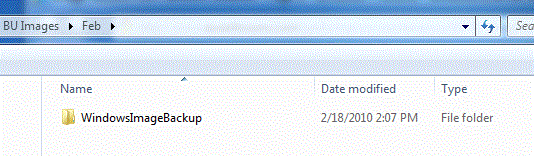
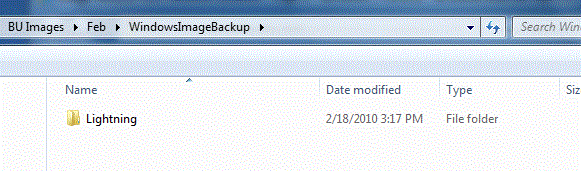
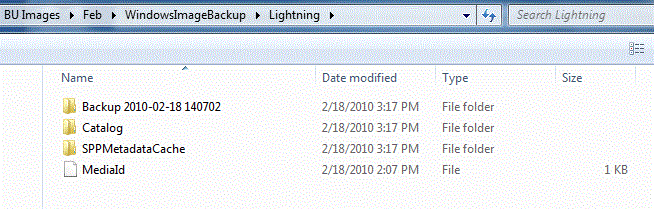
I am attaching images of my folders where the backup image is stored. I do this so you can compare your backup to make sure you have an image and not just a file backup.
 

Attachments

  • BU1.GIF
    BU1.GIF
    22.7 KB · Views: 403
  • BU2.GIF
    BU2.GIF
    26.7 KB · Views: 366
  • BU3.GIF
    BU3.GIF
    35.5 KB · Views: 402

My Computer

Computer Manufacturer/Model Number
Homebuilt
OS
Windows 7 x64
CPU
i7-2600K
Motherboard
Asus P8Z77-v Pro
Memory
8 G
Graphics Card(s)
GTX 480
Sound Card
Onboard
Monitor(s) Displays
LG W2753V
Screen Resolution
1920x1080
Hard Drives
Crucial M4 128 G SSD
gregrocker - Thank you, I didn't realize that reactivation in this case could be that simple. Yes, I have put the WindowsImageBackup folder in the root of both the shared folder and a local partition I created on my new HDD. Can't get it to find either one to restore from.

Saltgrass - Thank you for the comparison images. Yes, mine matches those (except for the computer name and date of course)
 

My Computer

OS
Windows 7 Pro (32-bit)
CPU
Pentium 4 - 3.0Ghz
Motherboard
VIA PM-800 M2
Memory
2GB
Graphics Card(s)
nVidia GeForce 7200
Screen Resolution
1280x1024
Back
Top