Imaging To an Identical SSD, Question

2therock

New member
Member
VIP
Local time
12:45 AM
Messages
97
Location
N. GA
I'm not a seasoned BU image guy but want to do better. I have some questions.
I run my system on a 1TB Sandisk X400 SSD.
I am a simple home user / photographer of sorts.

I want to talk about my imaging pipe dream.

I want to get another Sandisk 1TB X400 and image to it at least once a week if not more.
I have an SATA dock built into my PC mid tower that's easy to use and reach.
I would like to image to it and unplug it at random having a shortcut on my desk to hit that will overwrite the previous image.

Then if I have a crash and the image disk not being a part of the tragedy, would it be as simple as unplugging the corrupted OS X400 SSD and installing the imaged X400 SSD and hit the go button and be back in the running? Does it work like this?

Thanks
 

My Computer My Computer

Computer type
PC/Desktop
Computer Manufacturer/Model Number
Home Build By Yours Truly
OS
Win 10 Pro 64x
CPU
Intel-Core-i7-3770K
Motherboard
GIGABYTE GA-Z77-UD5H
Memory
16 GB DDR3
Mouse
Logitech VX Revolution
No, it doesn't work like that.

An image of a partition is a file. You store it wherever it will fit---just like any other file.

It isn't bootable. It's a representation of one or more partitions on your hard drive, but that's all it is. If the imaged partition in question is a bootable partition, the image file has to be "restored" to a hard drive to make that hard drive bootable.

You may be thinking of a "clone"--which is entirely different.

If it works as advertised, a clone of a bootable drive would be bootable as it sits and would not have to be restored.

But, if you are talking about recovering from a bad situation such as a failed hard drive, a bad virus infestation, or anything that makes you want to go back to a better situation, imaging is generally a better idea than cloning---even though it's not immediately bootable. There's several reasons why that's true.

Restoring an image takes less than a half hour in a typical situation.

Making an image might take 5 to 30 minutes, depending.

You can make a new image every day, week, month, whatever. I make one a month and keep the most recent two.

Macrium Reflect is the most commonly used tool around here.

Cloning and imaging can both fail. Know what you'll do when that happens.
 

My Computer My Computer

Computer type
PC/Desktop
Computer Manufacturer/Model Number
Ignatz Special; 4 speed manual gearbox; factory air conditioning; one of one
OS
Windows 7 Home Premium SP1, 64-bit
CPU
Intel Skylake i5-6600K, not overclocked
Motherboard
AsRock Z170M Extreme 4, micro ATX
Memory
8 GB HyperX DDR4-2666 (2 x 4 GB)
Graphics Card(s)
none; graphics are integrated on CPU
Sound Card
onboard: Realtek ALC1150; external: USB Behringer UF0-202
Monitor(s) Displays
Dell S2340M 23 inch IPS
Screen Resolution
1600 x 900
Hard Drives
System: Crucial MX100 series SSD, 128 GB;
Data: Samsung Spinpoint 103SJ, 1 TB;
Backup: WD Caviar Green WD30EZRX-00D8PB0, 3 TB
PSU
Rosewill SilentNight 500 watt fanless, semi-modular
Case
Antec Solo II
Cooling
Noctua NH-U12S; Noctua F12 intake, Noctua S12A exhaust
Keyboard
Microsoft 200 6JH-00001 USB
Mouse
Dell or Microsoft optical wired; USB
Antivirus
Microsoft Security Essentials and Malwarebytes Premium
Browser
Pale Moon
Other Info
All fans PWM; speeds at idle: CPU circa 500 rpm; intake circa 600 rpm; exhaust circa 600 rpm; CPU temps 27 idle and 47 C load in a warm room (27 C/81 F) when running Intel Extreme Tuning Utility stress test.

My Computer My Computer

Computer type
PC/Desktop
Computer Manufacturer/Model Number
Skylake Special #666
OS
Windows 10 Pro x64
CPU
Intel Core i7 6700K
Motherboard
Asus Sabertooth Z170 Mark 1
Memory
GSkill TridentZ RGB 16GB 3600 16-16-16-36
Graphics Card(s)
EVGA GTX 980 Ti SC x2
Sound Card
Realtek High Definition
Monitor(s) Displays
AOC G2460PG
Screen Resolution
1920 x 1080 144Hz
Hard Drives
Samsung 860 Pro 256GB, Seagate Barracuda 4TB x2
PSU
EVGA 1000 P2, EVGA White Custom Braided Cables
Case
Corsair Vengeance C70 Gunmetal Black
Cooling
Corsair H100i v2, Corsair ML120 x2, Thermal Grizzly Kryonaut
Keyboard
Logitech G910 Orion Spectrum
Mouse
Logitech G700s
Internet Speed
Verizon Fios Quantum Gateway 75/75
Antivirus
Windows Defender, Malwarebytes Free 3.8.3
Browser
Chrome
Other Info
Corsair SP120 x4, LG Blu-ray Drive, Durabrand HT-395 100 Watt Dolby Digital Amp, Corsair H2100 Wireless 7.1 Headset
As mentioned earlier, from personal experience, I recommend making full images of your OS and data partitions onto your chosen backup-receiving media, the 2nd SSD HD. I tried the cloning option for awhile, found it safer OS-wise to make full images, disable the backup HD when not in use. Have done restores in the past both via cloning and via images from backup HD to original HD.
 

My Computer My Computer

Computer type
PC/Desktop
Computer Manufacturer/Model Number
Antec desktop; Acer Aspire laptops
OS
Windows 7 Professional 64-bit
CPU
Desktop i5; Acers i5 & i7
Memory
desktop 16GB; 1 Acer 8GB & 1 Acer 16GB
Hard Drives
1TB split into 2 equal partitions [OS and data] usable by RJS
Internet Speed
AT&T DSL
Browser
FF, GChrome, msIE
Other Info
Windows 7 Firewall, Emsisoft AM/AV, MSE [scan-only], SpywareBlaster, Ruiware/BillP combine
Thanks, Guys,

I'm new at this whole thing and the lingo has me spinning.
I'm using EaseUS Todo (free for now) and it seems to be doing well for a person who is not sure what he is doing.
Until now I thaught imaging was all in one ball of wax. But I see there is Disk/Partition, System, Files, and Smart Backup.

Whats the difference between System and Disk/Partition?

What I (think I) want is crash recovery. I want to have an external HDD Box setup to do weekly's with daily incrementals.
Then the duplicate SSD for inserting into the SATA dock and hitting a go button to back it all up.

I'm not sure I understand all I know about this stuff. Please suggest if you can. I hope you like EaseUS Todo because I tried several and its the one I am most comfortable with.
If your suggestions include me upgrading to the home version so be it.

Thanks.
 

My Computer My Computer

Computer type
PC/Desktop
Computer Manufacturer/Model Number
Home Build By Yours Truly
OS
Win 10 Pro 64x
CPU
Intel-Core-i7-3770K
Motherboard
GIGABYTE GA-Z77-UD5H
Memory
16 GB DDR3
Mouse
Logitech VX Revolution
see comments in bold

Whats the difference between System and Disk/Partition?


In a Windows PC, one of the hard drive partitions will be the "system" partition. That might be the C partition and might not be--it depends on how the PC was configured when Windows was installed.

You need to look at Windows Disk Management to easily see what's what.

When you do that, you will see one partition marked as System. "System" means it contains your boot files and that partition must be imaged and later restored if you want to recover from a bad situation.

On my old PC, C was also the system partition. On my new one, it is not. With my old PC, I only had to make an image of C to restore Windows. On my new PC, I must make an image of more than just C.


What I (think I) want is crash recovery. I want to have an external HDD Box setup to do weekly's with daily incrementals.
Then the duplicate SSD for inserting into the SATA dock and hitting a go button to back it all up.

That confuses me.

You say you want "crash recovery". I assume that means a failed hard drive or a major Windows problem that you can't fix. OK--that's doable with your idea of an external HDD with weekly images, but I'd try to avoid incrementals.

The best tool for "crash recovery" is imaging, not cloning.

You then speak of a "duplicate SSD" in a dock "to back it all up".

Back what up? You use the pronoun "it". What does "it" refer to?

You'd already have "it" backed up using the external HDD, not an SSD in a dock--if "it" means your Windows installation.

Or is the "duplicate SSD" in the dock intended to be a backup of something else?

Or is the "duplicate SSD" intended to be a clone that is immediately bootable, not an image?

You need to do 2 things:

1: post a screen shot of Windows Disk Management so we can see what's going on.

2: Explain your intent more clearly.


Is your personal data on the same partition as Windows?

I used EaseUS Todo 6 or 8 years ago, so I don't recall much about it. It's generally regarded as OK as far as I know, but not many here are highly familiar with it.

Lastly, why do you think you need daily incremental images?

If the reason is to back up your personal data as opposed to Windows itself, I wouldn't use imaging for that purpose.

If the reason involves Windows, then daily imaging might be plausible, but it would be unusual unless your Windows installation changes considerably every day--like if you were constantly making significant changes in your software or configuration. Most people don't do that---usually the Windows installation changes slowly over time, not quickly day to day.


My Computer My Computer

Computer type
PC/Desktop
Computer Manufacturer/Model Number
Ignatz Special; 4 speed manual gearbox; factory air conditioning; one of one
OS
Windows 7 Home Premium SP1, 64-bit
CPU
Intel Skylake i5-6600K, not overclocked
Motherboard
AsRock Z170M Extreme 4, micro ATX
Memory
8 GB HyperX DDR4-2666 (2 x 4 GB)
Graphics Card(s)
none; graphics are integrated on CPU
Sound Card
onboard: Realtek ALC1150; external: USB Behringer UF0-202
Monitor(s) Displays
Dell S2340M 23 inch IPS
Screen Resolution
1600 x 900
Hard Drives
System: Crucial MX100 series SSD, 128 GB;
Data: Samsung Spinpoint 103SJ, 1 TB;
Backup: WD Caviar Green WD30EZRX-00D8PB0, 3 TB
PSU
Rosewill SilentNight 500 watt fanless, semi-modular
Case
Antec Solo II
Cooling
Noctua NH-U12S; Noctua F12 intake, Noctua S12A exhaust
Keyboard
Microsoft 200 6JH-00001 USB
Mouse
Dell or Microsoft optical wired; USB
Antivirus
Microsoft Security Essentials and Malwarebytes Premium
Browser
Pale Moon
Other Info
All fans PWM; speeds at idle: CPU circa 500 rpm; intake circa 600 rpm; exhaust circa 600 rpm; CPU temps 27 idle and 47 C load in a warm room (27 C/81 F) when running Intel Extreme Tuning Utility stress test.
There are two things here you want to have second disk that if the main one does you can boot up with into date system. To do that you need to clone is copy the whole hard drive generally you can't do that in Windows you would have to boot a DVD. You could do a image to s third drive and then write it go the second drive messy but would work. You photos daily backup is a separate job the simple solutions is to save files to OneDrive or Google drive were there safe
 

My Computer My Computer

Computer type
PC/Desktop
OS
win 8 32 bit
"...but I'd try to avoid incrementals..." +1; I avoid both incrementals and differentials [except in cars] because the hassles of doing restore after restore after restore, first of old old old stuff, then the next old old, then the next old. I recommend doing full images of your OS partition and your data partition on a weekly or bi-monthly basis if your computing really doesn't change the OS or your data much. However, if you make lots of data changes, I can see doing bi-weekly full images as a good thing.

Over time, I've learned that OnePartition for OS and data, and EZ quick backups often led to omg-lengthy, HolyMoly-complicated, restores. Almost like eHarmony's "Do you want fast or forever?" -- Do you want backups, or do you want reliable, trustworthy, almost-guaranteed RESTORES?
 
Last edited:

My Computer My Computer

Computer type
PC/Desktop
Computer Manufacturer/Model Number
Antec desktop; Acer Aspire laptops
OS
Windows 7 Professional 64-bit
CPU
Desktop i5; Acers i5 & i7
Memory
desktop 16GB; 1 Acer 8GB & 1 Acer 16GB
Hard Drives
1TB split into 2 equal partitions [OS and data] usable by RJS
Internet Speed
AT&T DSL
Browser
FF, GChrome, msIE
Other Info
Windows 7 Firewall, Emsisoft AM/AV, MSE [scan-only], SpywareBlaster, Ruiware/BillP combine
I feel like I came to the right place thanks guys, I need the hand holding on this one for sure.

From your comments so far I see and agree need to explain more. I can see now I am over complicating this.

My usage is modest now days. As a former PI of several years and no longer in the business I have several empty discs no longer containing case files. I swapped to an SSD for the speed and am loving the 28 second from cold boot to full ready state.
I built this PC from the ground up, a Gigabyte Z77X-UD5H MoBo/Ivy bridge 3770ok stable clocked @4.5/ Water cooled /Maximum Hi performance RAM......

But doing backups is my weakness.

I run Genie Backup Manager Pro9 to backup my files on a spare internal HDD for now just to make sure it works. Doing it off site will be my next adventure.

My fears are a virus, corrupted OS, or drive failure. This is not a business PC. I guess I would like to do monthly, insert drive, clone, remove drive, to be able to boot right up, and somewhere in there do full imaging but right now I am confused.

My internet connection is ATT Uverse and a 1.5Mbps upload from N. GA to Tampa. My 1st upload to off site will take a while for sure.

Below is my management screen shot.
Disk0 is the SSD OS
Disks 1,2,3,4, are spares and I have two more WD 750GB RE3's, and two more WD 1TB Black 1TB's on a shelf.
I recently had a external eSATA RAID box fail after several years.
Before the SSD I was running my OS on two 1TB WD Blacks in RAID1 for a run flat type of BU but got tired of every time a little hiccup happened it had to rebuild and such, enter the SSD.

So I hope you guys can help me do something that makes sense.

storage_management.png
 

My Computer My Computer

Computer type
PC/Desktop
Computer Manufacturer/Model Number
Home Build By Yours Truly
OS
Win 10 Pro 64x
CPU
Intel-Core-i7-3770K
Motherboard
GIGABYTE GA-Z77-UD5H
Memory
16 GB DDR3
Mouse
Logitech VX Revolution
Unless you say otherwise specifically, I'm going to assume that Disk 0 in that screen shot contains NO personal files and that it holds ONLY Windows and installed applications. And that you do NOT have any programs installed anywhere except C.

Is that correct?

Which of that pile of hard drives in the pic contains your "original" data files? If they are on disk 0, partition C, are you married to that idea--as opposed to putting them on another drive?

You refer to all those other drives as "spares" and yet they obviously contain something. We don't know what as you haven't said.

The best way to "back up" your Windows installation and all applications installed on C is to back up ALL partitions on Disk 0. Most likely, there's a partition or two on Disk 0 that are not shown in that pic.

I'd just use Macrium. It has a choice named something like "back up all partitions necessary to restore Windows". You poke that choice and let it make a single image file that represented ALL of the partitions on disk 0 in a single file.

Store it on any disk other than disk 0.

Disc 0 is a half full 1 TB drive. The image file you create will be circa 250 GB.

How many GB does ALL, I say ALL of your data occupy?? Not "backups", just the original data, excluding Windows and installed applications?

More info still needed so you can develop a sensible plan. Start by answering the specific question I've posed.
 

My Computer My Computer

Computer type
PC/Desktop
Computer Manufacturer/Model Number
Ignatz Special; 4 speed manual gearbox; factory air conditioning; one of one
OS
Windows 7 Home Premium SP1, 64-bit
CPU
Intel Skylake i5-6600K, not overclocked
Motherboard
AsRock Z170M Extreme 4, micro ATX
Memory
8 GB HyperX DDR4-2666 (2 x 4 GB)
Graphics Card(s)
none; graphics are integrated on CPU
Sound Card
onboard: Realtek ALC1150; external: USB Behringer UF0-202
Monitor(s) Displays
Dell S2340M 23 inch IPS
Screen Resolution
1600 x 900
Hard Drives
System: Crucial MX100 series SSD, 128 GB;
Data: Samsung Spinpoint 103SJ, 1 TB;
Backup: WD Caviar Green WD30EZRX-00D8PB0, 3 TB
PSU
Rosewill SilentNight 500 watt fanless, semi-modular
Case
Antec Solo II
Cooling
Noctua NH-U12S; Noctua F12 intake, Noctua S12A exhaust
Keyboard
Microsoft 200 6JH-00001 USB
Mouse
Dell or Microsoft optical wired; USB
Antivirus
Microsoft Security Essentials and Malwarebytes Premium
Browser
Pale Moon
Other Info
All fans PWM; speeds at idle: CPU circa 500 rpm; intake circa 600 rpm; exhaust circa 600 rpm; CPU temps 27 idle and 47 C load in a warm room (27 C/81 F) when running Intel Extreme Tuning Utility stress test.
Unless you say otherwise specifically, I'm going to assume that Disk 0 in that screen shot contains NO personal files and that it holds ONLY Windows and installed applications. And that you do NOT have any programs installed anywhere except C.
Is that correct?
Correct
Which of that pile of hard drives in the pic contains your "original" data files? If they are on disk 0, partition C, are you married to that idea--as opposed to putting them on another drive?
Everything is on my disk 0 - AKA C:\. No not married to this, just not savvy enough to relocate them. Would love to hear why you ask.
You refer to all those other drives as "spares" and yet they obviously contain something. We don't know what as you haven't said.
At this point all my drives other than the C: are spares.
On the (W)the data is from my Genie Backup Manager 9 Pro (GBM9). I'm not married to GBM9, I have had it a while and just ran it to see how it worked.
On the (X) is my EaseUS Todo maiden run. I'm willing to hear what you have for suggestions. I have a feeling you can optimize me.
The best way to "back up" your Windows installation and all applications installed on C is to back up ALL partitions on Disk 0. Most likely, there's a partition or two on Disk 0 that are not shown in that pic.
I had more partitions shown right after installation but used Minitool Partition Wizard Free to merge them leaving me just the two.
I'd just use Macrium. It has a choice named something like "back up all partitions necessary to restore Windows". You poke that choice and let it make a single image file that represented ALL of the partitions on disk 0 in a single file
I tried Macrium and it was not so smooth going for me. It took FOREVER to download the WinPE stuff. And then as you can guess I was overwhelmed with all the choices. But I winged it and got a verification failure and the access denied thing thats supposed to be a benign error but I did not feel secure. I was not up to purchasing so I could get support to fix something. But from what I read around the Webb its one of the best so its me I guess.
How many GB does ALL, I say ALL of your data occupy?? Not "backups", just the original data, excluding Windows and installed applications?
I backed up to (W) using GBM9 uncompressed - My downloads, docs, pics, Videos, and Outlook coming to 459GB. It was more as shown in the screen shot but I just deleted some duplicates.
I hope I answered this correctly, let me know.

I have so many drives because I did covert video surveillance for three years and had to store all the data untouched for legal purposes. The videos I processed (editing out all the non-relevant) on other drives. Now I'm a simple home user with several drives to make use of and want to have a good backup system.
Please keep asking. FYI I work evenings so my replies may come at odd hours.
Thanks!
 

My Computer My Computer

Computer type
PC/Desktop
Computer Manufacturer/Model Number
Home Build By Yours Truly
OS
Win 10 Pro 64x
CPU
Intel-Core-i7-3770K
Motherboard
GIGABYTE GA-Z77-UD5H
Memory
16 GB DDR3
Mouse
Logitech VX Revolution
Unless you say otherwise specifically, I'm going to assume that Disk 0 in that screen shot contains NO personal files and that it holds ONLY Windows and installed applications. And that you do NOT have any programs installed anywhere except C.
Is that correct?

Correct

Which of that pile of hard drives in the pic contains your "original" data files? If they are on disk 0, partition C, are you married to that idea--as opposed to putting them on another drive?
Everything is on my disk 0 - AKA C:\.

I remain confused.

In my first quote above, I said I assumed disk 0 contained NO personal files and holds only Windows and applications. I asked you if that was correct.

You replied "Correct".

I then asked which of those drives contained your original data and you say that "Everything is on my disk 0 - AKA C:\."

I don't see how both of your statements can be true--that disk 0 simultaneously contains no personal data files and "Everything".

Never mind what tool to use for right now.

The more important point is precisely WHAT you want to back up and precisely WHERE that stuff now is.

I have no idea about that right now despite asking for clarification as explicitly as I can.
 

My Computer My Computer

Computer type
PC/Desktop
Computer Manufacturer/Model Number
Ignatz Special; 4 speed manual gearbox; factory air conditioning; one of one
OS
Windows 7 Home Premium SP1, 64-bit
CPU
Intel Skylake i5-6600K, not overclocked
Motherboard
AsRock Z170M Extreme 4, micro ATX
Memory
8 GB HyperX DDR4-2666 (2 x 4 GB)
Graphics Card(s)
none; graphics are integrated on CPU
Sound Card
onboard: Realtek ALC1150; external: USB Behringer UF0-202
Monitor(s) Displays
Dell S2340M 23 inch IPS
Screen Resolution
1600 x 900
Hard Drives
System: Crucial MX100 series SSD, 128 GB;
Data: Samsung Spinpoint 103SJ, 1 TB;
Backup: WD Caviar Green WD30EZRX-00D8PB0, 3 TB
PSU
Rosewill SilentNight 500 watt fanless, semi-modular
Case
Antec Solo II
Cooling
Noctua NH-U12S; Noctua F12 intake, Noctua S12A exhaust
Keyboard
Microsoft 200 6JH-00001 USB
Mouse
Dell or Microsoft optical wired; USB
Antivirus
Microsoft Security Essentials and Malwarebytes Premium
Browser
Pale Moon
Other Info
All fans PWM; speeds at idle: CPU circa 500 rpm; intake circa 600 rpm; exhaust circa 600 rpm; CPU temps 27 idle and 47 C load in a warm room (27 C/81 F) when running Intel Extreme Tuning Utility stress test.
I'm embarrassed. Sorry.

Everything is on my C Drive. I want to back up my personal files and be able to survive or recover from a crash or a virus. Thanks
 

My Computer My Computer

Computer type
PC/Desktop
Computer Manufacturer/Model Number
Home Build By Yours Truly
OS
Win 10 Pro 64x
CPU
Intel-Core-i7-3770K
Motherboard
GIGABYTE GA-Z77-UD5H
Memory
16 GB DDR3
Mouse
Logitech VX Revolution
I'm embarrassed. Sorry.

Everything is on my C Drive. I want to back up my personal files and be able to survive or recover from a crash or a virus. Thanks

I'm guessing you mean "everything on Disc 0" rather than just "my personal files"????

If you mean only personal files--don't bother with imaging or cloning. Just back up "my personal files" with a file backup program.

If you mean "everything on Disc 0", that should be easily done. Just choose the imaging program of your choice, tell it to backup ALL partitions on Disc 0, and choose any disc other than disc 0 to store the image file.

C has about 500 GB occupied. The image file will be somewhere between 200 and 300 GB, so it will fit on pretty much any drive you want.

That image file will include your data. Because imaging is not foolproof or perfect, it's not the best way to back up personal data. So, I'd make a second copy of JUST the personal files portion of C using an ordinary file backup program--NOT imaging.

So--you'd have Windows and programs backed up ONLY by imaging, but you'd have personal files backed up by BOTH imaging and a file backup program.

All you have to worry about is the destination drive for these backups--internal drive, external drive, etc. Either will work.

Choose whatever program you feel comfortable with. You have to learn how to operate it correctly.

I assume you are doing something wrong with Macrium--the Win PE download thing is a one time thing required to make the recovery media.

Looks to me like most of those internal drives are unnecessary and just using electricity and generating heat. You've got 5.5 TB of disk space, but only need about 1/10 of that for "Everything" (disk 0). Even with backups and room to grow, you shouldn't need over 2 GB.
 

My Computer My Computer

Computer type
PC/Desktop
Computer Manufacturer/Model Number
Ignatz Special; 4 speed manual gearbox; factory air conditioning; one of one
OS
Windows 7 Home Premium SP1, 64-bit
CPU
Intel Skylake i5-6600K, not overclocked
Motherboard
AsRock Z170M Extreme 4, micro ATX
Memory
8 GB HyperX DDR4-2666 (2 x 4 GB)
Graphics Card(s)
none; graphics are integrated on CPU
Sound Card
onboard: Realtek ALC1150; external: USB Behringer UF0-202
Monitor(s) Displays
Dell S2340M 23 inch IPS
Screen Resolution
1600 x 900
Hard Drives
System: Crucial MX100 series SSD, 128 GB;
Data: Samsung Spinpoint 103SJ, 1 TB;
Backup: WD Caviar Green WD30EZRX-00D8PB0, 3 TB
PSU
Rosewill SilentNight 500 watt fanless, semi-modular
Case
Antec Solo II
Cooling
Noctua NH-U12S; Noctua F12 intake, Noctua S12A exhaust
Keyboard
Microsoft 200 6JH-00001 USB
Mouse
Dell or Microsoft optical wired; USB
Antivirus
Microsoft Security Essentials and Malwarebytes Premium
Browser
Pale Moon
Other Info
All fans PWM; speeds at idle: CPU circa 500 rpm; intake circa 600 rpm; exhaust circa 600 rpm; CPU temps 27 idle and 47 C load in a warm room (27 C/81 F) when running Intel Extreme Tuning Utility stress test.
Thanks, I'll trim the hardware fat and maybe try Macrium again.
I did a disk image using EaseUS last night of C: (both partitions) and it came to 452GB. No compression? It said it was using medium.

One thing I noticed on Macrium and EaseUS is my PC will not sleep. Being a free edition user I cannot get support. Maybe a paid user on one of these programs can ask for me?
 

My Computer My Computer

Computer type
PC/Desktop
Computer Manufacturer/Model Number
Home Build By Yours Truly
OS
Win 10 Pro 64x
CPU
Intel-Core-i7-3770K
Motherboard
GIGABYTE GA-Z77-UD5H
Memory
16 GB DDR3
Mouse
Logitech VX Revolution
Thanks, I'll trim the hardware fat and maybe try Macrium again.
I did a disk image using EaseUS last night of C: (both partitions) and it came to 452GB. No compression? It said it was using medium.

One thing I noticed on Macrium and EaseUS is my PC will not sleep. Being a free edition user I cannot get support. Maybe a paid user on one of these programs can ask for me?

I dunno about EaseUS. In Macrium, a "medium compression" image file of 452 GB would typically mean the occupied space on the imaged partitions was somewhere between 700 GB and 1000 GB.

I'm taking your word for it that you imaged the correct partitions. I'd assume the occupied space on disk 0 was something under 500 GB.

I don't understand your comment about sleep. I don't know why either of those apps would affect sleep. You certainly wouldn't want a PC to go into sleep mode while using an imaging app.

You have to confirm that you have some way of restoring that image if your disk 0 drops dead in 5 minutes and you have no way of booting. Whatcha gonna do and how do you know you can?

You've got a bunch of unused drives. I'd practice and see if I could restore an image to one of them and boot the PC from it.
 

My Computer My Computer

Computer type
PC/Desktop
Computer Manufacturer/Model Number
Ignatz Special; 4 speed manual gearbox; factory air conditioning; one of one
OS
Windows 7 Home Premium SP1, 64-bit
CPU
Intel Skylake i5-6600K, not overclocked
Motherboard
AsRock Z170M Extreme 4, micro ATX
Memory
8 GB HyperX DDR4-2666 (2 x 4 GB)
Graphics Card(s)
none; graphics are integrated on CPU
Sound Card
onboard: Realtek ALC1150; external: USB Behringer UF0-202
Monitor(s) Displays
Dell S2340M 23 inch IPS
Screen Resolution
1600 x 900
Hard Drives
System: Crucial MX100 series SSD, 128 GB;
Data: Samsung Spinpoint 103SJ, 1 TB;
Backup: WD Caviar Green WD30EZRX-00D8PB0, 3 TB
PSU
Rosewill SilentNight 500 watt fanless, semi-modular
Case
Antec Solo II
Cooling
Noctua NH-U12S; Noctua F12 intake, Noctua S12A exhaust
Keyboard
Microsoft 200 6JH-00001 USB
Mouse
Dell or Microsoft optical wired; USB
Antivirus
Microsoft Security Essentials and Malwarebytes Premium
Browser
Pale Moon
Other Info
All fans PWM; speeds at idle: CPU circa 500 rpm; intake circa 600 rpm; exhaust circa 600 rpm; CPU temps 27 idle and 47 C load in a warm room (27 C/81 F) when running Intel Extreme Tuning Utility stress test.
Thanks, Before installing them she slept and woke great. I'm going to uninstall them and see if she goes back tonormal and try again.

Good idea of the practice, I'll do it this weekend and let you know. Thanks
 

My Computer My Computer

Computer type
PC/Desktop
Computer Manufacturer/Model Number
Home Build By Yours Truly
OS
Win 10 Pro 64x
CPU
Intel-Core-i7-3770K
Motherboard
GIGABYTE GA-Z77-UD5H
Memory
16 GB DDR3
Mouse
Logitech VX Revolution
FYI I found the sleep issue. My Bad. When I did the SSD install I randomly reconnected my USB devices. Well one of them did not like it.
I did a command prompt "powercfg -lastwake" and got the below.
So I disconnected everything and one at a time found the "keyboard dongle in a USB PCIE Hub" culprit.

C:\Users\ALC\Desktop>powercfg -lastwake
Wake History Count - 1
Wake History [0]
Wake Source Count - 1
Wake Source [0]
Type: Device
Instance Path: USB\ROOT_HUB\6&37010e95&0
Friendly Name:
Description: USB Root Hub
Manufacturer: (Standard USB Host Controller)
 

My Computer My Computer

Computer type
PC/Desktop
Computer Manufacturer/Model Number
Home Build By Yours Truly
OS
Win 10 Pro 64x
CPU
Intel-Core-i7-3770K
Motherboard
GIGABYTE GA-Z77-UD5H
Memory
16 GB DDR3
Mouse
Logitech VX Revolution
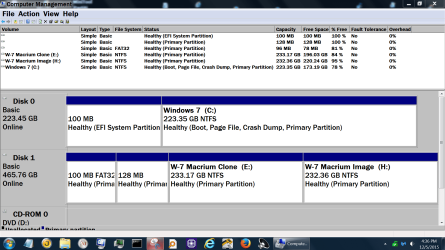
I don't really want to get in the way but I think I can help a little getting everybody on the same page.

Please use this tutorial by Golden so ignatzatsonic and other members can see Disk Management complete and correct.

http://www.sevenforums.com/tutorials/274797-disk-management-post-screen-capture-image-2.html

Using the proper terminology would be helpful.

Disk/drive have numbers. 0, 1,2,3, ect.

Partition have letters C,D,E, ect.
Example:

Disk (#3) has partition (W).

------------------------------

The first thing I would do is unhook all disk/drives except disk/drive (0) and boot.
Doing this will verify that disk/drive (0) with System Reserve and (C) Windows 7 will boot.
**Notice that drive/disk (2) also has (Active)**

***Will it boot with only disk/drive (0) hooked up?***

------------------------------

Is their anything on disk/drive 1,2,3,4,5, that you want to save?
If their is anything on the above disk/drives that is sensitive I would recommend dong a wipe of those drives.
We can guide you with that if need be.

------------------------------

Using Macrium Reflect their is nothing hard about making Images and or Clones. One can do both.
The time downloading PE takes what ever time it takes. That is part of imaging; period.
I personally use both but because I have very little on my systems I prefer Clones.

Example:

Disk Management Dec 5 2015.PNG


Disk Management Jan 28.PNG
 

My Computer My Computer

Computer type
PC/Desktop
Computer Manufacturer/Model Number
Home made Desktop
OS
Windows 10 Pro. 64/ version 1709 Windows 7 Pro/64
CPU
Intel i7-6800K @ 4.3
Motherboard
ASUS X-99 Deluxe II
Memory
Corsair Platinum 16 gig @2400
Graphics Card(s)
EVGA GTX 1070 OC
Monitor(s) Displays
Asus 27" LED LCD/VE278Q
Screen Resolution
1920-1080 or 1280-720 HDMI
Hard Drives
INTEL SSD 730-240 Gb Sata 3.0/
PSU
EVGA Platium 1200W
Case
Phanteks Luxe Tempered Glass 8 fans/ one radiator
Cooling
XSPC/ Water Cooled CPU
Keyboard
Das 4 Professional
Mouse
Logitech M705/MX Anywhere 2-S
Internet Speed
100 mbits
Antivirus
Microsoft Security Essentials/ Malwarebytes Premium 3.0/ SAS
Browser
I.E. 11 default/Firefox/ ISP Time Warner Cable/Spectrum
Other Info
LG BluRay Burner/
Sound system-KLipsch-THX/
Icy Dock ssd Hot Swap bays.
One thing that jumps out at me is, Why is Disk 2 marked Active ?

If it`s already been covered then disregard my question.
 

My Computer My Computer

Computer type
PC/Desktop
Computer Manufacturer/Model Number
Skylake Special #666
OS
Windows 10 Pro x64
CPU
Intel Core i7 6700K
Motherboard
Asus Sabertooth Z170 Mark 1
Memory
GSkill TridentZ RGB 16GB 3600 16-16-16-36
Graphics Card(s)
EVGA GTX 980 Ti SC x2
Sound Card
Realtek High Definition
Monitor(s) Displays
AOC G2460PG
Screen Resolution
1920 x 1080 144Hz
Hard Drives
Samsung 860 Pro 256GB, Seagate Barracuda 4TB x2
PSU
EVGA 1000 P2, EVGA White Custom Braided Cables
Case
Corsair Vengeance C70 Gunmetal Black
Cooling
Corsair H100i v2, Corsair ML120 x2, Thermal Grizzly Kryonaut
Keyboard
Logitech G910 Orion Spectrum
Mouse
Logitech G700s
Internet Speed
Verizon Fios Quantum Gateway 75/75
Antivirus
Windows Defender, Malwarebytes Free 3.8.3
Browser
Chrome
Other Info
Corsair SP120 x4, LG Blu-ray Drive, Durabrand HT-395 100 Watt Dolby Digital Amp, Corsair H2100 Wireless 7.1 Headset
Back
Top