Imaging with free Macrium

   Information

This tutorial shows imaging with free Macrium Version 5.0. If you are still using Macrium Version 4.2, go to this Vimeo site where the tutorial of that version is stored.

The Video does not show the recovery part because I have no setup to screen capture it. But Keith (Kado) made this excellent recovery tutorial with text (but no sound) that he captured from a virtual partition.


   Warning


Note that the external disk to which you image must be formatted in NTFS. A disk that is formatted in Fat32 will accept an image, but the recovery programs cannot restore that image. You can, however, mount (open) a Fat32 image as VHD.


   Note
The production of the WinPE recovery CD (which is highly recommended) may take up to 3 hours because Macrium needs to download the 1.7GB WAIK (Windows Application Installation Kit). For your convenience I have uploaded a ready made .iso of the WinPE recovery disc. That can be downloaded in appr. 8 minutes which clearly beats the WAIK download. Once you downloaded and unzipped the folder, you can burn it directly to a CD with e.g. ImgBurn.

Here is the link to my Skydrive site.

Here is an alternate link from FileSwap (courtesy of Gary - Britton30)

I draw your attention to the fact that this WinPE CD can also be used to make images. That may be convenient in case you do not want to install Macrium on your PC.


This video tutorial explains the full cycle of the imaging process which is:

· Initial setups
· Image definition
· Image scheduling
· Image production

The imaging program that was used for this tutorial is free Macrium. But the basic principles are the same for other imaging programs although the user interface will be different.

This video runs for appr. 7 minutes.
There is a related thread on the Vista forum which gives a brief introduction to Macrium followed by a discussion.
You can download the free Macrium edition from here.

Note: If you have a problem with the loudness of the sound output of the video, check the "Loudness Equalization" box in your Playback device. It is under the 'Enhancements' tab.


Last edited by a moderator:

My Computer

Computer Manufacturer/Model Number
DELLXPS 8300
OS
WIN7 x64 Home Premium SP1
CPU
Intel Core i5-2400 processor(6MB Cache, 3.1GHz)
Memory
8 GB RAM
Hard Drives
1.5TB C Drive
Hi :D

Got 2 questions:

1.- Where can i look if i have the 100 MB boot partition? (sorry, but i'm just starting on this imaging things )

2.-
With free Macrium, a USB drive is not supported for the recovery program.

¿That means i can't use a external USB HDD for storing the full image of my pc?

3.- If i use Macrium for imaging on DVDs, can i use this DVDs with the Sony-Vaio Start Repair Tool? or it only works with the Bootable-CD that you create with the Macrium free software?

Thanks for your time and answers :)
 

My Computer

Computer Manufacturer/Model Number
Sony Vaio
OS
Windows 7 home premium x64
Hi :D

Got 2 questions:

1.- Where can i look if i have the 100 MB boot partition? (sorry, but i'm just starting on this imaging things )

2.-
With free Macrium, a USB drive is not supported for the recovery program.

¿That means i can't use a external USB HDD for storing the full image of my pc?

3.- If i use Macrium for imaging on DVDs, can i use this DVDs with the Sony-Vaio Start Repair Tool? or it only works with the Bootable-CD that you create with the Macrium free software?

Thanks for your time and answers :)

Three questions actually.

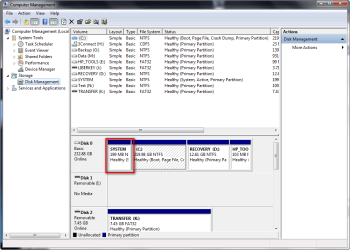
1. You can look in disk management.

2011-07-15_104616.png

In my case it is 199MB. Macrium also displays the partitions when you fire it up.

2. An external USB drive can be used to hold the Macrium backups. I do it all the time. The quote above refers to the recovery environment which can't be installed on a USB HDD. It can be installed on a DVD or with third party tools (or version 5 of Macrium Pro - New release) be installed on a USB flash drive.

3. You need to create a Macrium recovery disk. The Sony Viao Recovery disk, the Windows Repair or Installation disk will not work. You can also use the Mini XP mode on Hirens Boot CD which has the Macrium PE recovery environment in it.
 

My Computer

Computer type
Laptop
Computer Manufacturer/Model Number
Hewlett-Packard/G62-107SA Notebook
OS
Microsoft Windows 7 Home Premium 64-bit Service Pack 1
CPU
Intel(R) Core(TM) i3 CPU M 330 @ 2.13GHz
Motherboard
Hewlett-Packard 1425
Memory
8 GB DDR3
Graphics Card(s)
Intel(R) HD Graphics
Sound Card
Realtek High Definition Audio
Monitor(s) Displays
Builtin
Screen Resolution
1366 x 768 x 32 bits (4294967296 colors) @ 60 Hz
Hard Drives
250 GB SATA Hard Disk Drive 7200 rpm
2TB Seagate GoFlex USB 2 Drive
1TB Iomega Prestige USB 2 Drive
1.5TB Iomega Prestige USB 2 Drive (Samsung)
2TB WD MyBook Live NAS.
Mouse
Logitech Anywhere MX
Internet Speed
152 Mbs download 10 Mbs upload
Antivirus
Norton 360
Browser
Chrome
  • Like
Reactions: whs
1. You see the 1ßßMB partition in Disk Management.
2. You can image to a USB attacjed HDD. The quoted comment refers to the Macrium recovery program which can only be on a CD (with the free version of Macrium - in the Pro version the USB sticks are supported)
3. Imaging to DVDs is not recommended. It works but it is messy. Use a disk. And for recovery you must have the Macrium recovery CD which you can burn in one minute - no other tool will work.

PS: LOL - kado was 3 seconds faster with the right answers.
 

My Computer

Computer Manufacturer/Model Number
HP, Dell, Gateway, Toshiba - 4 laptops and 2 desktops
OS
Vista, Windows7, Mint Mate, Zorin, Windows 8
CPU
from 1.6GHz Duo to i7
Monitor(s) Displays
2x HP w2207
Hard Drives
5x HDD, 7x SSD, 12x Externals
Keyboard
with trackball - no mices
Mouse
Trackball mice
Internet Speed
DSL 6000
Sorry to jump in like that Wolfgang but it was 8 hours since the post and I didn't want the op to feel neglected.
 

My Computer

Computer type
Laptop
Computer Manufacturer/Model Number
Hewlett-Packard/G62-107SA Notebook
OS
Microsoft Windows 7 Home Premium 64-bit Service Pack 1
CPU
Intel(R) Core(TM) i3 CPU M 330 @ 2.13GHz
Motherboard
Hewlett-Packard 1425
Memory
8 GB DDR3
Graphics Card(s)
Intel(R) HD Graphics
Sound Card
Realtek High Definition Audio
Monitor(s) Displays
Builtin
Screen Resolution
1366 x 768 x 32 bits (4294967296 colors) @ 60 Hz
Hard Drives
250 GB SATA Hard Disk Drive 7200 rpm
2TB Seagate GoFlex USB 2 Drive
1TB Iomega Prestige USB 2 Drive
1.5TB Iomega Prestige USB 2 Drive (Samsung)
2TB WD MyBook Live NAS.
Mouse
Logitech Anywhere MX
Internet Speed
152 Mbs download 10 Mbs upload
Antivirus
Norton 360
Browser
Chrome
Sorry to jump in like that Wolfgang but it was 8 hours since the post and I didn't want the op to feel neglected.
That is quite alright. I am currently in a European time zone, so I react a bit late. Your guidance was excellent and right to the point.
 

My Computer

Computer Manufacturer/Model Number
HP, Dell, Gateway, Toshiba - 4 laptops and 2 desktops
OS
Vista, Windows7, Mint Mate, Zorin, Windows 8
CPU
from 1.6GHz Duo to i7
Monitor(s) Displays
2x HP w2207
Hard Drives
5x HDD, 7x SSD, 12x Externals
Keyboard
with trackball - no mices
Mouse
Trackball mice
Internet Speed
DSL 6000
Thank you very much!

I already imaged with win7-tool on my HDD (formatted it to NTFS, it was FAT32 so i couldn't use it). And created a win7 system repair dvd.

so, now ill image with free-macrium ( so i can have 2 images, coming from different programs ).

This is my Disk Management:

disk manager nuevo.JPG

So i think i must mark ( C: ) as active (cause i don't have system reserved 100MB partition and because the C: has the Boot (Arranque, in spanish)), and I should replace the MBR.

Then, I have an extra "recuperative partition" from Sony-Vaio. (That i should mark it as pimary when imaging right? and when restoring i shouldn't replace the MBR there.

So, i can image both partitions ( "C:" and "Vaio-Restore-thing" ) at the same time. But when i'm going to restore, i should restore first the C: and after i've restored that i can restore the "vaio-blabla".

Am I right at all?

Thank you very much for your time and answers, really :p
 

My Computer

Computer Manufacturer/Model Number
Sony Vaio
OS
Windows 7 home premium x64
Yes that sounds right. I can't remember whether the Windows restore gives you an option on marking the partition type and whether to restore the mbr but Macrium Free does and also suggests what you should mark them as.
 

My Computer

Computer type
Laptop
Computer Manufacturer/Model Number
Hewlett-Packard/G62-107SA Notebook
OS
Microsoft Windows 7 Home Premium 64-bit Service Pack 1
CPU
Intel(R) Core(TM) i3 CPU M 330 @ 2.13GHz
Motherboard
Hewlett-Packard 1425
Memory
8 GB DDR3
Graphics Card(s)
Intel(R) HD Graphics
Sound Card
Realtek High Definition Audio
Monitor(s) Displays
Builtin
Screen Resolution
1366 x 768 x 32 bits (4294967296 colors) @ 60 Hz
Hard Drives
250 GB SATA Hard Disk Drive 7200 rpm
2TB Seagate GoFlex USB 2 Drive
1TB Iomega Prestige USB 2 Drive
1.5TB Iomega Prestige USB 2 Drive (Samsung)
2TB WD MyBook Live NAS.
Mouse
Logitech Anywhere MX
Internet Speed
152 Mbs download 10 Mbs upload
Antivirus
Norton 360
Browser
Chrome
I've got another doubt:

When i restore the Sony-Vaio-Recuperative-Partition, what should be my partition destiny?
Because the partition where i store now that, doesn't have a letter ( E:, F:, etc)

Is the first partition, the one of 11 GB
disk manager nuevo.JPG

Sorry if my doubts are stupid :D I think i understood all, but when i saw my disk management, that SonyVaio-RecuperativePartition i got confused.

Thanks!
 

My Computer

Computer Manufacturer/Model Number
Sony Vaio
OS
Windows 7 home premium x64
1. Yes you deal with C as Active

2. The recovery partition I would image only once and keep it in stock - in case your HDD breaks. No need to restore it. But I would also burn the Win7 recovery DVD from it.

The recovery partition is a hiden partition. If you want it to have a letter, right click on it in Disk Management and assign a letter. But as I said, there is really no need to touch it.

3. You can replace the MBR, but if the disk did not break and you installed a new disk, it is not necessary.
 

My Computer

Computer Manufacturer/Model Number
HP, Dell, Gateway, Toshiba - 4 laptops and 2 desktops
OS
Vista, Windows7, Mint Mate, Zorin, Windows 8
CPU
from 1.6GHz Duo to i7
Monitor(s) Displays
2x HP w2207
Hard Drives
5x HDD, 7x SSD, 12x Externals
Keyboard
with trackball - no mices
Mouse
Trackball mice
Internet Speed
DSL 6000
+ to WHS advice. Your system active is also your "Boot" (Windows) partition.

Windows Imaging is a good additional imaging tool that takes care of these little things like MBR and correct active partition.
 

My Computer

Computer type
PC/Desktop
Computer Manufacturer/Model Number
Own build
OS
Windows 7x64 Home Premium SP1
CPU
Intel i7 2600k
Motherboard
ASUS P8Z68 Deluxe
Memory
G.Skill Ripjaws (DDR3-1600) 2x4GB
Graphics Card(s)
Nvidia GeForce GTS 450; Intel HD Graphics 3000(GT2+)
Monitor(s) Displays
Dell Ultrasharp IPS panel U2311H, Samsung SyncMaster P2350
Screen Resolution
1920x1080
Hard Drives
Samsung 850 Pro SSD 256GB, Samsung SSD 840 120GB, Seagates 1TB Barracuda ST31000528AS x2
PSU
Seasonic M12II 520W
Case
Lian Li Lancool PC-K60
Cooling
Case: 1x120mm, 3x140mm CPU: Hyper 212+
Keyboard
Logitech MK520 (wireless)
Mouse
Logitech MK520
Internet Speed
6-7 Mbps
Antivirus
Norton Security Premium, Malwarebytes on 2 (MSE on 3rd PC)
Browser
FireFox
Other Info
Audio: Logitech Z523 2.1
Thank you very much, i imaged with free-macrium, setting C: as active, and the hidden-vaio-partition as primary. If i have to restore it in the future, i think i'll come back to this forum and ask again for getting things clear.

Again, thanks for your time and answers ! Good job helping the others :)
 

My Computer

Computer Manufacturer/Model Number
Sony Vaio
OS
Windows 7 home premium x64
You are welcome ijmolina. Take care.
 

My Computer

Computer type
Laptop
Computer Manufacturer/Model Number
Hewlett-Packard/G62-107SA Notebook
OS
Microsoft Windows 7 Home Premium 64-bit Service Pack 1
CPU
Intel(R) Core(TM) i3 CPU M 330 @ 2.13GHz
Motherboard
Hewlett-Packard 1425
Memory
8 GB DDR3
Graphics Card(s)
Intel(R) HD Graphics
Sound Card
Realtek High Definition Audio
Monitor(s) Displays
Builtin
Screen Resolution
1366 x 768 x 32 bits (4294967296 colors) @ 60 Hz
Hard Drives
250 GB SATA Hard Disk Drive 7200 rpm
2TB Seagate GoFlex USB 2 Drive
1TB Iomega Prestige USB 2 Drive
1.5TB Iomega Prestige USB 2 Drive (Samsung)
2TB WD MyBook Live NAS.
Mouse
Logitech Anywhere MX
Internet Speed
152 Mbs download 10 Mbs upload
Antivirus
Norton 360
Browser
Chrome
Windows 7, SP1, IE-9

When Restoring a backed up Image, how do you select an Image that has 3 partitions on a single Hard Drive?

My Hard Drive is comprised of a System Partition (100)MB; a "C" Partition with the Operating System (Windows 7), Programs, Documents, and the Factory Restore Partition. Macrium Backup & Restore displays all of the separate patitions for my drive. When trying to do a restore I can only select 1 partition at a time. Is this normal or is there a way to restore the complete image at once?

Thanks for any help
 

My Computer

Computer Manufacturer/Model Number
HP Pavilion Elite HPE
OS
Windows 7 Home Premium x64
CPU
3.33 gigahertz Intel Core i7 975; 32 kilobyte primary memory
Motherboard
Board: PEGATRON CORPORATION TRUCKEE 1.04E01
Memory
12280 Megabytes Usable Installed Memory
Graphics Card(s)
ATI Radeon HD 4800 Series [Display adapter]
Sound Card
ATI High Definition Audio Device
Monitor(s) Displays
ATV AT240HP [Monitor] (23.6"vis, s/n AT936M1001155, Septembe
Hard Drives
ST31500341AS [Hard drive] (1500.30 GB) -- drive 0, s/n 9VS2P2Z3, SMART Status: Healthy
7200 RPM
Case
Tower
Keyboard
Wireless
Mouse
Wireless
Internet Speed
Broadband 6-10 MB/s
Other Info
Windows Experience Index (WEI) 5.9, based upon Hard Drive
This is normal. I believe that with Macrium you need to restore them one at a time. At least I always have.
 

My Computer

Computer type
Laptop
Computer Manufacturer/Model Number
Hewlett-Packard/G62-107SA Notebook
OS
Microsoft Windows 7 Home Premium 64-bit Service Pack 1
CPU
Intel(R) Core(TM) i3 CPU M 330 @ 2.13GHz
Motherboard
Hewlett-Packard 1425
Memory
8 GB DDR3
Graphics Card(s)
Intel(R) HD Graphics
Sound Card
Realtek High Definition Audio
Monitor(s) Displays
Builtin
Screen Resolution
1366 x 768 x 32 bits (4294967296 colors) @ 60 Hz
Hard Drives
250 GB SATA Hard Disk Drive 7200 rpm
2TB Seagate GoFlex USB 2 Drive
1TB Iomega Prestige USB 2 Drive
1.5TB Iomega Prestige USB 2 Drive (Samsung)
2TB WD MyBook Live NAS.
Mouse
Logitech Anywhere MX
Internet Speed
152 Mbs download 10 Mbs upload
Antivirus
Norton 360
Browser
Chrome
Absolutely, kado is right. You can image multiple partitions in one run but you can only restore each one at a time.
 

My Computer

Computer Manufacturer/Model Number
HP, Dell, Gateway, Toshiba - 4 laptops and 2 desktops
OS
Vista, Windows7, Mint Mate, Zorin, Windows 8
CPU
from 1.6GHz Duo to i7
Monitor(s) Displays
2x HP w2207
Hard Drives
5x HDD, 7x SSD, 12x Externals
Keyboard
with trackball - no mices
Mouse
Trackball mice
Internet Speed
DSL 6000
Windows 7SP-1, 64Bit, IE-9

Thanks for that info. I'm new to Macrium Reflect. I just crapped a restore on my computer. I choose to restore only the System & "C" Partitions and when it all finished I had a black screen with an active cursor, but nothing else. Nothing would activate. Better said, would be, Windows did not load, nor did I get to the Desktop. I was able to shut down the computer, and restore with Acronis True Image which I am more familiar with. The Backup I used had been Validated. I did skip the offer to re-Validate the image before restore so was this wise? Also, could skipping the restore of the Factory partition have had an adverse effect on the restore? Again, thanks for any help or info.
 

My Computer

Computer Manufacturer/Model Number
HP Pavilion Elite HPE
OS
Windows 7 Home Premium x64
CPU
3.33 gigahertz Intel Core i7 975; 32 kilobyte primary memory
Motherboard
Board: PEGATRON CORPORATION TRUCKEE 1.04E01
Memory
12280 Megabytes Usable Installed Memory
Graphics Card(s)
ATI Radeon HD 4800 Series [Display adapter]
Sound Card
ATI High Definition Audio Device
Monitor(s) Displays
ATV AT240HP [Monitor] (23.6"vis, s/n AT936M1001155, Septembe
Hard Drives
ST31500341AS [Hard drive] (1500.30 GB) -- drive 0, s/n 9VS2P2Z3, SMART Status: Healthy
7200 RPM
Case
Tower
Keyboard
Wireless
Mouse
Wireless
Internet Speed
Broadband 6-10 MB/s
Other Info
Windows Experience Index (WEI) 5.9, based upon Hard Drive
Whenever I have had to restore with Macrium. I have just restored System and C and done so without problem.
 

My Computer

Computer type
Laptop
Computer Manufacturer/Model Number
Hewlett-Packard/G62-107SA Notebook
OS
Microsoft Windows 7 Home Premium 64-bit Service Pack 1
CPU
Intel(R) Core(TM) i3 CPU M 330 @ 2.13GHz
Motherboard
Hewlett-Packard 1425
Memory
8 GB DDR3
Graphics Card(s)
Intel(R) HD Graphics
Sound Card
Realtek High Definition Audio
Monitor(s) Displays
Builtin
Screen Resolution
1366 x 768 x 32 bits (4294967296 colors) @ 60 Hz
Hard Drives
250 GB SATA Hard Disk Drive 7200 rpm
2TB Seagate GoFlex USB 2 Drive
1TB Iomega Prestige USB 2 Drive
1.5TB Iomega Prestige USB 2 Drive (Samsung)
2TB WD MyBook Live NAS.
Mouse
Logitech Anywhere MX
Internet Speed
152 Mbs download 10 Mbs upload
Antivirus
Norton 360
Browser
Chrome
You can use Diskrestore to do the whole lot at once - but you need to put it on your winpe boot media.

download diskrestore.msi
 

My Computers

System One System Two

  • Computer type
    PC/Desktop
    OS
    7 X64
    CPU
    i5 8400
    Motherboard
    gigabyte b365m ds3h
    Memory
    2x8gb 3200mhz
    Hard Drives
    various
    PSU
    pure power 11 400w cm
    Case
    Coolermaster
    Cooling
    cryorig m9i
  • Computer type
    PC/Desktop
    OS
    7x64
    CPU
    g5400
    Motherboard
    ga b365m ds3h
    Memory
    8gb ddr4 2400
    PSU
    xfx pro 450w
Windows 7SP-1, 64Bit, IE-9

Thanks for that info. I'm new to Macrium Reflect. I just crapped a restore on my computer. I choose to restore only the System & "C" Partitions .....
When restoring with Macrium with the separate system reserved partition and you are restoring both system reserved and C:, you must select
System reserved = active
C: (Boot,.. the OS) = NOT active

I generally say "yes" to replacing the backup MBR when replacing the system reserved but in most cases the MBR will be the same.

Add: Each to their own but I find restoring one partition at a time not a hassle. It has an advantage in seeing your success or otherwise one partition at a time.

Coop1, SIW2
(SIW2 you prompted my search)
there appears to be an exe you can run now from an existing pe disk.
http://kb.macrium.com/KnowledgebaseArticle50004.aspx?Keywords=Restore
 
Last edited:

My Computer

Computer type
PC/Desktop
Computer Manufacturer/Model Number
Own build
OS
Windows 7x64 Home Premium SP1
CPU
Intel i7 2600k
Motherboard
ASUS P8Z68 Deluxe
Memory
G.Skill Ripjaws (DDR3-1600) 2x4GB
Graphics Card(s)
Nvidia GeForce GTS 450; Intel HD Graphics 3000(GT2+)
Monitor(s) Displays
Dell Ultrasharp IPS panel U2311H, Samsung SyncMaster P2350
Screen Resolution
1920x1080
Hard Drives
Samsung 850 Pro SSD 256GB, Samsung SSD 840 120GB, Seagates 1TB Barracuda ST31000528AS x2
PSU
Seasonic M12II 520W
Case
Lian Li Lancool PC-K60
Cooling
Case: 1x120mm, 3x140mm CPU: Hyper 212+
Keyboard
Logitech MK520 (wireless)
Mouse
Logitech MK520
Internet Speed
6-7 Mbps
Antivirus
Norton Security Premium, Malwarebytes on 2 (MSE on 3rd PC)
Browser
FireFox
Other Info
Audio: Logitech Z523 2.1
Back
Top