
Import picture settings

Shipwreck

New member
Local time
5:05 AM
Messages
11
Location
Surrey UK
Hi all. When I first attached my digital camera to the computer I was able to select a location for the photos to be placed. However it has now decided to place them in the default pictures folder.

My question is, how can I access the "Import Pictures and Video settings" to change the settings?

If I connect my camera now, it automatically retrieves the photos. If I turn the camera off & back on again I get two boxes pop up, one over the other. Top one says "No new pictures or videos etc" When I move that box aside to view the other box I can see the box with the "Import settings" that I want. :mad: Unfortunately I have to close the upper box first which in turn closes the lower box. Where else can I get to the settings?

Sorry about the rambling.
Regards,
Roy.
 

My Computer

Computer Manufacturer/Model Number
Dell Studio XPS 8100
OS
Windows 7 Ultimate x64
CPU
Intel Core i7 870 @ 2933MHz
Motherboard
Dell 0G3HR7
Memory
8192MB (4 x 2048 DDR3-SDRAM )
Graphics Card(s)
NVIDIA GeForce GTS 240
Monitor(s) Displays
RADEON 9200SE
Hard Drives
C: Seagate ST31000528AS (1000GB)

D: Western Digital WD10EARS-00Y5B1 (1000GB)
Try changing the autoplay setting for Pictures. Search for Autoplay in the start menu.

Capture.PNG
 

My Computer

Computer Manufacturer/Model Number
Custom
OS
Windows 7 Professional x64
CPU
Intel i7 2600K OC'd @ 4620 MHz
Motherboard
Asus P8Z68-V Pro
Memory
16GB GSkill Sniper 2133 Mhz (4x4GB)
Graphics Card(s)
EVGA GeForce GTX 480 SuperClocked+
Sound Card
Realtek High Definition Audio
Monitor(s) Displays
2x Acer S273HLbmii 27"
Screen Resolution
2 x 1920x1080
Hard Drives
64GB Crucial M4 SSD

Storage: Hitachi 1TB 5400RPM, Samsung 1.5TB 5400RPM
PSU
Corsair HW Series 750w (modular)
Case
Cooler Master HAF 932 Advanced Blue Edition
Cooling
CM Hyper 212+ CPU cooler, 3x 230mm + 1x 140mm case fans
Keyboard
Logitech MK320 (wireless)
Mouse
Logitech MK320 (wireless)
Internet Speed
30 Mb/s : 2 Mb/s
Hi Jonathan, thank you for the quick response. Although doing that allows me to choose to "import pictures and videos" it does not allow me to choose the locatation. unless of course I'm missing something?

Regards,
Roy.
 

My Computer

Computer Manufacturer/Model Number
Dell Studio XPS 8100
OS
Windows 7 Ultimate x64
CPU
Intel Core i7 870 @ 2933MHz
Motherboard
Dell 0G3HR7
Memory
8192MB (4 x 2048 DDR3-SDRAM )
Graphics Card(s)
NVIDIA GeForce GTS 240
Monitor(s) Displays
RADEON 9200SE
Hard Drives
C: Seagate ST31000528AS (1000GB)

D: Western Digital WD10EARS-00Y5B1 (1000GB)
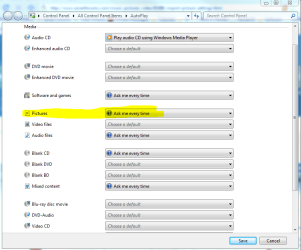
I believe it means import them into the Pictures folder.
 

My Computer

Computer Manufacturer/Model Number
Custom
OS
Windows 7 Professional x64
CPU
Intel i7 2600K OC'd @ 4620 MHz
Motherboard
Asus P8Z68-V Pro
Memory
16GB GSkill Sniper 2133 Mhz (4x4GB)
Graphics Card(s)
EVGA GeForce GTX 480 SuperClocked+
Sound Card
Realtek High Definition Audio
Monitor(s) Displays
2x Acer S273HLbmii 27"
Screen Resolution
2 x 1920x1080
Hard Drives
64GB Crucial M4 SSD

Storage: Hitachi 1TB 5400RPM, Samsung 1.5TB 5400RPM
PSU
Corsair HW Series 750w (modular)
Case
Cooler Master HAF 932 Advanced Blue Edition
Cooling
CM Hyper 212+ CPU cooler, 3x 230mm + 1x 140mm case fans
Keyboard
Logitech MK320 (wireless)
Mouse
Logitech MK320 (wireless)
Internet Speed
30 Mb/s : 2 Mb/s
You are right Jonathan. However the first time I plugged in my camera the settings allowed me to choose a folder to place them in. Not the "Pictures" folder. It worked for quite a while until Windows decided to default back to "Pictures". Now I can see the "import settings" link when the box pops up, just can't click on it or find any other way of choosing the folder I want.
 

My Computer

Computer Manufacturer/Model Number
Dell Studio XPS 8100
OS
Windows 7 Ultimate x64
CPU
Intel Core i7 870 @ 2933MHz
Motherboard
Dell 0G3HR7
Memory
8192MB (4 x 2048 DDR3-SDRAM )
Graphics Card(s)
NVIDIA GeForce GTS 240
Monitor(s) Displays
RADEON 9200SE
Hard Drives
C: Seagate ST31000528AS (1000GB)

D: Western Digital WD10EARS-00Y5B1 (1000GB)
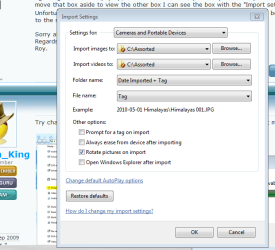
Hi again Jonathan, I have just plugged in my wife's camera. This allowed me to click on the settings link I was telling you about. Please see attached picture. It had remembered my choice of location for her camera but not mine. How else can I get to this settings box?
 

Attachments

  • Capture.PNG
    Capture.PNG
    22.2 KB · Views: 295

My Computer

Computer Manufacturer/Model Number
Dell Studio XPS 8100
OS
Windows 7 Ultimate x64
CPU
Intel Core i7 870 @ 2933MHz
Motherboard
Dell 0G3HR7
Memory
8192MB (4 x 2048 DDR3-SDRAM )
Graphics Card(s)
NVIDIA GeForce GTS 240
Monitor(s) Displays
RADEON 9200SE
Hard Drives
C: Seagate ST31000528AS (1000GB)

D: Western Digital WD10EARS-00Y5B1 (1000GB)
Jonathan, I have found a sort of fix. Take lots of new pictures (I used burst mode) Plug in the camera, when the import box pops up bottom right of the screen you get about two seconds to click on the "import settings" link before that box closes. Phew... You would think their would be an easier way to do it!

Thanks anyway for your support. I hope this helps other people with the same problem.
Regards,
Roy. :)
 

My Computer

Computer Manufacturer/Model Number
Dell Studio XPS 8100
OS
Windows 7 Ultimate x64
CPU
Intel Core i7 870 @ 2933MHz
Motherboard
Dell 0G3HR7
Memory
8192MB (4 x 2048 DDR3-SDRAM )
Graphics Card(s)
NVIDIA GeForce GTS 240
Monitor(s) Displays
RADEON 9200SE
Hard Drives
C: Seagate ST31000528AS (1000GB)

D: Western Digital WD10EARS-00Y5B1 (1000GB)
click on the settings link will not open

Can someone help me with this, when I plug in my camera the import pictures and video box comes up put when I click on the import settings link nothing happens, how can I fix this?
 

My Computer

OS
Windows 7 Home Premium
import settings problem

Hi All

I have a problem that i have not found a solution for
when i try to import pictures through the windows importing wizard "import pictures and videos" i cannot not modify the "import settings" option.
what exactly happens is that if i click on the "impost settings" button/link nothing happens

Has anyone heard about this problem and solution?:rolleyes:
 

My Computer

Computer Manufacturer/Model Number
TOSHIBA R700
OS
WINDOWS 7 PROFESSIONAL X64
It doesn't work on mine because I don't have any settings but you might try plugging in your camera and going to devices and printers in control panel and right clicking on the camera icon.
 

My Computer

Computer type
Laptop
Computer Manufacturer/Model Number
Hewlett-Packard/G62-107SA Notebook
OS
Microsoft Windows 7 Home Premium 64-bit Service Pack 1
CPU
Intel(R) Core(TM) i3 CPU M 330 @ 2.13GHz
Motherboard
Hewlett-Packard 1425
Memory
8 GB DDR3
Graphics Card(s)
Intel(R) HD Graphics
Sound Card
Realtek High Definition Audio
Monitor(s) Displays
Builtin
Screen Resolution
1366 x 768 x 32 bits (4294967296 colors) @ 60 Hz
Hard Drives
250 GB SATA Hard Disk Drive 7200 rpm
2TB Seagate GoFlex USB 2 Drive
1TB Iomega Prestige USB 2 Drive
1.5TB Iomega Prestige USB 2 Drive (Samsung)
2TB WD MyBook Live NAS.
Mouse
Logitech Anywhere MX
Internet Speed
152 Mbs download 10 Mbs upload
Antivirus
Norton 360
Browser
Chrome
This whole process is kind of weird. I understand how AutoPlay works, but it won't let you change anything after you set it. The first time it comes up, you click the import settings button and it comes up with a menu displayed in the most recent picture. Every time after that, it just does it. There's no way to configure this anymore after you set it. The AutoPlay menu is of no help. The only way is to have it ask every time, try it again, then make your changes.

Or like someone said, you can just take a lot of photos and click that button as it comes up, so long as you are quick enough.

Does anyone know how to access that menu AFTER you set everything?
 

My Computer

OS
Windows 7 64 Bit, Windows 8 64 Bit Build 8102
how to get around import setting problems for pictures

an easy fix for this as i have spent hours trying sort this is to downlaod picasa 3 from google when you start picasa go to tools at the top click on options at bottom of drop down go to the bottom of that were you will see import pictures and change there where you want your pictures to go.
 

My Computer

OS
win 7 ultimate
That makes sense, thanks fore the tip!
 

My Computer

OS
Windows 7 64 Bit, Windows 8 64 Bit Build 8102
Hi All

I have a problem that i have not found a solution for
when i try to import pictures through the windows importing wizard "import pictures and videos" i cannot not modify the "import settings" option.
what exactly happens is that if i click on the "impost settings" button/link nothing happens

Has anyone heard about this problem and solution?:rolleyes:


Hi - I'm having exactly the same problem! Did you ever find out how to get the "import settings" function working again please? I'm guessing something must have got corrupted in our registry...
 

My Computer

OS
Windows 7 Home Premium 64 bit
Hello. Good news - I found an indirect way to get my "Import settings" functioning again. I basically had to create a new user via the Control Panel and copied my files across as shown below. Now everything is fine!

To create a new user profile

To create a new profile, you must first create a new user account. When the account is created, a profile will also be created.

  1. Open User Accounts by clicking the Start button
    4f6cbd09-148c-4dd8-b1f2-48f232a2fd33_47.png
    , clicking Control Panel, clicking User Accounts and Family Safety (or clicking User Accounts, if you are connected to a network domain), and then clicking User Accounts.
  2. Click Manage another account.
    18abb370-ac1e-4b6b-b663-e028a75bf05b_41.png
    If you are prompted for an administrator password or confirmation, type the password or provide confirmation.
  3. Click Create a new account.
  4. Type the name you want to give the user account, click an account type, and then click Create Account.
To copy files to the new user profile

After you create the profile, you can copy the files from the existing profile. You must have at least three user accounts on the computer to complete these steps, including the new account you just created.

  1. Log on as a user other than the new user you just created or the user that you want to copy files from.
  2. Open Documents by clicking the Start button
    4f6cbd09-148c-4dd8-b1f2-48f232a2fd33_47.png
    , and then clicking Documents.
  3. Click the Tools menu, and then click Folder Options.
    If you don't see the Tools menu, press ALT.
  4. Click the View tab, click Show hidden files and folders, clear the Hide protected operating system files check box, and then click OK.
  5. Locate the C:\Users\Old_Username folder, where C is the drive that Windows is installed, and Old_Username is the name of the profile you want to copy files from.
  6. Select all of the files and folders in this folder, except the following files:
    • Ntuser.dat
    • Ntuser.dat.log
    • Ntuser.ini
  7. Click the Edit menu, and then click Copy.
    If you don't see the Edit menu, press ALT.
  8. Locate the C:\Users\New_Username folder, where C is the drive that Windows is installed, and New_Username is the name of the new user profile you created.
  9. Click the Edit menu, and then click Paste.
    If you don't see the Edit menu, press ALT.
  10. Log off, and then log back on as the new user.
 

My Computer

OS
Windows 7 Home Premium 64 bit
Back
Top