
How to Add or Remove a File Type from the Index in Windows 7 and Windows 8
Information
The Index keeps track of the files on your computer and stores information about the files, including the file name, date modified, and properties like author, tags, and rating. The index is used to make searching for files in Windows much faster. Instead of looking through your entire hard disk for a file name or file property, Windows scans the index, which allows most results to appear in a small fraction of the time that a search without the index would take.
This will show you how to add or remove a file extension type from the index, for the included folder locations, to be included or not in the search results in Windows 7 and Windows 8.
This will show you how to add or remove a file extension type from the index, for the included folder locations, to be included or not in the search results in Windows 7 and Windows 8.
Note
When you add a file type, you have the option to have the file indexed by one of the options below.
- Index Properties Only - The metadata for that file will be included in the index. For example, file name, date modified, author, etc... It will basically be what you see when you right click on the file and click on Properties and the Details tab.
- Index Properties and File Contents - The above will be inlcuded as well as the contents of the file itself if available. For example, all text in a Notepad .txt file. Not all file types contain text though.
Here's How:
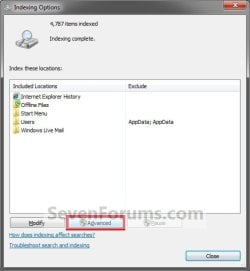
1. Open the Control Panel (icons view) in Windows 7 or Windows 8, and click/tap on Indexing Options icon.
2. Click/tap on the Advanced button. (See screenshot below)
3. If prompted by UAC, then click/tap on Yes.
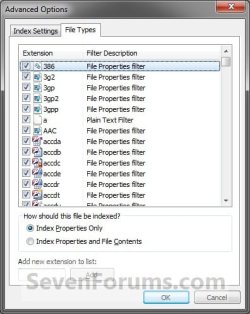
4. Click/tap on the File Types tab. (See screenshot below)
5. To Add a File Type to the Index
A) Select and check the box for the listed file extension that you want to add. (See screenshot above)
Tip
If the file extension is not listed, then in the Add new extension to list box, type in the file name extension (ex: txt) and click on the Add button.
B) Select (dot) if you want this file to be indexed using Index Properties Only or Index Properties and File Contents. (See screenshot below step 4)
NOTE: See the note box at the top of the tutorial for more on this.
C) Go to step 7.
6. To Remove a File Type from the Index
A) Select and uncheck the box for the listed file extension that you want to remove. (See screenshot below step 4)
7. Repeat steps 5 and 6 if you want to add or remove anymore file extention types.
8. When finished, click/tap on OK. (See screenshot below step 4)
9. Click/tap on OK. (See screenshot below)
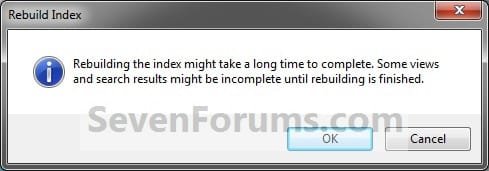
10. After a moment, you will notice the index being rebuilt. Click/tap on Close. (See screenshot below step 2)
That's it,
Shawn
Related Tutorials
- How to Search in Windows 7
- How to Add or Remove Index Locations in Windows 7 and Windows 8
- How to Change Location Where Index is Stored in Windows 7 and Windows 8
- How to Pause the Index in Windows 7 and Windows 8
- How to Rebuild the Index in Windows 7 and Windows 8
- How to Change or Restore the Default Windows 7 Search Options
- How to Create a Search Shortcut in Windows 7
- How to Create a Indexing Options Shortcut in Windows 7
- How to Create a Search and Indexing Troubleshoot Shortcut in Windows 7
- How to Enable or Disable the Search Index in Vista and Windows 7
- How to Have More Accurate Search Results in Windows 7 and Vista
Last edited:
