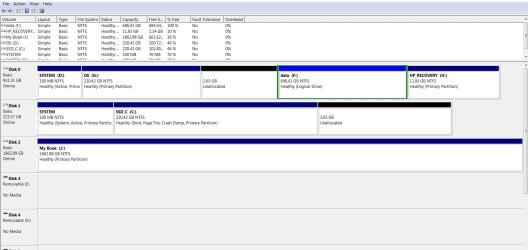
Congratulations! We've seen a lot of problems with Macrium cloning lately but the last screenshot shows you did it correctly!
The SSD clone is booting as C with the System Active boot files on the System Reserved partition on that same drive as intended. You should be able to boot the SSD now with the HD detached. See if that resolves your slow boot problem. If not I'd move the data off the HD and wipe it with
Diskpart Clean Command before repartitioning it as a data drive.
Then swap the cables between the SSD and HD so the SSD is in the preferred DISK0 position to avoid future problems derailing the System partition to a preceding Primary partition if/when you run Repair or Reinstall. An alternative if the data drive is going to be in first position is to format it Logical which cannot have the boot files derailed to those:
Partition / Extended : Logical Drives - Windows 7 Forums
Make sure the SSD is set as Primary hard drive in BIOS setup, and as the first device to Boot in the BIOS BOot Priority order. Some BIOS have both settings, others only the Boot Order to set a HD as first to boot.
Do you want to keep some or all data on the data partition on the hard drive, perhaps linked to the SSD? The data is the one element you can keep on the HD without affecting speed, while all Programs, the OS and Paging file need to stay on the SSD to be fastest.
If so you can rightclick folders on the Data partition to add them to the related
Library - Include a Folder - Windows 7 Forums or even copy your User folders (Document, Pictures, etc) to the Data partition to include in their related Library, setting the data partition copy as the default
Library - Set Save Folder - Windows 7 Help Forums .
If you're even more serious about having your User folders reside on the data drive, you can also move the User folders themselves there as shown in
User Folders - Change Default Location . The only drawback to this is you can't use Windows Backup imaging without it wanting to include the data drive as a system partition, but Macrium doesn't do that so you'd be fine with it.
Once you're ready to get rid of the Win7 partitions on the hard drive,
Mark System Reserved Inactive then delete each in Disk Mgmt. You can then create new Partitions there or Extend the data partition into the Unallocated space by as much as you want using
How to extend partition easily with Partition Wizard - video help.
If you're not satisfied with the speeds and still have the HP factory preinstall, remember that is the worst possible install of Win7 in the industry, larded with more bloatware and duplicate factory utilities that interfere with better versions built into Win7. So you'll only enjoy native Win7 perfect performance if you do a
Clean Reinstall Windows 7. The steps in the blue link show how to get the best possible install possible.