Solved Installed 7 Home Prm on Del with 2 Drives. How do I clean off D Drive?

jj643

New member
Local time
12:53 PM
Messages
12
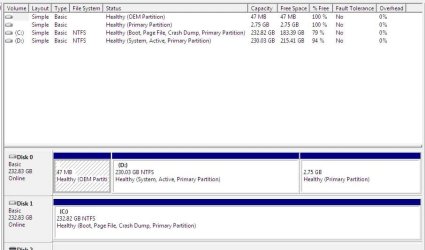
I have just installed 7 home premium of my Dell XPS computer that has two drives. Before installing Windows 7, I had XP on the C drive and all data on the D drive. After the install, my D drive lost all of my data, and ended up with Windows.old on it. I have been trying to clean off the D drive so that I can keep my personal files there. So far, I have deleted most of the Windows.old but have discovered that some systems files are in-use and will not come off. I have read a number of post on this forum that seem to be a similar problem, but am still a bit confused. Should I do a clean, format, make D inactive, or other. If I make D inactive, can I safely finish deleting the system files? Or maybe Reformat it? Here are two screen shots that I hope might help:

I hope this works. This is my first posting of this forum. Thanks for any help.
 

Attachments

  • Diskpart List Vol 1.jpg
    Diskpart List Vol 1.jpg
    54.7 KB · Views: 37
  • Disk Mgt 1.jpg
    Disk Mgt 1.jpg
    69.3 KB · Views: 1
Last edited:

My Computer My Computer

At a glance

Windows 7 32 bit Home Premium3 GB
Computer type
PC/Desktop
Computer Manufacturer/Model Number
Dell XPS
OS
Windows 7 32 bit Home Premium
Memory
3 GB
Hard Drives
2 250GB HDD
Antivirus
Norton Internet Security
I have read everything that I could on this forum but still was unsure. I tried changing D to inactive. After that, the system would not boot. I used a system repair disk to repair the problem and change D back to active. So, obviously there is more to this than just changing D to inactive.

What I want is for the system to only use C to boot and run and let me have D entirely for data. Is this a bad idea? I do a lot of video editing and may fill this drive up and eventually want to replace it with a larger drive. Thanks for any help.
 

My Computer My Computer

At a glance

Windows 7 32 bit Home Premium3 GB
Computer type
PC/Desktop
Computer Manufacturer/Model Number
Dell XPS
OS
Windows 7 32 bit Home Premium
Memory
3 GB
Hard Drives
2 250GB HDD
Antivirus
Norton Internet Security
I have read everything that I could on this forum but still was unsure. I tried changing D to inactive. After that, the system would not boot. I used a system repair disk to repair the problem and change D back to active. So, obviously there is more to this than just changing D to inactive.

What I want is for the system to only use C to boot and run and let me have D entirely for data. Is this a bad idea? I do a lot of video editing and may fill this drive up and eventually want to replace it with a larger drive. Thanks for any help.

It seems that you have installed windows 7 onto your d drive. During setup there is a window to select which drive to install windows on. What I think you should do is reinstall windows 7 but before you do that, backup anything important. Then once you get to the window to choose where you want to put the windows installation which in your case is drive C. Once you're done with that, make sure you backed up everything you need, go to the windows explorer, right click the d drive click format, and a window should pop up. Leave all of that alone. But, if you want you can change the name of the drive with the text field at the bottom of the window. Click start. This may take a while. Once you are done, use the free drive for whatever you want!
 

My Computer My Computer

At a glance

Windows 7 Home Premium x64Intel Pentium Dual-Core T4300 / 2.10 GHz4 GB DDR2 SDRAMMobile Intel® 4 Series Express Chipset Family
Computer type
Laptop
Computer Manufacturer/Model Number
Dell Inspiron 1545
OS
Windows 7 Home Premium x64
CPU
Intel Pentium Dual-Core T4300 / 2.10 GHz
Motherboard
Dell G849F, Socket 370
Memory
4 GB DDR2 SDRAM
Graphics Card(s)
Mobile Intel® 4 Series Express Chipset Family
Sound Card
IDT High Definition Audio CODEC
Monitor(s) Displays
Built in monitor and my TV
Screen Resolution
1366x768
Hard Drives
350.0 GB HDD
350.0 GB HDD (External)
Antivirus
avast!
Browser
Chrome, Firefox
Windows 7 is on the C drive. C is listed as the Boot drive. From what I can tell, the Windows 7 Upgrade made a copy of Windows on the D drive named Windows.old. So far, I have deleted almost all of this old stuff except for some system files that are in use. After deleting all of this old stuff, my computer still boots up and runs OK.
 

My Computer My Computer

At a glance

Windows 7 32 bit Home Premium3 GB
Computer type
PC/Desktop
Computer Manufacturer/Model Number
Dell XPS
OS
Windows 7 32 bit Home Premium
Memory
3 GB
Hard Drives
2 250GB HDD
Antivirus
Norton Internet Security
I hate to do another reply to my own thread but I have been working on this and have run into another confusion. I have installed Partition Wizard. In the process of running PW, I noticed that the file status on PW and Disk Management didn't agree? Disk Management (DM) shows my D drive as (System, Active). PW shows it as (Active, Boot). DM shows my C drive as (Boot, Page File, etc). Pw shows it as (System). I am including a screen shot from PW. Can anybody make any since of this?
 

Attachments

  • Partition Majic 1.jpg
    Partition Majic 1.jpg
    74 KB · Views: 0

My Computer My Computer

At a glance

Windows 7 32 bit Home Premium3 GB
Computer type
PC/Desktop
Computer Manufacturer/Model Number
Dell XPS
OS
Windows 7 32 bit Home Premium
Memory
3 GB
Hard Drives
2 250GB HDD
Antivirus
Norton Internet Security
Your old files on the D Drive may be in windows.old so browse through it to see.

Always unplug all other HD's when doing an install. Otherwise it will configure a multi-boot if other OS's are plugged in, requiring repairs to remove one.

In Disk Mgmt "System" means the partition currently booting Win7 where the boot files reside, while "Boot" mean the partition that is presently booted. In PW these mean the exact opposite. "Active" is a pointer to the partition intended to boot.

To do what you want from PW rightclick on D to Modify, Set to Inactive, click OK. Then rightclick C to Modify>Set to Active, OK, Apply. Power down to unplug D drive, swap its cable to C so that C drive is now Disk0, plugged in alone and set as first HD to boot in BIOS setup.

Now run Startup Repair - Run up to 3 Separate Times from booted Win7 installation media until Win7 starts on C and is marked System Active.

You can then plug back in D to Disk1 cable, access its data from C Win7, when ready delete it in Disk Mgmt or to get it cleanest back up all files and wipe the HD with Diskpart Clean Command.
 
Thanks for the advice but I have problems with it. First, The windows.old on D, I have deleted everything that I could and that was nearly all of it. The advice about unplugging the D drive when doing the install would have helped if I had had any warning prior. I didn't. Having Disk Mgt and PW tell opposite things just adds more confusion. Next, your advice to rightclick on C to modify it to Active doesn't work. PW does not give me an option to change it to Active.

Is there another way to do this without unplugging and plugging?

I have looked earlier in my Bios to see if there was a way to specify which drive it should boot to first. I never found an option to do that. This is an 8 year old Dell that came with XP. Is it possible I need to upgrade the Bios? Also, when I boot, I am getting a screen which ask me which OS I want to boot, Windows 7 or another. When I boot the other which I assume is the old system on D, it fails immediately.

Do you think there is any way the 'Startup Repair - Run 3 Seperate Times' would work for me without the unplug and replug?

Thanks
 
Last edited:

My Computer My Computer

At a glance

Windows 7 32 bit Home Premium3 GB
Computer type
PC/Desktop
Computer Manufacturer/Model Number
Dell XPS
OS
Windows 7 32 bit Home Premium
Memory
3 GB
Hard Drives
2 250GB HDD
Antivirus
Norton Internet Security
I would do this - it's the easiest solution. Then you can reformat D and use it for data.

Note: Greg will not agree. He will advise a good purist solution - which is more work.

I like fast and simple even if I lose a couple of functions that I never use. :D
 

My Computer My Computer

At a glance

Vista, Windows7, Mint Mate, Zorin, Windows 8from 1.6GHz Duo to i7
Computer Manufacturer/Model Number
HP, Dell, Gateway, Toshiba - 4 laptops and 2 desktops
OS
Vista, Windows7, Mint Mate, Zorin, Windows 8
CPU
from 1.6GHz Duo to i7
Monitor(s) Displays
2x HP w2207
Hard Drives
5x HDD, 7x SSD, 12x Externals
Keyboard
with trackball - no mices
Mouse
Trackball mice
Internet Speed
DSL 6000
In this case I agree with WHS - use the tutorial he linked for the quickest solution.
 

My Computer My Computer

At a glance

Windows 10 Pro x64 ; Xubuntu x64Intel i7 860 @ 2.80 GHz O/C'ed to 4.0GHz16GB Corsair Vengance DDR3 @ 661 MHz Dual Cha...EVGA NVidia GTX 560 1024MB
Computer type
PC/Desktop
Computer Manufacturer/Model Number
Golden Mk. I.4
OS
Windows 10 Pro x64 ; Xubuntu x64
CPU
Intel i7 860 @ 2.80 GHz O/C'ed to 4.0GHz
Motherboard
Gigabyte P55A-UD3R Rev.1. Award BIOS F13
Memory
16GB Corsair Vengance DDR3 @ 661 MHz Dual Channel (9-9-9-24)
Graphics Card(s)
EVGA NVidia GTX 560 1024MB
Sound Card
Realtek Integrated
Monitor(s) Displays
Dual Samsung SyncMaster 2494HS
Screen Resolution
1920*1080 and 1920*1080
Hard Drives
1*Samsung 840 EVO 120GB SSD;
1*OCZ Vertex 2 60GB SSD;
2*Samsung F3 SpinPoint 1TB in RAID0;
1*Samsung F1 SpinPoint 1TB;
2*Western Digital 1TB External USB 3.0
1*Western Digital 500GB External USB 3.0
1*Seagate 500GB External USB 2.0
PSU
Thermaltake ToughPower QFan 750W
Case
Thermaltake Element S VK60001W2Z
Cooling
Corsair H60 Water Cooling, 2*230mm and 2*80mm case fans
Keyboard
Logitech G110
Mouse
Logitech MX518
  • Like
Reactions: whs
Many thanks guys. I have downloaded EasyBCD. It may be a day or two before I can read everything and give it a go. Thanks.
 

My Computer My Computer

At a glance

Windows 7 32 bit Home Premium3 GB
Computer type
PC/Desktop
Computer Manufacturer/Model Number
Dell XPS
OS
Windows 7 32 bit Home Premium
Memory
3 GB
Hard Drives
2 250GB HDD
Antivirus
Norton Internet Security
Will Disk Mgmt allow you to mark C Active?

If not power down to go ahead and unplug D drive, swap its cable to C drive which should also set it to boot first.

Then boot the Win7 DVD, press Shift + F10 at first screen to Mark C Partition Active using Method 2 (Diskpart).

Then run Startup Repair - Run up to 3 Separate Times.

The reason to do these extra steps is because EasyBCD will not replace the Repair My Computer console on F8 Advanced Boot Options which means that if you are without your disk and Win7 suddenly won't start, you'll not be able to repair it.
 
Last edited:
Ok, its been a long day and I'm ready to quit for the day. So far, I have created a Startup Repair disk which I have had to use several times. I have down loaded Partition Wizard and EasyBCD.

My problem is this. It seems that no matter how I change D to Inactive, either with Diskpart or PW, I am not longer able to boot and have to run Startup repair. I have run EasyBCD and that seemed to make no difference at all. If D is Inactive, she will not boot. After I run Startup Repair, D goes back to being (System and Active). Therefor, I cannot format it. What am I doing wrong?
 

My Computer My Computer

At a glance

Windows 7 32 bit Home Premium3 GB
Computer type
PC/Desktop
Computer Manufacturer/Model Number
Dell XPS
OS
Windows 7 32 bit Home Premium
Memory
3 GB
Hard Drives
2 250GB HDD
Antivirus
Norton Internet Security
Ignore.
 

My Computer My Computer

At a glance

Windows 7 32 bit Home Premium3 GB
Computer type
PC/Desktop
Computer Manufacturer/Model Number
Dell XPS
OS
Windows 7 32 bit Home Premium
Memory
3 GB
Hard Drives
2 250GB HDD
Antivirus
Norton Internet Security
As long as you don't copy the bootmgr from D to C (or create a new bootmgr on C and make that active), you will need D for booting. Making D inactive is counterproductive because the BIOS cannot find the pointer to the bootmgr in the MBR.
 

My Computer My Computer

At a glance

Vista, Windows7, Mint Mate, Zorin, Windows 8from 1.6GHz Duo to i7
Computer Manufacturer/Model Number
HP, Dell, Gateway, Toshiba - 4 laptops and 2 desktops
OS
Vista, Windows7, Mint Mate, Zorin, Windows 8
CPU
from 1.6GHz Duo to i7
Monitor(s) Displays
2x HP w2207
Hard Drives
5x HDD, 7x SSD, 12x Externals
Keyboard
with trackball - no mices
Mouse
Trackball mice
Internet Speed
DSL 6000
Before formatting D you need to move the System Boot files to C, to make sure they will move before wiping the HD which is booting them. Are you following the steps I gave you earlier to do this before they were contradicted? These steps have worked tens of thousands of times since we developed them here during Win7 beta.

Mark the Win7 partition Active, using Diskpart if Disk Mgmt or Partition Wizard will not do so. Mark Partition Active

Power down to unplug D HD, swap its cable to C HD so it is in the preferred DIsk0 position which is already booting first. Then boot Win7 disk to run Startup Repair - Run up to 3 Separate Times

Once Win7 starts on C then you can power down to plug back in D HD to the old C HD cable, mark it Inactive so it will delete in Disk Mgmt along with the other small partitions on the HD, then repartition as needed. If necessary wipe HD with Diskpart Clean Command

If any of this fails report back when, any error message or exact failure. There are workarounds but they must be sequenced correctly.
 
Greg, I tried the easy solution and it did not work for me. I spent a little bit of time looking at the cables to the hard drives today and I think I am ready to give your plan a try. First, I have a couple of questions.

Looking at the instructions for the 'Startup Repair - Run 3 Seperate Times', since I have a Startup Repair disk, I think that I should be using option two. Since you recommend that I start out with PW to change my D drive to inactive and the C drive to active and then disconnect the D drive and make C Disk0, does that negate the need to run step 1 & 2 in option two?

Also, do I need to do anything with EasyBCD during this or after?

I noticed that you mention to change the Bios to boot to the first HD. I cannot find any option in my Bios to select which drive is the boot drive. I can select what type of drive is first and second but not which Sata drive is first or second. Do more current Bios's have this as an option? I assume that this old Bios just doesn't have that option. My Bios is from Dell and is A03 (10/11/04). If your suggestion works, I assume that there is no need to think about upgrading it.

Thanks for your help.
 

My Computer My Computer

At a glance

Windows 7 32 bit Home Premium3 GB
Computer type
PC/Desktop
Computer Manufacturer/Model Number
Dell XPS
OS
Windows 7 32 bit Home Premium
Memory
3 GB
Hard Drives
2 250GB HDD
Antivirus
Norton Internet Security
If you swap the Disk0 cable to the WIn7 drive then it will be set first to boot, since we know that the System partition currently booting Win7 is currently on Disk0 so we know it is set first to boot.

If you use PW to Mark C Partition Active then you can skip to running the three Startup Repairs from disk. If you still have PW available (or made its boot disk) try also running Partition Wizard Rebuild MBR - Video Help after marking Active, before powering down to boot the WIn7 DVD or System Repair Disk to run Startup Repairs.

Once Win7 starts, plug back in the other HDD to DIsk1 cable, mark it Inactive if you haven't already, then when ready after backing up all files, delete all partitions to repartition in Disk Mgmt.
 
Ok, mostly good news, I think. I did your suggestion. Everything seems to have gone OK. I am now boot on C. It no longer does the dual boot. I have reformated D. It is clean now. Everything was looking great until my last boot and ready to get on with life and then another problem.

Now, explorer does not show my files on C and I ammissing several desktop short cuts. The files are still there on C but I can't see them. I can start up programs and open up recent files. Any suggestions on this?
 

My Computer My Computer

At a glance

Windows 7 32 bit Home Premium3 GB
Computer type
PC/Desktop
Computer Manufacturer/Model Number
Dell XPS
OS
Windows 7 32 bit Home Premium
Memory
3 GB
Hard Drives
2 250GB HDD
Antivirus
Norton Internet Security
There is no way that moving the boot files could have affected your own files in any way.

The only way deleting D could have caused this is if those files resided on D and were only shortcuts on C. If not then the files are there.

Do a search in the Start search box for a missing file, rightclick the result to open File location to see where it is actually located. Otherwise rightclick to choose Properties to find its location.

I would also scan C with Malwarebytes to eliminate the possibility of infection, then run SFC /SCANNOW Command to see if System files are damaged.

I would also set up Windows Backup to back up your files and a system image to the other HD Backup User and System Files , or use a modern cloud backup method like this one which can also Sync, Backup and Store your Files to the Cloud with Skydrive - Windows 7 Forums
 
Forget that last part. I don't know just what happened but I kept on poking around in explorer and all of my files showed up and my missing shortcuts. That problem seems to be over.

I think we can declare this problem solved. I sure do appreciate your help. Solving this problem has been above my experience level but with your help, I got it done.
 

My Computer My Computer

At a glance

Windows 7 32 bit Home Premium3 GB
Computer type
PC/Desktop
Computer Manufacturer/Model Number
Dell XPS
OS
Windows 7 32 bit Home Premium
Memory
3 GB
Hard Drives
2 250GB HDD
Antivirus
Norton Internet Security
Back
Top