Solved Installing new SSD.. turns into System Reserved?

Steele

New member
Local time
10:21 PM
Messages
9
My system has Win7 installed on a 120GB SSD, I have a 1TB HD and a 64GB SSD for data.

I have been running this for about 5 months.

I just installed another 120GB SSD, turned my PC back on and the drive has a System Reserved label and only seems to be 90MB?

All the posts I have researched, only relate to new installs and the System Reserved being a partition on the OS drive or something of the like..

Could anyone tell me how to fix my situation.. I just want to have another 120GB drive as a data dump and install software on.

Thanks in advance
 

My Computer My Computer

At a glance

England
OS
England
Hello Steele, welcome to Seven Forums!

Please post a snip of a maximized Windows 7 disk management for a look before we make any suggestions, Windows 7 has issues with recognizing the HDD/SSDs in the correct order sometime and this may be the case.


My Computer My Computer

At a glance

W 7 64-bit UltimateIntel Q9550 Yorkfield8GB Dominator 8500C5DATI : XFX 5870
Computer Manufacturer/Model Number
* BFK Customs *
OS
W 7 64-bit Ultimate
CPU
Intel Q9550 Yorkfield
Motherboard
ASUS P5Q Pro
Memory
8GB Dominator 8500C5D
Graphics Card(s)
ATI : XFX 5870
Sound Card
Realtek HD Audio 7-1
Monitor(s) Displays
1x 47" LCD HDMI & 3x 26" LCD HDMI
Screen Resolution
1920x1080P & 1920x1200
Hard Drives
1x 80GB Intel X25-M G2 SSD : 1x 500GB & 1x 640GB WD Caviar Black(s)
PSU
Corsair 620HX
Case
Cooler Master RC-690
Cooling
Tuniq Tower 120, 2x 140mm and 3x 120mm case fans
Keyboard
Microsoft 500
Mouse
Razer Diamondback 3G
Internet Speed
14 Mb/s
Other Info
1x Koutech 3Gb/s SATA HDD Hot Swap Rack
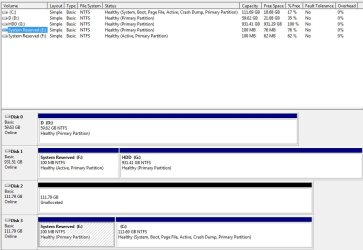
Disk Management Screenshot

Could I just remove and add it again?

It also seems to be showing it twice?
 

Attachments

  • Disks.jpg
    Disks.jpg
    71.1 KB · Views: 86

My Computer My Computer

At a glance

England
OS
England
Why do you say twice? I see 64, two 120s, and a 1 TB. Is that not correct?

You have 2 System Reserved partitions.

You should only have 1 and it should be on the same disk as C, which is disk 1 in your case.

Disk 2 appears to have no partitions at this point.
 

My Computer My Computer

At a glance

Windows 7 Home Premium SP1, 64-bitIntel Skylake i5-6600K, not overclocked8 GB HyperX DDR4-2666 (2 x 4 GB)none; graphics are integrated on CPU
Computer type
PC/Desktop
Computer Manufacturer/Model Number
Ignatz Special; 4 speed manual gearbox; factory air conditioning; one of one
OS
Windows 7 Home Premium SP1, 64-bit
CPU
Intel Skylake i5-6600K, not overclocked
Motherboard
AsRock Z170M Extreme 4, micro ATX
Memory
8 GB HyperX DDR4-2666 (2 x 4 GB)
Graphics Card(s)
none; graphics are integrated on CPU
Sound Card
onboard: Realtek ALC1150; external: USB Behringer UF0-202
Monitor(s) Displays
Dell S2340M 23 inch IPS
Screen Resolution
1600 x 900
Hard Drives
System: Crucial MX100 series SSD, 128 GB;
Data: Samsung Spinpoint 103SJ, 1 TB;
Backup: WD Caviar Green WD30EZRX-00D8PB0, 3 TB
PSU
Rosewill SilentNight 500 watt fanless, semi-modular
Case
Antec Solo II
Cooling
Noctua NH-U12S; Noctua F12 intake, Noctua S12A exhaust
Keyboard
Microsoft 200 6JH-00001 USB
Mouse
Dell or Microsoft optical wired; USB
Antivirus
Microsoft Security Essentials and Malwarebytes Premium
Browser
Pale Moon
Other Info
All fans PWM; speeds at idle: CPU circa 500 rpm; intake circa 600 rpm; exhaust circa 600 rpm; CPU temps 27 idle and 47 C load in a warm room (27 C/81 F) when running Intel Extreme Tuning Utility stress test.
Well C = 120GB
D = 64GB
G = 1TB
E = 120GB?
F = 120GB?

E&F both have System Reserved next to them?

I just want the new 120GB to act like the 64GB?

Could the 1TB have an older win7 partition on it?
 

My Computer My Computer

At a glance

England
OS
England
Oh I think I see,

Disk 0 is the 64
disk 1 is the 1tb, but it has a partition
disk2 is the new 120GB SSD, it needs to be allocated?
disk 3 is my ols 120GB SSD with my OS on it

So Should I collapse the partition on the 1tb somehow?

Then alloate? not sure what that means, the new 120GB SSD?
Do I just create a new simple volume on this one?
 

My Computer My Computer

At a glance

England
OS
England
Sorry, a bit slow, but think I am slowly getting it...

My course of action will be:

Format the F partiction on the G drive and then shrink the drive
Create a simple drive on the Disk2

that should do it?

But I am a little unsure what Active means on the F drive on Disk1?

Will I need it?
 

My Computer My Computer

At a glance

England
OS
England
Not sure I am following you.

Windows is on Disk 3. Is that where you want Windows?

Disk 1 appears to be completely empty, no data.

What is the purpose of disks 0, 1, and 2? To hold data only? Or to hold some type of operating system?

System Reserved partitions do not normally have drive letters. I'm guessing you did that?

If this is a single operating system PC, the typical way to install Windows is to first disconnect all hard drives other than the one to which Windows is installed. Looks like you did not do that.

If you had done that, you would have 1 System Reserved, marked active, with C on the same drive.

You could mark the E partition active, then disconnect disk 1 entirely, and see if the PC will boot. If it does, then reconnect disk 1 and delete the system reserved partition from it.

If that fails, I'd probably start from scratch---disconnect all drives other than the one that you want to have Windows, and then reinstall.
 

My Computer My Computer

At a glance

Windows 7 Home Premium SP1, 64-bitIntel Skylake i5-6600K, not overclocked8 GB HyperX DDR4-2666 (2 x 4 GB)none; graphics are integrated on CPU
Computer type
PC/Desktop
Computer Manufacturer/Model Number
Ignatz Special; 4 speed manual gearbox; factory air conditioning; one of one
OS
Windows 7 Home Premium SP1, 64-bit
CPU
Intel Skylake i5-6600K, not overclocked
Motherboard
AsRock Z170M Extreme 4, micro ATX
Memory
8 GB HyperX DDR4-2666 (2 x 4 GB)
Graphics Card(s)
none; graphics are integrated on CPU
Sound Card
onboard: Realtek ALC1150; external: USB Behringer UF0-202
Monitor(s) Displays
Dell S2340M 23 inch IPS
Screen Resolution
1600 x 900
Hard Drives
System: Crucial MX100 series SSD, 128 GB;
Data: Samsung Spinpoint 103SJ, 1 TB;
Backup: WD Caviar Green WD30EZRX-00D8PB0, 3 TB
PSU
Rosewill SilentNight 500 watt fanless, semi-modular
Case
Antec Solo II
Cooling
Noctua NH-U12S; Noctua F12 intake, Noctua S12A exhaust
Keyboard
Microsoft 200 6JH-00001 USB
Mouse
Dell or Microsoft optical wired; USB
Antivirus
Microsoft Security Essentials and Malwarebytes Premium
Browser
Pale Moon
Other Info
All fans PWM; speeds at idle: CPU circa 500 rpm; intake circa 600 rpm; exhaust circa 600 rpm; CPU temps 27 idle and 47 C load in a warm room (27 C/81 F) when running Intel Extreme Tuning Utility stress test.
Disconnect Disk 1 and see whether your system boots.
 

My Computer My Computer

At a glance

Vista, Windows7, Mint Mate, Zorin, Windows 8from 1.6GHz Duo to i7
Computer Manufacturer/Model Number
HP, Dell, Gateway, Toshiba - 4 laptops and 2 desktops
OS
Vista, Windows7, Mint Mate, Zorin, Windows 8
CPU
from 1.6GHz Duo to i7
Monitor(s) Displays
2x HP w2207
Hard Drives
5x HDD, 7x SSD, 12x Externals
Keyboard
with trackball - no mices
Mouse
Trackball mice
Internet Speed
DSL 6000
Here's the best way forward.


Power down the PC and disconnect all the HDD/SSDs and reconnect the SSD that is now connected to disk 3 to the #1 SATA port of the motherboard leaving all the others disconnected, then in the PC BIOS set that as the first boot device.

Then using Option Two of this tutorial mark that System Reserved as the Active partition and do the 3 separate startup repairs in Option One to make that the System partition.
After that's done you can power down and reconnect the other HDD/SSDs
 

My Computer My Computer

At a glance

W 7 64-bit UltimateIntel Q9550 Yorkfield8GB Dominator 8500C5DATI : XFX 5870
Computer Manufacturer/Model Number
* BFK Customs *
OS
W 7 64-bit Ultimate
CPU
Intel Q9550 Yorkfield
Motherboard
ASUS P5Q Pro
Memory
8GB Dominator 8500C5D
Graphics Card(s)
ATI : XFX 5870
Sound Card
Realtek HD Audio 7-1
Monitor(s) Displays
1x 47" LCD HDMI & 3x 26" LCD HDMI
Screen Resolution
1920x1080P & 1920x1200
Hard Drives
1x 80GB Intel X25-M G2 SSD : 1x 500GB & 1x 640GB WD Caviar Black(s)
PSU
Corsair 620HX
Case
Cooler Master RC-690
Cooling
Tuniq Tower 120, 2x 140mm and 3x 120mm case fans
Keyboard
Microsoft 500
Mouse
Razer Diamondback 3G
Internet Speed
14 Mb/s
Other Info
1x Koutech 3Gb/s SATA HDD Hot Swap Rack
Windows is on Disk 3. Is that where you want Windows?

Windows is on Disk 3 (C) where it has been since I installed it about 5 months ago.

Disk 1 appears to be completely empty, no data.

This was an old install of win&, I formatted the drive. It seems to have a partition that i did not notice before

What is the purpose of disks 0, 1, and 2? To hold data only? Or to hold some type of operating system?

Disk0, 1 and 2 are just to hold files and applications.

System Reserved partitions do not normally have drive letters. I'm guessing you did that?

Nope

If this is a single operating system PC, the typical way to install Windows is to first disconnect all hard drives other than the one to which Windows is installed. Looks like you did not do that.

Actually, I did that, but 5 months ago. I added the new drive today and this happened

If you had done that, you would have 1 System Reserved, marked active, with C on the same drive.

You could mark the E partition active, then disconnect disk 1 entirely, and see if the PC will boot. If it does, then reconnect disk 1 and delete the system reserved partition from it.

If that fails, I'd probably start from scratch---disconnect all drives other than the one that you want to have Windows, and then reinstall.

Realy hope I dont have to do this

Could I not just set E to active... disconect as you said and then if I get issues, use the OS CD to boot and repair?

I think I might have confused things as I thought my new drive was shoing up as the system reserved ones... bit it isnt, I just need to create a simple drive there I think.
 

My Computer My Computer

At a glance

England
OS
England
If you're just trying to format disk 2 just right click, simple volume and follow the prompts.
 

My Computer My Computer

At a glance

W 7 64-bit UltimateIntel Q9550 Yorkfield8GB Dominator 8500C5DATI : XFX 5870
Computer Manufacturer/Model Number
* BFK Customs *
OS
W 7 64-bit Ultimate
CPU
Intel Q9550 Yorkfield
Motherboard
ASUS P5Q Pro
Memory
8GB Dominator 8500C5D
Graphics Card(s)
ATI : XFX 5870
Sound Card
Realtek HD Audio 7-1
Monitor(s) Displays
1x 47" LCD HDMI & 3x 26" LCD HDMI
Screen Resolution
1920x1080P & 1920x1200
Hard Drives
1x 80GB Intel X25-M G2 SSD : 1x 500GB & 1x 640GB WD Caviar Black(s)
PSU
Corsair 620HX
Case
Cooler Master RC-690
Cooling
Tuniq Tower 120, 2x 140mm and 3x 120mm case fans
Keyboard
Microsoft 500
Mouse
Razer Diamondback 3G
Internet Speed
14 Mb/s
Other Info
1x Koutech 3Gb/s SATA HDD Hot Swap Rack
Sorry, new to these forums and that last reply seems not to have worked as I thought it would.

After my own confusion, I now realise that the issue I have is, that Disk1 seems to have a partition I did not know about, and when I plugged it in after a while of not using it, it seems to have effected the current setup I have.

I need to investigate if not having Disk1 plugged in will effect my boot up.

As it has active on it, do I need to set the partition on my Disk 3 drive to be active first?

If it doesnt effect boot up, then I can just reinstall it and remove the partition?

If it does effect the boot up, what are my options?

Thanks for your time.
 

My Computer My Computer

At a glance

England
OS
England
If you're just trying to format disk 2 just right click, simple volume and follow the prompts.

Thanks, I have just done this. Now the drive is showing :-)
 

My Computer My Computer

At a glance

England
OS
England
Does that sort the issue for you, is that all you need?
 

My Computer My Computer

At a glance

W 7 64-bit UltimateIntel Q9550 Yorkfield8GB Dominator 8500C5DATI : XFX 5870
Computer Manufacturer/Model Number
* BFK Customs *
OS
W 7 64-bit Ultimate
CPU
Intel Q9550 Yorkfield
Motherboard
ASUS P5Q Pro
Memory
8GB Dominator 8500C5D
Graphics Card(s)
ATI : XFX 5870
Sound Card
Realtek HD Audio 7-1
Monitor(s) Displays
1x 47" LCD HDMI & 3x 26" LCD HDMI
Screen Resolution
1920x1080P & 1920x1200
Hard Drives
1x 80GB Intel X25-M G2 SSD : 1x 500GB & 1x 640GB WD Caviar Black(s)
PSU
Corsair 620HX
Case
Cooler Master RC-690
Cooling
Tuniq Tower 120, 2x 140mm and 3x 120mm case fans
Keyboard
Microsoft 500
Mouse
Razer Diamondback 3G
Internet Speed
14 Mb/s
Other Info
1x Koutech 3Gb/s SATA HDD Hot Swap Rack
Try Barefoot Kid's suggestions in post 12. If that does not work, we regroup and reconsider.

Ultimately--you want 1 system reserved, marked active, on the same drive as the C partition. Nothing else marked active.
 

My Computer My Computer

At a glance

Windows 7 Home Premium SP1, 64-bitIntel Skylake i5-6600K, not overclocked8 GB HyperX DDR4-2666 (2 x 4 GB)none; graphics are integrated on CPU
Computer type
PC/Desktop
Computer Manufacturer/Model Number
Ignatz Special; 4 speed manual gearbox; factory air conditioning; one of one
OS
Windows 7 Home Premium SP1, 64-bit
CPU
Intel Skylake i5-6600K, not overclocked
Motherboard
AsRock Z170M Extreme 4, micro ATX
Memory
8 GB HyperX DDR4-2666 (2 x 4 GB)
Graphics Card(s)
none; graphics are integrated on CPU
Sound Card
onboard: Realtek ALC1150; external: USB Behringer UF0-202
Monitor(s) Displays
Dell S2340M 23 inch IPS
Screen Resolution
1600 x 900
Hard Drives
System: Crucial MX100 series SSD, 128 GB;
Data: Samsung Spinpoint 103SJ, 1 TB;
Backup: WD Caviar Green WD30EZRX-00D8PB0, 3 TB
PSU
Rosewill SilentNight 500 watt fanless, semi-modular
Case
Antec Solo II
Cooling
Noctua NH-U12S; Noctua F12 intake, Noctua S12A exhaust
Keyboard
Microsoft 200 6JH-00001 USB
Mouse
Dell or Microsoft optical wired; USB
Antivirus
Microsoft Security Essentials and Malwarebytes Premium
Browser
Pale Moon
Other Info
All fans PWM; speeds at idle: CPU circa 500 rpm; intake circa 600 rpm; exhaust circa 600 rpm; CPU temps 27 idle and 47 C load in a warm room (27 C/81 F) when running Intel Extreme Tuning Utility stress test.
OK, Thanks guys,

I guess Ill try setting active on the C drive partition and restart and see what happens

Thanks for your time
 

My Computer My Computer

At a glance

England
OS
England
Here's the best way forward.


Power down the PC and disconnect all the HDD/SSDs and reconnect the SSD that is now connected to disk 3 to the #1 SATA port of the motherboard leaving all the others disconnected, then in the PC BIOS set that as the first boot device.

Then using Option Two of this tutorial mark that System Reserved as the Active partition and do the 3 separate startup repairs in Option One to make that the System partition.
After that's done you can power down and reconnect the other HDD/SSDs


If you do that (mark C: Active) it won't work and will be a waste of time, at the least; if all is good with you leave well-enough alone. ;)
 

My Computer My Computer

At a glance

W 7 64-bit UltimateIntel Q9550 Yorkfield8GB Dominator 8500C5DATI : XFX 5870
Computer Manufacturer/Model Number
* BFK Customs *
OS
W 7 64-bit Ultimate
CPU
Intel Q9550 Yorkfield
Motherboard
ASUS P5Q Pro
Memory
8GB Dominator 8500C5D
Graphics Card(s)
ATI : XFX 5870
Sound Card
Realtek HD Audio 7-1
Monitor(s) Displays
1x 47" LCD HDMI & 3x 26" LCD HDMI
Screen Resolution
1920x1080P & 1920x1200
Hard Drives
1x 80GB Intel X25-M G2 SSD : 1x 500GB & 1x 640GB WD Caviar Black(s)
PSU
Corsair 620HX
Case
Cooler Master RC-690
Cooling
Tuniq Tower 120, 2x 140mm and 3x 120mm case fans
Keyboard
Microsoft 500
Mouse
Razer Diamondback 3G
Internet Speed
14 Mb/s
Other Info
1x Koutech 3Gb/s SATA HDD Hot Swap Rack
Neither of the System Reserved partitions are booting anything as they're intended to do when present. Somehow - likely through repairs - the System flag on Disk3 got moved onto the C partition which is where C is being booted from now.

Barefoot gave you the steps to move the System flag to System Reserved. It's up to you if you want it to be the boot partition as intended, or want to leave it booting from C as it is now.

I would reboot and tap F8 to see if you still have System Recovery Options on the Advanced Boot Options menu. If not it might be worth it to you to write the System boot files back onto Disk3 System Reserved which normally restores the Recovery Options (WinRE).
 
Last edited:
The 1st thing i would do is get rid of the letter E: on disk 3 and mark it Active.

Make a startup repair disc, start>control panel>backup & restore.

Disconnect all your drives and put your C: drive ( now on disk 3 ) on to disk 0 and get it booting and then go from there. Label it so you don`t get confused.

Install the 1 TB drive ( to disk 1 ) and format the entire drive. If there is nothing on it.

Install the other 120 GB ssd. ( to disk 2 ) Format it.

Install the 64 GB ssd ( to disk 3 )
 
Last edited:

My Computer My Computer

At a glance

Windows 10 Pro x64Intel Core i7 6700KGSkill TridentZ RGB 16GB 3600 16-16-16-36EVGA GTX 980 Ti SC x2
Computer type
PC/Desktop
Computer Manufacturer/Model Number
Skylake Special #666
OS
Windows 10 Pro x64
CPU
Intel Core i7 6700K
Motherboard
Asus Sabertooth Z170 Mark 1
Memory
GSkill TridentZ RGB 16GB 3600 16-16-16-36
Graphics Card(s)
EVGA GTX 980 Ti SC x2
Sound Card
Realtek High Definition
Monitor(s) Displays
AOC G2460PG
Screen Resolution
1920 x 1080 144Hz
Hard Drives
Samsung 860 Pro 256GB, Seagate Barracuda 4TB x2
PSU
EVGA 1000 P2, EVGA White Custom Braided Cables
Case
Corsair Vengeance C70 Gunmetal Black
Cooling
Corsair H100i v2, Corsair ML120 x2, Thermal Grizzly Kryonaut
Keyboard
Logitech G910 Orion Spectrum
Mouse
Logitech G700s
Internet Speed
Verizon Fios Quantum Gateway 75/75
Antivirus
Windows Defender, Malwarebytes Free 3.8.3
Browser
Chrome
Other Info
Corsair SP120 x4, LG Blu-ray Drive, Durabrand HT-395 100 Watt Dolby Digital Amp, Corsair H2100 Wireless 7.1 Headset
Back
Top