Solved Installing SSD, advice needed on complicated partitioning.

MCannon

New member
Local time
12:47 AM
Messages
10
Hi everyone, old techie but new poster here (very old, started on the trash-80, but I digress). Great site, lots of useful info I've already found. Here's my situation.

I recently bought a Samsung 840 Pro SSD, and before I install it, I want to make sure I've got everything done correctly so as to not have problems. My situation is not the common "clone drive, set ssd to boot, done". I'm very experienced in general, but this is my first SSD.

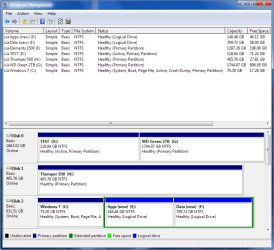
I'm running Windows 7 Home Premium x64, I currently have 3 internal hard drives, 2 of which are not germane to this discussion, so I'll ignore them from here on. My boot drive (technically drive 2 in Disk Manager) is a 1TB drive with a 75GB Windows partition C:, and an extended partition containing a 150GB Apps E: partition, and a 700 GB Data F: partition. All partitions are NTFS.

Note that there is no System Reserved partition. It was either not created by how I installed W7, or I deleted it to get the full space all those years ago. Can't really remember.

So, all my apps are on the E partition, I've been overriding the default install of every program for years. The only apps on C: are things that annoyingly forced themselves there. There are way too many apps and games to fit on the SSD and I don't need them all there anyway, so the plan is to slowly migrate needed apps to the SSD. The F partition has all my data, including My Documents etc, I moved them over years ago. So again, very little documents on C:

So, when the SSD is installed, I obviously need it to be C:, while it still uses the E: and F: of the old hard drive to find the rest of the files needed to boot into windows.

So my first concern: Once I clone the C: partition to the SSD and set it to be the boot drive, what will happen to the old drive letters? The old C: needs to disappear and get a new letter, but E: and F: need to stay the same. Will that happen automatically, or do I need to do something special?

Suggestions on the software to use? The provided Samsung Data Migration is one candidate, but I've read some posts elsewhere that thought it wasn't great. I also have AOMEI Partition Assistant Standard Edition and Macrium Reflect.

Should I first get a System Reserved partition back on? I eventually plan on dual booting to Windows XP, as I've found a few games I own are too problematic on 7, and it would just be easier. Not 100% sure if it's needed for that, or for the SSD.

edit: Not currently using it, but I eventually plan on EasyBCD for the dual boot.

Any thoughts and suggestions are appreciated.
 

My Computer

Computer type
PC/Desktop
Computer Manufacturer/Model Number
Custom
OS
Windows 7 Home Premium x64
CPU
Intel i5-750
Motherboard
Gigabyte P55A-UD4P
Memory
8 GB
Graphics Card(s)
GTX 760
Hard Drives
WD 1 TB (boot)
Seagate 500 GB
WD 2 TB
Browser
Firefox
Hi Mcannon & welcome to Windows Seven Forums.

To make it easier for everyone could you tell us what size your new Samsung 840 Pro SSD is & could you supply a screen shot of your Disc Management as well, showing all your installed discs & all the notation as well.
 

My Computer

Computer type
PC/Desktop
Computer Manufacturer/Model Number
Self built using existing case
OS
Windows 7 Home Premium 64 bit sp1
CPU
Intel i5 3570 3.4Ghz Ivy Bridge SKT 1155 quad core
Motherboard
Gigabyte Z77-HD3 SKT 1155 2xSata 3, 4x USB 3.0
Memory
G-Skill Rip Jaws 16Gb (8x2) DDR3 -1600 PC3 12800 CL 10 red
Graphics Card(s)
Gigabyte NVIDIA GT610 1Gb DDR3 810/1200 PCI-E 2.0 Silent
Sound Card
NVIDIA High Definition & Realtech High Definition Audio
Monitor(s) Displays
2 x Philips 226V4L 16:9 aspect ratio
Screen Resolution
1920 x 1080 HD
Hard Drives
Samsung 840 Pro 256gb SSD, SATA 3.
Hitachi Touro Portable 1tb, USB 3.0 HDD used for image b/ups.
PSU
Corsair VS450
Case
Codeng
Cooling
PSU fan & CPU fan
Keyboard
Logitech
Mouse
Logitech Wireless trackball M570
Internet Speed
Wireless 3G. 3mg down & 550kb up.
Antivirus
Bitdefender Internet Security 2020
Browser
Opera (Current Version) & Firefox
Other Info
MS Office 2013 Pro. Davis weather station software. MGE Nova 600 avr UPS.
For your XP games, did you try in compatibility mode or use a VM? XP isn't really safe...

As for cloning your windows partition, i think any tool will do the same thing - bring all from yoru old "C" to the SSD. If the programs that you semi-installed on c and the rest on "E" that you need to try. you may have to re-install some of those programs.

I understand why you would have split the installations apart on different HDD.. but why did you do that sine it was all the sema HDD anyway? You could have just made partition C larger. Just wondering what the reason was. i understand if your SSD is too small why you want to do that.

i have the 830, your SSD's predecessor and it is very fast, so I'm sure yours will fly.
 

My Computer

Computer Manufacturer/Model Number
homemade
OS
W7 Pro 64
CPU
Intel i3 3220 @ 3.3 GHz
Motherboard
ASRock H77M
Memory
2x8GB DDR 3 1600 Kingston
Graphics Card(s)
onboard
Sound Card
onboard
Monitor(s) Displays
two 21" LCD
Hard Drives
128 GB Samsung 830
PSU
OCZ400MXSP
Cooling
Stock
Internet Speed
DSL
The answer is simple - the OS and all programs (less games) go on the SSD. User data and games go on the spinner(s).
 

My Computer

Computer Manufacturer/Model Number
HP, Dell, Gateway, Toshiba - 4 laptops and 2 desktops
OS
Vista, Windows7, Mint Mate, Zorin, Windows 8
CPU
from 1.6GHz Duo to i7
Monitor(s) Displays
2x HP w2207
Hard Drives
5x HDD, 7x SSD, 12x Externals
Keyboard
with trackball - no mices
Mouse
Trackball mice
Internet Speed
DSL 6000
"Suggestions on the software to use? The provided Samsung Data Migration is one candidate, but I've read some posts elsewhere that thought it wasn't great. I also have AOMEI Partition Assistant Standard Edition and Macrium Reflect."

READ THIS:
How to clone HDD to SSD with Windows 7

note: this worked perfectly with two Win7 machines that I recently upgraded to SSDs

see also:
Disable System Restore And Drive Indexing - Can You Get More Space Or Speed From Your SSD?
--sections 3-4-5-- very useful information
 

My Computer

Computer type
PC/Desktop
Computer Manufacturer/Model Number
SALEON Systems V3.1
OS
Windows 7 Ultimate 32bit
CPU
Intel Core 2 Extreme QX6850
Motherboard
ASUSTeK P5G41-M LE
Memory
4 gb
Graphics Card(s)
NVIDIA GeForce 8400GS
Hard Drives
Intel 120 GB SSD, Seagate 250GB, Seagate 2TB
Antivirus
Comodo
Browser
Chrome
Sorry, 256 gigs on the SSD.

HerrKaLeun, just old habits, apps and data should always be separate. Makes backups easier, imaging a boot partition, etc. I've never been a big fan of compatibility mode, I'd rather run the real thing. It'll be rare usage anyway, which is why I haven't done it yet. VMs are not an option for graphically intense games.

whs, I'm not worried about what goes where, just that the procedure will work, and looking out for any 'gotchas' before they happen. I've read other threads where the hard drive retained the c: and the ssd got a new letter, so windows didn't fully start and they couldn't switch the drive letters around because they were in use. I'm trying to avoid stuff like that. :)
 

Attachments

  • drive manager.jpg
    drive manager.jpg
    387.2 KB · Views: 2

My Computer

Computer type
PC/Desktop
Computer Manufacturer/Model Number
Custom
OS
Windows 7 Home Premium x64
CPU
Intel i5-750
Motherboard
Gigabyte P55A-UD4P
Memory
8 GB
Graphics Card(s)
GTX 760
Hard Drives
WD 1 TB (boot)
Seagate 500 GB
WD 2 TB
Browser
Firefox

My Computer

Computer Manufacturer/Model Number
HP, Dell, Gateway, Toshiba - 4 laptops and 2 desktops
OS
Vista, Windows7, Mint Mate, Zorin, Windows 8
CPU
from 1.6GHz Duo to i7
Monitor(s) Displays
2x HP w2207
Hard Drives
5x HDD, 7x SSD, 12x Externals
Keyboard
with trackball - no mices
Mouse
Trackball mice
Internet Speed
DSL 6000
Ok, that's interesting.

Obviously, C: boots just fine and there are no error messages, and it says system, active and boot, so what exactly are you looking at that makes you say that?

The D: is a test install of windows 7 when I was debugging video card problems last year. I unplugged my c drive, changed my boot drive, installed the test 7, then after all the problems were fixed, I replugged c: back in, and switched the boot order back to normal. Figured that might end up where my XP would be installed eventually, so haven't done anything to that partition since.

Just checked, and there's a bootmgr file on drive c:, 374k. Yes, there's also one on d: from the test install. Why would it be using the one from the nonboot drive?
 

My Computer

Computer type
PC/Desktop
Computer Manufacturer/Model Number
Custom
OS
Windows 7 Home Premium x64
CPU
Intel i5-750
Motherboard
Gigabyte P55A-UD4P
Memory
8 GB
Graphics Card(s)
GTX 760
Hard Drives
WD 1 TB (boot)
Seagate 500 GB
WD 2 TB
Browser
Firefox
Mcannon. Keep in mind when you are allocating disc space that SSD's like to have about 10% of the drive for garbage handling or as Samsung call it Over Provisioning.
As I don't have a lot of video files, music or huge picture collections, I just have the one Samsung 840 Pro 256gb SSD.
When I got the Samsung I cloned it with Macrium from a HDD & all went very well. As a matter of interest mine does not have the System Partition either & it is not essential to have it.
I would recommend installing the Samsung Magician software for setting up the best performance of your Samsung SSD.
 

My Computer

Computer type
PC/Desktop
Computer Manufacturer/Model Number
Self built using existing case
OS
Windows 7 Home Premium 64 bit sp1
CPU
Intel i5 3570 3.4Ghz Ivy Bridge SKT 1155 quad core
Motherboard
Gigabyte Z77-HD3 SKT 1155 2xSata 3, 4x USB 3.0
Memory
G-Skill Rip Jaws 16Gb (8x2) DDR3 -1600 PC3 12800 CL 10 red
Graphics Card(s)
Gigabyte NVIDIA GT610 1Gb DDR3 810/1200 PCI-E 2.0 Silent
Sound Card
NVIDIA High Definition & Realtech High Definition Audio
Monitor(s) Displays
2 x Philips 226V4L 16:9 aspect ratio
Screen Resolution
1920 x 1080 HD
Hard Drives
Samsung 840 Pro 256gb SSD, SATA 3.
Hitachi Touro Portable 1tb, USB 3.0 HDD used for image b/ups.
PSU
Corsair VS450
Case
Codeng
Cooling
PSU fan & CPU fan
Keyboard
Logitech
Mouse
Logitech Wireless trackball M570
Internet Speed
Wireless 3G. 3mg down & 550kb up.
Antivirus
Bitdefender Internet Security 2020
Browser
Opera (Current Version) & Firefox
Other Info
MS Office 2013 Pro. Davis weather station software. MGE Nova 600 avr UPS.
Ok, that's interesting.

Obviously, C: boots just fine and there are no error messages, and it says system, active and boot, so what exactly are you looking at that makes you say that?

The D: is a test install of windows 7 when I was debugging video card problems last year. I unplugged my c drive, changed my boot drive, installed the test 7, then after all the problems were fixed, I replugged c: back in, and switched the boot order back to normal. Figured that might end up where my XP would be installed eventually, so haven't done anything to that partition since.

Just checked, and there's a bootmgr file on drive c:, 374k. Yes, there's also one on d: from the test install. Why would it be using the one from the nonboot drive?
Sorry you are right - my bad. I overlooked the 'active' on C, You are good.
 

My Computer

Computer Manufacturer/Model Number
HP, Dell, Gateway, Toshiba - 4 laptops and 2 desktops
OS
Vista, Windows7, Mint Mate, Zorin, Windows 8
CPU
from 1.6GHz Duo to i7
Monitor(s) Displays
2x HP w2207
Hard Drives
5x HDD, 7x SSD, 12x Externals
Keyboard
with trackball - no mices
Mouse
Trackball mice
Internet Speed
DSL 6000
Ok, I feel better about the bootmgr.

NimoTony, I looked at the method you linked, and that would require moving nearly a TB of data around. I'd rather not do that, so I think I'll try the other methods first. I'll keep that one in mind should I have troubles.

Is the System Reserved partition important for dual booting later? I'm leaning to putting it back first, since that's the normal situation.
 

My Computer

Computer type
PC/Desktop
Computer Manufacturer/Model Number
Custom
OS
Windows 7 Home Premium x64
CPU
Intel i5-750
Motherboard
Gigabyte P55A-UD4P
Memory
8 GB
Graphics Card(s)
GTX 760
Hard Drives
WD 1 TB (boot)
Seagate 500 GB
WD 2 TB
Browser
Firefox
Just a side note, if your apps and data are not going to be on the SSD, why are you using an SSD?

You are going to gain very little boot time, but the SSD will really shine if you use it for apps and data. Just something to consider.

p.s. when you clone c:, you can simply deactivate the old drive, so it's not bootable, but remains as a backup. You will lose ton of performance by having your apps and data on a completely separate drive, however, unlike your current situation, where they are just logical partitions.
 

My Computer

Computer type
PC/Desktop
OS
Windows 7 Pro
Is the System Reserved partition important for dual booting later? I'm leaning to putting it back first, since that's the normal situation.
Not really, It's main use is for Bitlocker encryption (in Ultimate).

Just a side note, if your apps and data are not going to be on the SSD, why are you using an SSD?
I agree for the apps. But for the user data I see little difference. I always put my user data on the spinner (matter of space) and never felt that this is a real disadvantage. The apps, however, load a lot faster from the SSD. But very big games may not fit.
 

My Computer

Computer Manufacturer/Model Number
HP, Dell, Gateway, Toshiba - 4 laptops and 2 desktops
OS
Vista, Windows7, Mint Mate, Zorin, Windows 8
CPU
from 1.6GHz Duo to i7
Monitor(s) Displays
2x HP w2207
Hard Drives
5x HDD, 7x SSD, 12x Externals
Keyboard
with trackball - no mices
Mouse
Trackball mice
Internet Speed
DSL 6000
It will have apps and games, just not all of them. Too many for that. Back in the first post I said I'll have to migrate the important ones to the ssd eventually.
 

My Computer

Computer type
PC/Desktop
Computer Manufacturer/Model Number
Custom
OS
Windows 7 Home Premium x64
CPU
Intel i5-750
Motherboard
Gigabyte P55A-UD4P
Memory
8 GB
Graphics Card(s)
GTX 760
Hard Drives
WD 1 TB (boot)
Seagate 500 GB
WD 2 TB
Browser
Firefox

My Computer

Computer Manufacturer/Model Number
HP, Dell, Gateway, Toshiba - 4 laptops and 2 desktops
OS
Vista, Windows7, Mint Mate, Zorin, Windows 8
CPU
from 1.6GHz Duo to i7
Monitor(s) Displays
2x HP w2207
Hard Drives
5x HDD, 7x SSD, 12x Externals
Keyboard
with trackball - no mices
Mouse
Trackball mice
Internet Speed
DSL 6000
Just a side note, if your apps and data are not going to be on the SSD, why are you using an SSD?
I agree for the apps. But for the user data I see little difference. I always put my user data on the spinner (matter of space) and never felt that this is a real disadvantage. The apps, however, load a lot faster from the SSD. But very big games may not fit.
Well, I have no idea what type of data he has on the separate drive, but if space is no issue - put it on the SSD! It would speed loading of that data, in any case.

Oh, an make sure you disable auto-defrag on the SSD ;)

If you have $200 to spend, there is a good Crucial 500GB SSD. That may fix the space problem, LOL

Amazon.com: Crucial MX100 512GB SATA 2.5" 7mm (with 9.5mm adapter) Internal Solid State Drive CT512MX100SSD1: Computers & Accessories

Considering that I paid $265 for my first 60GB SSD from OCZ in 2008, this is a bargain.

Dang, that is a deal! I may pull the trigger on this one, thanks fo rthe info!
 

My Computer

Computer type
PC/Desktop
OS
Windows 7 Pro
240GB SSDs are also getting really cheap. I got a Crucial for $89 but the other day there was (I think a 240GB PNY) for $69. You could raid those.
 

My Computer

Computer Manufacturer/Model Number
HP, Dell, Gateway, Toshiba - 4 laptops and 2 desktops
OS
Vista, Windows7, Mint Mate, Zorin, Windows 8
CPU
from 1.6GHz Duo to i7
Monitor(s) Displays
2x HP w2207
Hard Drives
5x HDD, 7x SSD, 12x Externals
Keyboard
with trackball - no mices
Mouse
Trackball mice
Internet Speed
DSL 6000
Just a side note, if your apps and data are not going to be on the SSD, why are you using an SSD?

You are going to gain very little boot time, but the SSD will really shine if you use it for apps and data. Just something to consider.

p.s. when you clone c:, you can simply deactivate the old drive, so it's not bootable, but remains as a backup. You will lose ton of performance by having your apps and data on a completely separate drive, however, unlike your current situation, where they are just logical partitions.

Actually, a SSD will speed up boot time significantly. Except for really huge files, data reads and writes, why theoretically faster, won't be enough faster to justify the expense of having the data on a SSD. Programs and games will load faster but won't run any faster.
 

My Computer

Computer type
PC/Desktop
Computer Manufacturer/Model Number
Custom Build
OS
Win 7 Ultimate 64 bit
CPU
Intel i7-3930K
Motherboard
ASUS P9X79 WS
Memory
Kingston HyperX Genesis 32GB Kit (8x4GB Modules) 1600MHz DDR
Graphics Card(s)
MSI R7850 Twin Frozr 2GD5/OC Radeon HD 7850 2GB 256-bit GDDR
Sound Card
Asus Xonar Essence STX
Monitor(s) Displays
3x Asus VG248QE 24", Vizio 32" TV
Screen Resolution
1920 x 1080, ?
Hard Drives
Samsung 128GB 840 Pro SSD (1),
Samsung 4TB 850 EVO SSDs (4)
Samsung 4TB 850 EVO SSDs (16) external backup drives used in 2.5" hot swap bays in the computer.
PSU
Corsair HX750w
Case
Antec Two Hundred v2 (modified)
Cooling
Cooler Master GeminII S524 120mm (fan replaced with a 140mm)
Keyboard
Logitech G510s
Mouse
Logitech M525 (two in use)
Internet Speed
=< 32Mbps down, 8Mbps up
Antivirus
AVAST!, MBAM, SAS, Spybot S&D (all but MBAM free) Glary Util
Browser
IE11
Other Info
LSI 9211-8i HBA card (8 SATA III ports), 2.5" & 3.5" Hot Swap Bays, HooToo HT-CR001 PCI-E to USB 3.0 Internal Hub + 6 Slot Card Reader, and LG Model CH12LS28 BD-ROM Optical Drive. Also, ScanSnap S1500 ADF duplexing scanner, Canon 9000F flat bed scanner, Corsair SP2500 2.1 speakers, Samsung CLP 415nw laser color printer, Cyberpower PP2200SW UPS
@ MCannon. It appears you may be using partitions to organize your data. If so, that is a very inefficient way to do so. Using folders in place of partitions is a far more efficient use of your storage space. I would suggest reducing the number of partitions you have. For example, if you can afford a big enough SSD, I would put your programs and OS on your C: drive; the drive should have only the System Reserved and the main partition unless you move the bootmgr to C:, in which case you would need only one partition for the whole drive. I's not necessary to have programs on a separate partition on the same drive. Larger programs that won't fit on the SSD (such games) can be put on a spinner. They can be kept in a folder on the spinner; there is no need for a separate partition.

Once you have moved or reinstalled your OS and programs onto the SSD, I would eliminate the current C: partition on Disk 2 and, if not needed for program overflow (now might be a good time to see how many programs you actually need), the E: partition, then expand the F: partition to fill the entire disk.

Having the test partition on disk 0 is fine if you will be using it frequently. Otherwise, you might be better off removing that partition and expanding G: to fill the disk. The test partition can be replaced with either a small inexpensive spinner installed internally (assuming you have the room) or a small external drive.

When determining the size of the SSD you need, you need to allow an extra empty 20-25% to avoid excessive writes during TRIM operations. doctore has some of his terminology and other info a bit confused. Overprovisioning is space set aside out of sight for replacing cells that do wear out from excessive writes. SSDs come already overprovisioned and there is rarely any need to add to that but you still need to leave 20-25% of the capacity empty. His advice to make sure auto-defrag is disable is spot on!
 

My Computer

Computer type
PC/Desktop
Computer Manufacturer/Model Number
Custom Build
OS
Win 7 Ultimate 64 bit
CPU
Intel i7-3930K
Motherboard
ASUS P9X79 WS
Memory
Kingston HyperX Genesis 32GB Kit (8x4GB Modules) 1600MHz DDR
Graphics Card(s)
MSI R7850 Twin Frozr 2GD5/OC Radeon HD 7850 2GB 256-bit GDDR
Sound Card
Asus Xonar Essence STX
Monitor(s) Displays
3x Asus VG248QE 24", Vizio 32" TV
Screen Resolution
1920 x 1080, ?
Hard Drives
Samsung 128GB 840 Pro SSD (1),
Samsung 4TB 850 EVO SSDs (4)
Samsung 4TB 850 EVO SSDs (16) external backup drives used in 2.5" hot swap bays in the computer.
PSU
Corsair HX750w
Case
Antec Two Hundred v2 (modified)
Cooling
Cooler Master GeminII S524 120mm (fan replaced with a 140mm)
Keyboard
Logitech G510s
Mouse
Logitech M525 (two in use)
Internet Speed
=< 32Mbps down, 8Mbps up
Antivirus
AVAST!, MBAM, SAS, Spybot S&D (all but MBAM free) Glary Util
Browser
IE11
Other Info
LSI 9211-8i HBA card (8 SATA III ports), 2.5" & 3.5" Hot Swap Bays, HooToo HT-CR001 PCI-E to USB 3.0 Internal Hub + 6 Slot Card Reader, and LG Model CH12LS28 BD-ROM Optical Drive. Also, ScanSnap S1500 ADF duplexing scanner, Canon 9000F flat bed scanner, Corsair SP2500 2.1 speakers, Samsung CLP 415nw laser color printer, Cyberpower PP2200SW UPS
Heh, this is turning into a buy recommendation thread. I've already purchased my 840 Pro, so I won't be buying anything else. Doctore is getting a good deal though. :D

Jeannie, the test partition on 0 will be used for XP down the road after I get this drive installed, so I'm not going to do anything with it now.

As for separating OS, programs and data, that's just how we've always done it for the past 25 years, just can't change my spots now. I just really like the organization. And it does have advantages too. If I'm backing up, I can just point at a drive. I don't have to pick and choose folders, or back up 100s of gigs of things that don't need backing up like steam games, apps on cd that I could just re-install, etc.

Thanks everyone for the tips and advice, I very much appreciate it. No one seems to see any specific problems with the plan, so I'll be going ahead and installing in the next couple of days. Will keep this thread updated, or asking for help (knock on wood).
 

My Computer

Computer type
PC/Desktop
Computer Manufacturer/Model Number
Custom
OS
Windows 7 Home Premium x64
CPU
Intel i5-750
Motherboard
Gigabyte P55A-UD4P
Memory
8 GB
Graphics Card(s)
GTX 760
Hard Drives
WD 1 TB (boot)
Seagate 500 GB
WD 2 TB
Browser
Firefox
Back
Top