Installing U-7imate Win7 Theme

haykesa

New member
Local time
10:56 AM
Messages
4
Hey guys. I've found a theme for windows 7, that is very impressive:

It comes with a list of apps to use for certain things, such as start orb changer and the nav pane changer, and I've gotten those and done the basics, but I have no idea how to change everything the way he has it, the task bar, explorer, etc. Any ideas?
 

My Computer

OS
Windows 7 Ultimate x64
Welcome to the Seven Forums
Post a link to the theme and I will look at it and try to help you as much as I can.
Jerry
 

My Computer

Computer type
Laptop
Computer Manufacturer/Model Number
Sager NP9170
OS
Win 7 Pro x64 / Win 10 Pro
CPU
Intel(R) Core(TM) i7-3630QM CPU @ 2.40GHz
Motherboard
CLEVO P170EM
Memory
12 GB
Graphics Card(s)
(1) Intel(R) HD Graphics 4000 (2) NVIDIA GeForce GTX 675M
Sound Card
(1) Realtek High Definition Audio (2) Intel(R) Display Aud
Monitor(s) Displays
17.3
Screen Resolution
1920x1080
Hard Drives
(1) Samsung 860 EVO 500GB(OS) (1) Samsung 860 EVO 500GB(Data)
Keyboard
Backlite
Antivirus
MSE, Malwarebytes Pro
Browser
Firefox
Other Info
DESKTOP: Custom-built.
OS: Win 10 Pro x64.
CASE: Rosewill R5.
CPU: Intel I5 4670K CPU @ 3.40GHz.
CPU COOLER: Cool Master Hyper 212 EVO.
MOTHERBOARD: Asus Z87-A.
MEMORY: Kingston HyperX 2x4 GB.
GPU: Nvidia Geforce 650 TI.
PSU: Corsair TX750.
DRIVES: (1) Samsung 840 120 GB SSD (2) Western Digital blue 500 GB 7200 RPM.
I have downloaded it now I am going to have to look at it for a while see what you need to do I notice none of the readme's tell you how to install it. While I'm doing that you could try and ask the theme maker how to install it.
Jerry
 

My Computer

Computer type
Laptop
Computer Manufacturer/Model Number
Sager NP9170
OS
Win 7 Pro x64 / Win 10 Pro
CPU
Intel(R) Core(TM) i7-3630QM CPU @ 2.40GHz
Motherboard
CLEVO P170EM
Memory
12 GB
Graphics Card(s)
(1) Intel(R) HD Graphics 4000 (2) NVIDIA GeForce GTX 675M
Sound Card
(1) Realtek High Definition Audio (2) Intel(R) Display Aud
Monitor(s) Displays
17.3
Screen Resolution
1920x1080
Hard Drives
(1) Samsung 860 EVO 500GB(OS) (1) Samsung 860 EVO 500GB(Data)
Keyboard
Backlite
Antivirus
MSE, Malwarebytes Pro
Browser
Firefox
Other Info
DESKTOP: Custom-built.
OS: Win 10 Pro x64.
CASE: Rosewill R5.
CPU: Intel I5 4670K CPU @ 3.40GHz.
CPU COOLER: Cool Master Hyper 212 EVO.
MOTHERBOARD: Asus Z87-A.
MEMORY: Kingston HyperX 2x4 GB.
GPU: Nvidia Geforce 650 TI.
PSU: Corsair TX750.
DRIVES: (1) Samsung 840 120 GB SSD (2) Western Digital blue 500 GB 7200 RPM.
I'll send him an email, thanks a lot for your time :)
 

My Computer

OS
Windows 7 Ultimate x64
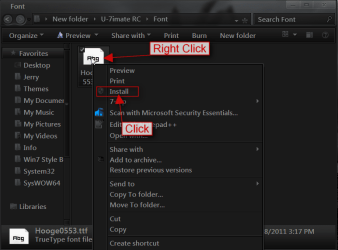
Right-click on the font and click on install.
1.png

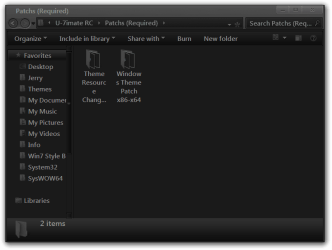
Then go to Patchs (Required) folder and install Theme Resource Changer x64 then you can install the universal theme patcher x64 here is a tutorial on how to do that http://www.sevenforums.com/tutorials/28377-theme-how-apply-custom-themes.html?filter
2.png

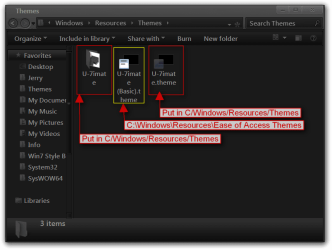
Next open up the Visual Style folder and put the two highlighted in red in C:\Windows\Resources\Themes and the one in yellow in C:\Windows\Resources\Ease of Access Themes
The theme should show up and personalize now.
3.png

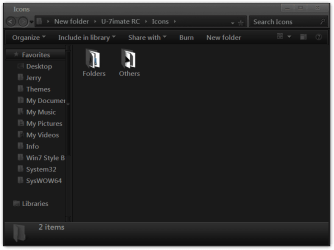
The folder with the icons in it you will need to edit the imageres.dll in C:\Windows\System32 and C:\Windows\SysWOW64 to use them icons. If you get this far I can help you do that to.
4.png

For the start orb that theme maker recommends using the start orb changer on his webpage.
Jerry
 

My Computer

Computer type
Laptop
Computer Manufacturer/Model Number
Sager NP9170
OS
Win 7 Pro x64 / Win 10 Pro
CPU
Intel(R) Core(TM) i7-3630QM CPU @ 2.40GHz
Motherboard
CLEVO P170EM
Memory
12 GB
Graphics Card(s)
(1) Intel(R) HD Graphics 4000 (2) NVIDIA GeForce GTX 675M
Sound Card
(1) Realtek High Definition Audio (2) Intel(R) Display Aud
Monitor(s) Displays
17.3
Screen Resolution
1920x1080
Hard Drives
(1) Samsung 860 EVO 500GB(OS) (1) Samsung 860 EVO 500GB(Data)
Keyboard
Backlite
Antivirus
MSE, Malwarebytes Pro
Browser
Firefox
Other Info
DESKTOP: Custom-built.
OS: Win 10 Pro x64.
CASE: Rosewill R5.
CPU: Intel I5 4670K CPU @ 3.40GHz.
CPU COOLER: Cool Master Hyper 212 EVO.
MOTHERBOARD: Asus Z87-A.
MEMORY: Kingston HyperX 2x4 GB.
GPU: Nvidia Geforce 650 TI.
PSU: Corsair TX750.
DRIVES: (1) Samsung 840 120 GB SSD (2) Western Digital blue 500 GB 7200 RPM.
Wow Jerry that was more than I could ask for, thanks a lot! I got everything down so far, and it would be great if you could go through the icons too. I'm saving your posts for future reference, really well done.
Hayk


P.S. This community is awesome :D
 

My Computer

OS
Windows 7 Ultimate x64
I have a program I use for changing icons in .dll I will work on them today and try to get it done sometime later today I have 64-bit system so I can make them up and post a link to them when done. I will tell you how take ownership give yourself permission and rename and replace the .dll look at post #6 of this thread http://www.sevenforums.com/customization/179502-basic-networking-information.html#post1525656 you can study it I am working on the .dll
Jerry
 

My Computer

Computer type
Laptop
Computer Manufacturer/Model Number
Sager NP9170
OS
Win 7 Pro x64 / Win 10 Pro
CPU
Intel(R) Core(TM) i7-3630QM CPU @ 2.40GHz
Motherboard
CLEVO P170EM
Memory
12 GB
Graphics Card(s)
(1) Intel(R) HD Graphics 4000 (2) NVIDIA GeForce GTX 675M
Sound Card
(1) Realtek High Definition Audio (2) Intel(R) Display Aud
Monitor(s) Displays
17.3
Screen Resolution
1920x1080
Hard Drives
(1) Samsung 860 EVO 500GB(OS) (1) Samsung 860 EVO 500GB(Data)
Keyboard
Backlite
Antivirus
MSE, Malwarebytes Pro
Browser
Firefox
Other Info
DESKTOP: Custom-built.
OS: Win 10 Pro x64.
CASE: Rosewill R5.
CPU: Intel I5 4670K CPU @ 3.40GHz.
CPU COOLER: Cool Master Hyper 212 EVO.
MOTHERBOARD: Asus Z87-A.
MEMORY: Kingston HyperX 2x4 GB.
GPU: Nvidia Geforce 650 TI.
PSU: Corsair TX750.
DRIVES: (1) Samsung 840 120 GB SSD (2) Western Digital blue 500 GB 7200 RPM.
1st
Make a system restore point http://www.sevenforums.com/tutorials/697-system-restore-point-create.html
2nd
I recommend turning the User Account Control (UAC) all the way down (off) while doing this remember where this setting is at http://www.sevenforums.com/tutorials/299-user-account-control-uac-change-notification-settings.html
be sure to restart after turning it down.
3rd
Download the .dll here
System32.zip
SysWOW64.zip
4th
Follow post #6 http://www.sevenforums.com/customization/179502-basic-networking-information.html#post1525656 do not miss any steps where it says shell32.dll you will be using imageres.dll
be sure to put the System32 imageres.dll in C:\Windows\System32
and the SysWOW64 imageres.dll in C:\Windows\SysWOW64
5th
Restart your computer
6th
You will need to rebuild your Icon Cache after doing the above http://www.sevenforums.com/tutorials/49819-icon-cache-rebuild.html Option One works very well I do it all the time.
7th
Put your UAC back to the original settings http://www.sevenforums.com/tutorials/299-user-account-control-uac-change-notification-settings.html
Enjoy
Jerry
 

My Computer

Computer type
Laptop
Computer Manufacturer/Model Number
Sager NP9170
OS
Win 7 Pro x64 / Win 10 Pro
CPU
Intel(R) Core(TM) i7-3630QM CPU @ 2.40GHz
Motherboard
CLEVO P170EM
Memory
12 GB
Graphics Card(s)
(1) Intel(R) HD Graphics 4000 (2) NVIDIA GeForce GTX 675M
Sound Card
(1) Realtek High Definition Audio (2) Intel(R) Display Aud
Monitor(s) Displays
17.3
Screen Resolution
1920x1080
Hard Drives
(1) Samsung 860 EVO 500GB(OS) (1) Samsung 860 EVO 500GB(Data)
Keyboard
Backlite
Antivirus
MSE, Malwarebytes Pro
Browser
Firefox
Other Info
DESKTOP: Custom-built.
OS: Win 10 Pro x64.
CASE: Rosewill R5.
CPU: Intel I5 4670K CPU @ 3.40GHz.
CPU COOLER: Cool Master Hyper 212 EVO.
MOTHERBOARD: Asus Z87-A.
MEMORY: Kingston HyperX 2x4 GB.
GPU: Nvidia Geforce 650 TI.
PSU: Corsair TX750.
DRIVES: (1) Samsung 840 120 GB SSD (2) Western Digital blue 500 GB 7200 RPM.
Back
Top