Installing Windows 7 and 8.1 on the same system

I'd set the OS you plan to use most first to boot in BIOS and install Easy to if to add the other by name, type and drive letter seen from booted OS.

From 8.1 you should get a blue Modern boot menu styled like 8.

From 7 you'll get a more barebones menu

If one doesn't work try the other.

It appears the other partitions on 8 are Factory Recovery which you can leave be. After getting your free Upgrade to 10 I would go back and use media MS provides to Clean Reinstall to wiped disk.
 
Last edited:
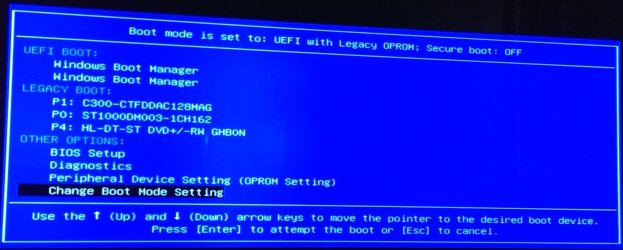
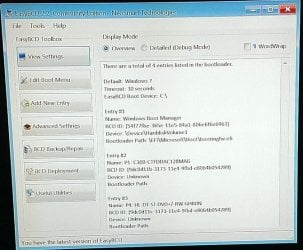
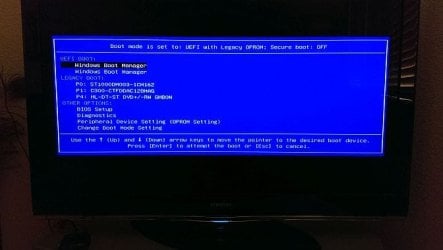
I rebooted to change boot device in UEFI to the HDD with Windows 8.1 but it doesn't recognize it as a boot disk and keeps asking for boot media. Changed it back to SSD to be able to boot from Windows 7. Installed EasyBCD but even that doesn't see the Windows 8.1 HDD device and doesn't allow adding it to boot options.
I hope Windows 10 will recognize the existing Windows 8.1 license if I do a clean install of Windows 10 by wiping out all partitions on HDD.
 

Attachments

  • UEFI.jpg
    UEFI.jpg
    188.4 KB · Views: 1
  • BIOS.jpg
    BIOS.jpg
    179.5 KB · Views: 1
  • BootMgr.jpg
    BootMgr.jpg
    77.5 KB · Views: 1
  • EasyBCD.jpg
    EasyBCD.jpg
    77.6 KB · Views: 14

My Computer My Computer

Computer type
PC/Desktop
Computer Manufacturer/Model Number
Dell Inspiron I3847-3850BK
OS
Microsoft Windows 7 Professional 64-bit 7601 Multiprocessor Free Service Pack 1
CPU
Intel(R) Core(TM) i3-4150 CPU @ 3.50GHz
Motherboard
Dell Inc. 088DT1
Memory
8.00 GB
Graphics Card(s)
Intel(R) HD Graphics 4400
Sound Card
(1) Realtek High Definition Audio (2) Intel(R) Display Aud
Monitor(s) Displays
Samsung LCD TV, 3 HDMI ports
Screen Resolution
1920 x 1080 x 32 bits (4294967296 colors) @ 60 Hz
Hard Drives
C300-CTF C300-CTFDDAC128M SCSI Disk Device
PSU
220W
Case
Dell
Keyboard
Basic
Mouse
Basic
Internet Speed
Ethernet, 802.11b/g/n wireless LAN (Dell Wireless 1705)
Antivirus
Microsoft Security Essentials
Browser
Chrome Version 38.0.2125.101 m, IE 10.0.92
Other Info
Intel H81 Express chipset, in 1 card reader, DVD/CD burner, 1 PCI Express x16 & 2 PCI Express x1, HDMI output for HDTV. VGA. 8 USB ports (2 USB3, 6 USB2), Audio in/out jacks. 3-stack audio jacks supporting 5.1 surround sound. Windows Media Center.
With UEFI you'll never set the hard drive as first device to boot, only the Windows Boot Manager. It seems you already have two listed there, so perhaps changing their Boot order is possible. Make sure you are in fact booting the 8 drive via Windows Boot Manager, if necessary unplugging the Windows 7 drive to test this.

Again try EasyBCD from both OS's. This time in Edit OS Menu tab, delete all listings except the one you are presently booted into. This is how these are reset in EasyBCD, by deleting all but the default and adding the other OS again on the Add New Entry tab using its drive letter as viewed by the drive you're presently booted into.

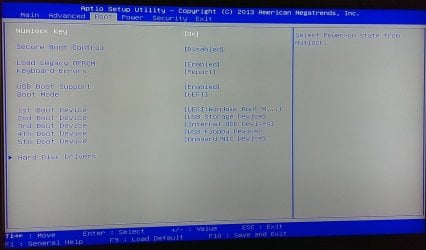
You can also try to select Load Legacy Oprom on BIOS menu shown above to see what the explanatory text says to the left. You may not need Legacy anything with a fully UEFI bootable system, unless you later add a bootable Legacy drive. If it appears to apply for your BIOS to disable Legacy in favor of fully UEFI then I would try that to see if 8 drive shows up.

If not with WIndows 8 drive set first to boot and both drives plugged in, boot into Windows 8 Automatic Repair to run it to go over your boot files and check their integrity. This sometimes will also configure a Dual Boot with the other OS. If not try EasyBCD again from both OS's.

If you are certain the BIOS settings are correct then what will for certain configure a Dual Boot is to run Refresh Windows 8 which will in-place reinstall the OS to overcome any corruption. This is challenging with a lot of factory crapware competing and hindering the OS's operation, so you'd be better off wiping the drive to Clean Install Windows 8 however if your goal is to get the free Windows 10 Upgrade Installation and it will run then you can later Clean Install Windows 10 which will activate automatically from the BIOS that has been permanently given a Windows 10 activation.

You can also follow these same steps in 8 to Clean Up Factory Bloatware to get better performance and make a Refresh go smoother.

 
Giving up on dual boot - How can I repair Windows 7

I'm giving up on dual booting this systems and now my focus is on getting it to boot from Windows 7 so I can continue to use WMC for as long as I can. I could create a new thread but would lose this background information.

Again try EasyBCD from both OS's. This time in Edit OS Menu tab, delete all listings except the one you are presently booted into. This is how these are reset in EasyBCD, by deleting all but the default and adding the other OS again on the Add New Entry tab using its drive letter as viewed by the drive you're presently booted into.
Tried this and added Windows 7 boot option. Selecting that option at boot time hangs the system with a colorful strip at top of the screen. The Windows 7 installation needs repair but I foolishly failed to make a recovery/repair disk before embarking on the dual boot adventure. What I have is 2 DVD's; a bootable Repair Windows 7 Ultimate DVD for my other machine (not for the Windows 7 Pro X64 version I have installed here) from which I can get to command prompt but am unable to complete SFC scans, a DVD with ISO image of Windows 7 Pro X64 but it is not bootable. Is there any way I can repair this installation?

If not with WIndows 8 drive set first to boot and both drives plugged in, boot into Windows 8 Automatic Repair to run it to go over your boot files and check their integrity. This sometimes will also configure a Dual Boot with the other OS. If not try EasyBCD again from both OS's.
Tried EasyBCD from Windows 8.1 with both drives plugged in. No success in booting from Windows 7.

If you are certain the BIOS settings are correct then what will for certain configure a Dual Boot is to run Refresh Windows 8 which will in-place reinstall the OS to overcome any corruption. This is challenging with a lot of factory crapware competing and hindering the OS's operation, so you'd be better off wiping the drive to Clean Install Windows 8 however if your goal is to get the free Windows 10 Upgrade Installation and it will run then you can later Clean Install Windows 10 which will activate automatically from the BIOS that has been permanently given a Windows 10 activation.
Tried this one as well. Still no success with Windows 7 boot. I need to be able to run WMC on Windows 7 until I can configure an alternative on Windows 10. Currently testing Media Portal on Windows 8.1 but it will take some work to get it to work. Once it works then I'll clean install Windows 10 and reinstall it there. Until then, I have to be able to boot from Windows 7 SSD even it is not under dual boot.
 
Last edited:

My Computer My Computer

Computer type
PC/Desktop
Computer Manufacturer/Model Number
Dell Inspiron I3847-3850BK
OS
Microsoft Windows 7 Professional 64-bit 7601 Multiprocessor Free Service Pack 1
CPU
Intel(R) Core(TM) i3-4150 CPU @ 3.50GHz
Motherboard
Dell Inc. 088DT1
Memory
8.00 GB
Graphics Card(s)
Intel(R) HD Graphics 4400
Sound Card
(1) Realtek High Definition Audio (2) Intel(R) Display Aud
Monitor(s) Displays
Samsung LCD TV, 3 HDMI ports
Screen Resolution
1920 x 1080 x 32 bits (4294967296 colors) @ 60 Hz
Hard Drives
C300-CTF C300-CTFDDAC128M SCSI Disk Device
PSU
220W
Case
Dell
Keyboard
Basic
Mouse
Basic
Internet Speed
Ethernet, 802.11b/g/n wireless LAN (Dell Wireless 1705)
Antivirus
Microsoft Security Essentials
Browser
Chrome Version 38.0.2125.101 m, IE 10.0.92
Other Info
Intel H81 Express chipset, in 1 card reader, DVD/CD burner, 1 PCI Express x16 & 2 PCI Express x1, HDMI output for HDTV. VGA. 8 USB ports (2 USB3, 6 USB2), Audio in/out jacks. 3-stack audio jacks supporting 5.1 surround sound. Windows Media Center.
Thanks to all the wonderful advice I received, I have a dual boot system albeit with some quirks.
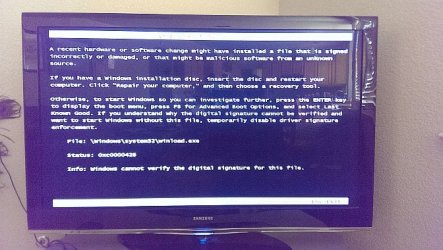
As recommended, I have installed EasyBCD on both OS'es, deleted all but the one booted from and then added the other OS with its current mapped drive. I do get boot options for both OS'es at startup. If I just boot back to Win 7, it performs a clean boot without any problem. If I choose Win 8.1, it brings up "A recent hardware or software change..." error screen (picture 2). Even though it says insert Windows installation disk, if I press Enter, it does not boot from USB based recovery disk I created from Windows 8.1 and returns to the same screen. If I press ESC, it boots into Windows 8.1.
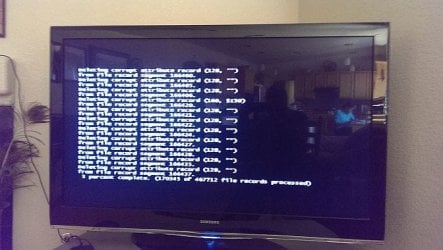
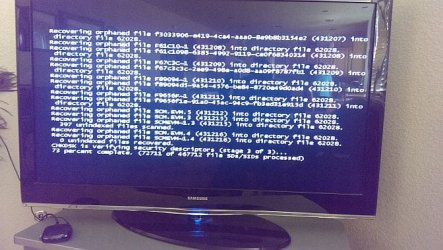
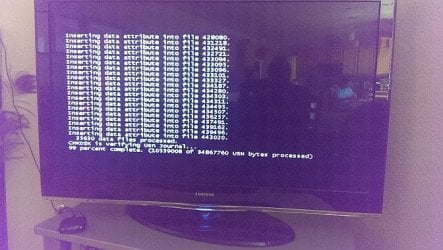
When I choose Windows 7 from the BCD options, (after rebboting from Windows 8.1) it wants to run chkdsk and starts giving me errors (bottom 3 pictures) and eventually boots into Windows 7. My Windows 7 is installed on an SSD and I'm concerned about impact on its life because of too many file system corrections written to it every time I boot back into Win 7 after Win 8.
How do I clean it up?
 

Attachments

  • bios (1).jpg
    bios (1).jpg
    43.3 KB · Views: 10
  • eight.jpg
    eight.jpg
    83.7 KB · Views: 10
  • corrupt.jpg
    corrupt.jpg
    69.5 KB · Views: 10
  • recovering.jpg
    recovering.jpg
    96.5 KB · Views: 10
  • inserting.jpg
    inserting.jpg
    74.6 KB · Views: 10

My Computer My Computer

Computer type
PC/Desktop
Computer Manufacturer/Model Number
Dell Inspiron I3847-3850BK
OS
Microsoft Windows 7 Professional 64-bit 7601 Multiprocessor Free Service Pack 1
CPU
Intel(R) Core(TM) i3-4150 CPU @ 3.50GHz
Motherboard
Dell Inc. 088DT1
Memory
8.00 GB
Graphics Card(s)
Intel(R) HD Graphics 4400
Sound Card
(1) Realtek High Definition Audio (2) Intel(R) Display Aud
Monitor(s) Displays
Samsung LCD TV, 3 HDMI ports
Screen Resolution
1920 x 1080 x 32 bits (4294967296 colors) @ 60 Hz
Hard Drives
C300-CTF C300-CTFDDAC128M SCSI Disk Device
PSU
220W
Case
Dell
Keyboard
Basic
Mouse
Basic
Internet Speed
Ethernet, 802.11b/g/n wireless LAN (Dell Wireless 1705)
Antivirus
Microsoft Security Essentials
Browser
Chrome Version 38.0.2125.101 m, IE 10.0.92
Other Info
Intel H81 Express chipset, in 1 card reader, DVD/CD burner, 1 PCI Express x16 & 2 PCI Express x1, HDMI output for HDTV. VGA. 8 USB ports (2 USB3, 6 USB2), Audio in/out jacks. 3-stack audio jacks supporting 5.1 surround sound. Windows Media Center.
I found the solution for the disk errors. This sticky at NeoSmart forums has detailed explanation but in summary,
The solution is to enter the Control Panel > Power Options, reveal the "currently unavailable" settings and choose "what the power button does"
At the bottom of the page, scroll down to Shutdown Settings & remove the tick from "Turn on fast startup"
fixed the problem.
I still need to figure out a solution to the "windows\system32\winload.exe missing or corrupt" error message on Windows 8.1 boot. Looking into it.
 
Last edited:

My Computer My Computer

Computer type
PC/Desktop
Computer Manufacturer/Model Number
Dell Inspiron I3847-3850BK
OS
Microsoft Windows 7 Professional 64-bit 7601 Multiprocessor Free Service Pack 1
CPU
Intel(R) Core(TM) i3-4150 CPU @ 3.50GHz
Motherboard
Dell Inc. 088DT1
Memory
8.00 GB
Graphics Card(s)
Intel(R) HD Graphics 4400
Sound Card
(1) Realtek High Definition Audio (2) Intel(R) Display Aud
Monitor(s) Displays
Samsung LCD TV, 3 HDMI ports
Screen Resolution
1920 x 1080 x 32 bits (4294967296 colors) @ 60 Hz
Hard Drives
C300-CTF C300-CTFDDAC128M SCSI Disk Device
PSU
220W
Case
Dell
Keyboard
Basic
Mouse
Basic
Internet Speed
Ethernet, 802.11b/g/n wireless LAN (Dell Wireless 1705)
Antivirus
Microsoft Security Essentials
Browser
Chrome Version 38.0.2125.101 m, IE 10.0.92
Other Info
Intel H81 Express chipset, in 1 card reader, DVD/CD burner, 1 PCI Express x16 & 2 PCI Express x1, HDMI output for HDTV. VGA. 8 USB ports (2 USB3, 6 USB2), Audio in/out jacks. 3-stack audio jacks supporting 5.1 surround sound. Windows Media Center.
Back
Top