Solved Installing Windows 7 From Windows 8 - No Disk Space?

Capa

New member
Local time
3:33 PM
Messages
4
Hi All,

I recently installed Windows 8 to have a look over it to decide whether it was for me or not. After a week or so of playing around with it, I have decided that I'd prefer to roll back to 7. However, when trying to do this, I have not had much success.

I've booted from a USB Drive (that I have used before with success) and attempted to format the win8 drive & delete the partition. So far so good. I've then tried to create a new partition and install win7 onto it. This is where the issue begins. I successfully create the new partition, however when trying to click 'next' from the 'Where do you want to Install Windows?' screen, I'm presented with the error:

Setup was unable to create a new system partition or locate an existing system partition see the setup log files for more information

After doing a bit of Googling I found it may well be the case that the partition creation tool is a bit shonky, and that it was worth using DISKPART instead. So I tried this, yet found this on the list disk step:

Disk # Status Size Free
Disk 0 Online 931GB 0B
Disk 1 Online 119GB 0B
Disk 2 Online 298GB 100MB
Disk 3 Online 372GB 1024KB
Disk 4 Online 7500MB 0B


(apologies for the rubbish table, postimage does not seem to like my image, or Linux... )

I have tried:

  • Removing all Unnecessary HD's
  • Creating a new USB
  • Formatting & re-installing Win8 (this works without incident)

I can't see anything untoward in the system logs, but I'm no expert. Happy to get screenshots if anything thinks it will help.

System Details:

Asus M4A97 Evo
AMD X6 1100T Black Edition Processor
6GB DDR3 1333MHZ RAM
AMD 6790 1GB Graphics
128GB SSD (Install Drive)
320GB HD
400GB HD
1TB HD

No overclocking of any kind on the above components.

All help appreciated!
 

My Computer My Computer

OS
Windows 7 Ultimate x64
If you are trying to install to the SSD then according to the list above it would be Disk 1
There is no reason why you would need to create a partition during the installation process, windows will automatically create a 100MB system reserved partition for you during the install

The list disk you put above looks correct it shows the four HDDs connected to the machine plus the USB drive last that you are installing from

If you would like a step by step for a perfect clean reinstall then have a look at this tutorial http://www.sevenforums.com/tutorials/219487-clean-reinstall-factory-oem-windows-7-a.html#post1839164

If you do not want the system reserved partition which is what I suspect you are trying to do here then all you need to do is access diskpart from the installer screen during setup (shift + F10) then all you need to type is

diskpart
list disk (to confirm which disk is which)
select disk 1 (if the setup is the same as above)
clean (this will wipe previous partitions on the disk)
create partition primary (this will make a partition the size of the disk)
format fs=ntfs (format the new partition with ntfs file system)
active (marks the new partition active ready to accept win installation boot files)
exit
exit

if you are going to do this I would strongly recommend you unplug all other drives and only leave the SSD plugged in and make sure it is connected to the lowest numbered sata port you have (typically sata_0) ie swap the 1TB drive with the SSD
 

My Computer My Computer

Computer type
PC/Desktop
Computer Manufacturer/Model Number
Pauly Special
OS
Win7 Ultimate X64
CPU
Intel i5 3570K
Motherboard
Gigabyte Z77X-DS3H
Memory
8GB DDR3 1600
Graphics Card(s)
Onboard
Sound Card
Onboard
Screen Resolution
1280x1024
Hard Drives
Samsung 840 Evo SSD (OS)
1TB Spinner (Data)
PSU
800W Arctic
Case
Cooler Master
Cooling
3x120mm Fans
Keyboard
MS Wireless
Mouse
MS Wireless
Internet Speed
20M
Thanks for your response. My sole objective here is to get a working copy of Win7 installed and working by any means. I'm not looking to dual boot or anything fancy like that, just get something working. :)

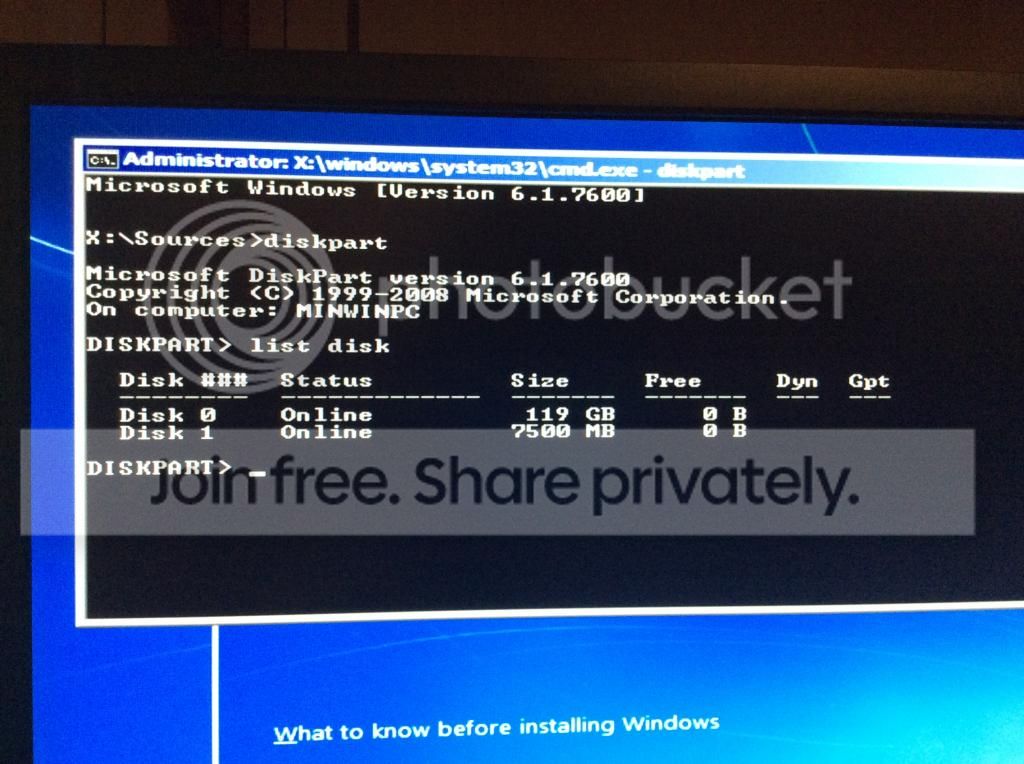
I have done what you have suggested, yet unfortunately I'm still in the same situation. Please view the below workflow and advise if you believe I'm missing anything.

photo4_zpsf8d9e6f3.jpg

I've removed all drives but for the SSD, as requested.
I still find it a bit weird that the 'free' column is displaying 0 bytes. Can anyone explain why this is the case?
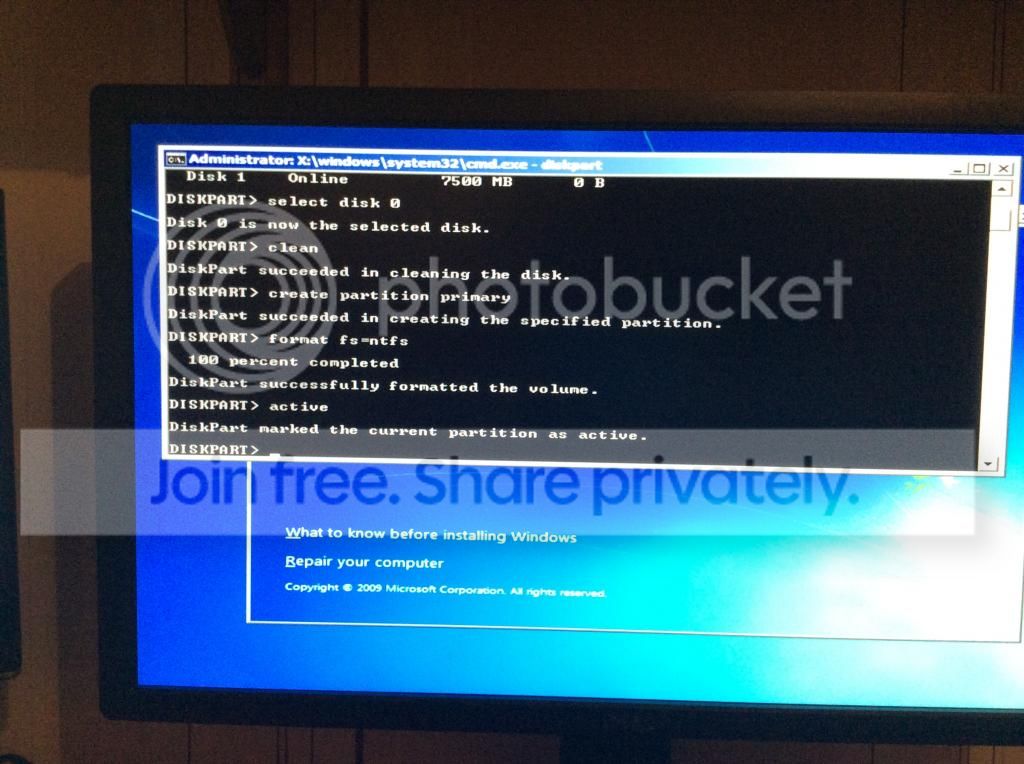
photo_zpse39c0d79.jpg

Gone through the disk part steps... Everything looking good so far.

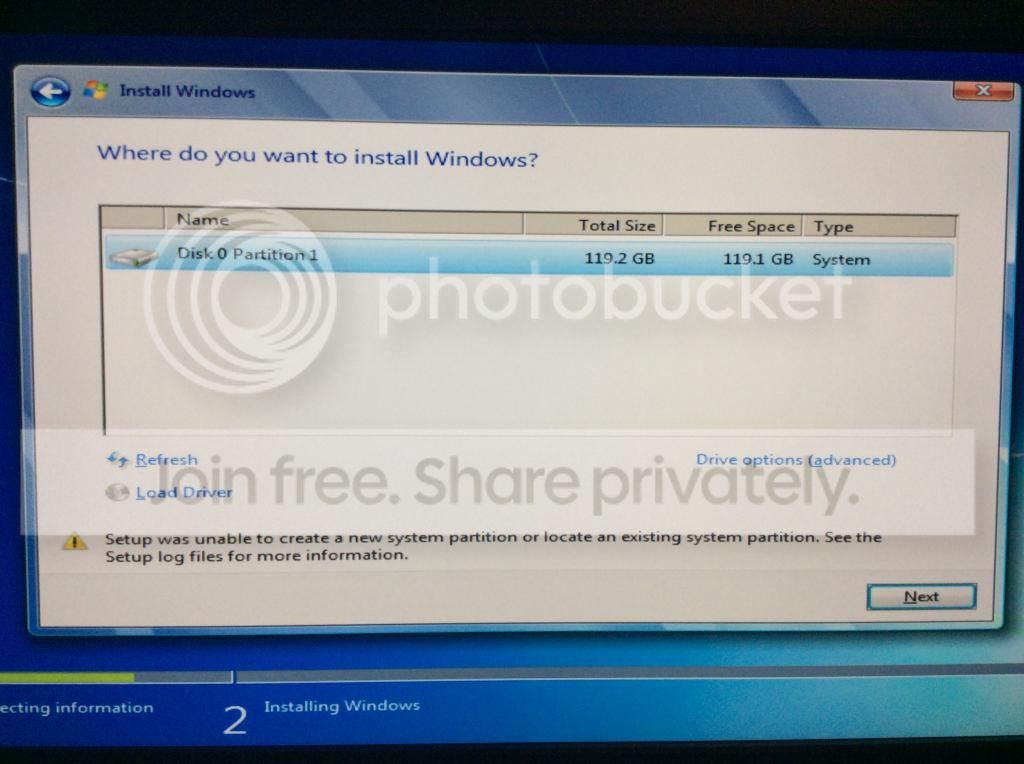
photo2_zps62ececf5.jpg

Boom. No joy. Not a peep.

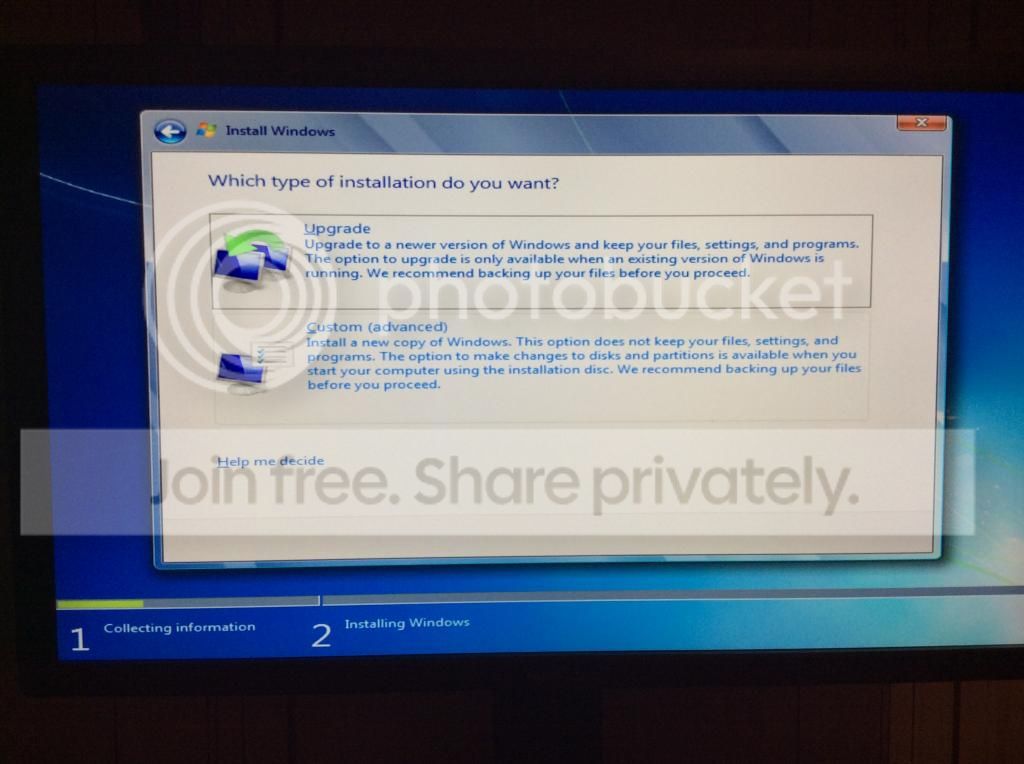
photo3_zps61e1dc80.jpg

This piqued my interest somewhat. Why is it even giving me the opportunity to upgrade. I still think there might be some variety of Windows 8 boot manager caught up in here somewhere, but I'm unable to prove or delete it.

Anyone have any further thoughts? By and large I'm out of ideas. :(
 

My Computer My Computer

OS
Windows 7 Ultimate x64
Have you deleted it down to un allocated space.

I just went through a small battle with an HP 6300 SFF and a new Seagate 500 GB drive, it gave me the same message you got until I just deleted the drive to un allocated space.

Are you getting the message " Windows cannot be installed to this disk. The disk is of the GPT partition style. ???

The disk needs to be converted from GPT to MBR

Solution: With Gregs help I just had to convert the disk to MBR, not sure if that`ll help you out.

http://www.sevenforums.com/installa...reinstalled-windows-8-laptop.html#post2178898
 
Last edited:

My Computer My Computer

Computer type
PC/Desktop
Computer Manufacturer/Model Number
Skylake Special #666
OS
Windows 10 Pro x64
CPU
Intel Core i7 6700K
Motherboard
Asus Sabertooth Z170 Mark 1
Memory
GSkill TridentZ RGB 16GB 3600 16-16-16-36
Graphics Card(s)
EVGA GTX 980 Ti SC x2
Sound Card
Realtek High Definition
Monitor(s) Displays
AOC G2460PG
Screen Resolution
1920 x 1080 144Hz
Hard Drives
Samsung 860 Pro 256GB, Seagate Barracuda 4TB x2
PSU
EVGA 1000 P2, EVGA White Custom Braided Cables
Case
Corsair Vengeance C70 Gunmetal Black
Cooling
Corsair H100i v2, Corsair ML120 x2, Thermal Grizzly Kryonaut
Keyboard
Logitech G910 Orion Spectrum
Mouse
Logitech G700s
Internet Speed
Verizon Fios Quantum Gateway 75/75
Antivirus
Windows Defender, Malwarebytes Free 3.8.3
Browser
Chrome
Other Info
Corsair SP120 x4, LG Blu-ray Drive, Durabrand HT-395 100 Watt Dolby Digital Amp, Corsair H2100 Wireless 7.1 Headset
OK, well I'm writing this on a perfectly serviceable Windows 7 machine, which is currently beavering away downloading system updates, so the issue has been fixed.

I believe that the issue here was, as Greg suspected, the stick formatting. I attempted to re-format the disk using Rufus to a UEFI compatible format (GPT), however for whatever reason my copy of Rufus was not displaying this as an option. (Possibly because I was working off a Windows XP backup machine?)

At this point I was reasonably sure that this was having an impact and was doing some further reading regarding workarounds and such. After pfaffing around with a couple, I decided that the issue was to do with the stick, and that I couldn't fix it. I nipped out to Staples and bought a few DVD+Rs and figured it might just be easier if I abandon the whole stick idea and go with a CD. At least this way I could rule the media out.

Armed with some DVDs I tried to use the Windows USB ISO tool to create a boot disk. However it was having none of it. I don't really know the reason why, but I gave up pretty quickly with this and thought about alternative solutions. In the end I made a LiveISO of Ubuntu, booted that up and burned the ISO using K3b.

I booted off this disk successfully, and wrote directly to the formatted partition that I had made yesterday. Happy days.

So, in conclusion; for anyone having issues similar to mine whereby they're coming down from Win8 to Win7, my advice is simply to abandon the USB idea and burn an ISO to a bootable, physical DVD. Of course this won't work if you don't have a DVD writer to hand, nor if the machine you're trying to set-up doesn't have an optical drive, but if the option's there, take it.
Also, don't rule out the concept of using a Linux Distro to dig yourself out of a hole. It may be possible to create a functional GPT formatted Windows 7 USB stick through Ubuntu or similar. I haven't tried, but I dare say it's do-able if you're keen/desperate enough.

Either way, thanks to the chaps above for pointing me in the right direction regarding UEFI issues. :)
 

My Computer My Computer

OS
Windows 7 Ultimate x64
Thanks Greg,

Indeed - I did try to go through Rufus, in the second setting in the Rufus main page, I did not get an option for 'GPT partition scheme for UEFI computer'. I was given the other for both UEFI/BIOS, which didn't work.

I wonder if it was due to the fact I was running XP on that machine.
 

My Computer My Computer

OS
Windows 7 Ultimate x64
Back
Top