internet connection setup in Network and Sharing Centre corrupt!

giin

New member
Local time
1:10 AM
Messages
6
hi all,

I should state first of all i'm a newbie to computers so if you have any responses please write in layman terms.

I connect to the web through a modem which is connected to a D-link router, this worked fine until about 2 weeks ago. I can connect to net but the set up in doing so has completely changed from when I first used the computer.

first the D-link doesnt appear when searching for devices when I try to start a new network connection. Although I'm able to use the web through the modem and router, the other computers no longer see the network via there wi-fi.

My Networking and Sharing Centre seems to have reverted to a basic layout or set up, I can only connect through something called 'Wan Miniport (pppoe)'.
where as when I first setup a connection I was able to set up the following
SSID:
Channel: recommended
Encryption: WPA2-PSK
Password:
I dont have these options any more, not even when I remove all my network connections and try a completely new network.

I am trying to explain my problem but I'm not sure if I can, but to help I've added pics.

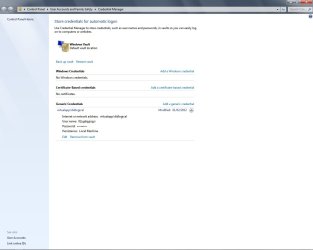
Note the second picture down, the username and password are not mine!!!


can anyone make sense of my problem, thanks
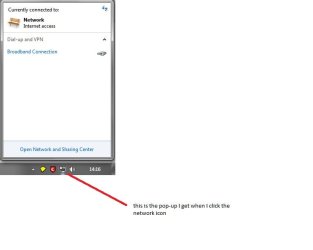

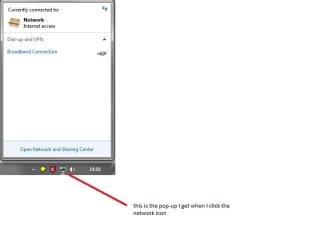
network icon.jpg

credential manager .jpg

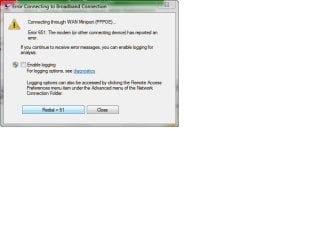
connection error.jpg
 

Attachments

  • WAN Miniport only option in new internet connection.jpg
    WAN Miniport only option in new internet connection.jpg
    62.3 KB · Views: 27

My Computer

OS
windows 7 Ultimate 32 bit
Let's start at the beginning. Try unplugging the router from the electric plug and from the PC. Leave it unplugged for about two minutes. Plug the router in the wall and then into your computer. See if that does anything different than what you have now. Let me know if your router is wireless or is connected to your PC. Thanks,
 

My Computer

Computer type
PC/Desktop
Computer Manufacturer/Model Number
Custom Build
OS
Windows 7 Home Premium 32-Bit - Build 7600 SP1
CPU
Intel Core i3-2120 3.30Ghz
Motherboard
Asus P8Z68-V LX Intel Z68 Socket H2 ATX
Memory
Kingston 4 GB DDR3 1333 mhz
Graphics Card(s)
AMD Radeon HD6670
Sound Card
Sound Blaster Audigy SE 24-Bit
Monitor(s) Displays
Asus VE228
Screen Resolution
1440 X 900
Hard Drives
OCZ Vertex 3 120 GB Sata 3 SSD ==
Kingston SH103/S3 120 G Hyper X 120 GB SSD ==
Western Digital 500 GB Caviar Green 7200 RPM ==
PSU
Corsair CX600M == 600 Watt
Case
NZXT Apollo - Silver with Clear Side Panel
Cooling
Three 120 mm Fans
Keyboard
Microsoft Natural 4000
Mouse
Microsoft Custom Optical 3000
Internet Speed
AT&T Fiber Optic Wireless Network
Antivirus
Microsoft Security Essentials
Browser
Chrome
Other Info
120 mm Blue LED Fan -- Three Blue LED Lazer Light Sticks
As bigmck says report back what happens after doing this - however, it sounds like you are using a second hand router with someone elses settings still in it ?
If this is the case you should do a hard reset of the router - there is normally a hole in the back where you push a sharp object into for 10secs so that the router is completely reset to when it left the factory. Then you can add your own information supplied by your ISP (Internet Service Provider).

Let me know what make and type this is so we can help you further, if required.
 

My Computer

Computer Manufacturer/Model Number
HP Desktop Slimline
OS
Windows 7 Home Premium 64-bit
CPU
Athlon
Memory
3GB
Graphics Card(s)
Integrated
Monitor(s) Displays
HP 20" LCD
Hard Drives
500GB
Internet Speed
Slow
As bigmck says report back what happens after doing this - however, it sounds like you are using a second hand router with someone elses settings still in it ?
If this is the case you should do a hard reset of the router - this is normally a hole in the back where you push a sharp object into for 10secs so that the router is completely reset to when it left the facory. Then you can add your own information supplied by your ISPO (Internet Service Provider). Let me know what make and type this is so to help you further.
 

My Computer

Computer Manufacturer/Model Number
HP Desktop Slimline
OS
Windows 7 Home Premium 64-bit
CPU
Athlon
Memory
3GB
Graphics Card(s)
Integrated
Monitor(s) Displays
HP 20" LCD
Hard Drives
500GB
Internet Speed
Slow
thanks for replies Bigmac, ibshaw. sorry for no immediate replies but connection is a bit iffy.

I've tried to disconecting modem from pc and unplugging from socket this has not worked. Please note what is happening with my internet connection and Network and Sharing Centre wasnt happening 2 weeks ago, then it was all fine, this problem has come about since then and suddenly.


pc connected to wireless router, wireless router connected to modem, both are brand new products supplied as part of a tv, phone and web package from a large company and they were doing what they were supposed to do until about 2weeks ago. i.e laptops could see the name to the wireless network I setup, now they only see the neighbours. Although as i write am running connected through router and through modem.

I'm almost certain the problem isnt with modem or wireless router, its like I'm connected to the internet but windows 7 doesnt know I am or know how I am !

I've reset both router and modem, reinstalled the network setup with D-link cd, but still no change. I phoned isp they said my router seemed fine from their end. It like I said, its like I'm connected to the internet but windows 7 doesnt know I am or know how I am !
 

My Computer

OS
windows 7 Ultimate 32 bit
Have you started from the beginning and setup your network in windows again?
 

My Computer

Computer type
PC/Desktop
Computer Manufacturer/Model Number
Custom Build
OS
Windows 7 Home Premium 32-Bit - Build 7600 SP1
CPU
Intel Core i3-2120 3.30Ghz
Motherboard
Asus P8Z68-V LX Intel Z68 Socket H2 ATX
Memory
Kingston 4 GB DDR3 1333 mhz
Graphics Card(s)
AMD Radeon HD6670
Sound Card
Sound Blaster Audigy SE 24-Bit
Monitor(s) Displays
Asus VE228
Screen Resolution
1440 X 900
Hard Drives
OCZ Vertex 3 120 GB Sata 3 SSD ==
Kingston SH103/S3 120 G Hyper X 120 GB SSD ==
Western Digital 500 GB Caviar Green 7200 RPM ==
PSU
Corsair CX600M == 600 Watt
Case
NZXT Apollo - Silver with Clear Side Panel
Cooling
Three 120 mm Fans
Keyboard
Microsoft Natural 4000
Mouse
Microsoft Custom Optical 3000
Internet Speed
AT&T Fiber Optic Wireless Network
Antivirus
Microsoft Security Essentials
Browser
Chrome
Other Info
120 mm Blue LED Fan -- Three Blue LED Lazer Light Sticks
i have,
the dlink setup which went fine, entered the SSID, password etc, but the problem hasnt gone away

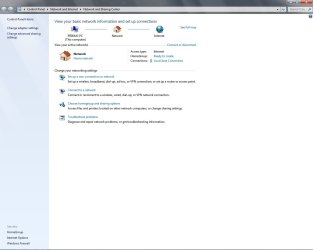
network map.jpg
 

My Computer

OS
windows 7 Ultimate 32 bit
Hi again, did you do a hard reset on the router as I suggested earlier - if you have a separate modem and router you may have to do it with both as I am used to a combined unit. From your description of the problem there is clearly a previous setup (i.e. user and password) that is showing up that needs to be removed. Also you need to find out what wireless device your system uses (check the spec on the internet or user manual you got with the system) then uninstall or disable any other that show up in network connections. If you don't know how to do all of this there will be tutorials on this site as there you can find out about it or I can help further.
The aim should be to get a clean install of YOUR user ID and password and any other unique settings you may need for your ISP.
 

My Computer

Computer Manufacturer/Model Number
HP Desktop Slimline
OS
Windows 7 Home Premium 64-bit
CPU
Athlon
Memory
3GB
Graphics Card(s)
Integrated
Monitor(s) Displays
HP 20" LCD
Hard Drives
500GB
Internet Speed
Slow
hi ibshaw,
firstly, yes i reset each individually before rerunning the D-link setup
secondly, I dont use a wireless function to connect to internet, the routers wi-fi ability is for every one else in the house.
home network.jpgnetwork icon.jpg

but the network I set up with D-link doesnt appear as it once did
 

My Computer

OS
windows 7 Ultimate 32 bit
Not sure I'm completely following this - you have one wired (ethernet cable) system and a few wireless systems right ? The diagrams you are showing above are for the wired one and the icon you see is the standard Win7 icon for a cable connected system, so everything looks normal. What I am trying to find out is.... do they all connect to the internet or not? have you got rid of the unknown name and pw that you had before - if not, then the resets havn't worked. I'm trying to help but I'm not exactly sure what the problem is ?
 

My Computer

Computer Manufacturer/Model Number
HP Desktop Slimline
OS
Windows 7 Home Premium 64-bit
CPU
Athlon
Memory
3GB
Graphics Card(s)
Integrated
Monitor(s) Displays
HP 20" LCD
Hard Drives
500GB
Internet Speed
Slow
For a while neither the desktop pc and therefore the laptops could not connect to web; then for some reason the desktop could connect but the laptops with their wif-fi could not.

But with in the last few hours the laptops now see the network I set up and can connect to the web, I dont know why because I have not done anything new or different with the router, modem or my pc and thats disconcerting as it may just as easily stop connecting them.

I am still not satisfied about my connection, going by your last reply ibshaw you seem to think it looks 'normal' but its not how I had it setup 3 weeks ago! When this problem first occured, when I couldnt connect to the web at all, the network icon in the taskbar showed it was trying to connect to 'network 1', then 'network 2' and 'network 3', i'd only ever set up 1 network!

Any way to your last point, i did reset both router and modem as I said or thought i did, but checking my 'credential manager' folder just, I see those same settings appear, i.e there not settings i've applied.

any advice on that would be welcome, many thanks.
 

My Computer

OS
windows 7 Ultimate 32 bit
I am beginning to see what might be the problem - from your description of what is going on, it looks like your laptops may be picking up, and trying to connect to neighbouring wireless signals instead or your own and because these are generally weaker than yours they may work for a while then drop leaving you with no internet -a lot of folks run their wireless open (i.e. without encryption) so anyone could connect to it without a password.
As I am completely unfamiliar with your setup, there is always a means within the router or modem to automatically connect to your own wireless regardless what else it sees - this is normally as simple as a tick in a box somewhere, suggest you read your manual to find out how to do this. Also, quite important, is to set the connection to an "always on" connection - again somewhere you need to do this, normally setting the idle timeout to 0 (zero) meaning if you leave the computer and come back to it, it will immediately connect again. The latter will affect the wired connection too. As you stated in your first note, you are new to computers so if you can find out how to do these two things you should have a more stable connection.
PS - make sure you have encryption on with a recognised password thus minimizing the risk of intruders.

Good luck - I am here if you need further help.
 

My Computer

Computer Manufacturer/Model Number
HP Desktop Slimline
OS
Windows 7 Home Premium 64-bit
CPU
Athlon
Memory
3GB
Graphics Card(s)
Integrated
Monitor(s) Displays
HP 20" LCD
Hard Drives
500GB
Internet Speed
Slow
Go to the right bottom of your screen and you will see your little "Internet Thingy" It is between your Speaker Icon and the Flag. Click on it and see if your Internet Connection is at the top. There might be others there but yours should be at the top and it should say "Connected". If it doesn't click on it.
 

My Computer

Computer type
PC/Desktop
Computer Manufacturer/Model Number
Custom Build
OS
Windows 7 Home Premium 32-Bit - Build 7600 SP1
CPU
Intel Core i3-2120 3.30Ghz
Motherboard
Asus P8Z68-V LX Intel Z68 Socket H2 ATX
Memory
Kingston 4 GB DDR3 1333 mhz
Graphics Card(s)
AMD Radeon HD6670
Sound Card
Sound Blaster Audigy SE 24-Bit
Monitor(s) Displays
Asus VE228
Screen Resolution
1440 X 900
Hard Drives
OCZ Vertex 3 120 GB Sata 3 SSD ==
Kingston SH103/S3 120 G Hyper X 120 GB SSD ==
Western Digital 500 GB Caviar Green 7200 RPM ==
PSU
Corsair CX600M == 600 Watt
Case
NZXT Apollo - Silver with Clear Side Panel
Cooling
Three 120 mm Fans
Keyboard
Microsoft Natural 4000
Mouse
Microsoft Custom Optical 3000
Internet Speed
AT&T Fiber Optic Wireless Network
Antivirus
Microsoft Security Essentials
Browser
Chrome
Other Info
120 mm Blue LED Fan -- Three Blue LED Lazer Light Sticks
sorry ibshaw for delay in reply,

desktop is ethernet, which has router to allow wireless, 3-4 weeks ago none would connect, then desktop could but wireless wouldnt work. 2 days ago wireless now works but I dont know why as I havent changed anything since last post which is disconcerting because wireless could just as easily stop connecting!! And I'm positive am not connecting to the internet as I was before the problem started, although i know you think it 'looks normal'.

I did reset the router and modem when you mentioned doing so, or at least I thought I had, just checking the 'credential manager', the setting havent changed.

if you have any advice let me know, many thanks.
 

My Computer

OS
windows 7 Ultimate 32 bit
You need to make sure that the information given to you by your ISP is what is currently in your router i.e. you usually get a list of recommended settings that
ensures your modem (or router, as mine is combined) works correctly. The minimum
given is usually a user name and password, but you can get a whole list of parameters
that ensures your connection to them is optimum - you can get this from any ISP's website or call them. My feeling is your setup is all screwed up and it really is difficult to tell you exactly why but from what you tell me, it never seems to work the same from day to day. Look at my last note and follow what I said and this should improve things.
 

My Computer

Computer Manufacturer/Model Number
HP Desktop Slimline
OS
Windows 7 Home Premium 64-bit
CPU
Athlon
Memory
3GB
Graphics Card(s)
Integrated
Monitor(s) Displays
HP 20" LCD
Hard Drives
500GB
Internet Speed
Slow
Back
Top