
How to Add or Remove an Internet Explorer Accelerator Add-on
Information
This tutorial will show you how to add (install) or remove (uninstall) an Accelerator add-on in IE9 and IE10.
Note
You can use Accelerators to search text that you select, map, e-mail, translate, or share content from any web page you’re currently viewing with just one click. Learn more. Internet Explorer comes with a selection of Accelerators included by default, but you can add or remove them as you like.
OPTION ONE
To Add an Accelerator Add-on
1. Open Internet Explorer.
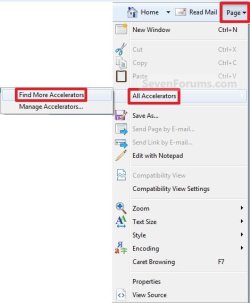
A) Click/tap on the Page Command Bar icon button and click on All Accelerators and Find More Accelerators. (See screenshot below)
NOTE: This will take you to this Microsoft website: Internet Explorer Gallery - Accelerators
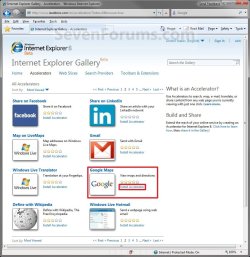
2. Select the Accelerator that you want to add to your Internet Explorer, and click/tap on the Install Accelerator link next to it. (See screenshot below)
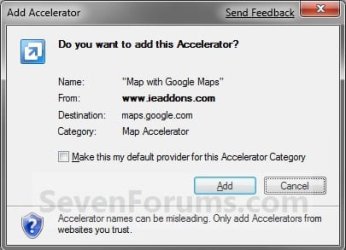
3. Click/tap on the Add button to install the selected Accelerator. (See screenshot below)
NOTE: If you would like this provider to be your default Accelerator for this category, then check the box as well.
4. In Internet Explorer, click/tap on the Page Command Bar icon button and click on All Accelerators and Manage Accelerators. (See screenshot below)
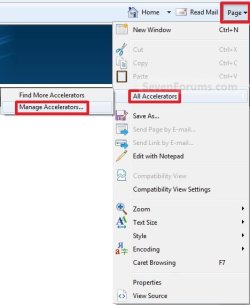
5. You will now see that the selected Accelerator (step 2) has been added. (See screenshot below)

OPTION TWO
To Remove an Accelerator Add-on
1. Open Internet Explorer.
A) Click/tap on the Page Command Bar icon button, and click/tap on All Accelerators and Manage Accelerators. (See screenshot below)
B) Go to step 5.
OR
2. Open Internet Explorer.
A) Click/tap on the Tools Menu Bar item, and click/tap on Manage Add-ons. (See screenshot below)
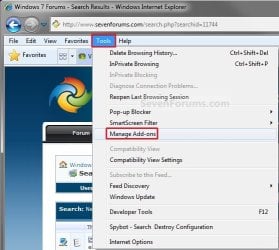
B) Under Add-on Types (left pane), click/tap on Accelerators. (See screenshot below step 5)
C) Go to step 5.
OR
3. Open Internet Explorer.
A) Click/tap on the Tools Command Bar icon button, and click/tap on Manage Add-ons. (See screenshot below)
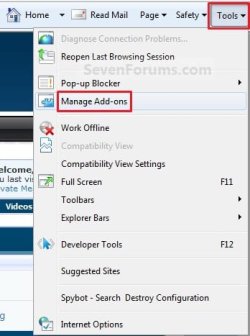
B) Under Add-on Types (left pane), click/tap on Accelerators. (See screenshot below step 5)
C) Go to step 5.
OR
4. Open the Control Panel (icons view).
A) Click/tap on the Internet Options icon.
NOTE: You can also select Internet Options from steps 2 or 3 instead.
B) Click/tap on the Programs tab and Manage Add-ons button. (See screenshot below)

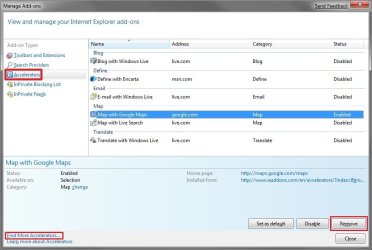
C) Under Add-on Types (left pane), click/tap on Accelerators. (See screenshot below step 5)
5. Select the Accelerator in the category that you want to remove, and click/tap on the Remove button. (See screenshot below)
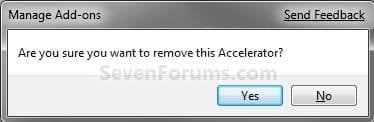
6. Click/tap on Yes to confirm the removal. (See screenshot below)
That's it,
Shawn
Related Tutorials
- How to Enable or Disable an Internet Explorer Accelerator Add-on
- How to Enable or Disable the Use of Internet Explorer Accelerators
- How to Set a Default Accelerator in Windows 7 Internet Explorer
- Turn On or Off Internet Explorer Display Accelerator Button on Selection
- How to Create a Windows 7 Internet Explorer No Add-ons Shortcut
- How to Enable or Disable an Internet Explorer Toolbar and Extension Add-on
Last edited:

