
Internet Explorer - Enable or Disable Accelerator Add-ons

How to Enable or Disable a Internet Explorer Accelerator Add-on

   Information
This will show you how to enable or disable a Accelerator add-on in IE9 and IE10.

To get free add-ons from Microsoft, see: Internet Explorer Gallery

   Note
You can use Accelerators to search text that you select, map, e-mail, translate, or share content from any web page you’re currently viewing with just one click. Learn more.


Here's How:
1. Open Internet Explorer.
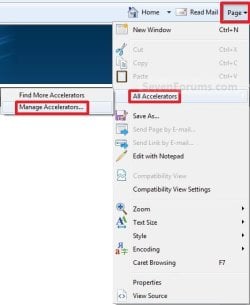
A) Click/tap on the Page Command Bar icon button, and click/tap on All Accelerators and Manage Accelerators. (See screenshot below)
Page_Button.jpg
B) Go to step 5 or 6.
OR

2. Open Internet Explorer.
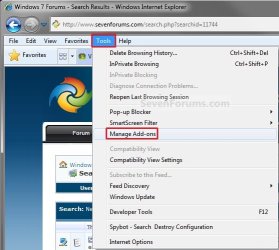
A) Click/tap on the Tools Menu Bar item, and click/tap on Manage Add-ons. (See screenshot below)
Tools_Menu_Bar.jpg
B) Under Add-on Types (left pane), click/tap on Accelerators. (See screenshot below step 5A or 6A)

C) Go to step 5 or 6.
OR

3. Open Internet Explorer.
A) Click/tap on the Tools Command Bar icon button, and click/tap on Manage Add-ons. (See screenshot below)
Tool_Button.jpg
B) Under Add-on Types (left pane), click/tap on Accelerators. (See screenshot below step 5A or 6A)

C) Go to step 5 or 6.
OR

4. Open the Control Panel (icons view) .
A) Click/tap on the Internet Options icon.
NOTE: You can also select Internet Options from steps 2 or 3 instead.

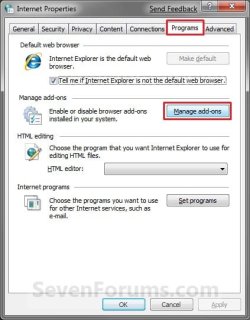
B) Click/tap on the Programs tab and Manage Add-ons button. (See screenshot below)
Internet_Options.jpg
C) Under Add-on Types (left pane), click/tap on Accelerators. (See screenshot below step 5A or 6A)

D) Go to step 5 or 6.
5. To Disable a Accelerator Add-on
A) Select a enabled Accelerator add-on that you want to disable, and click/tap on the Disable button. (See screenshot below)
Disable.jpg
B) Go to step 7.
6. To Enable a Accelerator Add-on
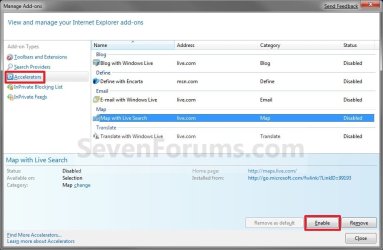
A) Select a disabled Accelerator add-on that you want to enable, and click/tap on the Enable button. (See screenshot below)
Enable.jpg
7. Click on the Close button. (See screenshot above)

8. If you did step 4, then click on OK. (See screenshot below step 4B)
That's it,
Shawn


Last edited:
How do you turn the darn thing off so it does not show up in the middle of an email?? In my opinion, it is very annoying. Any help would be appreciated.
 

My Computer

OS
Windows 7 Beta
Why not just reset to defaults and when it runs through the setup again make sure you select custom and just disable all the accelerators.
 

My Computer

Computer Manufacturer/Model Number
Home Brew
OS
Windows 7 Ultimate Vista Ultimate x64
CPU
Core 2 Duo E8500 3.16Ghz @ 3.8Ghz
Motherboard
eVGA 750i FTW
Memory
2x2Gigs Patriot PC2-6400 LL
Graphics Card(s)
Inno3D GeForce GTX260 216 SP
Monitor(s) Displays
ASUS VW222U 22" 2ms Response time
Screen Resolution
1680x1050
Hard Drives
SATA 150GB
SATA II 250GB
USB IDE 750GB Ext.
PSU
HYTEC 600W & Thermaltake 650W Toughpower Power Exp
Case
Thermaltake Armor LCS (Liquid Cooling System)
Cooling
Liquid Cooling System
Keyboard
Logitech G15 Gaming Keyboard
Mouse
Logitech G9 Gaming Mouse
Thanks for the suggestion.

I disabled all of them but the Search one still shows and I still get the little blue box right smack in the middle of my email. I was wondering if there was a way to just get rid of it entirely?
 

My Computer

OS
Windows 7 Beta
Hello Coberfranc, and welcome to Seven Forums.

I believe it is a bug in IE8. I have all accelerators disabled as well, and I still get the blue arrow accelerator box that includes the Google search option.

You should send feedback to Microsoft to help make them aware of this bug. The more people that do, the more likely it may get fixed in a future release.

Shawn
 
Last edited:

My Computer

Computer type
PC/Desktop
Computer Manufacturer/Model Number
Self built custom
OS
64-bit Windows 11 Pro for Workstations
CPU
Intel i7-8700K OC'd to 5 GHz
Motherboard
ASUS ROG Maximus XI Formula Z390
Memory
64 GB (4x16GB) G.SKILL TridentZ RGB DDR4 3600 MHz
Graphics Card(s)
ASUS ROG-STRIX-GTX1080TI-O11G-GAMING
Sound Card
Integrated
Monitor(s) Displays
2 x Samsung Odyssey G7 27"
Screen Resolution
2560x1440
Hard Drives
1TB Samsung 990 PRO M.2,
4TB Samsung 990 PRO PRO M.2,
TerraMaster F8 SSD Plus NAS
PSU
Seasonic Prime Titanium 850W
Case
Thermaltake Core P3
Cooling
Corsair Hydro H115i
Keyboard
Logitech wireless K800
Mouse
Logitech MX Master 4
Internet Speed
2 Gb/s Download and 100 Mb/s Upload
Antivirus
Malwarebyte Anti-Malware Premium
Browser
Google Chrome
Other Info
Logitech Z625 speaker system,
Logitech BRIO 4K Pro webcam,
HP Color LaserJet Pro MFP M477fdn,
APC SMART-UPS RT 1000 XL - SURT1000XLI,
Galaxy S23 Plus phone
Oh My Gawd! Shawn please help!

How annoying is this new STUPIDLY annoying geeky microsoft accelerator stuff!! :mad:

Why do they keep cramming stuff like this down our throats!!

When you go to Page/all accelerators why isnt there a damn DISABLE option along with get more or manage accelerators. Not only do I still get that blue box with microcrap search in it (I love Microsoft for the record, I just hate the way they think all their new nerdy inventions will be liked by everyone) but now on almost every new page I visit a small pop up on the middle bottom of the toolbar tells me I have something disabled, blah blah blah,! !!!

I dont believe this sh!t! Should I uninstall Explorer 8? Download Google Chrome Browser? Please advise! I just want that damn accelerator stupid option to dissapear from my PC dammit!!

Sorry Shawn, they just manage to always frustrate me!

Please advise, alos your link on feedback does not work.
 

My Computer

OS
Windows XP
Sweet I found a fix, very simple! I just hope I didnt enable/disable any important add ons in the process! Oh well, should be easy to enable them back, i think.

Hello,

For your current situation, if you really want to disable the accelerators feature in IE 8, please perform the following steps.

1. Start Internet Explorer 8.


2. Click Tools -> Internet Options -> Advanced


3. Then uncheck the box for Display Accelerator button on selection, under Browsing.


4. Click Apply and OK.


Cheers.

Completely disable accelerators feature in IE 8
 

My Computer

OS
Windows XP
Hello Tommy, and welcome to Seven Forums.

Thank you for sharing your results and solution. :)

Shawn
 

My Computer

Computer type
PC/Desktop
Computer Manufacturer/Model Number
Self built custom
OS
64-bit Windows 11 Pro for Workstations
CPU
Intel i7-8700K OC'd to 5 GHz
Motherboard
ASUS ROG Maximus XI Formula Z390
Memory
64 GB (4x16GB) G.SKILL TridentZ RGB DDR4 3600 MHz
Graphics Card(s)
ASUS ROG-STRIX-GTX1080TI-O11G-GAMING
Sound Card
Integrated
Monitor(s) Displays
2 x Samsung Odyssey G7 27"
Screen Resolution
2560x1440
Hard Drives
1TB Samsung 990 PRO M.2,
4TB Samsung 990 PRO PRO M.2,
TerraMaster F8 SSD Plus NAS
PSU
Seasonic Prime Titanium 850W
Case
Thermaltake Core P3
Cooling
Corsair Hydro H115i
Keyboard
Logitech wireless K800
Mouse
Logitech MX Master 4
Internet Speed
2 Gb/s Download and 100 Mb/s Upload
Antivirus
Malwarebyte Anti-Malware Premium
Browser
Google Chrome
Other Info
Logitech Z625 speaker system,
Logitech BRIO 4K Pro webcam,
HP Color LaserJet Pro MFP M477fdn,
APC SMART-UPS RT 1000 XL - SURT1000XLI,
Galaxy S23 Plus phone
You can completely remove accelerators in the local computer policy editor, here's how:

Go to Local Computer Policy\Computer Configuration\Administrative Templates\Windows Componets\Internet Explorer\Accelerators\ select "Turn off Accelerators" and Enable it.

This will remove all accelerator links from the right click menu, along with the blue shortcut icon that appears when something is highlighted. It will also remove accelerators from the manage add-ons window.

17312d1247213015-internet-explorer-8-helps-you-save-time-accelerato-disable_accelerators.jpg
 
Last edited:

My Computer

Computer Manufacturer/Model Number
POS
OS
OS3.5
CPU
celery
Motherboard
Good Question ...Unknown
Memory
memory never forgets
Graphics Card(s)
OB
Sound Card
OB
Monitor(s) Displays
HUGE
Screen Resolution
168000000x105000000
Hard Drives
full
PSU
OEM 65watt
Case
N/A
Cooling
OB
Keyboard
OB
Mouse
mouse
Internet Speed
1 Trillion MBps
Other Info
Still An Awesome Forum!
I just re-read the post and realized Tommy had put that in.

Anyway, nice forum, I'll be sure to check back if I have any questions, more so to see if I can't be of help to anyone.

dave w

EDIT:

well, arg.. I Spent another 5 minutes editing the post and overlooked the save button and hit post reply as I wasn't sure how this system worked and so I lost my post.

Anyway, in short: Yes, i find it very annoying, being nearly forced to upgrade some stuff, for example, yahoo IM. Have been using it for a long time and would prefer a simple IM app, skip the features, smilies, etc. Function over form. I do know there are other versions of IM apps out there, like Trillian, I'm actually a beta tester for Astra, but again, skip the bells and whistles, how about offereing a slimmed down version of your application, one that doesn't change shortcuts, etc. Why would they change the freakin' MY COMPUTER menu item to COMPUTER. Used to be able to right click in a folder and hit N for NEW and F for folder, and in Win2k, I think it was, maybe XP, they changed it to RIGHT CLICK W for new and F for folder. What the heck is that? Well, that's bad form design.
 
Last edited by a moderator:

My Computer

Computer Manufacturer/Model Number
self made
OS
XP
CPU
p4 3.4
Motherboard
asus p5ad2-e premium
Memory
2gb ddr2 dual channel
Graphics Card(s)
ati x 600 pro pci-e 256mb
Sound Card
old sb live
Monitor(s) Displays
21" viewsonic and 14" lcd
Hard Drives
dual 80gb WD 7200 rpm raid
Accelerators not an option when managing add-ons

I want to add a couple accellerators in IE9, but Accellerators is not even an Add-on type option in IE9 Manage Add-ons.

Could our corporate group policy block this setting?
 

My Computer

OS
Windows 7 Enterprise 32-bit
Last edited:

My Computer

Computer type
PC/Desktop
Computer Manufacturer/Model Number
Self built custom
OS
64-bit Windows 11 Pro for Workstations
CPU
Intel i7-8700K OC'd to 5 GHz
Motherboard
ASUS ROG Maximus XI Formula Z390
Memory
64 GB (4x16GB) G.SKILL TridentZ RGB DDR4 3600 MHz
Graphics Card(s)
ASUS ROG-STRIX-GTX1080TI-O11G-GAMING
Sound Card
Integrated
Monitor(s) Displays
2 x Samsung Odyssey G7 27"
Screen Resolution
2560x1440
Hard Drives
1TB Samsung 990 PRO M.2,
4TB Samsung 990 PRO PRO M.2,
TerraMaster F8 SSD Plus NAS
PSU
Seasonic Prime Titanium 850W
Case
Thermaltake Core P3
Cooling
Corsair Hydro H115i
Keyboard
Logitech wireless K800
Mouse
Logitech MX Master 4
Internet Speed
2 Gb/s Download and 100 Mb/s Upload
Antivirus
Malwarebyte Anti-Malware Premium
Browser
Google Chrome
Other Info
Logitech Z625 speaker system,
Logitech BRIO 4K Pro webcam,
HP Color LaserJet Pro MFP M477fdn,
APC SMART-UPS RT 1000 XL - SURT1000XLI,
Galaxy S23 Plus phone
Back
Top