Internet Troubleshooting Guide

Dinesh's Complete Internet Troubleshooting Guide

   Information
This is your one-stop internet related issues guide. Here I will show you some ways to fix your high speed or dial up internet connection issues with Windows 7.
   Note
I will show you some very useful and basic steps that you can follow without having much technical expertise. All you have to do is identify your issue and follow the troubleshooting according to it.
   Warning
I do not guarantee that it will 100% work for you. However, these methods have been tried and tested and has worked 8/10 times. So try your luck.


Here's How:

Step 1: Identify your internet connection:

A: Do you have a high speed connection or a dial-up connection?
  • If you use a telephone line and connect it to your computer and dial the connection, you have a dial-up connection.
  • If you have a router or a cable/DSL modem with an ethernet cable connected to your computer, its a high speed connection.
Step 2: Troubleshoot the issue.
   Note
To fix internet issues related to high-speed connection, follow these steps:


When you Cannot Connect to internet using a high-speed or broadband cable connection.

Check your IP Address.
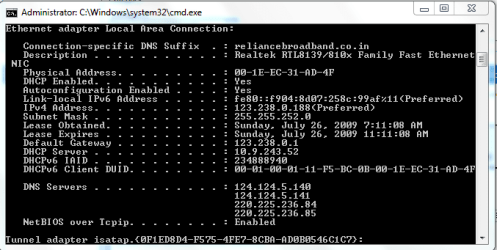
Click Start and in the Start Search box, type cmd and press Ctrl+Shift+Enter.
Now in the black command prompt window, type ipconfig /all
(See the screen-shots below).
1.PNG

Look for Ethernet Adapter Local Area Connection.
Look for IPV4 Address. If its anything other than 169.254.xxx.xxx, you have a valid IP address.
For any other ip address other than 169.254.xxx.xxx, follow these steps:
   Information
Now that you've diagnosed that you have a valid IP address, its time to diagnose the issue.

A: In the same black command prompt window, type
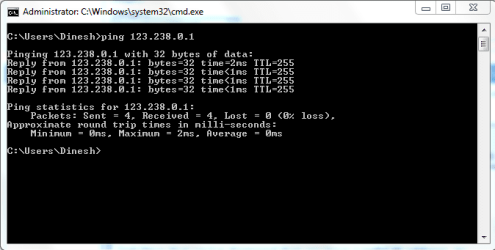
ping <Default Gateway> and press Enter.
(See the screenshot below).
2.PNG
Now look at the ping statistics, it should send 4 packets and receive 4 packets. Sent=4, Received=4, Lost=0.

B: If the ping is successful, type
ping Google and press Enter.
(You can type the address of any website like Yahoo! to check the connectivity).
(See the screenshot below).
3.PNG
If the ping is again successful, your Anti virus or firewall program is blocking your internet connection. By pinging Default Gateway and websites, we check the internet connectivity of the computer with ISP and websites respectively.

   Information
Now that you've diagnosed that the ping is successful, its time to troubleshoot the issue.


  • If ping to Default Gateway and website is successful but you cannot browse any websites:
Temporarily disable/remove your antivirus program and your internet will start working.
Note: You can also boot to safe mode with networking to check the internet connectivity. (Press F8 when you turn on your computer and select Safe mode with networking option to boot the computer to safe mode with networking).


  • If ping to Default Gateway is successful but pinging websites returns an error and you cannot browse any websites:
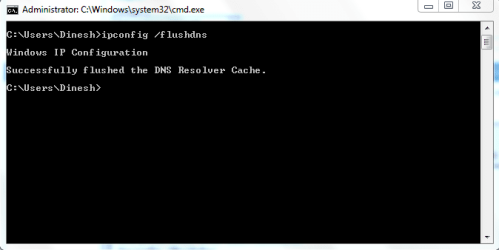
In the same black command prompt window, type the following commands and press Enter after each command:
Ipconfig /flushdns
Ipconfig /release
Ipconfig /renew
Now restart your computer and try to browse to some websites like yahoo,google, etc.
4.PNG

  • If ping to Default Gateway and pinging websites returns an error and you cannot browse any websites:
   Note
If you ping the default gateway or any website, you may get an error saying “Media State Media Disconnected” and ping will not return you any statistics

A: Check whether your internet cable is properly plugged in to the computer.

B: Remove the internet cable from computer, restart your cable modem and computer and plug the internet cable back to the computer.

C: Verify whether all the lights on the cable modem are lit.

D: Enter BIOS, make sure that the Integrated NIC is Not Disabled.

E: In the black command prompt window, type
Ipconfig /release and press Enter. Then type ipconfig /renew to obtain a new ip address from the DHCP server.

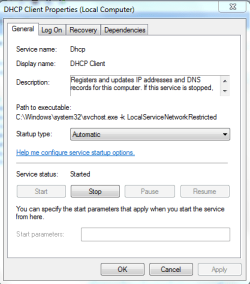
F: Click Start and in the Start Search box, type services.msc and press Enter. Then double-click DHCP client service and make sure the Startup type is Automatic and Status is Started.
5.PNG
If ping to Default Gateway is successful but pinging any website is unsuccessful and you cannot browse any websites:
(Ping Statistics: Sent=4, Received=0, Lost=4. )
A: Temporarily disable/remove your antivirus or firewall program.

B: Try a system restore.

C: Delete all temp files and cookies and restart your computer and cable modem.

D: If you have connected your computer to a router, bypass the router and connect the computer directly to the cable/DSL modem.
For ip address 169.254.xxx.xxx, follow these steps:
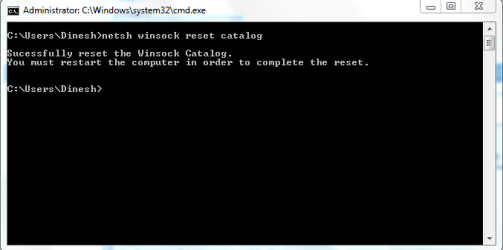
A: In the command prompt window, type
netsh winsock reset catalog and press Enter. Now restart your computer.(See the screenshot below).
6.PNG


B: Try a system restore.

C: Click Start and in the Start Search box, type services.msc and press Enter. Then double-click DHCP client service and make sure the Startup type is Automatic and Status is Enabled.

D: Remove the internet cable from computer, restart your cable modem and computer and plug the internet cable back to the computer.

E: Reinstall Windows 7.

   Note
To fix internet issues related to dial-up connection, follow these steps:


When you Cannot Connect to internet or cannot dial a connection using a dial-up connection.
A: Check your telephone line and make sure its connected properly to the modem port at the back of the computer.

B: Lift the telephone receiver and listen to the dial tone to make sure that the telephone line is working.

C: Check the connection properties by clicking on Start>Control Panel\All Control Panel Items>Phone and Modem.
Under Phone and Modem>Dialing Rules>My Location>Edit make sure that the Country/Region and the Area Code is matching with yours.
(See the screen-shots below)


D: Click Start and in the Start Search box, type msconfig and press Enter.
In the system configuration utility, click Startup and click Disable All.
Click Apply and Click on Ok and Click Restart now.
(See the screen-shots below)
Capture.PNG

E: Delete temp files and cookies by using this tutorial.

F: Call your ISP to reset your account.

G: Open the computer and Reseat the modem card or put it in a different slot.
(See the screen-shots below)

H: Reinstall Windows 7.

I: Replace the modem card (Hardly costs US$20).

   Note
If your internet stopped working after a thunderstorm or lightening, directly proceed to Step G.


Note: Make sure you install the latest NIC driver for high speed internet connection.
Hope this helps you getting online once again,
Dinesh.


Last edited by a moderator:
Go t odevice mgr and uninstall network adaptor and restart your computer.
Or set up a new internet connection.

Unfortunately that option didn't work. The driver is the latest, according to realtek web site (maybe I should try the one for Vista), and it's restored automatically when I restart. Doing some tests, my connection seems ok if a configure my modem as a router, but I don't like the idea of having my connection always on. I just want to disconnect and connect when I decide to. And that means a normal pppoe ethernet connection.

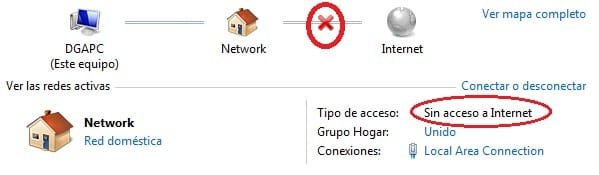
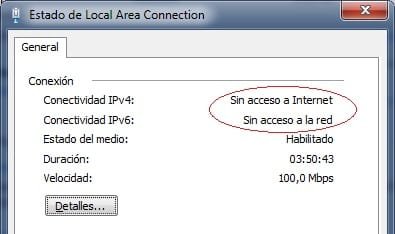
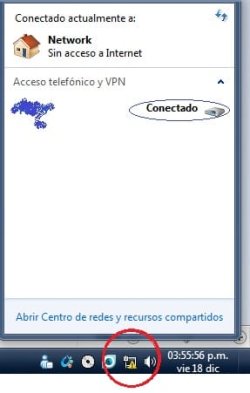
If anywone has the same problem, this is what I'm talking about (see the pictures). Going to my Local Network properties, the IPv4 and IPv6 connectivities are down. But, with all of this, Internet works OK, browsers, p2p, etc. It's connected.

The following DID NOT WORK:

1-Power off and back on my modem
2-Restart, reinstall my network drivers
3-Checking hardware problem, like cable and phone line
4-Set up a new internet connection, with default options
 

Attachments

  • WTF.jpg
    WTF.jpg
    31.4 KB · Views: 636
  • WTF2.jpg
    WTF2.jpg
    28.4 KB · Views: 628
  • WTF3.jpg
    WTF3.jpg
    33.5 KB · Views: 629

My Computer

OS
Windows 7 Ultimate 64-bit
I had the same issue until I reinstalled win7. :(
 

My Computer

Computer Manufacturer/Model Number
Samsung NP530U4B-S02IN
OS
Windows® 8 Pro (64-bit)
CPU
Intel® Core™ i5 Processor 2467M (1.60GHz, 3MB L3 Cache)
Motherboard
Samsung Electronics
Memory
6GB DDR3 System Memory at 1,333MHz (on BD 4GB + 2GB x 1)
Graphics Card(s)
AMD Radeon™ HD7550M 1GB DDR3 (Ext. Graphic)
Sound Card
Realtek High Definition Audio
Monitor(s) Displays
35.56cm (14.0) SuperBright 300nit HD LED Display
Screen Resolution
1366x768
Hard Drives
1TB S-ATA II Hard Drive (5400RPM) with ExpressCache 16GB SSD
Internet Speed
sucks
Antivirus
Microsoft Security Essentials
Browser
Google Chrome (Sync enabled)
Same Issue

I have the same problem

I'm buying a cheap network card and will try that rather than a fresh install.
Thanks for the help
 

My Computer

OS
Windows 7
Yes, it looks like I'm gonna have to reinstall W7. Bad luck... This isn't really a problem, because I can use Internet but it's really annoying!! I just hope anyone fixes this with windows update...:cry:

Probably I'll just hide the notification icon now..
 

My Computer

OS
Windows 7 Ultimate 64-bit
Hi everyone,
after reinstalling Windows 7, a clean install by the way, the internet problem is solved, the connection now occurs normally, without any issues. I just hope this doesn't happen again.
Merry Christmas to you all!!:D
 

My Computer

OS
Windows 7 Ultimate 64-bit
Windows 7 Dial up

Hi all,
I've just installed Windows 7 (old system was XP) and am now having trouble with my dial up internet connection. Whenever i try to connect it dials and attempts to communicate with the remote server then the connection is closed due to error 628 or 629 and occassionally 619. I have an Agere Win Modem which i believe is the source of the problem as i am able to use the dial up connection through other computers. I've tried some new drivers but am stuggling to find Agere one's and have had no luck so far.
Does anyone have any ideas?
 

My Computer

OS
Windows 7
contact your internet provider.
 

My Computer

Computer Manufacturer/Model Number
Samsung NP530U4B-S02IN
OS
Windows® 8 Pro (64-bit)
CPU
Intel® Core™ i5 Processor 2467M (1.60GHz, 3MB L3 Cache)
Motherboard
Samsung Electronics
Memory
6GB DDR3 System Memory at 1,333MHz (on BD 4GB + 2GB x 1)
Graphics Card(s)
AMD Radeon™ HD7550M 1GB DDR3 (Ext. Graphic)
Sound Card
Realtek High Definition Audio
Monitor(s) Displays
35.56cm (14.0) SuperBright 300nit HD LED Display
Screen Resolution
1366x768
Hard Drives
1TB S-ATA II Hard Drive (5400RPM) with ExpressCache 16GB SSD
Internet Speed
sucks
Antivirus
Microsoft Security Essentials
Browser
Google Chrome (Sync enabled)
Hi all,
I've just installed Windows 7 (old system was XP) and am now having trouble with my dial up internet connection. Whenever i try to connect it dials and attempts to communicate with the remote server then the connection is closed due to error 628 or 629 and occassionally 619. I have an Agere Win Modem which i believe is the source of the problem as i am able to use the dial up connection through other computers. I've tried some new drivers but am stuggling to find Agere one's and have had no luck so far.
Does anyone have any ideas?
Hello ironmannick, and welcome to Windows Seven Forums.

Yes, your phone modem is very old and is not well supported. I would suggest you look here at the Windows 7 Compatibility Center hardware browse results - Networking - Modems for a Windows 7 compatible phone modem.

Cheers!
Robert
 

My Computer

OS
...
thanks for your speedy reply iseeuu,
I thought it might be the modem, i've been trying to find up to date drivers for over week but none of them will install on my system. So you recommend buying a new modem altogether?

cheers,
Nick
 

My Computer

OS
Windows 7
thanks for your speedy reply iseeuu,
I thought it might be the modem, i've been trying to find up to date drivers for over week but none of them will install on my system. So you recommend buying a new modem altogether?

cheers,
Nick
Hi Nick!

The Lucient modem you are using has changed hands/names/brands a few times. Companies lose interest in keeping old inherited hardware up to date when they are trying to sell new hardware. A newer, 7 compatible, modem should be an easy, not very expensive fix. When I reviewed (briefly) the modem compatibility page, I saw some 30 internal and external modems to choose from.

Happy surfing!
Robert
 

My Computer

OS
...
[/QUOTE]Hi Nick!

The Lucient modem you are using has changed hands/names/brands a few times. Companies lose interest in keeping old inherited hardware up to date when they are trying to sell new hardware. A newer, 7 compatible, modem should be an easy, not very expensive fix. When I reviewed (briefly) the modem compatibility page, I saw some 30 internal and external modems to choose from.

Happy surfing!
Robert[/QUOTE]

Thanks Robert,
Yes oon my travells i found it had changed around a fair bit and as it worked fine on my old XP system i believe this is the problem. Thanks for all your help with this :)

Nick
 

My Computer

OS
Windows 7
Windows 7 Networking

My connection problems are "semi-solved" but I have to say I'm not impressed with the entire setup of the Windows 7 networking.

I'm not a fan of the whole Network and sharing center and I'd recommend the first thing anybody do is manually check you're connected to the correct workgroup and you create a shortcut to your "Local Area Connection"

Also disabling IPv6 when it's not needed is really recommended. Reinstalling an entire OS because you can't connect to the net properly...mmm....:(
 

My Computer

OS
Windows 7
bump

*sry forgot*

Thanks everybody for all the input. Thanks Dinesh for the tutorial.

Have a great new year everybody
 

My Computer

OS
Windows 7
*sry forgot*

Thanks everybody for all the input. Thanks Dinesh for the tutorial.

Have a great new year everybody
You are Welcome mate. Hope your issue is now fixed. :)
 

My Computer

Computer Manufacturer/Model Number
Samsung NP530U4B-S02IN
OS
Windows® 8 Pro (64-bit)
CPU
Intel® Core™ i5 Processor 2467M (1.60GHz, 3MB L3 Cache)
Motherboard
Samsung Electronics
Memory
6GB DDR3 System Memory at 1,333MHz (on BD 4GB + 2GB x 1)
Graphics Card(s)
AMD Radeon™ HD7550M 1GB DDR3 (Ext. Graphic)
Sound Card
Realtek High Definition Audio
Monitor(s) Displays
35.56cm (14.0) SuperBright 300nit HD LED Display
Screen Resolution
1366x768
Hard Drives
1TB S-ATA II Hard Drive (5400RPM) with ExpressCache 16GB SSD
Internet Speed
sucks
Antivirus
Microsoft Security Essentials
Browser
Google Chrome (Sync enabled)
Slightly different problem for me. No trouble setting up a Dialup connection with a USB Modem. Works as well as Dialup ever does. However, when the computer is either put to Sleep or goes to Sleep when not used, the Modem has to be removed from the USB slot and replaced before it will work. This does not happen when the machine is either Shut Down or Restarted. Any ideas?
 

My Computer

OS
Windows 7
Sleep Mode?

Have you checked that the modem or network card is not going to sleep or automatically shutting off?

right click My Computer-->Properties-->Device manager-->
-->Open Network adapters-->right click your network card-->properties-->

Check under the advanced menu and the Power Management menu

Make sure that your network card isn't going to sleep automatically.
Alternatively, you said you were on dial-up, maybe check the properties for your modem driver also in Device manager.

Do you have any yellow exclamation marks in Device Manager?
 

My Computer

OS
Windows 7
There was a Tick in the box Allow the computer to shut this device to save power. Should I remove this tick?
I cannot find any Yellow exclamation marks anywhere!
Thank you.
 

My Computer

OS
Windows 7
Laptop / notebook?

Leave that tick off "Allow the computer to turn off this device so save power"
Remember that if it's a Laptop / notebook then that setting will drain your battery.

Can I ask how old is the modem?
Is the modem Windows 7 compatible? You can check at the link below
Windows 7 Compatibility Center home
 

My Computer

OS
Windows 7
*edit*
sorry I just thought of something else you could try (maybe you have already?)
In Control Panel under the search field just type "Power" and it should bring up an option "change power-saving settings"

Under "preferred plans" click "change plan settings" then click "change advanced power settings"
Under "USB settings" try changing "USB selective suspend setting to disabled"

I know this isn't a solution but let's first try and identify where the problem lies. The fact that the modem is switching off / not working when the computer "Sleeps" but works upon restart is probably either

A faulty driver or setting in the driver
A setting somewhere in windows switching the modem off
The modem is faulty

I'm assuming your other USB ports work just fine when the computer comes out of sleep mode (pen drives / flash drives / printer)
 

My Computer

OS
Windows 7
Back
Top