Is HD really full?

sverne

New member
Member
VIP
Local time
3:30 PM
Messages
166
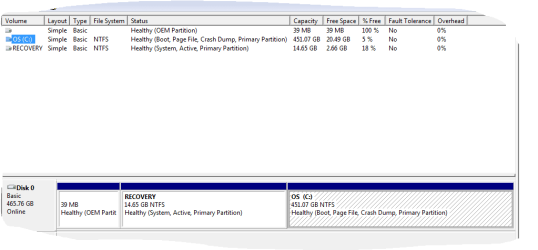
I have a Dell Inspiron with 500G and only 20.4G left. Doing a rough count of my system's "properties", I am using about 200G. Is it possible that there is something wrong with my HD, that is using up space unnecessarily? I ran a Chkdsk and Scannnow, but it was clean. Do I need to erase a lot of my files and/or buy a larger HD?
I am enclosing screenshot of Disk Management: Capture.PNG
 

My Computer

Computer type
PC/Desktop
Computer Manufacturer/Model Number
Lenovo
OS
win7 64bit Pro
CPU
2.4
Memory
8G
Hard Drives
1T SSD
Well one thing that comes to mind is do you use your hd to store a lot of pics, music, etc.? If so, that could account for why you only have that much space left. I doubt something is wrong with the drive itself unless you specified the parameters for the partition wrong when installing windows which can happen from time to time.
 

My Computer

Computer type
PC/Desktop
Computer Manufacturer/Model Number
custom built
OS
Windows 7 ultimate 64-bit
CPU
Intel I7 2600K 3.4ghz
Motherboard
Asus Evo P8P67
Memory
Corsair 16gb ddr3 1600mhz
Graphics Card(s)
Nvidia Geforce gt 430
Sound Card
Sound Blaster Titanium x-fi pci express
Monitor(s) Displays
Dell E198WFP
Hard Drives
1 western digital 2TB drive.
PSU
Antec 1200 watt
Case
Inwin Dragon Rider
Cooling
6 case supplied cooling fans
Keyboard
logitech mk700
Mouse
logitech m705
Internet Speed
25-50mbps download; 10mbps upload(i think)
Antivirus
avg free 2014
Browser
mozilla firefox
Other Info
Also have a pretty bad speaker setup which is a klipsch promedia 5.1 surround speaker setup with huge subwoofer and lg blu ray player/writer. Also a hp officejet pro 8600 plus wireless all in one and a logitech s7500 webcam.
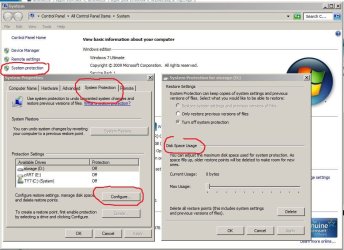
system restore points can take up a lot of space--if you turn 'system protection' off-it will delete all but your most recent restore point--also check 'disk space usage' which can be adjusted (see screen shot)
 

Attachments

  • Capture.JPG
    Capture.JPG
    96.3 KB · Views: 2

My Computer

Computer type
PC/Desktop
Computer Manufacturer/Model Number
SALEON Systems V3.1
OS
Windows 7 Ultimate 32bit
CPU
Intel Core 2 Extreme QX6850
Motherboard
ASUSTeK P5G41-M LE
Memory
4 gb
Graphics Card(s)
NVIDIA GeForce 8400GS
Hard Drives
Intel 120 GB SSD, Seagate 250GB, Seagate 2TB
Antivirus
Comodo
Browser
Chrome
TreeSize is a handy Program for letting you know what is using up your Hard Drive space ...
 

My Computer

Computer Manufacturer/Model Number
W530-3630QM1
OS
windows 7 home 64bit
CPU
INTEL-CORE I7
Memory
16GB
Hard Drives
750GB
Browser
Chrome
Have you emptied the Recycle bin?

https://windirstat.info/ is another program to help you figure out what is using your disk space.
 

My Computer

Computer type
PC/Desktop
Computer Manufacturer/Model Number
Home Built desktop, Dell G15 5511 Gaming laptop,MS Surface Pro 7 tablet
OS
W10 Pro desktop, W11 laptop, W11 Pro tablet (all 64-bit)
CPU
3.7Ghz 8700K i7, i7-11800H, i7-1065G7
Motherboard
ASUS TUF Z370-Pro Gaming in desktop
Memory
16G desktop, 16G laptop, 4G tablet
Graphics Card(s)
AMD Radeon RX580, RTX 3060, Intel Iris Plus
Sound Card
High Definition Audio (Built-in to mobo)
Monitor(s) Displays
Samsung U32J59 32" (2x), 15.6", 12"
Screen Resolution
3840x2160, 3840x2160, 1920x1080, 2160x1440
Hard Drives
500G SSD for OS; 2T, 10T & 15T HDDs for Data on Desktop, 1TB SSD laptop, 128G SSD tablet.
PSU
Corsair CX 750M
Case
Antec 100
Cooling
CM 212+
Keyboard
IBM Model M - used continuously since 1986
Mouse
Microsoft Pro IntelliMouse
Internet Speed
400M down 8M up
Antivirus
Windows Defender
Browser
FireFox
Other Info
Built my first computer (8Mhz 8088cpu, 640K RAM, 20MB HDD, 2 360K floppy drives) in 1985 and have been building them for myself, relatives and friends ever since.
Thanks to all for the super quick replies. By my count, files (music, video,doc and pics) are using 122G, while windows and system components are using 54G, which should leave about 300G.
I will downsize my system restore point, but if i turn it off, will it still have the last point available for recovery?
And yup, the trash is empty! I will now try Treesize.
 

My Computer

Computer type
PC/Desktop
Computer Manufacturer/Model Number
Lenovo
OS
win7 64bit Pro
CPU
2.4
Memory
8G
Hard Drives
1T SSD
Run WinDirStat as advised - then you'll know. Counting yourself will definitely give you the wrong results.

And yes, if you manipulate the restore points (shadowstorage) you are liable to lose your restore points. But you can immediately make a new one. I suggest to set the shadowstorahe to 5GB. That should suffice.
 

My Computer

Computer Manufacturer/Model Number
HP, Dell, Gateway, Toshiba - 4 laptops and 2 desktops
OS
Vista, Windows7, Mint Mate, Zorin, Windows 8
CPU
from 1.6GHz Duo to i7
Monitor(s) Displays
2x HP w2207
Hard Drives
5x HDD, 7x SSD, 12x Externals
Keyboard
with trackball - no mices
Mouse
Trackball mice
Internet Speed
DSL 6000
You'll have to determine which folder(s) exactly are taking the most space. Maxie's suggestion is a good one.

I'd suggest running Disk Cleanup, it should take care of temporary files, remaining backup files from updates, etc.. all from one program.
http://www.sevenforums.com/tutorials/818-disk-cleanup-open-use.html

And yes if your HDD is almost full, you should definitely start to delete/uninstall some things. You could always add or replace the HDD with a newer one. With a disk almost full, Windows will feel much more sluggish, and your drive will fragment very fast (leading to an even slower PC).
 

My Computer

Computer type
PC/Desktop
OS
Windows 8
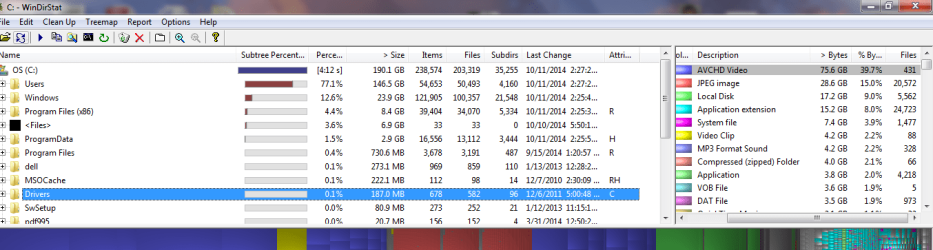
I ran WinDirStat and the total count was 190G with the videos and pictures taking the most space; so my approximate "count" was close. Am I correct in the total count? If so where is the other 300G? Just in case this is important-in my computer, the C drive bar is in red and there is no D drive.
Capture.PNG
 

My Computer

Computer type
PC/Desktop
Computer Manufacturer/Model Number
Lenovo
OS
win7 64bit Pro
CPU
2.4
Memory
8G
Hard Drives
1T SSD
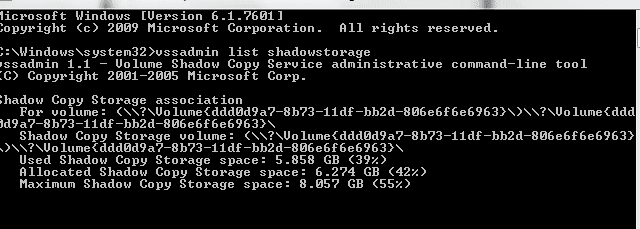
run this command and post the result:

vssadmin list shadowstorage
 

My Computer

Computer Manufacturer/Model Number
HP, Dell, Gateway, Toshiba - 4 laptops and 2 desktops
OS
Vista, Windows7, Mint Mate, Zorin, Windows 8
CPU
from 1.6GHz Duo to i7
Monitor(s) Displays
2x HP w2207
Hard Drives
5x HDD, 7x SSD, 12x Externals
Keyboard
with trackball - no mices
Mouse
Trackball mice
Internet Speed
DSL 6000
Capture.PNG
 

My Computer

Computer type
PC/Desktop
Computer Manufacturer/Model Number
Lenovo
OS
win7 64bit Pro
CPU
2.4
Memory
8G
Hard Drives
1T SSD
Remember that Windows loves to hide things from the user. Enable showing of system and hidden files to see the whole hardisk contents so that you include those while counting.
Also, take into account that you normally don't have read permission to everything so those will never be included. Try running WinDirStat as administrator and let it count again.
You first post shows your HD as a recovery partition, remember to take it into account when doing the maths.

One more thing, if you look at the C drive properties, how much total and free space does it reports?
 

My Computer

Computer type
Laptop
Computer Manufacturer/Model Number
Toshiba Sattelite A665-S6092
OS
Windows 7 Ultimate x64
CPU
Intel Core i7-740QM
Memory
8 GB DDR3
Graphics Card(s)
NVIDIA GeForce 330GT
Screen Resolution
1366x768
Hard Drives
Samsung 840 SSD 500GB
1TB USB3 external HD
Cooling
Coolermaster Notepal U3 notebook cooling pad
Internet Speed
3mbps ASDL
Antivirus
ClamWin 0.98.7
Browser
Opera 12.17 x86 (main), Firefox 38 (sec), IE11 (last resort)

My Computer

Computer Manufacturer/Model Number
HP, Dell, Gateway, Toshiba - 4 laptops and 2 desktops
OS
Vista, Windows7, Mint Mate, Zorin, Windows 8
CPU
from 1.6GHz Duo to i7
Monitor(s) Displays
2x HP w2207
Hard Drives
5x HDD, 7x SSD, 12x Externals
Keyboard
with trackball - no mices
Mouse
Trackball mice
Internet Speed
DSL 6000
Ran WinDirStat as administrator, but still the same results. ??
 

My Computer

Computer type
PC/Desktop
Computer Manufacturer/Model Number
Lenovo
OS
win7 64bit Pro
CPU
2.4
Memory
8G
Hard Drives
1T SSD

My Computer

Computer type
PC/Desktop
Computer Manufacturer/Model Number
Home-built, two systems (1) and (2)
OS
Windows 7 Pro x64 (1), Win7 Pro X64 (2)
CPU
i5-3350p 3.1Ghz/6MB-cache (1); E8400 3.0Ghz/6MB-cache (2)
Motherboard
ASUS P8Z77-V Pro (1); ASUS P5Q3 (2)
Memory
8GB PC3-12800 DDR3 (1); 4GB PC3-10600 DDR3 (2)
Graphics Card(s)
ATI HD7750 (1), (see TV cards); ATI R7 250 (2)
Sound Card
Realtek ALC892 HD Audio (1); Realtek ALC1200 HD Audio (2)
Monitor(s) Displays
Eizo HD2441W LCD, Eizo S2433W (1); Eizo 24" S2433W (2)
Screen Resolution
1920x1200, 1920x1200 (1); 1920x1200 (2)
Hard Drives
(1) 1TB SATA-II (7200RPM), 2x2TB SATA-III (7200RPM), 250GB SATA-III (10000RPM) for OS; 2x2TB external USB 3.0

(2) 320GB SATA-II (7200RPM), 750GB SATA-II (7200RPM), 150GB SATA-II (10000RPM) for OS; 2TB external USB 3.0
PSU
Nesteq ECS-6001 600W (1); Nesteq ECS-5001 500W (2)
Case
Acousti-Case 360 (1) and (2)
Cooling
Noctua NH-U12P SE2 for CPU, 2x120mm case fans (1) and (2)
Keyboard
IBM PS/2 (1) and (2)
Mouse
Logitech MX Revolution wireless (1); Microsoft wired (2)
Internet Speed
100mbps down / 10mbps up
Antivirus
Microsoft Security Essentials; Malwarebyte Anti-Malware Pro
Browser
Firefox
Other Info
Ceton InfiniTV 4-tuner cablecard-enabled TV card as well as Hauppauge HVR-2250 OTA/ATSC 2-tuner TV card in (1), running under Win7 WMC
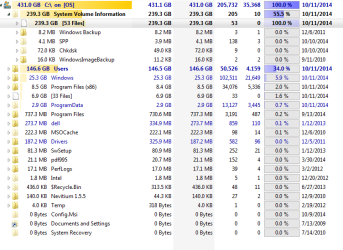
Wow, Treesize is pretty different for the System, but the same for Users! I'm enclosing two snips with the second one expanded on the System to show what it uses (and it is not all shown, just the largest)
Capture1.PNG

Capture2.PNG
 

My Computer

Computer type
PC/Desktop
Computer Manufacturer/Model Number
Lenovo
OS
win7 64bit Pro
CPU
2.4
Memory
8G
Hard Drives
1T SSD
If my calculation is right, you have appr. 165GBs that are unaccounted for. Very strange. I really wonder how that could have gone on the disk without showing in the Master File Table.

Have a look into AppData. Sometimes strange stuff is hiding there.
 

My Computer

Computer Manufacturer/Model Number
HP, Dell, Gateway, Toshiba - 4 laptops and 2 desktops
OS
Vista, Windows7, Mint Mate, Zorin, Windows 8
CPU
from 1.6GHz Duo to i7
Monitor(s) Displays
2x HP w2207
Hard Drives
5x HDD, 7x SSD, 12x Externals
Keyboard
with trackball - no mices
Mouse
Trackball mice
Internet Speed
DSL 6000
The TreeSize screenshot shows 239 GB on System Volume Information, far more than anything else. This folder is where system restore points are stored, you could try deleting some of the oldest ones or reducing the space assigned to it.
 

My Computer

Computer type
Laptop
Computer Manufacturer/Model Number
Toshiba Sattelite A665-S6092
OS
Windows 7 Ultimate x64
CPU
Intel Core i7-740QM
Memory
8 GB DDR3
Graphics Card(s)
NVIDIA GeForce 330GT
Screen Resolution
1366x768
Hard Drives
Samsung 840 SSD 500GB
1TB USB3 external HD
Cooling
Coolermaster Notepal U3 notebook cooling pad
Internet Speed
3mbps ASDL
Antivirus
ClamWin 0.98.7
Browser
Opera 12.17 x86 (main), Firefox 38 (sec), IE11 (last resort)
you have 53 restore points (do you really need 53?)
turn off protection--which will delete all but the most recent restore point
empty recycle bin
restart machine
turn system restore back on...
you should gain approx 200 GB of disk space
 

My Computer

Computer type
PC/Desktop
Computer Manufacturer/Model Number
SALEON Systems V3.1
OS
Windows 7 Ultimate 32bit
CPU
Intel Core 2 Extreme QX6850
Motherboard
ASUSTeK P5G41-M LE
Memory
4 gb
Graphics Card(s)
NVIDIA GeForce 8400GS
Hard Drives
Intel 120 GB SSD, Seagate 250GB, Seagate 2TB
Antivirus
Comodo
Browser
Chrome
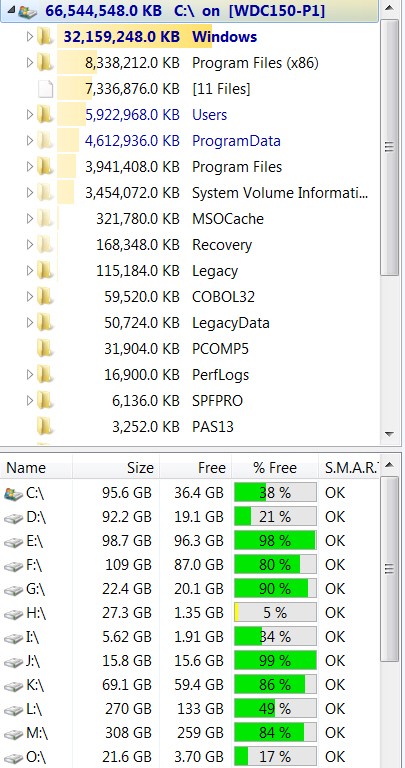
Treesize is correctly showing your C drive as having 431GB in use. On a 500GB drive formatted you have about 465GB of actual capacity, so your original comment about having only 20GB left free sounds about right. Actually, Treesize (in its lower-left pane) shows you a summary how much allocated and free space you have on all your drives. The upper-left pane shows "used", and the lower-left pane shows "total capacity" and "free".

7w9BIW.jpg


Also, as was pointed out from your screenshot, it is your System Volume Information (i.e. restore points) which are clearly the issue here. Two simple things you can do to clean that up:

(1) You can quickly use Disk Cleanup (from Start -> All Programs -> Accessories -> System Tools -> Disk Cleanup) to delete all but the latest system restore points. It can also examine the rest of your potentially unneeded system data and get rid of that as well.

Let it examine C, and check just about all of the "files to delete" items that are offered to you. I don't know why, but the only item I normally leave un-checked for deletion is "setup log files", because in my mind I think that is somehow potentially possibly useful. Anyway it's usually small, with the rest of the items shown normally amounting to quite a number of GB of worthless system data (e.g. error dumps queued for error reporting, Windows Update cleanup, etc.).

On the same Disk Cleanup dialog window, before you push the OK button to perform the deletion of all the items you've checked, select the "more options" tab. At the lower half of that tab is a "system restore and shadow copies" section, with a "Clean up..." button. If you push that button you will get a confirmation about "are you sure you want to delete all but the latest system restore point", and you then push the DELETE button in that confirmation. Presto, all but the latest restore point is now instantly vaporized.

Now you can push the OK button at the bottom of the Disk Cleanup dialog (and then push the DELETE FILES button on the confirmation dialog), to perform the vaporization of the rest of those multiple GB of other system data that is just taking space and really not needed.

(2) You can easily LIMIT the total amount of space used going into the System Volume Information area (i.e. restore points). You don't need to let this ever happen again, where you're using 250GB of space for system restore points.

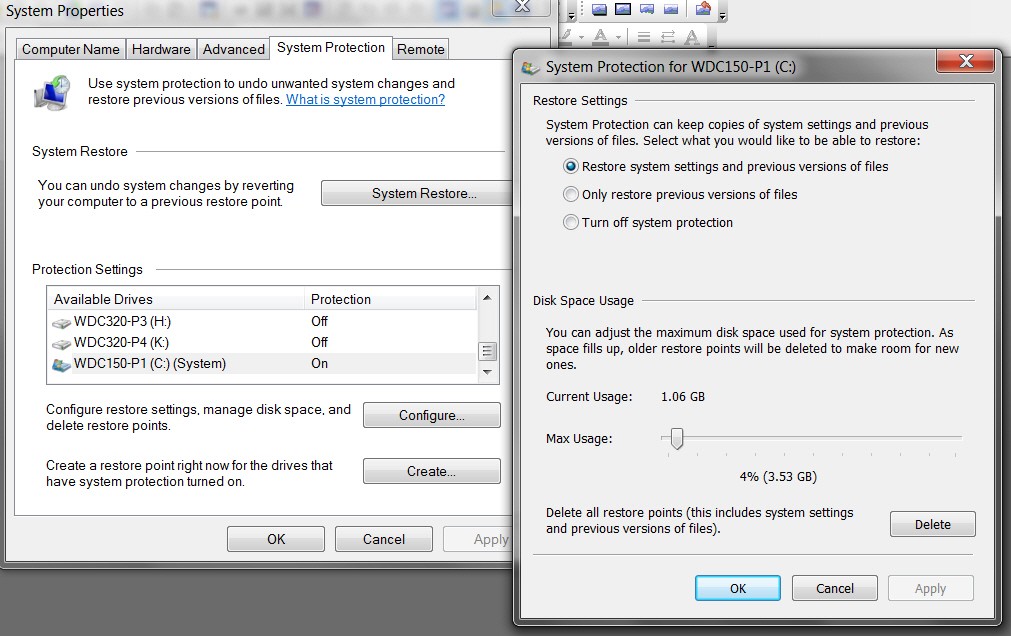
Right-click on Computer -> Properties -> System protection, to get the System Properties dialog with the "system protection" tab selected. In the Protection Settings window that shows each of your drives and whether restore points are ON or OFF for each drive, select your "C (System)" drive. Then push the CONFIGURE button to set the limit of how much maximum space on the drive is to be used for the system restore are (i.e. System Volume Information).

Yar5iT.jpg


Push the OK button (on both dialogs) and from now on Windows will automatically "prune" the oldest restore point(s) when a new one is created, in order to remain within the approximate maximum space limit you just specified for this drive.

There's certainly you have no need for allocating more than 5% of your 500GB drive to this purpose (i.e. under 25GB), and probably less than that. Your screenshot shows each restore point at about 6GB, so that would give you about four restore points in your generational retention. Typically you only ever might make use of the last one (or possibly two) restore points to recover from some problem that doing this could be your solution.

Of course for your own added protection you should also be taking regular independent "system image" and "data" backups using other software (e.g. Macrium Reflect, NovaBackup, etc.) and a regular nightly/weekly/monthly backup regimen, which provides additional solutions and backups for other and possibly more serious issues... preferably to an external USB backup drive.

 

My Computer

Computer type
PC/Desktop
Computer Manufacturer/Model Number
Home-built, two systems (1) and (2)
OS
Windows 7 Pro x64 (1), Win7 Pro X64 (2)
CPU
i5-3350p 3.1Ghz/6MB-cache (1); E8400 3.0Ghz/6MB-cache (2)
Motherboard
ASUS P8Z77-V Pro (1); ASUS P5Q3 (2)
Memory
8GB PC3-12800 DDR3 (1); 4GB PC3-10600 DDR3 (2)
Graphics Card(s)
ATI HD7750 (1), (see TV cards); ATI R7 250 (2)
Sound Card
Realtek ALC892 HD Audio (1); Realtek ALC1200 HD Audio (2)
Monitor(s) Displays
Eizo HD2441W LCD, Eizo S2433W (1); Eizo 24" S2433W (2)
Screen Resolution
1920x1200, 1920x1200 (1); 1920x1200 (2)
Hard Drives
(1) 1TB SATA-II (7200RPM), 2x2TB SATA-III (7200RPM), 250GB SATA-III (10000RPM) for OS; 2x2TB external USB 3.0

(2) 320GB SATA-II (7200RPM), 750GB SATA-II (7200RPM), 150GB SATA-II (10000RPM) for OS; 2TB external USB 3.0
PSU
Nesteq ECS-6001 600W (1); Nesteq ECS-5001 500W (2)
Case
Acousti-Case 360 (1) and (2)
Cooling
Noctua NH-U12P SE2 for CPU, 2x120mm case fans (1) and (2)
Keyboard
IBM PS/2 (1) and (2)
Mouse
Logitech MX Revolution wireless (1); Microsoft wired (2)
Internet Speed
100mbps down / 10mbps up
Antivirus
Microsoft Security Essentials; Malwarebyte Anti-Malware Pro
Browser
Firefox
Other Info
Ceton InfiniTV 4-tuner cablecard-enabled TV card as well as Hauppauge HVR-2250 OTA/ATSC 2-tuner TV card in (1), running under Win7 WMC
Back
Top