Drag and drop: If the destination window for a file about to be saved is open on the desktop, with the save D. box active, click on that destination window and its file path is entered automatically into the save D. box, evn if that destination window is deeply burried in a file hiearchy. With Windows, I have normally to save the file to the desktop then drag it onto the destination window (if it is open) and if not open, save to the desktop and hunt for the window, or do File Save As and pick my way down to that window.
I can see how that could be convenient, but it might also be annoying if you switch away from the save dialog to rummage around in the file system to look for something (as I often do) without wanting the window I am clicking on to become the save destination.
If the intended destination is open in Windows explorer, you can simply click the breadcrumb bar (to the right of any of the entries) and it will change to a path, already highlighted for your convenience. Copy that, then go back to the save dialog and click the breadcrumb bar there (which then turns into a path) and paste.
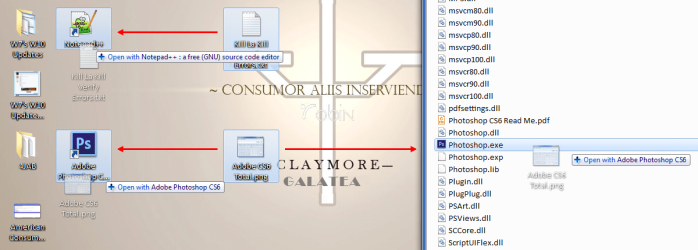
Also, if you have an image file on the desktop or buried deep in a file hierarchy, just drag it to Photoshop's icon on the equivalent of the Taskbar and Photoshop will open and display the file in one go.
I've never used Photoshop, but the functionality you seek is a part of Windows, although it is not implemented exactly the same. I've never used a Mac (other than the old black and white ones with the 9 inch black and white screen, and that was 25 years ago), so the comparison might not be exact.
To drag and drop a file into a program in the taskbar, simply drag it, point at the taskbar button for a second, and the program will pop up, and you can drop the file right into the window. If there are several instances of the program you want open, pointing at the taskbar icon will bring up a list or a series of previews of the instances (depending on settings); just point at the one you want for a second (still holding the button to drag) and it will pop up, and you can then drop the still-dragged file in. I like that better than I would like just dropping it into the icon on the taskbar directly-- because I could be attempting to drop the file into a window containing something I don't want to replace (if the program can only have one file open at a time, of course). By bringing up the window first, I can see where I am dropping it.
This works with the quick launch bar too; just aim (while dragging) at the program icon and make sure the tooltip says "open with {program}" rather than "Copy to Quick Launch." In that case, it always opens a new instance of the program, if the program is not able to handle multiple files at once, so overwriting an existing one is not an issue. I would imagine it works that way as well with pinned programs-- I don't use that feature, and I have it disabled at present, so I can't easily test it.
Additionally, if you are using a file type that is only used with one program, you can just double click the file to open it in the associated program. If this is not the case, you can right click the file and select "Open With..." and there will be a list of the programs you have used to open that file type. Any image file would show Photoshop as one of the options, so that would save you the difficulty you describe.
In Windows I have to open Photoshop first, open a blank window in it and then drag the image on to it, and if the size of the Photoshop window is too small or too big, I have to use the Crop tool to enlarge it or make it smaller, (unless I have not discovered a one-step way in Windows). I'm a bit hazy now, but there were other examples.
If you drag the file into a part of the Photoshop Window that is not the default new file, perhaps it would open the file as new rather than pasting it over the default file (which is what seems to be happening). The "Open with" context menu item would avoid that difficulty. You could also create a shortcut to Photoshop, and drag the file to that... this would open a new instance of Photoshop with that file.