
How to Open Local Group Policy Editor in Windows
Information
This tutorial will show you how to open the Local Group Policy Editor in Windows 7, Windows 8, and Windows 10.
To search for a group policy or for it's registry key, value, and etc..., see:
Group Policy Search
and
Download Details - Microsoft Download Center - Group Policy Settings Reference for Windows and Windows Server
To search for a group policy or for it's registry key, value, and etc..., see:
Group Policy Search
and
Download Details - Microsoft Download Center - Group Policy Settings Reference for Windows and Windows Server
Note
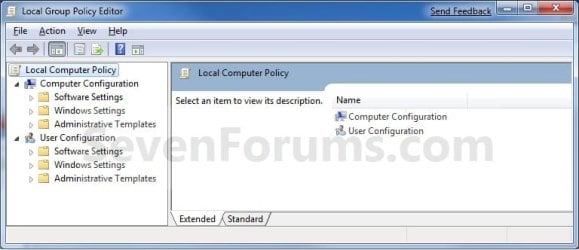
The Local Group Policy Editor is a Microsoft Management Console (MMC) snap-in that provides a single user interface through which all the Computer Configuration and User Configuration settings of Local Group Policy objects can be managed for your computer.
- Computer Configuration
Administrators can use Computer Configuration to set policies that are applied to computer, regardless of who logs on to the computers. Computer Configuration typically contains sub-items for software settings, Windows settings, and administrative templates. - User Configuration
Administrators can use User Configuration to set policies that apply to users, regardless of which computer they log on to. User Configuration typically contains sub-items for software settings, Windows settings, and administrative templates.
Warning
- You will need to be an administrator to open the Local Group Policy Editor.
- In Windows 7, the Local Group Policy Editor will only be available in the Professional, Ultimate, and Enterprise editions.
- In Windows RT, 8, and 8.1, the Local Group Policy Editor will only be available in the Pro and Enterprise editions.
- In Windows 10, the Local Group Policy Editor will only be available in the Pro, Enterprise, and Education editions.
Here's How:
1. Press the Windows + R keys to open the Run dialog, type gpedit.msc, and press Enter. NOTE: This file is located at C:\Windows\System32\gpedit.msc.
2. If prompted by UAC, click on Yes.
3. You can now set and manage the Local Group Policies on your computer to how you want them.
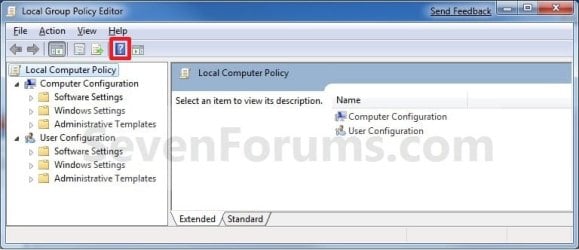
NOTE: For more details and information about how to use the Local Group Policy Editor, click on the blue ? toolbar icon. (See screenshot below)
That's it,
Shawn
Related Tutorials
- How to Back Up and Restore Local Group Policy in Windows
- How to Open the Local Security Policy Editor in Windows 7 and Windows 8
- How to Open Local Users and Groups in Windows 7 and Windows 8
- How to Create a Custom MSC in Microsoft Management Console
- How to Apply Local Group Policies to All Users Except Administrators
- How to Add Local Group Policy Editor to the Windows 7 Control Panel
- How to Apply Group Policies to a Specific User or Group in Vista and Windows 7
- How to Create and Delete a User Group in Windows 7 and Vista
- How to Reset Local Group Policy to Default in Vista, Windows 7, and Windows 8
- How to Quickly View Enabled Group Policies in Windows
- How to Force Group Policy Updates to be Applied Instantly in Windows
Last edited:


